WinMerge is a free tool that helps people compare and combine different versions of files and folders. It shows the differences between them, making it easier to see what has changed. This can be really helpful for those who work with coding, content creation, or anyone who needs to keep track of changes in documents or directories.
In this guide, we will explore exactly how WinMerge works and how you can use it to easily compare files.
- What Does WinMerge Do? How WinMerge Works
- How to Use WinMerge? Step 1: Downloading WinMerge Step 2: Selecting Files or Folders Step 3: Comparing Step 4: Modify and Make Changes
- How to Compare Folders Step 1: Access WinMerge and Choose Folders Step 2: Check Comparison Results Step 3: Make Modifications Step 4: Save Changes
- Important: Resolve Conflict Files
- WinMerge vs. Beyond Compare
- Conclusion
- FAQs
WinMerge splash screen
What Does WinMerge Do?
WinMerge operates as a versatile program with a graphical user interface (GUI) for contrasting and merging files and folders. It’s key for those needing version control and synchronization.
Its abilities include handling text and code files, with features like syntax highlighting to emphasize code structure, three-way comparison for a broader view of changes, and inline editing for direct adjustments within the tool. Being open-source, developers and professionals can use and modify it freely, making it an invaluable resource at no cost.
- Comparing Files : It highlights differences in text and code, showing what’s changed.
- Three-Way Comparison : You can view three versions at once to understand changes better.
- Syntax Highlighting : Makes reading code easier by emphasizing parts according to programming language rules.
- Inline Editing : Allows quick changes directly within the comparison view.
How WinMerge Works
WinMerge works by taking two or three files or folders and displaying them side by side, highlighting differences in content. For code files, syntax highlighting helps in understanding the changes based on programming language rules. Users can then merge the changes using inline editing, synchronizing the files or folders.
Its graphical user interface is designed to simplify these tasks, making it easier for users to compare, understand, and integrate changes, all within one tool. Whether dealing with text or code, WinMerge offers an efficient way to manage and track variations across different versions.
How to Use WinMerge?
Using WinMerge might seem tricky but it’s very simple with our easy-to-follow steps:
Step 1: Downloading WinMerge
Download and install WinMerge from the official WinMerge website . Start by opening the WinMerge application on your computer once it is installed on your system.
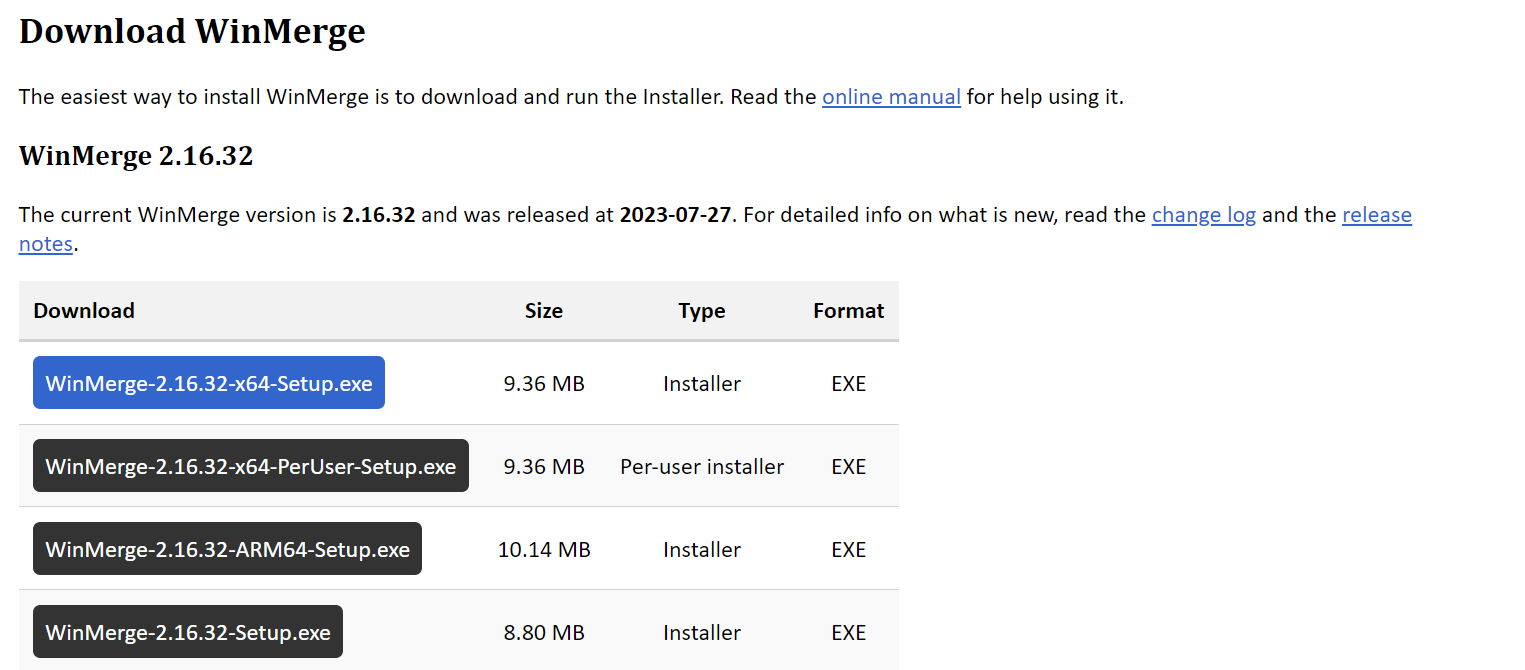
Downloading WinMerge
Step 2: Selecting Files or Folders
Once opened, press “ CTRL+O ” to open files or folders on the WinMerge program. You’ll see an option like the picture given below which will allow you to browse 2 or 3 folders or files at one time.
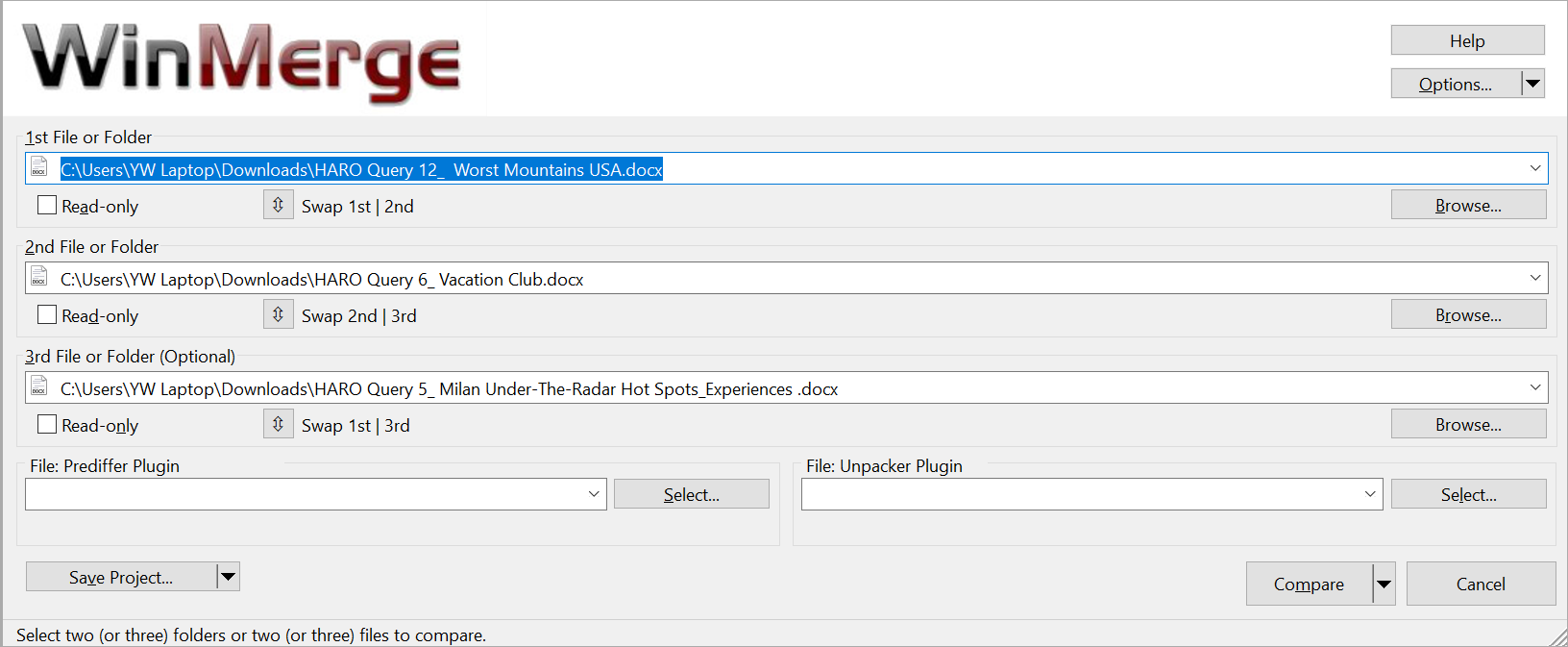
Selecting Files in WinMerge
Step 3: Comparing
Once you have selected your desired files, click on the arrow beside “ Compare ” and choose your desired mode of comparing the files. Click on it and a new window will appear.
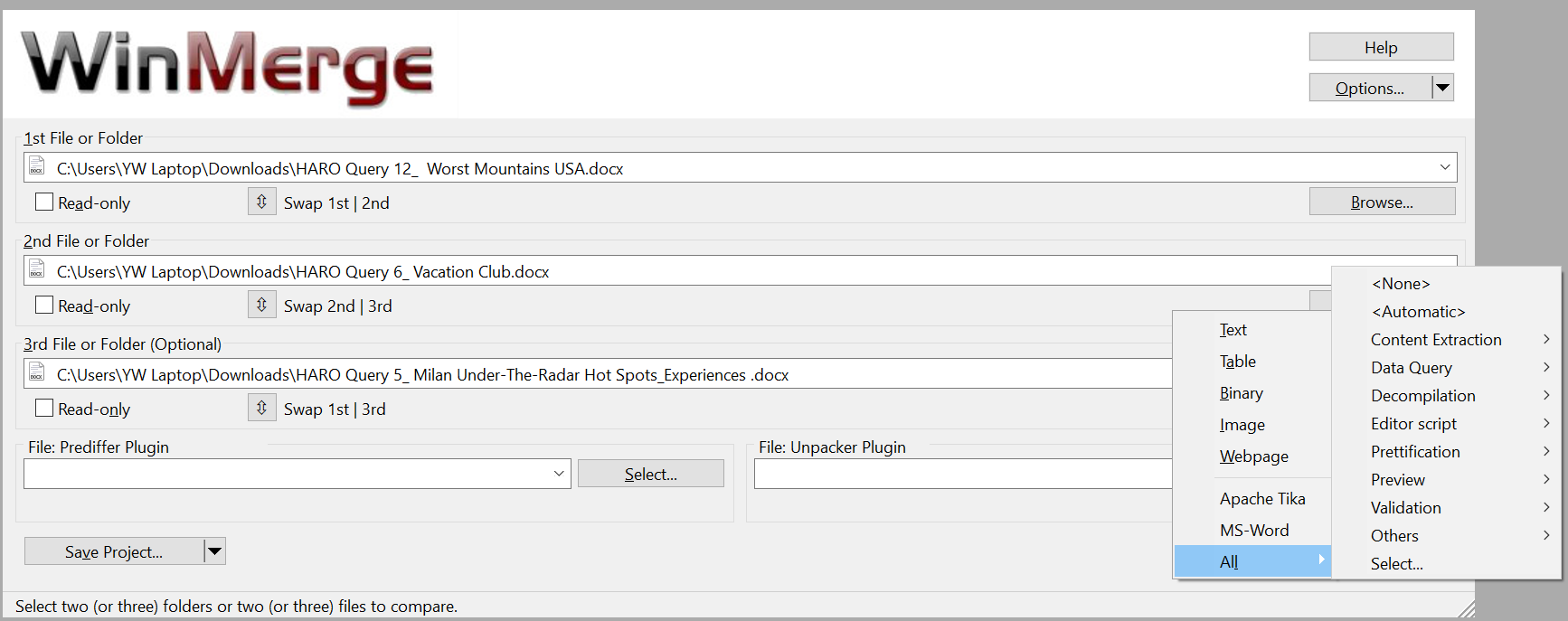
Compare Options on the Bottom Right
Step 4: Modify and Make Changes
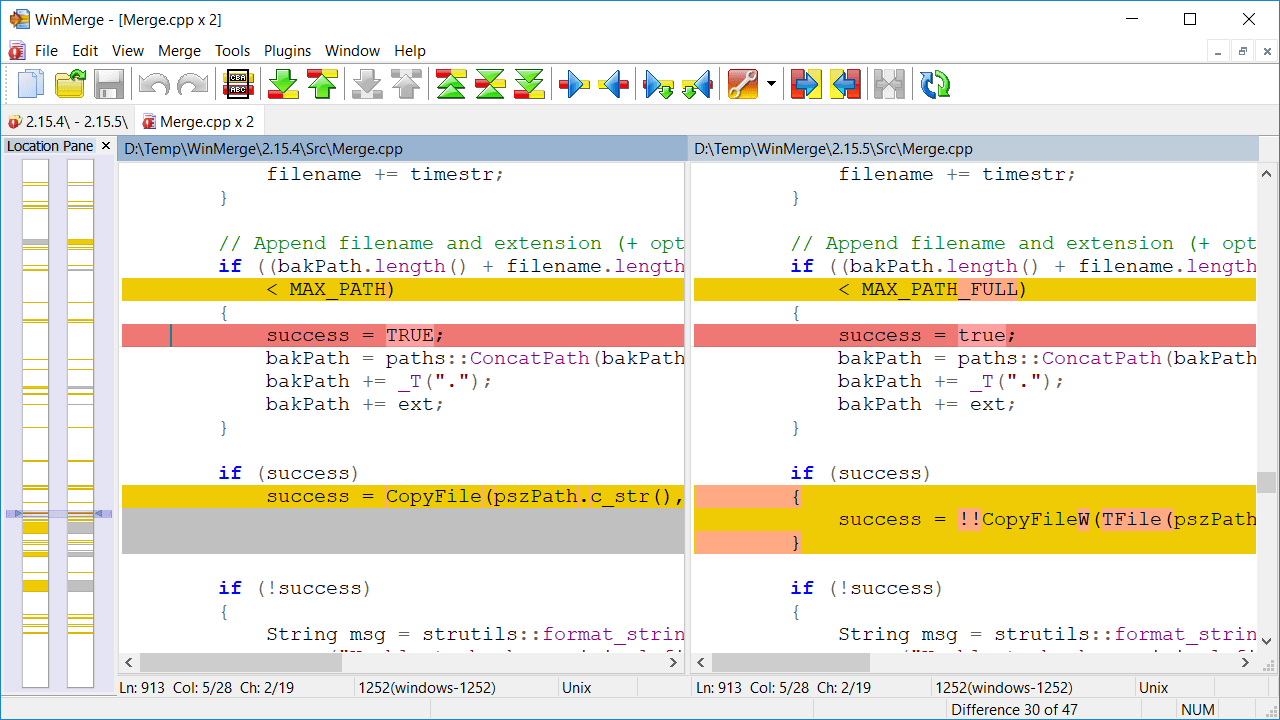
On this next screen, you will see a 2 or 3-pane window view depending on how many files or folders you selected. You have a wide range of options on the top bar to assist you in making the required changes.
Making Changes in WinMerge | WinMerge
Distinctions between the two documents will be emphasized. Similar lines are shown in white , while differences are emphasized in color (by default, red for lines that have been deleted and green for lines that have been added).
Step 5: Merge Changes
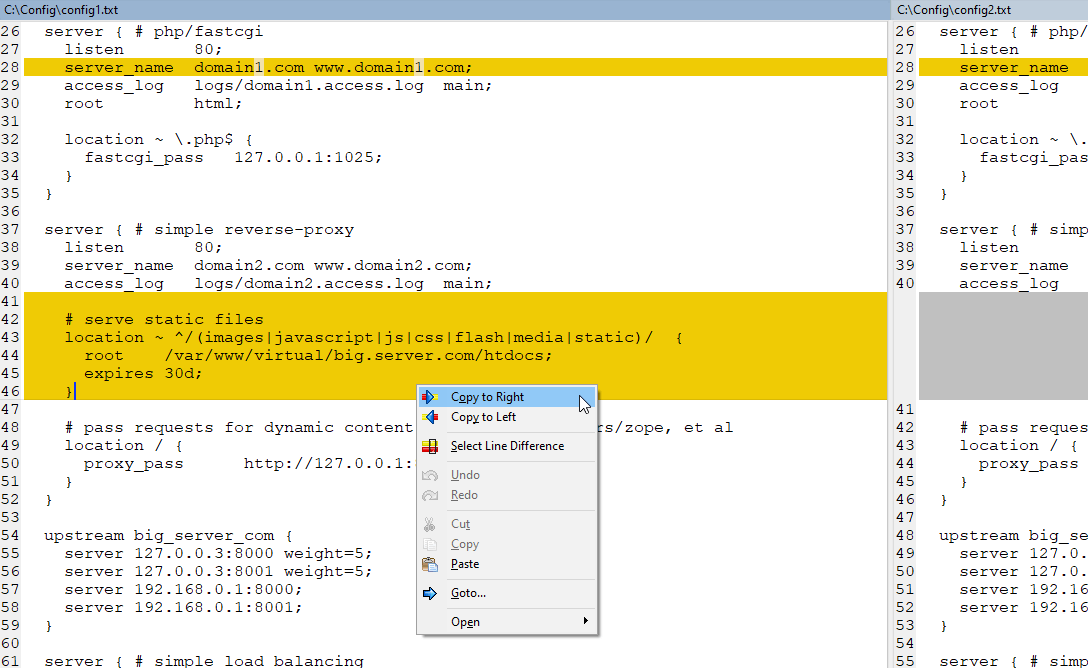
Right-clicking on a difference and selecting choices like “ Copy to Right ” or “ Copy to Left ” will allow you to merge changes from one file to the other.
Copying File Changes
Step 6: Saving Merged Files
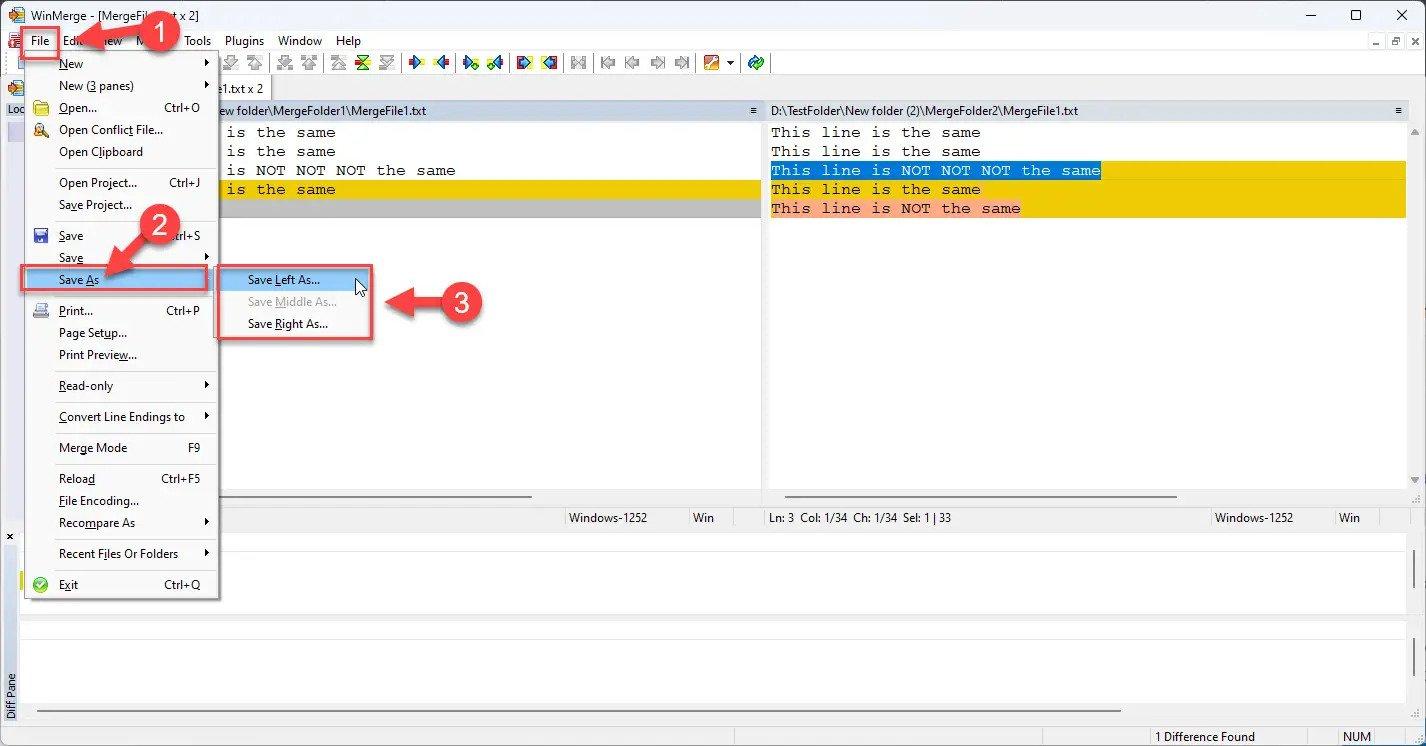
After making edits and merging the files, you can save the new version by going to the “ File ” menu and choosing “ Save As “. You can choose to save the relevant file by further going to “ Save Left As ” or “ Save Right As “.
Saving Changes in Files
How to Compare Folders
WinMerge also offers folder comparison, and this is how you can compare folders using WinMerge:
Step 1: Access WinMerge and Choose Folders
Open WinMerge and choose the Folders symbol from the menu bar. To compare several folders, just choose them in the pop-up window and click the Compare button.
Step 2: Check Comparison Results
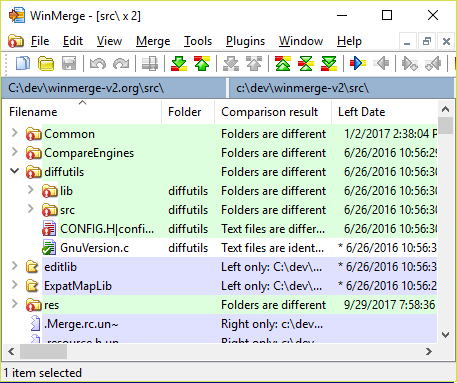
The comparison results will load in just a second or two. It will show you whether the folders and the files are same or not. You can instantly distinguish between similar files, unique files, and binary files thanks to the color-coded display.
WinMerge Folder Comparison | WinMerge Manual
Step 3: Make Modifications
You can make modifications right in the WinMerge interface if you have the proper permissions to do so. To combine edits, just copy lines or blocks from one side to the other using the buttons in the toolbar or the menu that appears when you right-click . This is very helpful when trying to merge many versions of a file into one.
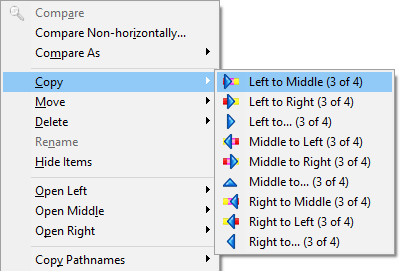
Making Folder Changes | WinMerge Manual
Step 4: Save Changes
Once the discrepancies have been ironed out, the combined file is saved by going to the “ File ” menu and selecting “Save As .”
Note: The comparison view in WinMerge is adjusted to fit your needs. To better see and understand the distinctions, you can modify settings like line wrapping , synchronized scrolling, and whitespace visibility.
Important: Resolve Conflict Files
Conflicts between files are a common side effect of using a version management system like Git . If there are incompatible files, the version control system will not let you add your modifications to the change log.
However, software like WinMerge can help you reconcile the discrepancies. When two files are in disagreement, WinMerge can combine them into one. This method compares and merges the changes made to a file between two different versions. A new file with a single intended revision level is produced.
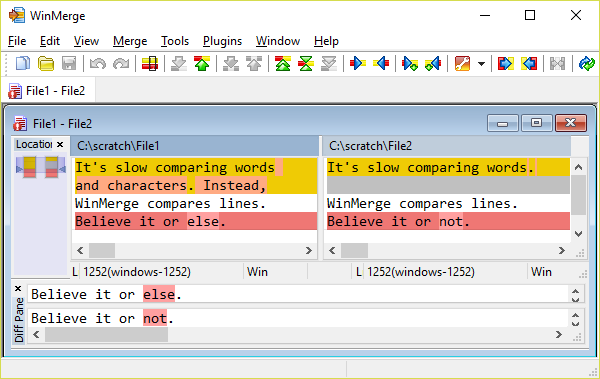
WinMerge Conflict Files | WinMerge
WinMerge is set to activate mechanically whenever a file conflict occurs. When using Git, this function is invaluable for merging files. WinMerge’s Compare window will display the offending file after a conflict has been found.
All conflict marks will be included in the file, and a tooltip will be presented to clarify the disagreement. The discrepancies between the files will be shown in the comparison pane. You can also indicate text changes with line differences if you want. Each line’s background color will update as a result of this action.
WinMerge vs. Beyond Compare
When it comes to file comparison and synchronization tools, both WinMerge and Beyond Compare have made a name for themselves in the industry. While they share some fundamental functionalities, they are distinct in design, features, and use cases. Let’s look at the nuances that set these two powerful tools apart in this table.
| Aspect | Beyond Compare | WinMerge |
|---|---|---|
| Features | Offers FTP/SFTP integration, three-way merge, text editing, hex comparison. Capable of both simple and complex tasks. | Straightforward program great for quick comparisons but lacks advanced capabilities. |
| Performance | Performs well without slowing down, even with bigger comparison jobs. Designed for quick and effective complex tasks. | Suitable for simple tasks, can become slow with large or complicated datasets. |
| Customization | Offers great customization in terms of comparison criteria, colors, file types. | Allows only minor customization, not as extensive as Beyond Compare’s possibilities. |
| Price | 30-day risk-free trial, then starting from $35 per user. | Completely free, open-source, attractive for those on a budget. |
| Platform Compatibility | Cross-platform support for Windows, macOS, Linux. | Primarily for Windows, unofficial versions for other systems may lack functionality. |
| Community and Support | Backed by a dedicated team, wealth of official documentation. | Assistance mainly from user-generated content, including manuals and forum postings. |
In summary, WinMerge is more suitable for straightforward text and code comparison needs, particularly for those seeking a free , open-source solution. Beyond Compare, on the other hand, provides more extensive features and flexibility, catering to professionals who require advanced comparison capabilities, but at a cost.
- H.264 vs H.265
- HDMI 2.0 vs 2.1
- NanoCell vs OLED
- Windows 11 Home vs Pro
Conclusion
WinMerge’s ability to simplify the intricate process of comparing and merging various versions of files sets it apart as an essential tool. Its adaptability and open-source nature make it suitable for a broad spectrum of users, not just professionals in coding or content creation.
For those in search of an efficient, no-cost solution to managing files and folders, WinMerge represents a resourceful option, bringing clarity and control to a traditionally complex task.
No, WinMerge is a desktop application and lacks real-time collaboration features. Multiple users cannot simultaneously collaborate on changes within the same file using WinMerge.
No, WinMerge is beneficial for a wide range of users, including programmers, developers, content creators, and anyone who needs to manage and compare changes in files or folders.
Yes, WinMerge supports syntax highlighting for many different programming languages, such as C++, Java, Python, HTML, CSS, JavaScript, and more. This feature helps programmers easily identify and analyze code changes.
WinMerge is primarily for Windows, although unofficial versions for other systems may exist but lack full functionality.
No, WinMerge does not offer automatic conflict resolution for code files. Developers need to manually review and decide which changes to include in merged files, which can be time-consuming.
How to Fix “Printer is in an error state” Issue?
- Recognizing the importance of a printer’s duty cycle is crucial for choosing a device that matches your print volume needs. Staying within this limit ensures the printer operates efficiently and prolongs its lifespan, minimizing the risk of maintenance issues.
- Proper humidity, temperature, and cleanliness management can significantly enhance printer performance and maintain its duty cycle, preventing unnecessary wear.
- Enhancing a printer with upgrades like additional memory or better mechanical parts can improve its workload handling and extend its practical duty cycle, boosting overall durability and efficiency.
When choosing a new printer, you might come across the term “ duty cycle ” in the specifications. This guide will explain what a duty cycle is, why it matters, and how it can help you choose the right printer. We’ll keep things simple so you can easily understand how to use this information when shopping for a printer.
- Printer Duty Cycle: What It Means and Why It Matters?
- Why the Duty Cycle Is Key to Choosing the Right Printer?
- Duty Cycle vs. Recommended Monthly Print Volume: What’s the Difference?
- What Happens If You Ignore Printer Duty Cycle Recommendations? ↪ Real-World Scenarios: Why Exceeding the Duty Cycle Can Cost You
Printer Duty Cycle: What It Means and Why It Matters?

What is the meaning of Printer Duty Cycle?
The printer duty cycle represents the upper limit of a printer’s capacity—how many pages it can reliably process in a month before the risk of wear or malfunction increases. This figure is crucial for understanding printer performance limits and ensuring that your chosen printer can handle the expected work volume.
Manufacturers determine a printer’s duty cycle through stress testing, where the printer is pushed to its limit to identify how many pages it can produce each month before malfunctioning. These tests help set a reliable performance gateway for users.
A printer’s duty cycle is like a car’s speedometer—you wouldn’t drive a car at top speed all the time, and you shouldn’t push a printer to its maximum duty cycle. Doing so can lead to quicker wear and tear, more frequent maintenance, and a shorter lifespan.
If you’re unsure whether to choose an inkjet or laser printer, this detailed guide compares both options to help you make an informed decision.
Why the Duty Cycle Is Key to Choosing the Right Printer?

The Importance of Duty Cycle in printer selection
Knowing the duty cycle is essential when choosing a printer, as it determines how well the device can handle your monthly print volume without excessive wear or maintenance.
Here is why the duty cycle matters in printer selection:
- Fit for purpose: Selecting a printer with a suitable duty cycle ensures it can handle your monthly printing volume efficiently, reducing stress on its components.
- Longer lifespan and better performance: Staying within the duty cycle ensures optimal print quality and speed while prolonging the printer’s life, avoiding frequent breakdowns.
- Cost efficiency and reduced downtime: Operating within the duty cycle minimizes the need for repairs and reduces operational disruptions, managing long-term costs.
Duty Cycle vs. Recommended Monthly Print Volume: What’s the Difference?

Duty Cycle vs. recommended monthly print volume
The recommended monthly print volume is the optimal number of pages a printer should handle each month for the best performance and longevity. Unlike the maximum capacity indicated by the duty cycle, this number guides regular usage, ensuring the printer operates efficiently without excessive wear.
If your print volume regularly exceeds the recommended amount but stays within the duty cycle, the printer may operate safely in the short term, but it could still experience accelerated wear and reduced lifespan over time.
In such cases, consider upgrading to a higher-capacity printer or spreading print jobs across multiple devices to ensure long-term performance.
Here are the differences between the duty cycle and recommended monthly print volume:
- Duty cycle: Represents the maximum number of pages a printer can handle in a month without breaking down. It assesses the printer’s upper limit.
- Recommended monthly print volume: Suggests a practical, workable number of pages to print each month to keep the printer in good condition over its lifespan.
What Happens If You Ignore Printer Duty Cycle Recommendations?

Consequences of ignoring Duty Cycle recommendations |AndranikHakobyan via Canva
Ignoring the duty cycle limits poses more severe risks than exceeding the recommended monthly print volume, leading to serious long-term consequences.
While exceeding the recommended volume occasionally may result in additional wear and tear, consistently exceeding the duty cycle can lead to frequent breakdowns, reduced performance, and a shortened lifespan.
Ignoring duty cycle limits leads to frequent breakdowns, reduced performance, and increased maintenance, ultimately shortening the printer’s lifespan and causing more frequent operational downtime and higher repair costs. Long-term, pushing a printer beyond its limits leads to greater financial burdens due to premature replacements and inefficiencies.
↪ Real-World Scenarios: Why Exceeding the Duty Cycle Can Cost You
For example, in a busy law firm, overlooking duty cycle limits during a high-stakes period could cause a printer breakdown just before a critical deadline, delaying crucial legal filings and ultimately compromising client service.
For small businesses, consistently exceeding a printer’s duty cycle can lead to costly emergency repairs or premature equipment replacements, straining financial resources.
