The Virus:Win32/Neshta.A on Windows Defender is a file virus that affects Windows executable files. If you see this error, it’s likely that you’re using Windows Security. When your computer detects this virus, a notification from Windows Defender will appear, alerting you that your PC is infected with this virus.
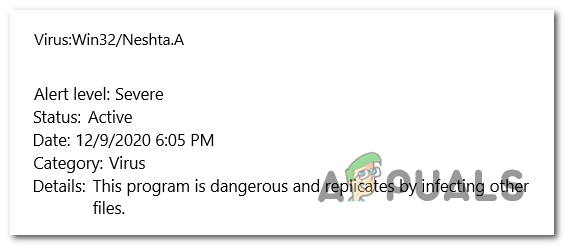
Showing you how to fix the Virus:Win32/Neshta.A on Windows Defender
- What is the Win32/Neshta.A?
- How to fix this issue?
- Perform a Windows Defender Offline scan
- Run the ESET SysRescue scanner
- Reset the browser to the original factory state 3.1 Reset Chrome settings to Default 3.2 Reset Microsoft Edge settings to Default 3.3 Reset Firefox settings to Default
- Use the Microsoft Safety Scanner
What is theWin32/Neshta.A?
The Win32/Neshta.A is a file virus that affects Windows executable files from your computer. It can be used for various harmful activities, including data theft, system corruption, and the spread of the infection to other files.
This virus spreads through infected files and can infiltrate your computer in various ways, such as downloading an infected file or opening an infected email attachment, among other methods.
How to fix this issue?
There are a few ways that you can eliminate the Win32/Neshta.A virus from your computer. Here are the methods:
1. Perform a Windows Defender Offline scan
You should start by performing a Windows Defender Offline scan . This scan will go through all of your computer’s files scanning for every harmful file. All the malware files will be removed from your computer.
This scan could take up to 15 minutes, depending on the number of files. You can perform it from the Windows Defender settings.
Here’s how you can do it:
- Press the Windows key + R to open a Run dialog box.
- Type inside the search bar ‘ ms-settings: ‘, then press Enter to open the Windows Settings .
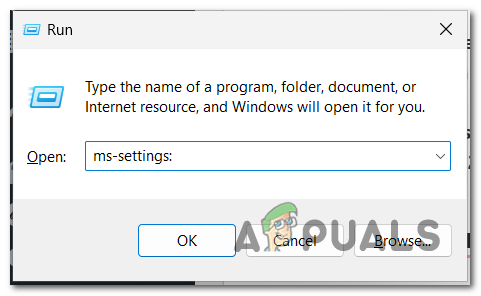
Opening the Windows Settings
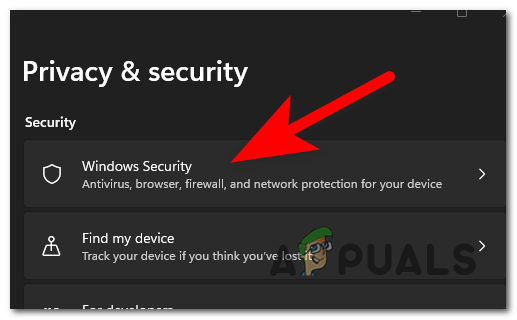
Accessing the Windows Security settings

Accessing the Virus & threat protection

Accessing the Scan options
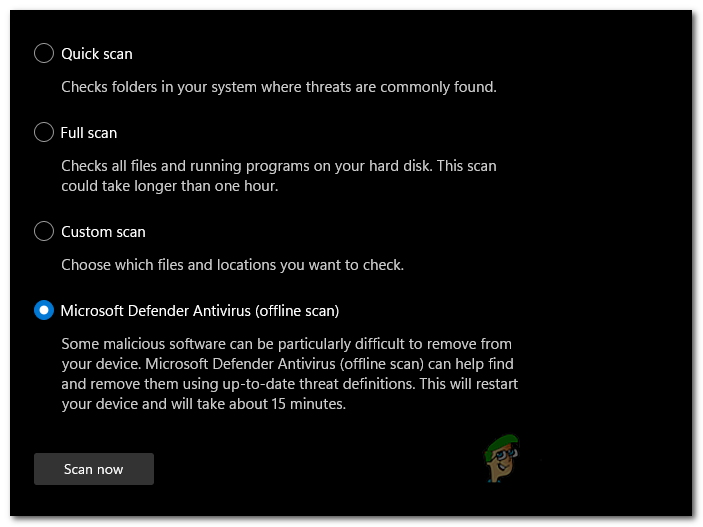
Performing the Windows Defender offline scan
2. Run the ESET SysRescue scanner
Another thing that you can try is to use the ESET SysRescue to perform a scan and remove threats from bootable USB drives, CDs, or DVDs.
This method is very successful when it comes to eliminating viruses because it has direct access to your disk.
You can download the needed file from the internet. Create a USB access and scan your computer.
Follow the next steps to see how to do this:
- Visit the ESET official site and download the SysRescue Live scanner. For a Live USB, you need to download a .IMG .
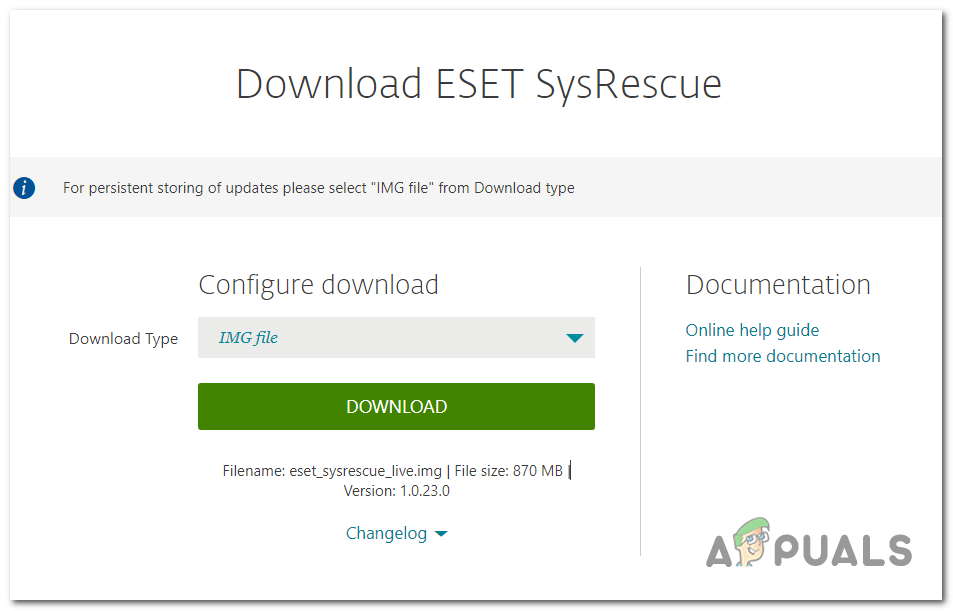
Downloading the scanner
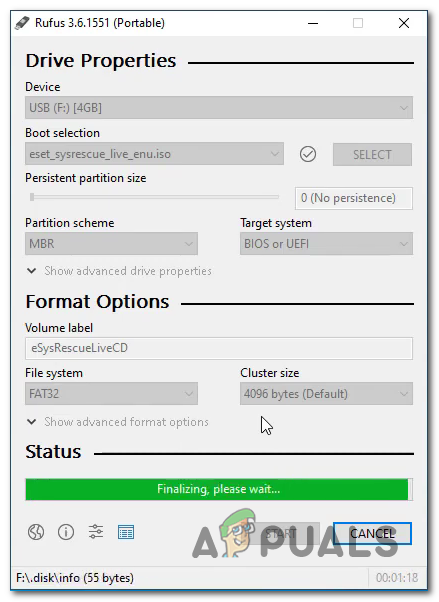
Loading ESET SysRescue on USB flash drive

Boot from the USB flash drive
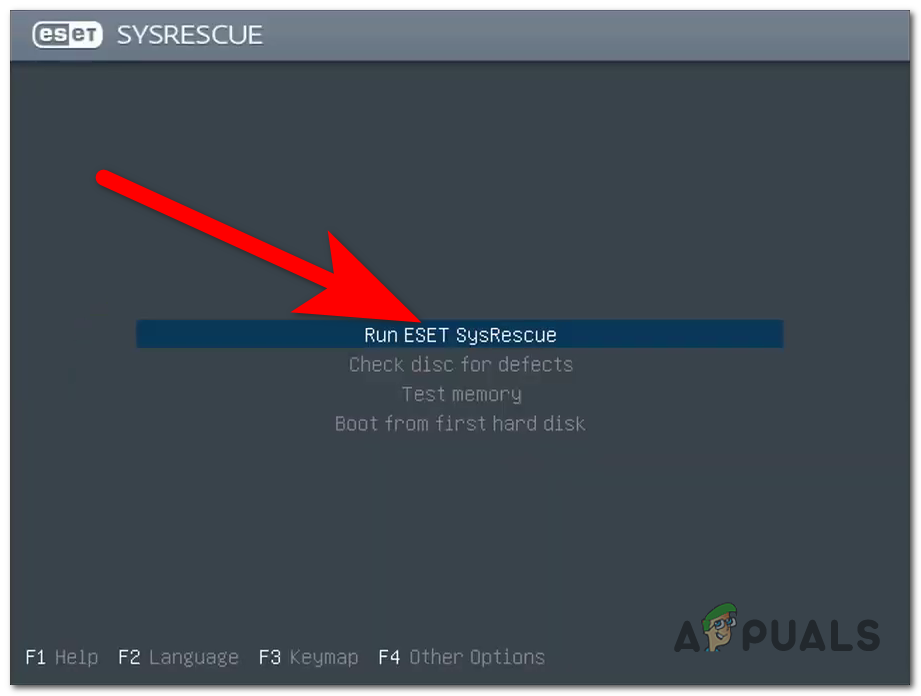
Running the ESET SysRescue
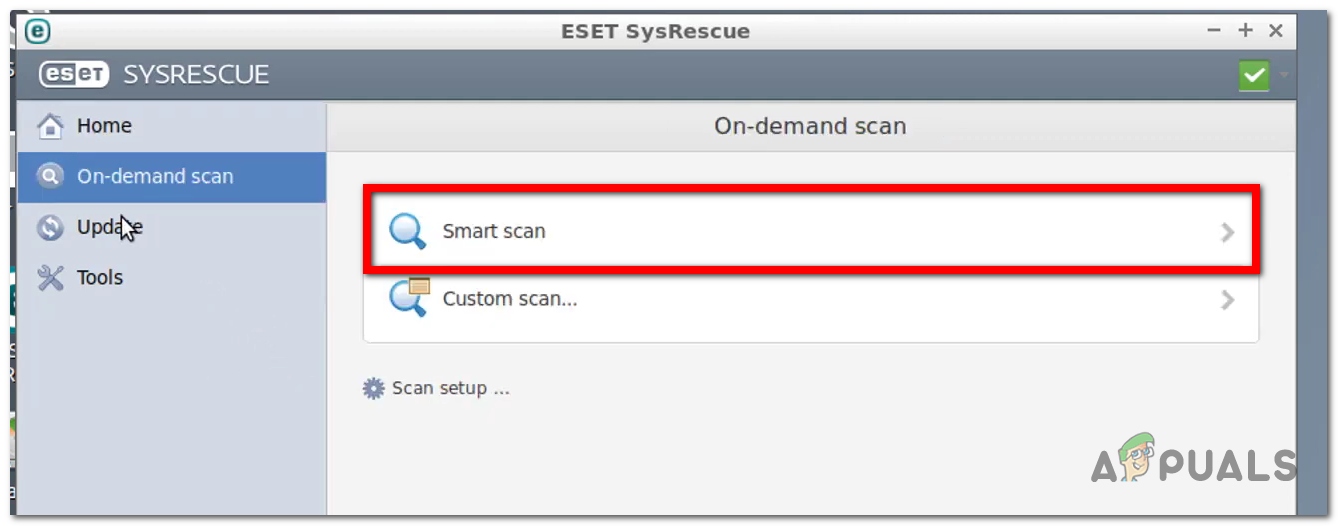
Performing a Smart scan
3. Reset the browser to the original factory state
This virus might also infect your browser. In this case, the best thing you can do is reset your browser to the original factory state.
It can be done from the settings of your browser. The process might differ from browser to browser.
Here are a few guides about how to do this:
3.1 Reset Chrome settings to Default
This can be done from the Chrome Settings. Here’s how:
- Click on the three dots in the top right corner and click on Settings .
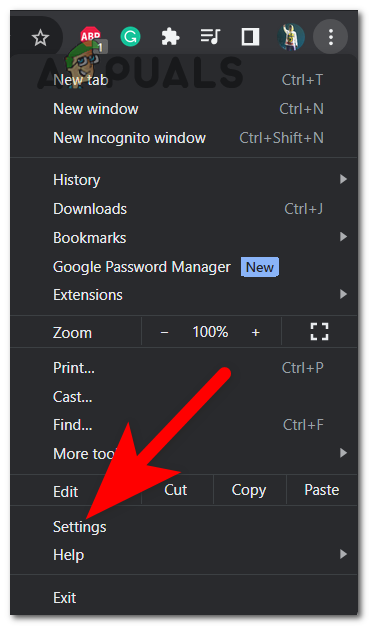
Opening the Chrome Settings
3.2 Reset Microsoft Edge settings to Default
You can reset the Microsoft Edge from the Windows Settings, not needing to navigate inside the browser. Here’s how you can do it:
- Open a Run dialog box by pressing the Windows key + R and type inside the search bar ‘ ms-settings: ‘.
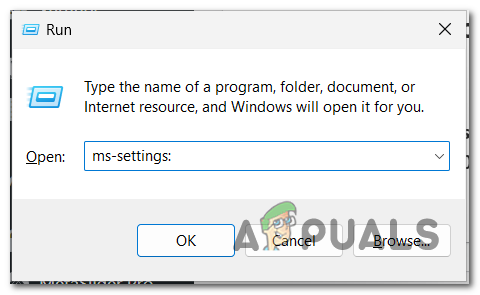
Opening the Windows Settings
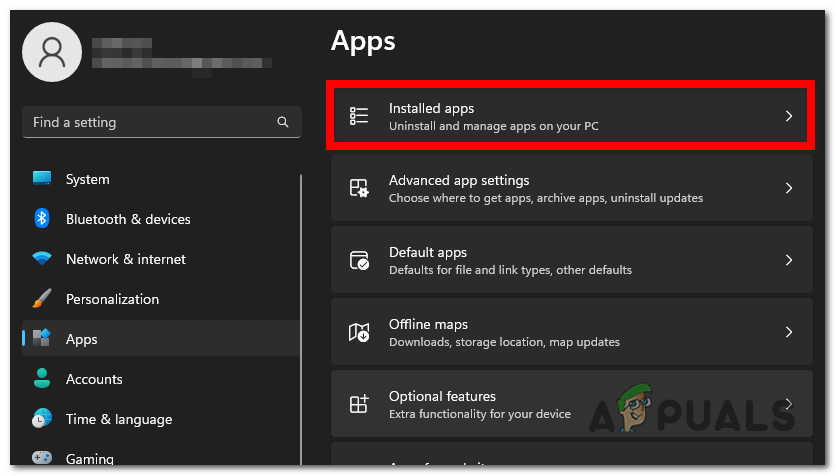
Opening the installed apps section
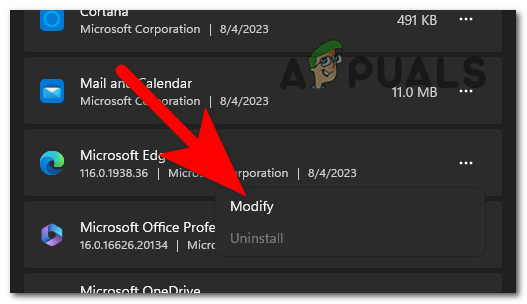
Resetting Microsoft Edge
3.3 Reset Firefox settings to Default
To be able to reset Firefox, you need to go to the Help section. There you will be able to use the troubleshooter in order to refresh Firefox. Here’s how:
- Select the three bars icon from the top right corner and click on Help .
- Now click on More troubleshooting information .
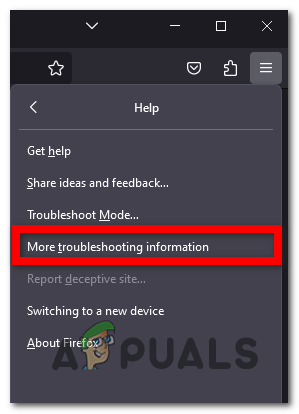
Accessing More troubleshooting information
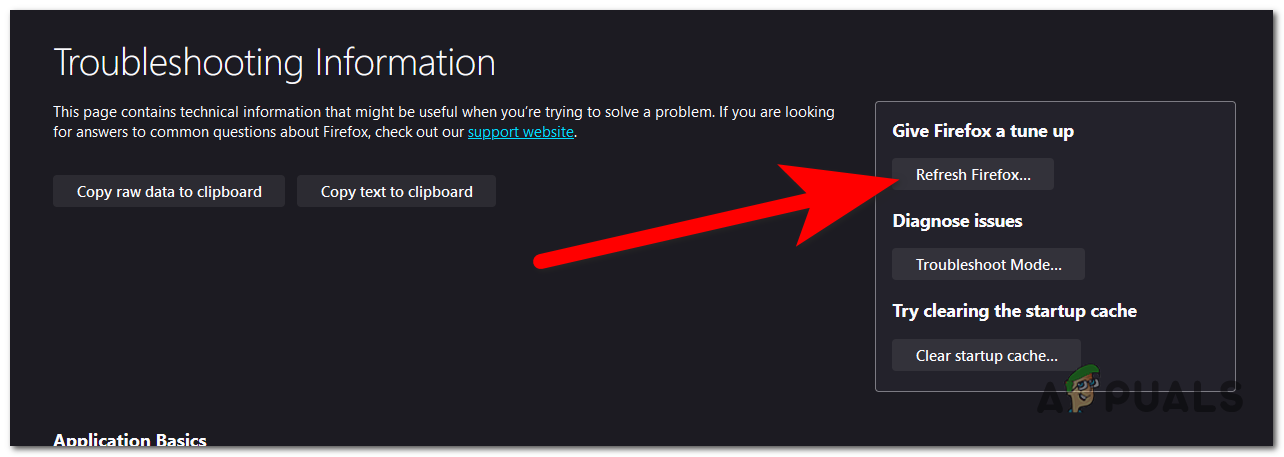
Refreshing Firefox
Now every trace of the Win32/Neshta.A should be eliminated from your browser.
4. Use the Microsoft Safety Scanner
The Win32/Neshta.A virus can be easily removed using the Microsoft Safety Scanner. It is a scan tool that was made to eliminate malware from the computer.
This scan tool can be downloaded from the Microsoft site. Once installed, you can use it on your computer.
Here are the steps on how to use it:
- Visit the official Microsoft site and download the Microsoft Safety Scanner .
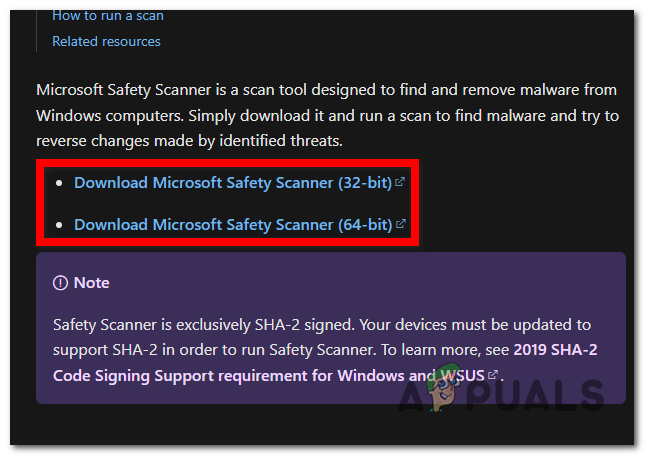
Downloading the Microsoft Safety Scanner
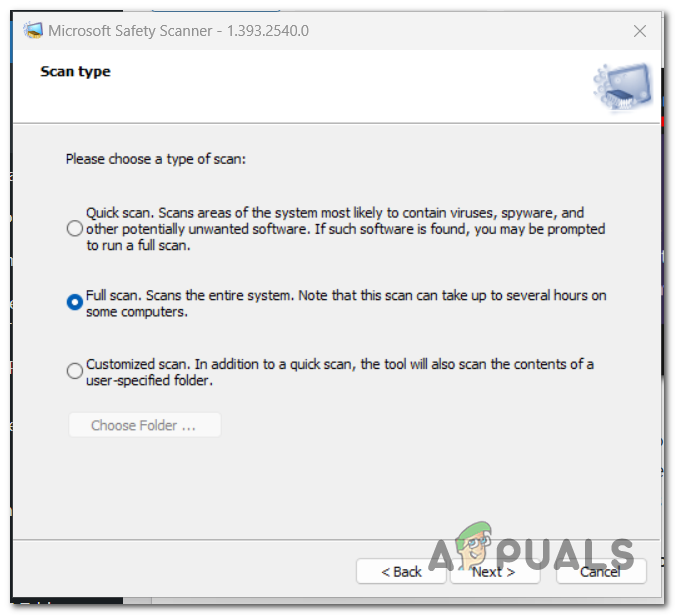
Performing a Full scan
