When you start up your computer, it goes through a series of self-diagnostics to make sure everything works properly. This process is called Power On Self Test or in short, POST . Understanding the POST process is essential for diagnosing hardware issues and ensuring a smooth boot-up sequence for your computer.
In this article, we will talk in detail regarding POST, its importance, and how to identify different POST errors.
- A Basic Overview of BIOS & UEFI
- What Exactly is POST?
- Different Indications During POST 1) Beep Codes 2) Text Codes 3) Light Codes
- What Happens After POST?
- How to Avoid POST Failures?
- Conclusion
- Frequently Asked Questions – FAQs
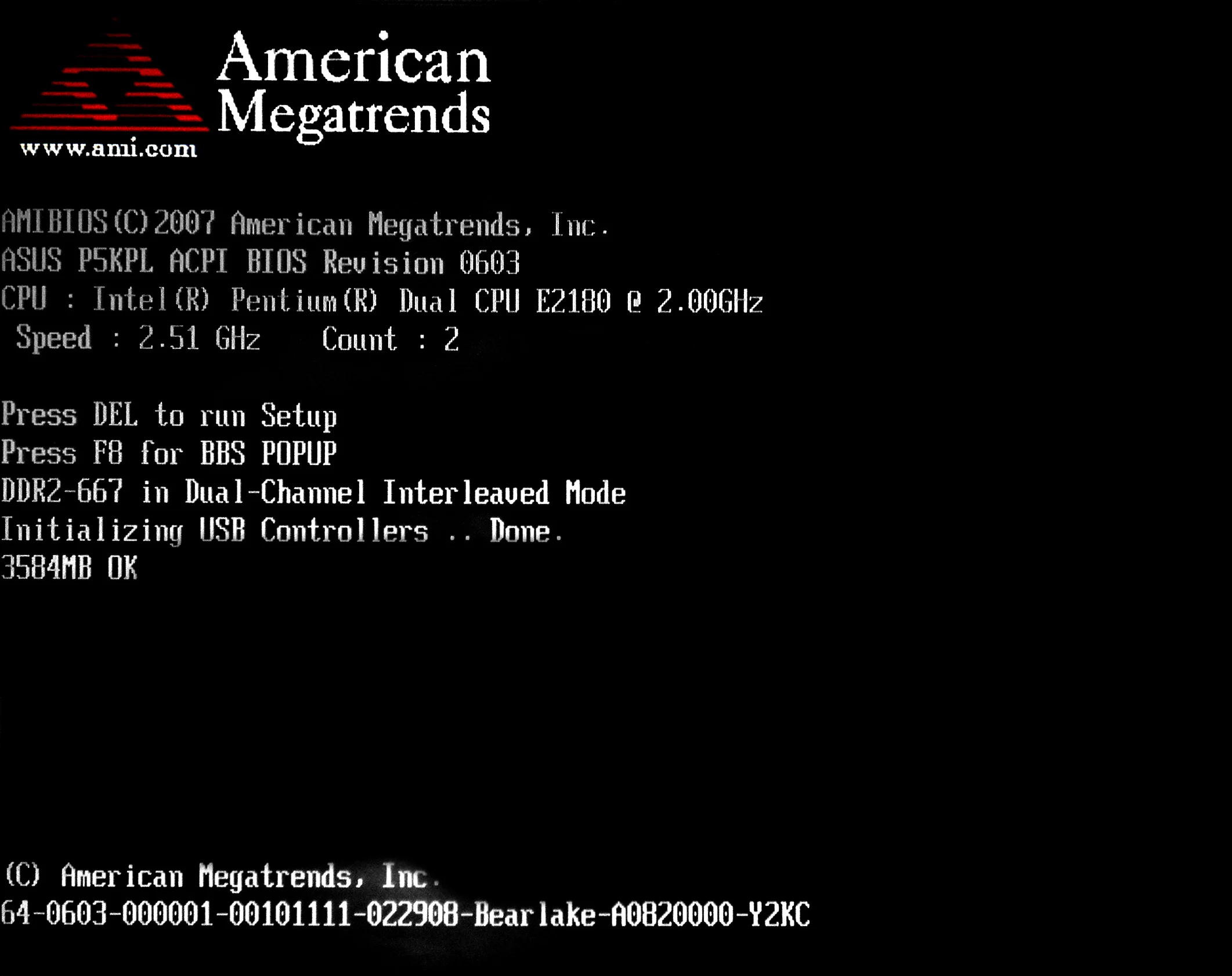
The iconic American Megatrends screen representing a successful POST | AMI
A Basic Overview of BIOS & UEFI
As your computer boots, the first thing that loads up is your BIOS / UEFI . Let’s clear up the difference between BIOS and UEFI first. BIOS stands for Basic Input Output System and is stored on non-volatile memory such as PROM or EEPROM , allowing the firmware to be retained even when the power is off.
- PROM (Programmable Read-Only Memory): A type of read-only memory (ROM) that can be programmed only once by a user. Once programmed, the data remains permanent.
- EEPROM (Electrically Erasable Programmable Read-Only Memory): Similar to PROM, but EEPROM can be erased and reprogrammed multiple times. This is done electrically, allowing for updates without removing the chip from the device.
Alongside this, there’s a small amount of volatile memory known as CMOS that stores user-specific settings and configurations for the BIOS or UEFI. This CMOS memory is powered by a small battery, ensuring that these vital settings are not lost even when the computer has no power. Now, let’s move on to what BIOS actually is.
BIOS is a type of firmware that allows communication between hardware and software. It is the starting point as the computer boots, and takes place with or without an Operating System. The BIOS establishes all the settings, identifies, configures and sets up the hardware. In a more metaphorical sense, BIOS is the man behind the curtain in the booting process.
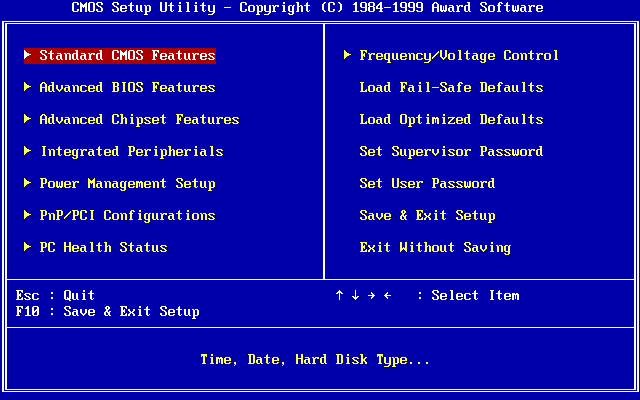
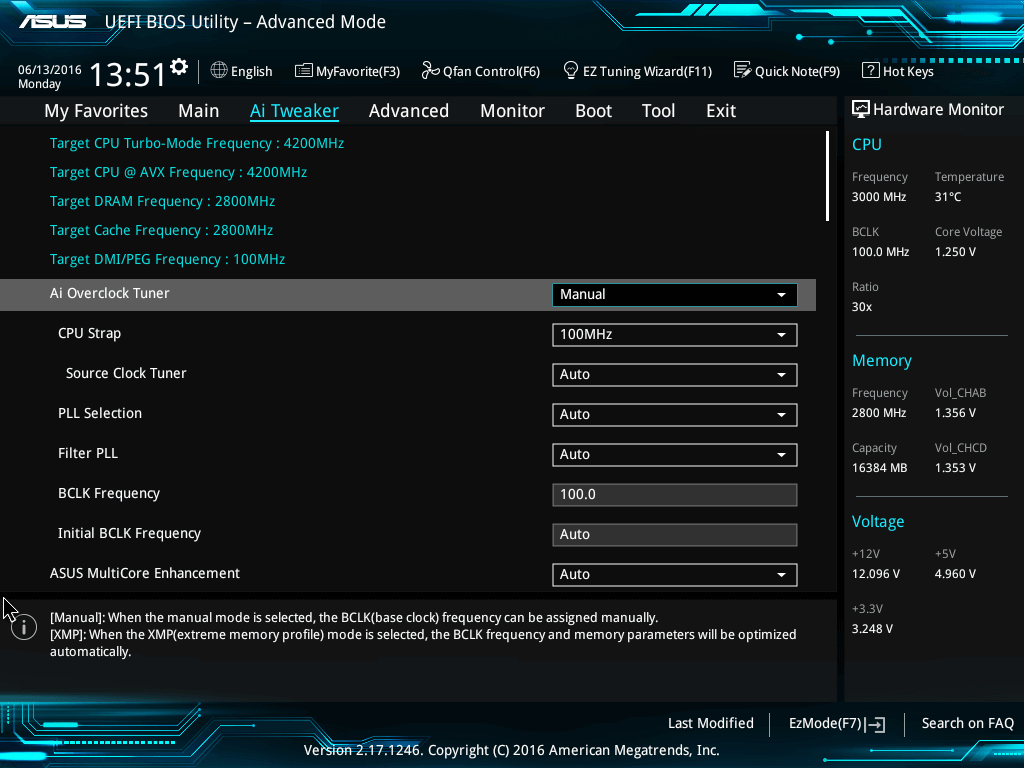
Simply, BIOS enables the CPU to talk with your Graphics Card , the disk drives, the RAM , etc., and to make sure no errors occur while booting the PC. UEFI, on the other hand, is just a fancy version of BIOS with all the bells and whistles of a Graphical User Interface (GUI) , and a larger partition size. Almost all modern computers use UEFI.
If you have used an old enough system, you would remember that your BIOS was not as easily interactive as it is now. The only way to change settings was by using a keyboard . Aside from the visual enhancements, UEFI provides a number of features that are essential for modern-day computing.
But why am I talking about BIOS? Because POST, or Power On Self Test is a key component of BIOS. Remember when I said that the BIOS makes sure no hiccups occur during the boot process? POST comes under BIOS and does that very job.
What Exactly is POST?
POST is not exclusive to computers. This verification process is akin to checks performed on medical equipment to minimize the chance of errors, ensuring that all components function as intended. In computers, POST checks a wide variety of hardware components, including but not limited to:
- CPU
- Memory/RAM
- Storage
- Basic Components like the DMA, timer, interrupt controller
- Keyboard
- Pointing Devices
- ROM BIOS
This is just a general list of items that POST can check. The actual list will change according to your system. Generally, POST aims to test all major and critical components of your computer before loading an Operating System .
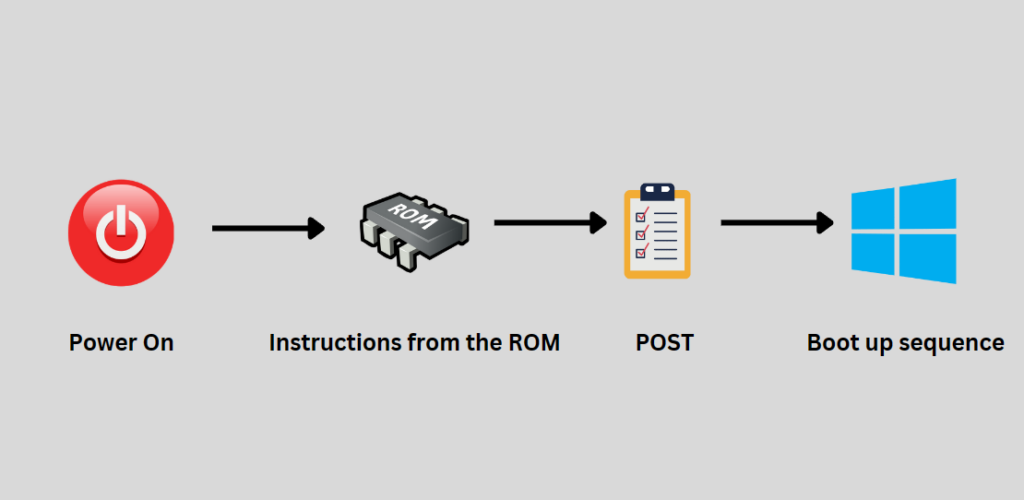
How POST works | TechNewsToday
Do note that POST only occurs after a cold boot . A cold boot is when your computer is powered on after the contents of its RAM are cleared or after a complete shutdown. Similarly, turning on your computer by restarting it is called a warm boot.
It is crucial to test all important hardware components before entering the OS. Assume that a certain RAM Module has not been seated properly. If the PC were to boot without POST, it can make your system vulnerable to a plethora of failure points.
A better example is that starting your PC without POST is similar to flying an aircraft, without actually verifying the integrity and viability of all the components.
Different Indications During POST
Normally, we do not hear beeps or errors while booting up our computer which has led us to almost neglect the existence of POST. Although, if your computer fails this routine checkup, there are a number of indications of what went wrong. You can either hear a beep, see a few LEDs light up, or even a series of POST codes.
Since computer manufacturers vary so much, the meaning of these beeps and codes can also differ. A list of beep codes from different companies has been listed at the end of the article. The pattern of beeps determines the nature of the problem. If your display has not been set up prior to POST, LED indications and beeps are your only guiding light, literally.
1) Beep Codes
From Wikipedia , we find a number of different beep codes for systems using the AMI BIOS . Note that if your BIOS is supplied by a different manufacturer, we suggest you find the code list from your respective vendor, though the database provided at the end should be sufficient.
| Beeps | Meaning |
|---|---|
| 1 | Memory refresh timer error |
| 2 | Parity error in base memory (first 64 KiB block) |
| 3 | Base memory read/write test error |
| 4 | Motherboard timer not operational (check all PSU to MB connectors seated) |
| 5 | Processor failure |
| 6 | 8042 Gate A20 test error (cannot switch to protected mode) |
| 7 | General exception error (processor exception interrupt error) |
| 8 | Display memory error (system video adapter) |
| 9 | AMI BIOS ROM checksum fix |
| 10 | CMOS shutdown register read/write fix |
| 11 | Cache memory test failed |
| continuous beeping | Motherboard does not detect a RAM module (continuous beeping) |
2) Text Codes
If you do have a working display, text codes can easily help you identify the root cause of the problem since they are in plain English . For example, a common error is “ Keyboard Not Found ” which, as the name suggests, means you have not plugged in your keyboard.

Keyboard Not Found Error Message | u/LasagneLifestyle on Reddit
3) Light Codes
Light codes are slightly harder to identify as compared to audible beeps. Again, this process will highly vary depending on your manufacturer. Dell laptops, for instance, have a special coding scheme that can represent a wide range of problems with the help of just a few colors.
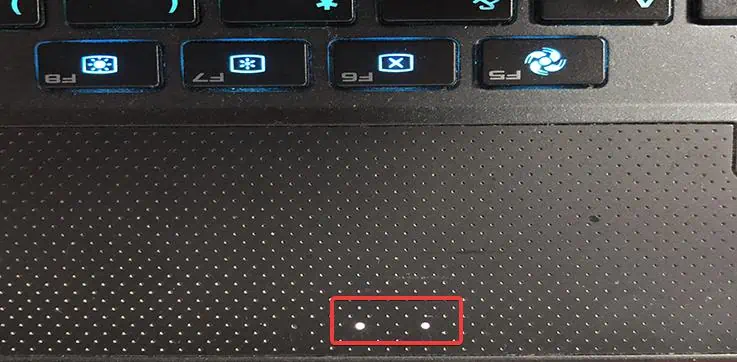
LED Indicator on Laptop |technewstoday
What Happens After POST?
Modern computers are so fast that we generally are not able to see POST in action, except if an error takes place. After POSTing, a program called the Boot Loader is executed which looks at the starting regions of whatever storage device your Operating System is installed on. The BIOS/UEFI configurations stored in CMOS play an essential role in dictating the boot loader’s behavior
Your hard disk contains a portion called the boot sector that has a program which is loaded into the computer’s memory. This program is used to locate the Operating System on your disk, load the OS into memory, and enable you to use your computer.

Booting Flow Diagram | WhoAteMyButter
From this point on, whatever takes place next varies by the OS used. Typically, your OS will set up device drivers, run the default startup programs , and bring up a display for the user to interact with. The actual process is slightly more complex and vague since not all computers are the same. However, this is a very basic rundown of how a computer boots up.
How to Avoid POST Failures?
While there is no definite solution that can fix all POST failures, users can reduce the chances of running into them by taking a few precautionary measures. These include:
- Reseating your RAM Module(s)
- Connect necessary peripherals such as a Keyboard and a Mouse
- Make sure all the fans are functioning
- Ensure the CMOS battery is in good condition
- Reseating your CPU
- Resetting your BIOS
- Booting the PC with selective RAM Module(s)
There are two primary BIOS suppliers namely AMI and Award . However, in rare case scenarios, your motherboard manufacturer may opt for a company like Phoenix , which has different beep codes. To keep things simple for end users, bioscentral maintains a database that has beep codes from all major manufacturers.
- AMI BIOS Beep Codes
- AST BIOS Beep Codes
- Award BIOS Beep Codes
- Compaq BIOS Beep Codes
- IBM BIOS Beep Codes
- Mylex BIOS Beep Codes
- Phoenix BIOS Beep Codes
- Quadtel BIOS Beep Codes
Most commonly, you will see a text indicator defining whatever problem POST is facing. If you do not have a working display, then POST will resort to beep codes, which you can decipher using the aforementioned list. On the flip side, LED indicators are not frequent and are most commonly found in laptops.

Example of a POST Error, most likely due to a worn-out CMOS battery | HP Community Forum
Conclusion
Understanding how your computer starts up and runs isn’t just for tech experts. BIOS plays a big part in making everything work, from the moment you press the power button. We’ve covered what BIOS is, why it’s essential, and some tools to help if something goes wrong.
Think of BIOS like the backstage crew at a concert – you might not see it, but it’s working hard to make everything run smoothly. Whether you’re fixing a problem or just curious about what’s going on inside your computer, knowing a bit about BIOS can make your tech life a little bit easier and more interesting.
Modern-day computers are so fast that we often are unable to see this checkup occur. However, in-case of an error, you will either see a text code or hear audible beep codes, depending on if you have a working display or not.
Yes. POST is a vital and critical component under BIOS/UEFI, without which unforeseen problems can occur in the Operating System. POST aims to eliminate all issues before the Operating System is loaded into the memory.
You can visit the manufacturer’s (Gigabyte, ASUS, EVGA etcetera) website. Alternatively, many forums can also guide you in regard to this matter. Or, the simplest solution is to match the beep pattern with the AMI and Award beep code list, since they are most commonly used.
No. A common example is when you are about to install Windows, your disk drive does not have an OS installed. Even then, should you unplug your Keyboard, POST kicks in and halts the boot process, or the OS installation process. tl;dr POST depends on the BIOS, not the Operating System.
Direcltly, no. Indirectly, yes. POST errors can point to a potential faulty component in your system. Identifying the actual problem, such as an overheating CPU or faulty RAM Modules is left for the user.
CMOS stores BIOS settings that are essential during the POST process. Any issue with the CMOS or its battery can cause POST errors and booting issues.
How to Fix “Printer is in an error state” Issue?
- Recognizing the importance of a printer’s duty cycle is crucial for choosing a device that matches your print volume needs. Staying within this limit ensures the printer operates efficiently and prolongs its lifespan, minimizing the risk of maintenance issues.
- Proper humidity, temperature, and cleanliness management can significantly enhance printer performance and maintain its duty cycle, preventing unnecessary wear.
- Enhancing a printer with upgrades like additional memory or better mechanical parts can improve its workload handling and extend its practical duty cycle, boosting overall durability and efficiency.
When choosing a new printer, you might come across the term “ duty cycle ” in the specifications. This guide will explain what a duty cycle is, why it matters, and how it can help you choose the right printer. We’ll keep things simple so you can easily understand how to use this information when shopping for a printer.
- Printer Duty Cycle: What It Means and Why It Matters?
- Why the Duty Cycle Is Key to Choosing the Right Printer?
- Duty Cycle vs. Recommended Monthly Print Volume: What’s the Difference?
- What Happens If You Ignore Printer Duty Cycle Recommendations? ↪ Real-World Scenarios: Why Exceeding the Duty Cycle Can Cost You
Printer Duty Cycle: What It Means and Why It Matters?

What is the meaning of Printer Duty Cycle?
The printer duty cycle represents the upper limit of a printer’s capacity—how many pages it can reliably process in a month before the risk of wear or malfunction increases. This figure is crucial for understanding printer performance limits and ensuring that your chosen printer can handle the expected work volume.
Manufacturers determine a printer’s duty cycle through stress testing, where the printer is pushed to its limit to identify how many pages it can produce each month before malfunctioning. These tests help set a reliable performance gateway for users.
A printer’s duty cycle is like a car’s speedometer—you wouldn’t drive a car at top speed all the time, and you shouldn’t push a printer to its maximum duty cycle. Doing so can lead to quicker wear and tear, more frequent maintenance, and a shorter lifespan.
If you’re unsure whether to choose an inkjet or laser printer, this detailed guide compares both options to help you make an informed decision.
Why the Duty Cycle Is Key to Choosing the Right Printer?

The Importance of Duty Cycle in printer selection
Knowing the duty cycle is essential when choosing a printer, as it determines how well the device can handle your monthly print volume without excessive wear or maintenance.
Here is why the duty cycle matters in printer selection:
- Fit for purpose: Selecting a printer with a suitable duty cycle ensures it can handle your monthly printing volume efficiently, reducing stress on its components.
- Longer lifespan and better performance: Staying within the duty cycle ensures optimal print quality and speed while prolonging the printer’s life, avoiding frequent breakdowns.
- Cost efficiency and reduced downtime: Operating within the duty cycle minimizes the need for repairs and reduces operational disruptions, managing long-term costs.
Duty Cycle vs. Recommended Monthly Print Volume: What’s the Difference?

Duty Cycle vs. recommended monthly print volume
The recommended monthly print volume is the optimal number of pages a printer should handle each month for the best performance and longevity. Unlike the maximum capacity indicated by the duty cycle, this number guides regular usage, ensuring the printer operates efficiently without excessive wear.
If your print volume regularly exceeds the recommended amount but stays within the duty cycle, the printer may operate safely in the short term, but it could still experience accelerated wear and reduced lifespan over time.
In such cases, consider upgrading to a higher-capacity printer or spreading print jobs across multiple devices to ensure long-term performance.
Here are the differences between the duty cycle and recommended monthly print volume:
- Duty cycle: Represents the maximum number of pages a printer can handle in a month without breaking down. It assesses the printer’s upper limit.
- Recommended monthly print volume: Suggests a practical, workable number of pages to print each month to keep the printer in good condition over its lifespan.
What Happens If You Ignore Printer Duty Cycle Recommendations?

Consequences of ignoring Duty Cycle recommendations |AndranikHakobyan via Canva
Ignoring the duty cycle limits poses more severe risks than exceeding the recommended monthly print volume, leading to serious long-term consequences.
While exceeding the recommended volume occasionally may result in additional wear and tear, consistently exceeding the duty cycle can lead to frequent breakdowns, reduced performance, and a shortened lifespan.
Ignoring duty cycle limits leads to frequent breakdowns, reduced performance, and increased maintenance, ultimately shortening the printer’s lifespan and causing more frequent operational downtime and higher repair costs. Long-term, pushing a printer beyond its limits leads to greater financial burdens due to premature replacements and inefficiencies.
↪ Real-World Scenarios: Why Exceeding the Duty Cycle Can Cost You
For example, in a busy law firm, overlooking duty cycle limits during a high-stakes period could cause a printer breakdown just before a critical deadline, delaying crucial legal filings and ultimately compromising client service.
For small businesses, consistently exceeding a printer’s duty cycle can lead to costly emergency repairs or premature equipment replacements, straining financial resources.
