- ChatGPT Sandbox is a flexible platform for experimenting with AI models, suitable for developers, researchers, educators, and AI enthusiasts, offering a controlled environment for testing and understanding ChatGPT’s responses.
- The Sandbox offers modes like standard chat and customized assistants, allowing users to interact with AI, adjust parameters like response creativity and length, and tailor the AI to specific roles or tasks.
- Users can create custom AI assistants for specific scenarios like HR tasks, financial advice, or academic research, and manipulate ChatGPT’s parameters to suit individual needs, including response style and content generation based on uploaded files.
The ChatGPT Sandbox , also called the ChatGPT Playground , is a tool created by OpenAI . It’s a place where you can easily try out and play with the ChatGPT model, a variant of the GPT (Generative Pretrained Transformer) family.
This tool provides a versatile interface for users to interact with the AI, customize it, and utilize its functionalities for various applications. In this post, we will explore the ChatGPT Sandbox in detail, look at its features, what it can do, and how you can use it effectively.
- What is ChatGPT Sandbox (Playground)?
- How ChatGPT Sandbox Works
- How to Use ChatGPT Sandbox 1. ChatGPT Playground “Chat” Step 1: Accessing ChatGPT Sandbox Step 2: Modify Playground Chat Parameters Step 3: Chat with the Model 2. ChatGPT Playground “Assistants” Step 1: Access ChatGPT Playground Assistant Step 2: Setup your Custom Assistant Step 3: Chat with your Custom AI Assistant ↪ How to Use ChatGPT Playground Pre-Created Assistants ↪ Real-Life Scenarios for Using Custom Assistants in ChatGPT Sandbox ↪ Manipulating ChatGPT to Your Preferences
- Conclusion
What is ChatGPT Sandbox
What is ChatGPT Sandbox (Playground)?
ChatGPT Sandbox is like a testing ground where you can play around and experiment with the various pre-trained AI models. It’s made to be easy to use and flexible. Here, you can try out what the AI can do, see how it answers, and even change how it works for what you need.
This tool is great for people who make software, researchers, teachers, and anyone who’s into AI and how computers understand language. It allows individuals to interact with the AI in a controlled setting, enabling them to understand how ChatGPT functions, responds to various inputs and adapts to different scenarios.
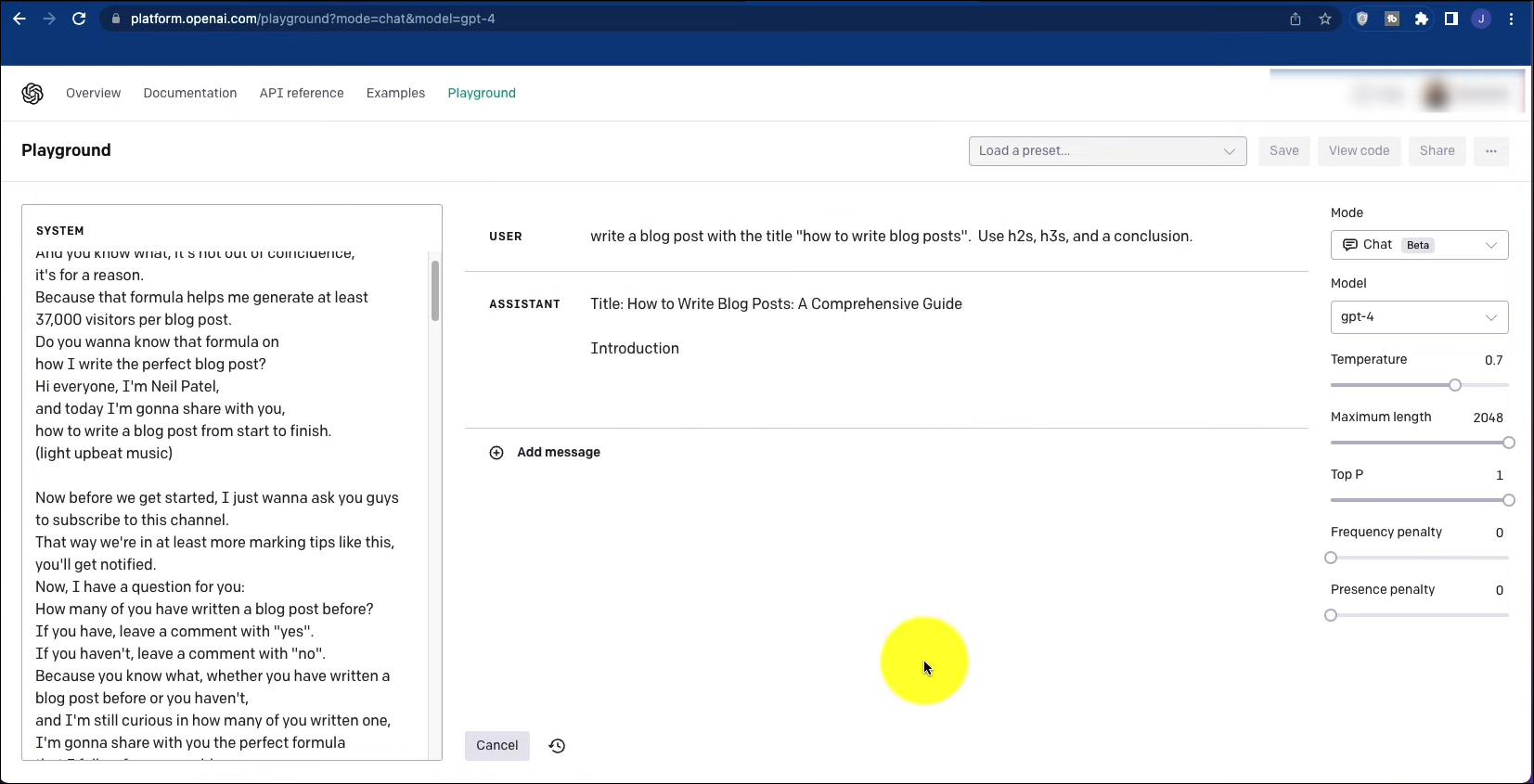
ChatGPT Sandbox Demo
How ChatGPT Sandbox Works
ChatGPT Sandbox lets you talk to the AI model in different ways. You type something, and then the AI answers based on what it’s learned and the rules you set. You can do simple things like ask questions and get answers, or more complex stuff like writing essays, making code, or creative writing.
It’s important to know that using ChatGPT Sandbox isn’t free . It works on a system of credits , which means you need to buy credits to use it. But don’t worry, it’s pretty cheap. So, when you want to use the Sandbox, you’ll have to get some credits first. This way, you pay for what you use, and you can keep experimenting with the AI.
You can visit an unofficial OpenAI pricing calculator to determine how many tokens you’ll need or to estimate the cost of generating a certain number of words using various AI models. Additionally, for up-to-date costs for each model, you can visit OpenAI’s official pricing page .
There are several models available, each offering different features and priced accordingly. The pricing is based on a per 1,000 tokens basis. To put it simply, tokens can be considered as segments of words. Generally, 1,000 tokens are equivalent to around 750 words.
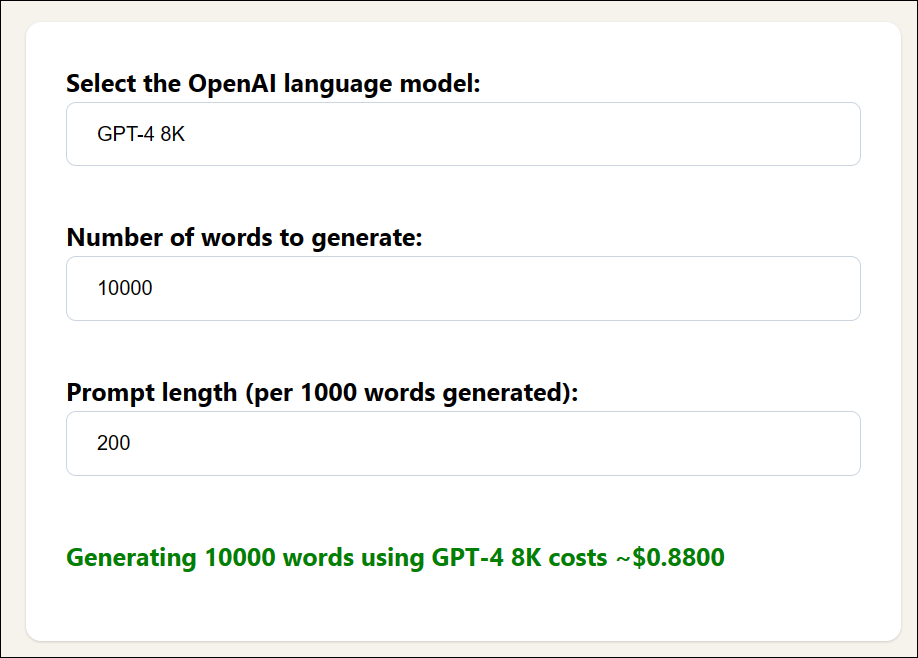
Unofficial OpenAI Pricing Calculator
Therefore, on the pricing calculator page, you can choose a model, specify the number of words you want to generate, and set the prompt length. The calculator will then provide you with an approximate cost.
How to Use ChatGPT Sandbox
There are different modes in which you can use a AI model inside ChatGPT Sandbox, here’s how you can play around with them:
1. ChatGPT Playground “Chat”
This is the standard mode where users can interact with the AI . You simply type a message, and the AI responds. This mode is ideal for general inquiries, brainstorming ideas, or casual conversations.
Step 1: Accessing ChatGPT Sandbox

Accessing ChatGPT Playground
- First, navigate to the ChatGPT Sandbox or Playground website provided by OpenAI.
- Sign in with your account c redentials or create a new account if you don’t have one.
Step 2: Modify Playground Chat Parameters
- Once you’re logged in, at the top of your screen, there’s a drop-down menu. From there, select Chat . This is where the fun begins, as you get to experiment with a variety of controls. Chat Mode – ChatGPT Playground
- Start with the Model drop-down . Here, you can choose the specific AI model you want to try out. Each model might have different capabilities, so this choice can affect your experience. ChatGPT Playground Parameters
- Then, you’ll see several parameters you can adjust: Temperature: Think of this as how creative the AI’s responses can be. A higher temperature, like 0.8, makes the AI’s replies more varied and less predictable. A lower temperature, say 0.2, guides the AI to give more consistent and expected responses. Max Tokens: This is about the length of the AI’s responses. Set this to decide how long or short you want the replies to be. A higher number means longer responses, while a lower number keeps things brief. Top p (Nucleus Sampling): This one’s about diversity in the AI’s answers. A lower value, such as 0.3, narrows down the AI’s choices, making its responses more to the point. A higher value, like 0.9, opens up a wider range of possible answers, giving you more varied responses. Timeout: This is simply how long the AI takes to respond. Adjust it based on how quickly or slowly you want the AI to generate replies.
- Next, there’s an additional Systems tab . Here, you can input or paste content that you want the GPT to base its answers on, or set specific rules for the interaction. ChatGPT Playground Systems
Step 3: Chat with the Model
Finally, it’s time to start chatting. Enter your question or prompt in the space that says User: Enter a user message here . After typing your prompt, click Submit . The GPT will then provide its response, and you can continue the conversation back and forth.
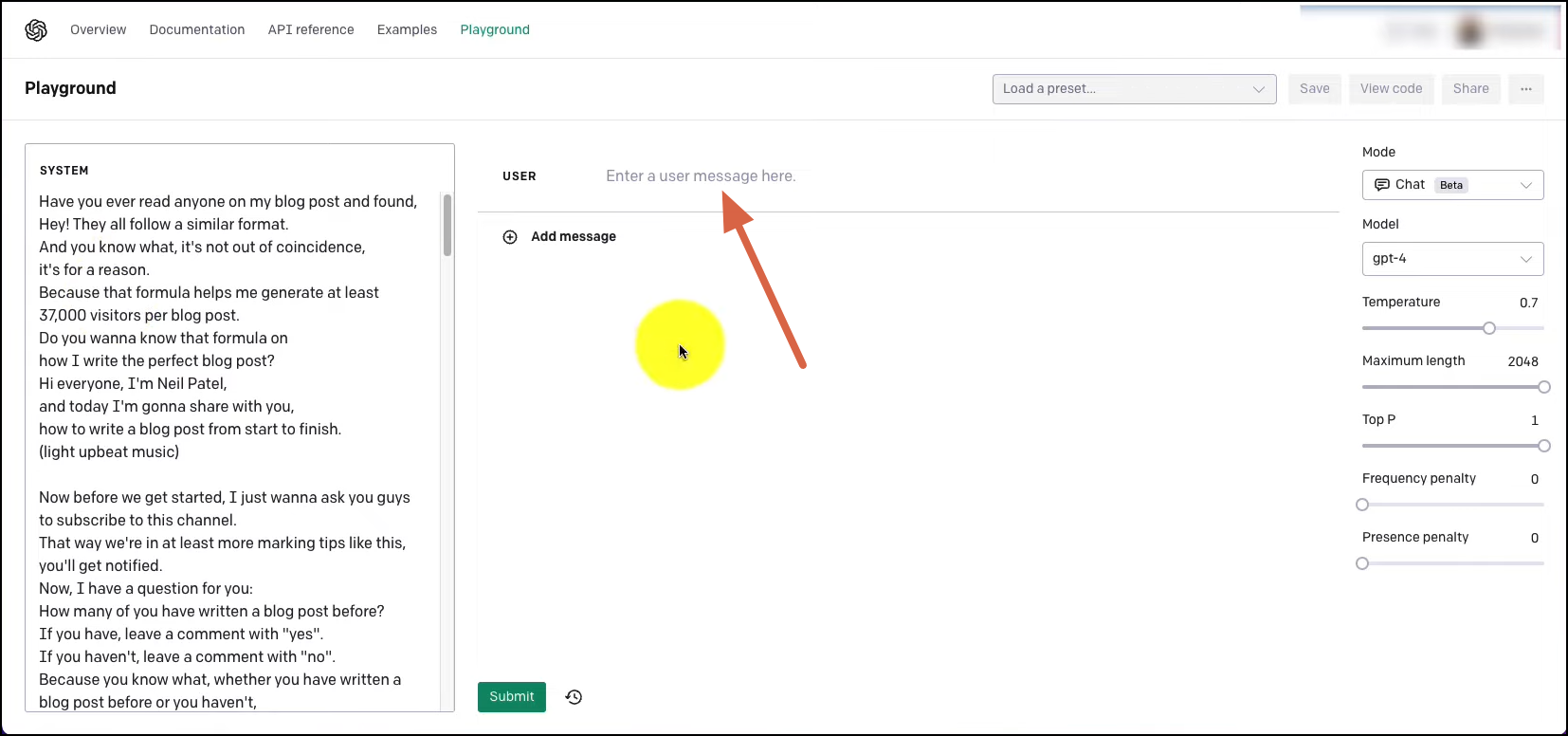
Chat with ChatGPT Playground
2. ChatGPT Playground “Assistants”
In this mode, ChatGPT acts as a specialized assistant . You can specify a particular role for the AI, like a tutor, a coding helper, or a creative writer. This targeted approach makes the AI’s responses more focused on the chosen domain .
Step 1: Access ChatGPT Playground Assistant
- Head to the ChatGPT Playground’s official website and select the Assistants Mode from the top dropdown menu.
- Next, you’ll find a Create button . Click this Create button to start crafting your new assistant.
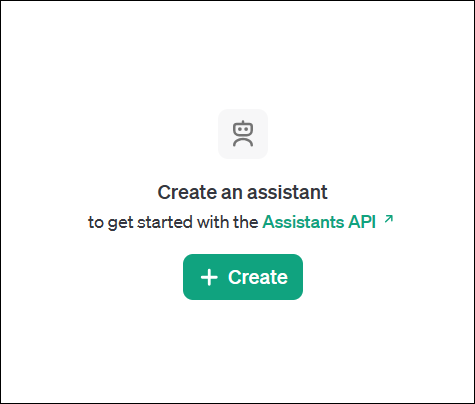
Create an Assistant -ChatGPT Playground
Step 2: Setup your Custom Assistant
- Now, it’s time to name your assistant . You can be fun, and creative, or keep it simple – it’s all up to you.
- The next step is crucial – the instructions . This is where you tell the GPT what role it should play. Maybe you want it to mimic Shakespeare and turn everything into romantic-style text or something else entirely. ChatGPT Playground Assistant
- Then, choose the model for your assistant from a dropdown list. Options might include GPT 4, 4 Turbo, 3, 3.5, among others – pick the one that suits your needs.
- You also have the option to add functions — for example, a function to fetch current stock prices. If you’re not too tech-savvy, you might skip this part. Functions – ChatGPT Playground Assistant
- Consider whether you want to Enable Code Interpreter . This feature allows the assistant to write, run, and understand any code you provide, tailoring its responses accordingly. This choice depends on what you need from the assistant.
- There’s also an option to turn on Retrieval . This feature enhances the assistant with information from files you or other users upload, expanding its knowledge base.
- Lastly, you can upload files for the assistant to refer to. This could be for answering questions based on the files, suggesting edits, or other creative uses.
Step 3: Chat with your Custom AI Assistant
Once everything is set up, move to the chat section on the right side of the screen. Here, you can start interacting with your custom-built ChatGPT assistant just like you would with the regular ChatGPT.
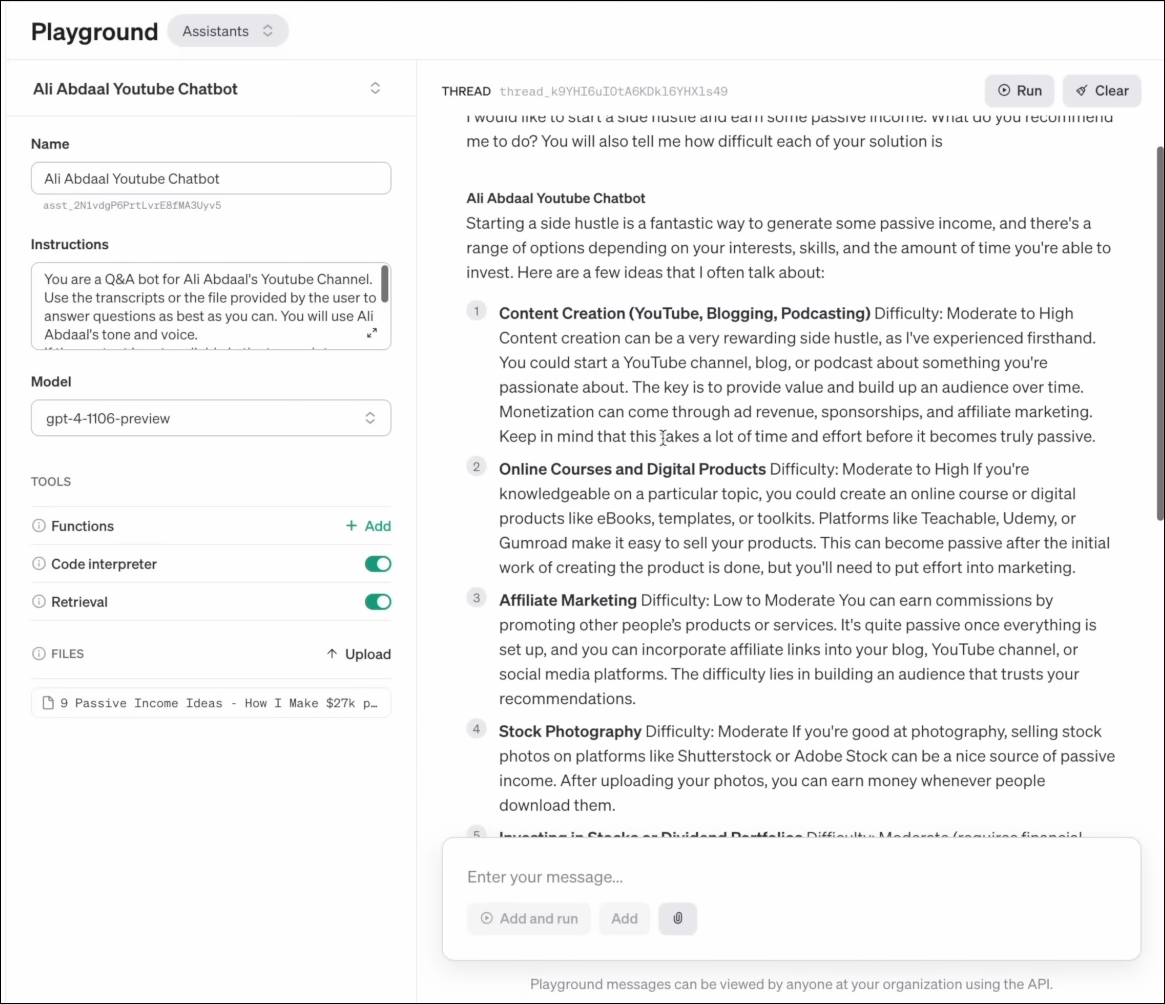
OpenAI Playground Assistant
↪ How to Use ChatGPT Playground Pre-Created Assistants
In the ChatGPT Sandbox, you have access to a variety of pre-created assistants or applications that cater to different needs. Some examples include a tool for generating product names, translating emojis, and correcting grammar, among others.
- To explore these, start by going to the ChatGPT Playground. Once there, look for the Chat Mode option in the top dropdown menu and select it.
- On the top right corner of your screen, you’ll find an option labeled Your Presets . Click on this Your Presets button to proceed.
- Next, look for the Browse Examples button . This will show you a list of all the pre-created and available applications within the platform. Browse Presets ChatGPT Sandbox
- When you find one that interests you, click on it. You’ll be taken to a new page specifically for that application. Presets ChatGPT Sandbox
- Here, you can start interacting directly with the built app, trying out its features and seeing how it responds to your inputs.
↪ Real-Life Scenarios for Using Custom Assistants in ChatGPT Sandbox
Consider the below situations where custom assistants created in ChatGPT Sandbox might be helpful:
- Yash, who runs a small business, needs assistance with HR tasks . He uses a custom assistant to help draft job descriptions, navigate employment laws, set up interviews, and manage employee onboarding processes.
- Raghav, a recent college graduate, wants to manage her finances better . She customizes an assistant in ChatGPT Sandbox to offer budgeting advice, savings strategies, and investment tips tailored to her financial situation and goals.
- Kunal, a graduate student, is conducting research in a specialized field . He sets up a custom assistant to help him with literature reviews, data analysis, formatting his papers, and staying updated on the latest research in his field.
↪ Manipulating ChatGPT to Your Preferences
Manipulating ChatGPT to align with your specific needs is a powerful feature of the platform. Users have the capability to provide detailed instructions to the assistant, outlining the precise tasks or types of responses required.
Adjusting various parameters, such as the length of responses , the style of language , and the level of randomness , enables fine-tuning of the assistant’s interactions. This customization also includes the ability to chat using files, where the AI can analyze the uploaded documents and generate relevant responses or insights.
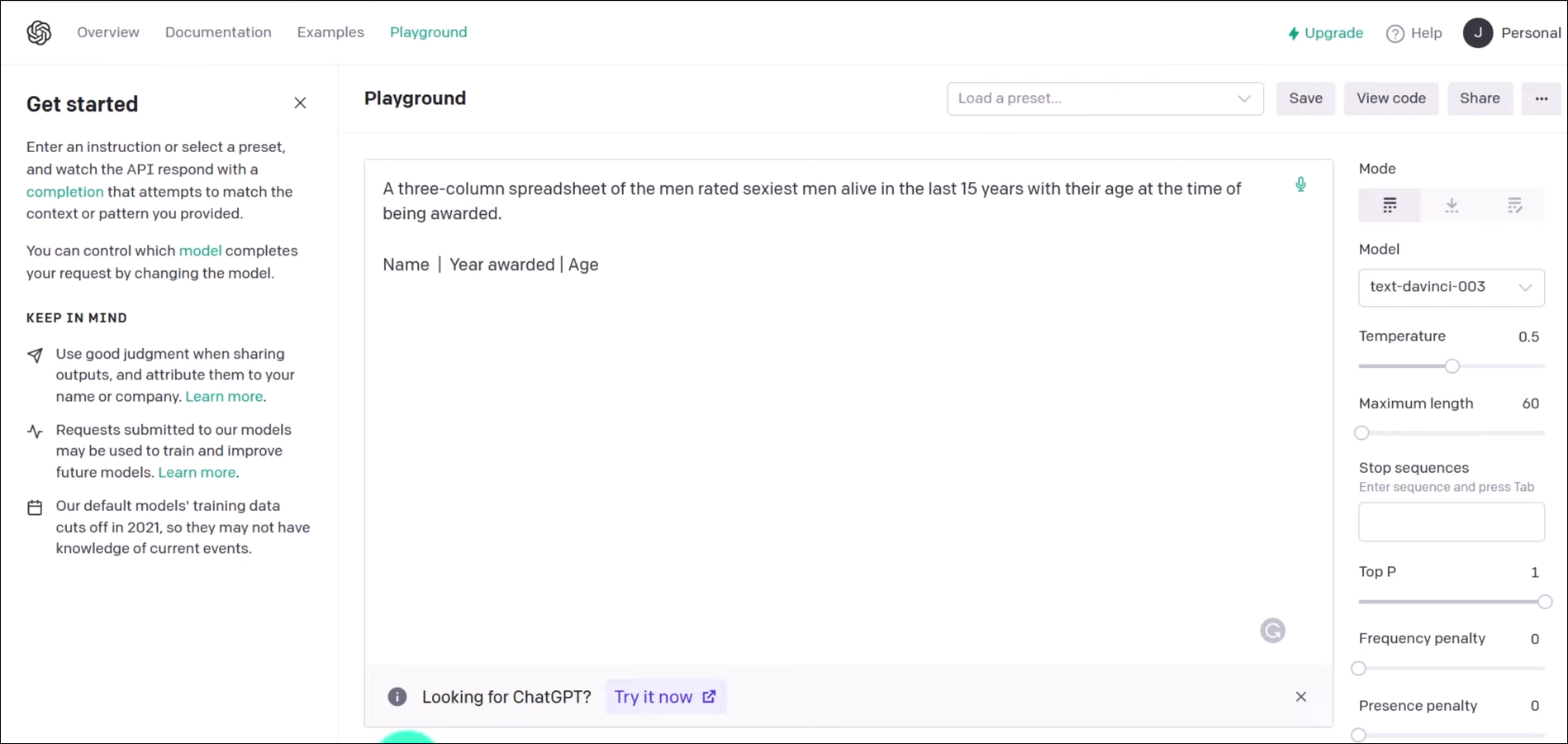
Open AI Playground
Whether it involves answering queries, providing guidance, or creating content based on the supplied files, ChatGPT can be adapted to function as a personalized tool, modifying its capabilities to align with the user’s specific requirements and preferences.
Conclusion
The ChatGPT Sandbox is a simple and easy-to-use tool where you can try different things with the ChatGPT AI model. It lets users create their own assistants or use ready-made ones for many needs.
ChatGPT Sandbox operates on a credit system, which means you need to purchase credits to use its features. While it’s not completely free, the cost is generally affordable.
Absolutely! ChatGPT Sandbox can assist with a range of tasks, including writing essays, creating code, or even generating creative content. You can set the AI to function in a specific mode that aligns with your task.
Yes, ChatGPT Playground and ChatGPT Sandbox refer to the same platform. Both terms are used to describe the interactive environment provided by OpenAI where users can experiment with and utilize the ChatGPT model.
How to Fix “Printer is in an error state” Issue?
- Browser fingerprinting is a method used by websites and online services to track users’ online behavior based on their unique browser and system settings.
- While it helps improve user experience and cybersecurity, it can also lead to potential privacy issues as it allows for persistent and hard-to-evade tracking.
- There are several ways to limit browser fingerprinting such as adjusting your browser’s privacy settings, using privacy-centric browsers, disabling JavaScript and Flash, using VPNs, or using the Tor Browser.
- As AI and browser technologies evolve, the techniques for browser fingerprinting and its countermeasures will become more sophisticated.
- Compliance with regulatory frameworks and privacy laws will be crucial in addressing the challenges associated with browser fingerprinting.

Browser fingerprinting is a discreet form of data collection that creates a unique digital signature based on your browser configuration, installed plugins, screen resolution, and more. This identifier allows websites and advertisers to track your activity across the internet, even without using personal information. As a result, entities can monitor your behavior and build detailed profiles for analytics or targeted advertising.
While it can improve service efficiency, browser fingerprinting poses serious privacy risks by enabling tracking without consent. This guide explores the technique in depth and offers actionable steps to help you conceal your browser fingerprint. Protecting it is crucial for maintaining anonymity and preserving your online privacy.
Your browser fingerprint typically consists of the following data points:
- User Agent : Details about your browser type, version, and operating system.
- HTTP Headers : Information on language preferences, accepted content types, and encoding.
- Screen Resolution : The size and resolution of your display screen.
- Timezone : The geographic time zone of your device.
- Installed Fonts : A list of fonts available on your computer.
- Plugins and Extensions : Information about extensions and plugins installed in your browser.
- Cookies : Small data files stored by websites on your device.
- WebGL and Canvas Fingerprinting : Data about your graphics capabilities and rendering engines.
- IP Address : A unique network identifier assigned to your device.
- Battery Status : Sometimes, information about your device’s battery level.
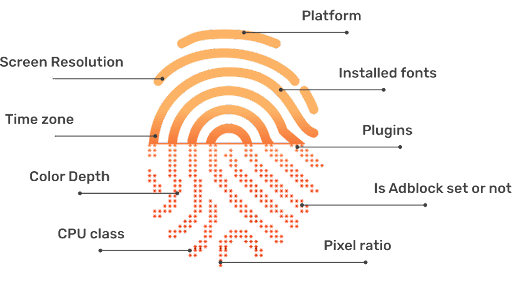
Why is Hiding Browser Fingerprint Important?
Any browser, regardless of its security focus, can be targeted by malicious actors. The complexity and volume of the modern web make it easier for harmful websites to take advantage of browser fingerprinting, often in subtle ways. It is vital to understand why your browser fingerprint matters so you can effectively protect yourself against potential misuse.
If you prefer, you can skip directly to our practical how-to section below.
1. Unique Identification
Browser fingerprinting enables the creation of a unique identifier for your browser, making it possible for third parties to recognize and track you across different sites. For instance, if you search for a product on an online store, your fingerprint can be used to associate your browsing habits with targeted ads, even after you have left the original website.
In many cases, your consent to data collection may have been obtained—often during sign-up—but users frequently overlook the fine print. Consequently, your data may be sold or shared without your full awareness.

2. Privacy Invasion
Browser fingerprinting poses a significant threat to your privacy by exposing sensitive information without your consent. For example, a news website that collects your fingerprint could infer your political preferences, which may later be exposed in a data breach or misused by third parties, potentially leading to harassment or discrimination.

The exposure of these tactics emphasized the real-world risks of browser fingerprinting—showing that data analytics can have serious implications for personal privacy and democratic processes.
3. Misuse of Data
If criminals or unauthorized users gain access to browser fingerprint databases, your personal information could be exploited for identity theft, fraud, or other malicious activities. For example, a breach at a large technology firm could expose browser fingerprints combined with other identifiers, enabling impersonation or unauthorized account access.
In many cases, this information is sold illegally on the dark web , where it can be further abused for financial or personal gain.
4. Exploitation of Security Vulnerabilities

Cybercriminals may use data from your browser fingerprint to identify weaknesses in your browser or device. By combining various data points, they may uncover unique details about your system configuration and exploit known vulnerabilities to target you with tailored malware or phishing attacks.
5. Tracking and Profiling
Detailed information gathered from browser fingerprints can be exploited by advertisers and data brokers to build intensive profiles of your browsing habits. For instance, repeated visits to health-related websites could reveal sensitive medical interests, potentially leading to targeted ads or even increased insurance premiums.
6. Cross-Device Tracking

Through browser fingerprinting, advertisers and data collectors can track your activities across different devices, such as smartphones and laptops, by linking your fingerprinted data. Studies, such as “ The Web Never Forgets: Persistent Tracking Mechanisms in the Wild ” by Princeton University researchers, have shown that fingerprinting can persist even when switching browsers or clearing cookies.
This persistence means your online identity remains recognizable across multiple platforms, despite efforts to minimize tracking.
7. User Deanonymization

Browser Fingerprint is Often Used for De-Anonymizing Users | Pixabay
Fingerprinting can undermine efforts to stay anonymous online, even when using VPNs or private browsing. By piecing together multiple fingerprint attributes—such as IP address, timezone, and browser configuration—attackers can potentially reveal your real identity. In 2019 , researchers from Leibniz University of Hanover and Philipps University of Marburg demonstrated they could identify 70% of users in a large, anonymized dataset by using browser fingerprinting. ( Source PDF )
8. Evasion of Privacy Settings
Browser fingerprinting can circumvent your privacy settings. For example, even if you enable features like “ Do Not Track ” in your browser, fingerprinting can still be used to follow your activities. Research from KU Leuven and Princeton University revealed that major websites were still able to fingerprint users despite privacy-enhancing browser configurations.
How to Hide Your Browser Fingerprint?
Fortunately, you can take effective steps to minimize your exposure to browser fingerprinting. By applying the following strategies, you can significantly reduce the risk of advertisers or malicious entities tracking your online activity.
1. Browser Modification

Browser modification can help protect your fingerprint
Customizing your browser settings is a direct way to restrict unnecessary data transmission. Most browsers offer features and privacy controls to reduce fingerprinting, though the level of customization varies. Below, you’ll find actionable steps for the most popular browsers to enhance your fingerprint protection.
Google Chrome
Google Chrome offers several privacy settings to limit fingerprinting and increase user anonymity.

Google Chrome Privacy Settings
We recommend using the built-in “ Privacy Guide ” resource, which provides detailed instructions and explanations for adjusting Chrome’s privacy settings.
Set Chrome to automatically delete cookies each time you close the browser, or consider disabling cookies entirely for maximum privacy. This limits websites from storing persistent identifiers used in fingerprinting.
Google also experiments with Privacy Sandbox , a new feature in Chrome aimed at reducing tracking and fingerprinting by masking hardware and software characteristics. Although not yet standard, this initiative is designed to make fingerprinting significantly more difficult for websites and advertisers.
Activating these safeguards helps to obscure your unique digital signature and defend against tracking, even as browser standards evolve.
Microsoft Edge
Microsoft Edge emphasizes security and privacy, with customizable tracking prevention modes: Basic , Balanced , and Strict . For maximum privacy, select Strict —though note that some website features may be affected.
Edge visually displays which trackers have been blocked and which are permitted, giving you insight and control over your privacy. By adjusting these settings, you reduce the amount of data collected by websites and advertisers.

Microsoft Edge Privacy Settings
Mozilla Firefox
Mozilla Firefox is renowned for its commitment to privacy and extensive customization options. Within Firefox’s Privacy settings, you can choose between “ Standard “, “ Strict “, or “ Custom ” modes—select “ Strict ” for optimal privacy protection.
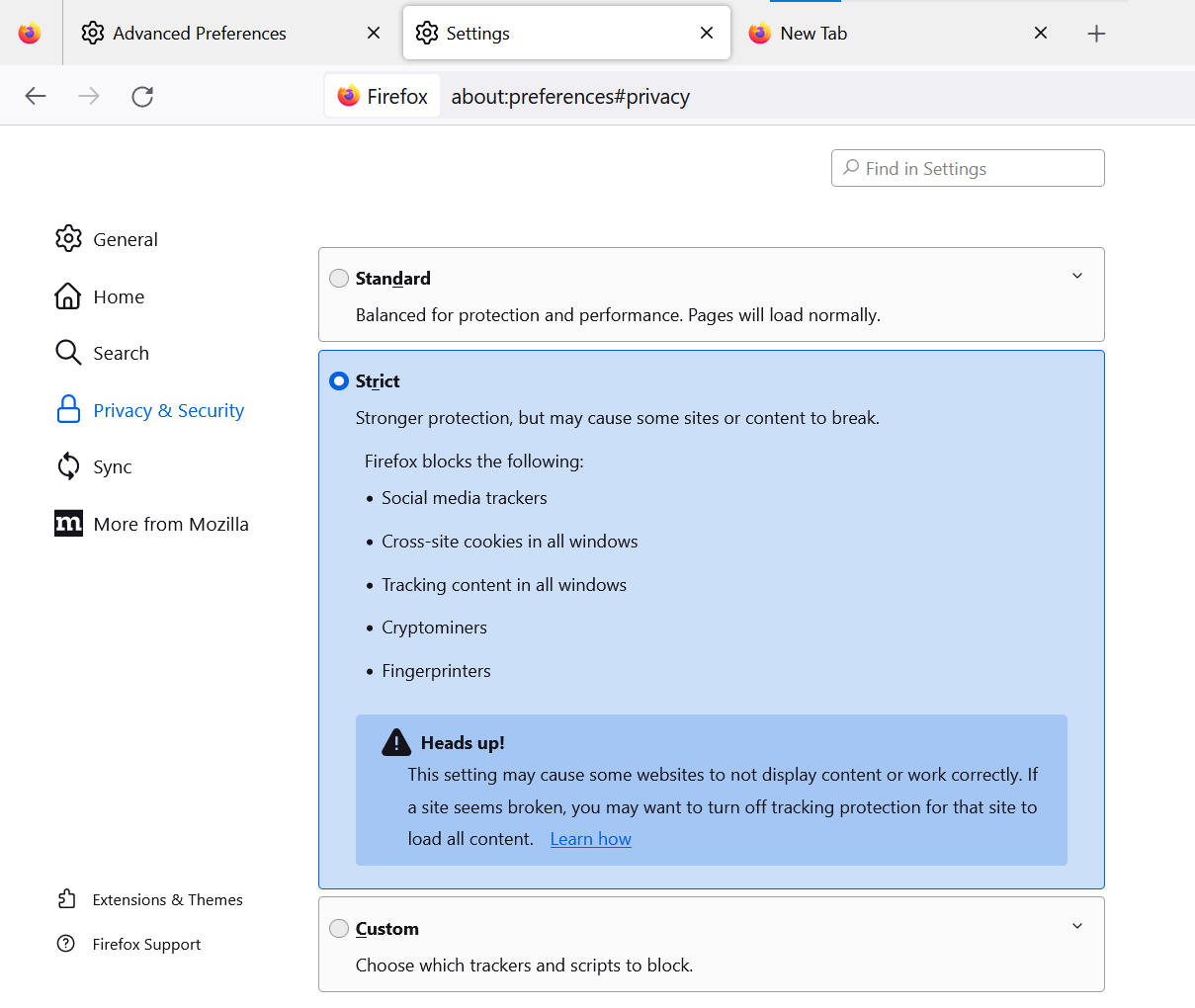
Mozilla Firefox Privacy Settings
Advanced users can further strengthen privacy by entering about:config in the address bar and modifying several key settings:
- Set privacy.resistFingerprinting to True : This Tor-inspired setting helps shield your browser from fingerprinting attempts.
- Set webgl.disabled to True : Disables the WebGL API, reducing hardware-based fingerprinting.
- Set media.peerconnection.enabled to False : Disabling WebRTC hides your real IP address, even when using VPNs.
- Set geo.enabled to False : Disables location services, preventing geo-location-based tracking.
- Set privacy.firstparty.isolate to True : Restricts cookies to their originating website, blocking cross-site tracking.
Alternatively, you may use a pre-configured user.js profile, such as the one maintained by ghacks, for an enhanced and up-to-date privacy experience.
Opera
Opera features built-in privacy tools—including an ad blocker and free VPN—and enables you to easily opt out of tracking. Access “ Settings ” > “ Privacy Settings ” to review and apply options that improve your privacy and reduce fingerprinting exposure.

Opera Browser Privacy Settings
Brave
Brave prioritizes privacy and actively combats fingerprinting through two main strategies:
- Standardizing or randomizing API values so Brave instances appear identical to each other.
- Employing per-session and per-site randomization to make tracking far more difficult.
These approaches reduce the effectiveness of fingerprinting by preventing unique tracking signatures. You can easily access privacy settings by typing “ brave://settings/privacy ” in the Brave address bar. Brave also offers a built-in VPN and Tor functionality for users seeking maximum privacy.

Brave Browser Privacy Settings
Brave also features integrated Tor browsing , accessible within the privacy settings for enhanced anonymity.

Brave and Tor Browser Coordination
Apple Safari
Safari offers strong privacy measures by default. Its Intelligent Tracking Prevention automatically blocks sites not visited for over 30 days and rejects various tracking mechanisms—including some fingerprinting techniques—without compromising user security.
- Go to the Safari menu, select “ Settings “, and open the “ Privacy ” tab.
- Check options for: Prevent cross-site tracking Hide IP Address Block All Cookies

Apple Safari Privacy Settings
Selecting these options strengthens your defenses against fingerprinting and improves overall privacy while using Safari.
Other Methods to Hide Browser Fingerprint
Beyond browser-specific modifications, there are additional strategies to further reduce the risk of browser fingerprinting.
2. Use the Incognito Mode of the Browser

Activate your browser’s private or incognito mode when browsing sensitive topics. This mode minimizes the storage of browsing data and cookies, helping reduce the surface area for fingerprinting and persistent tracking. Keep in mind that incognito mode does not make your fingerprint identical to other users, but it does offer enhanced privacy for session data.
3. Browser Extensions and Add-ons
Specialized browser plug-ins can further protect against fingerprinting—however, exercise caution when choosing extensions. Only install add-ons from reputable sources, as malicious or poorly designed add-ons can both expose your data and increase your fingerprint’s uniqueness.
Popular anti-fingerprinting extensions include:
- Canvasblocker by kkapsner : Defends against canvas fingerprinting ( GitHub ).
- Trace by AbsoluteDouble : Blocks traditional and advanced fingerprinting ( GitHub ).
- Chameleon by sereneblue : Spoofs user agents and randomizes browser attributes ( GitHub ).
While using user-agent spoofing add-ons can help complicate fingerprinting, be mindful that erratic or highly unique fingerprints can also make you stand out. Consider extensions that cycle fingerprints periodically for added privacy.
4. Disable JavaScript
Disabling JavaScript prevents websites from collecting detailed information about your browser plugins, fonts, and hardware. This can serve as an effective defense against many fingerprinting methods.
However, disabling JavaScript may impair functionality on many websites. Consider using NoScript or similar tools to selectively enable JavaScript on trusted sites while blocking it elsewhere. This approach requires ongoing management but offers granular control over your exposure.
5. Use A VPN Service

A Virtual Private Network (VPN) increases your privacy by masking your IP address and encrypting your network traffic. This does not completely eliminate fingerprinting, but it prevents third parties—including ISPs and malicious websites—from connecting your browsing activity to your real-world identity and location.
6. Disable Flash

Flash is obsolete and poses unnecessary privacy risks. If you have Flash installed, disable or uninstall it—as modern browsers no longer support it as of late 2020. Eliminating Flash closes another fingerprinting avenue and strengthens your privacy even further.
7. Use Tor Browser

The Tor Browser , built on Mozilla Firefox, is engineered for maximum anonymity and privacy. It routes your online activity through multiple nodes worldwide, making it extremely difficult to link your web activity back to your real identity.
Tor comes with essential privacy features, such as HTTPS Everywhere , NoScript , and built-in anti-fingerprinting protections, blocking techniques like Canvas and WebGL fingerprinting by default. For best results, use the browser’s default settings and avoid unnecessary plugins or modifications.
8. Virtual Machines

Virtual Machine |Spiceworks
For those with higher privacy needs, using Virtual Machines (VMs) provides a highly secure environment for browsing. Tools like VirtualBox enable you to run isolated Linux VM instances, protecting your host machine and making it easy to erase and reset the environment if it is ever compromised.
Using VMs can anonymize your browsing by isolating sessions, running multiple operating systems, and layering VPNs for additional privacy. This approach is particularly valuable for advanced users who require robust anonymity or want to test websites with different setups.
Important: For Smartphone Privacy
Future Trends and Challenges in Browser Fingerprinting
Browser fingerprinting techniques are rapidly advancing and will only become more sophisticated with time, especially as the capabilities of Artificial Intelligence (AI) expand. Staying informed and proactive is essential in this evolving landscape.
Evolving Techniques of Browser Fingerprinting
Browser fingerprinting methods are continuously being refined as both attackers and defenders adapt to emerging technologies and regulations.
Using AI Techniques

AI Can be Used for Browser Fingerprinting |Tech Talks
AI-powered algorithms are making fingerprinting more precise. By analyzing larger and more complex data sets, AI can identify subtle patterns in browser behavior that create even more distinctive digital profiles, increasing the challenge for privacy-conscious users.
Evolution of Browsers
As browsers and web standards evolve, new opportunities for fingerprinting emerge, such as with WebRTC and WebGL . Privacy professionals must continuously adapt their defenses to keep pace with these technological developments.
Countermeasures to Protect Against Advanced Fingerprinting Methods
Future countermeasures may leverage emerging technologies, regulatory changes, and new privacy tools. Staying updated with best practices and utilizing privacy-focused software will remain critical.
Use of AI
AI can also be harnessed to develop anti-fingerprinting solutions that detect and neutralize tracking techniques. Such tools may analyze browser behavior in real-time, autonomously adjusting privacy settings or creating synthetic profiles to undermine fingerprinting accuracy.
Regulatory Frameworks

Laws Can Help Improve Browser Fingerprinting Concerns | Pixabay
Newer Tools
Expect continued development of anti-fingerprinting browser extensions, advanced privacy controls, and customizable settings. Features like improved cookie management, advanced tracking prevention, and machine learning–based privacy solutions will continue to help users defend against new fingerprinting tactics.
- Recognizing the importance of a printer’s duty cycle is crucial for choosing a device that matches your print volume needs. Staying within this limit ensures the printer operates efficiently and prolongs its lifespan, minimizing the risk of maintenance issues.
- Proper humidity, temperature, and cleanliness management can significantly enhance printer performance and maintain its duty cycle, preventing unnecessary wear.
- Enhancing a printer with upgrades like additional memory or better mechanical parts can improve its workload handling and extend its practical duty cycle, boosting overall durability and efficiency.
When choosing a new printer, you might come across the term “ duty cycle ” in the specifications. This guide will explain what a duty cycle is, why it matters, and how it can help you choose the right printer. We’ll keep things simple so you can easily understand how to use this information when shopping for a printer.
- Printer Duty Cycle: What It Means and Why It Matters?
- Why the Duty Cycle Is Key to Choosing the Right Printer?
- Duty Cycle vs. Recommended Monthly Print Volume: What’s the Difference?
- What Happens If You Ignore Printer Duty Cycle Recommendations? ↪ Real-World Scenarios: Why Exceeding the Duty Cycle Can Cost You
Printer Duty Cycle: What It Means and Why It Matters?

What is the meaning of Printer Duty Cycle?
The printer duty cycle represents the upper limit of a printer’s capacity—how many pages it can reliably process in a month before the risk of wear or malfunction increases. This figure is crucial for understanding printer performance limits and ensuring that your chosen printer can handle the expected work volume.
Manufacturers determine a printer’s duty cycle through stress testing, where the printer is pushed to its limit to identify how many pages it can produce each month before malfunctioning. These tests help set a reliable performance gateway for users.
A printer’s duty cycle is like a car’s speedometer—you wouldn’t drive a car at top speed all the time, and you shouldn’t push a printer to its maximum duty cycle. Doing so can lead to quicker wear and tear, more frequent maintenance, and a shorter lifespan.
If you’re unsure whether to choose an inkjet or laser printer, this detailed guide compares both options to help you make an informed decision.
Why the Duty Cycle Is Key to Choosing the Right Printer?

The Importance of Duty Cycle in printer selection
Knowing the duty cycle is essential when choosing a printer, as it determines how well the device can handle your monthly print volume without excessive wear or maintenance.
Here is why the duty cycle matters in printer selection:
- Fit for purpose: Selecting a printer with a suitable duty cycle ensures it can handle your monthly printing volume efficiently, reducing stress on its components.
- Longer lifespan and better performance: Staying within the duty cycle ensures optimal print quality and speed while prolonging the printer’s life, avoiding frequent breakdowns.
- Cost efficiency and reduced downtime: Operating within the duty cycle minimizes the need for repairs and reduces operational disruptions, managing long-term costs.
Duty Cycle vs. Recommended Monthly Print Volume: What’s the Difference?

Duty Cycle vs. recommended monthly print volume
The recommended monthly print volume is the optimal number of pages a printer should handle each month for the best performance and longevity. Unlike the maximum capacity indicated by the duty cycle, this number guides regular usage, ensuring the printer operates efficiently without excessive wear.
If your print volume regularly exceeds the recommended amount but stays within the duty cycle, the printer may operate safely in the short term, but it could still experience accelerated wear and reduced lifespan over time.
In such cases, consider upgrading to a higher-capacity printer or spreading print jobs across multiple devices to ensure long-term performance.
Here are the differences between the duty cycle and recommended monthly print volume:
- Duty cycle: Represents the maximum number of pages a printer can handle in a month without breaking down. It assesses the printer’s upper limit.
- Recommended monthly print volume: Suggests a practical, workable number of pages to print each month to keep the printer in good condition over its lifespan.
What Happens If You Ignore Printer Duty Cycle Recommendations?

Consequences of ignoring Duty Cycle recommendations |AndranikHakobyan via Canva
Ignoring the duty cycle limits poses more severe risks than exceeding the recommended monthly print volume, leading to serious long-term consequences.
While exceeding the recommended volume occasionally may result in additional wear and tear, consistently exceeding the duty cycle can lead to frequent breakdowns, reduced performance, and a shortened lifespan.
Ignoring duty cycle limits leads to frequent breakdowns, reduced performance, and increased maintenance, ultimately shortening the printer’s lifespan and causing more frequent operational downtime and higher repair costs. Long-term, pushing a printer beyond its limits leads to greater financial burdens due to premature replacements and inefficiencies.
↪ Real-World Scenarios: Why Exceeding the Duty Cycle Can Cost You
For example, in a busy law firm, overlooking duty cycle limits during a high-stakes period could cause a printer breakdown just before a critical deadline, delaying crucial legal filings and ultimately compromising client service.
For small businesses, consistently exceeding a printer’s duty cycle can lead to costly emergency repairs or premature equipment replacements, straining financial resources.
