Did you know that you do not need someone’s Wi-Fi password to connect to their internet? A small button named “WPS” at the back of the router can help you achieve this.
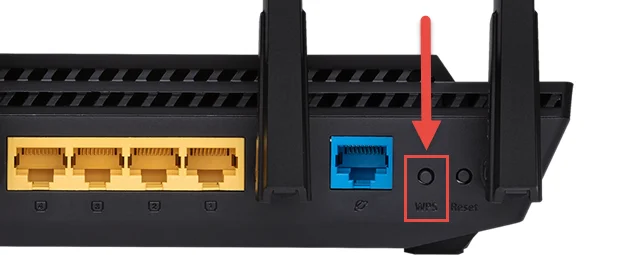
WPS button on rear of a router|Digital Citizen
What is WPS?
WPS is the abbreviation of “ Wi-Fi Protected Setup ” and is a wireless network security standard. It allows for different wireless devices to safely communicate with the internet router. Nowadays almost all routers have a dedicated WPS button which makes it easier for smart devices to connect to the network.
Location of WPS Button
Different router models have separate places where they place the WPS button. Most routers have it in the back (as shown in the image above) alongside the power input cable , ethernet port and reset button. However, depending on the manufacturer it may be someplace else. The WPS button can be identified by these methods:
- WPS is written either on the button or below it.
- WPS logo which looks like two arrows in an anti-clockwise direction are printed on the button.
Connecting Using WPS Button
It is simple to use the WPS feature to connect to a network. Press and hold the WPS button for a few seconds until the WPS indicator starts blinking, which means it’s restarting. As soon as it restarts, open the network settings on the device you want to connect to the network and select it as soon as it reappears, you will be connected without the need for a password . If your phone automatically searches for available networks, you should be connected without doing anything.
This is especially useful for devices such as wireless printers and cameras, which also have a WPS button, and if both buttons are pressed simultaneously then a permanent connection is established and both remember each other.
How Does WPS Button Work?
Usually, when someone wants to connect to a network they ask the owner for a password (also regarded as WPS-PSK) which when input, allows connection establishment with the router.
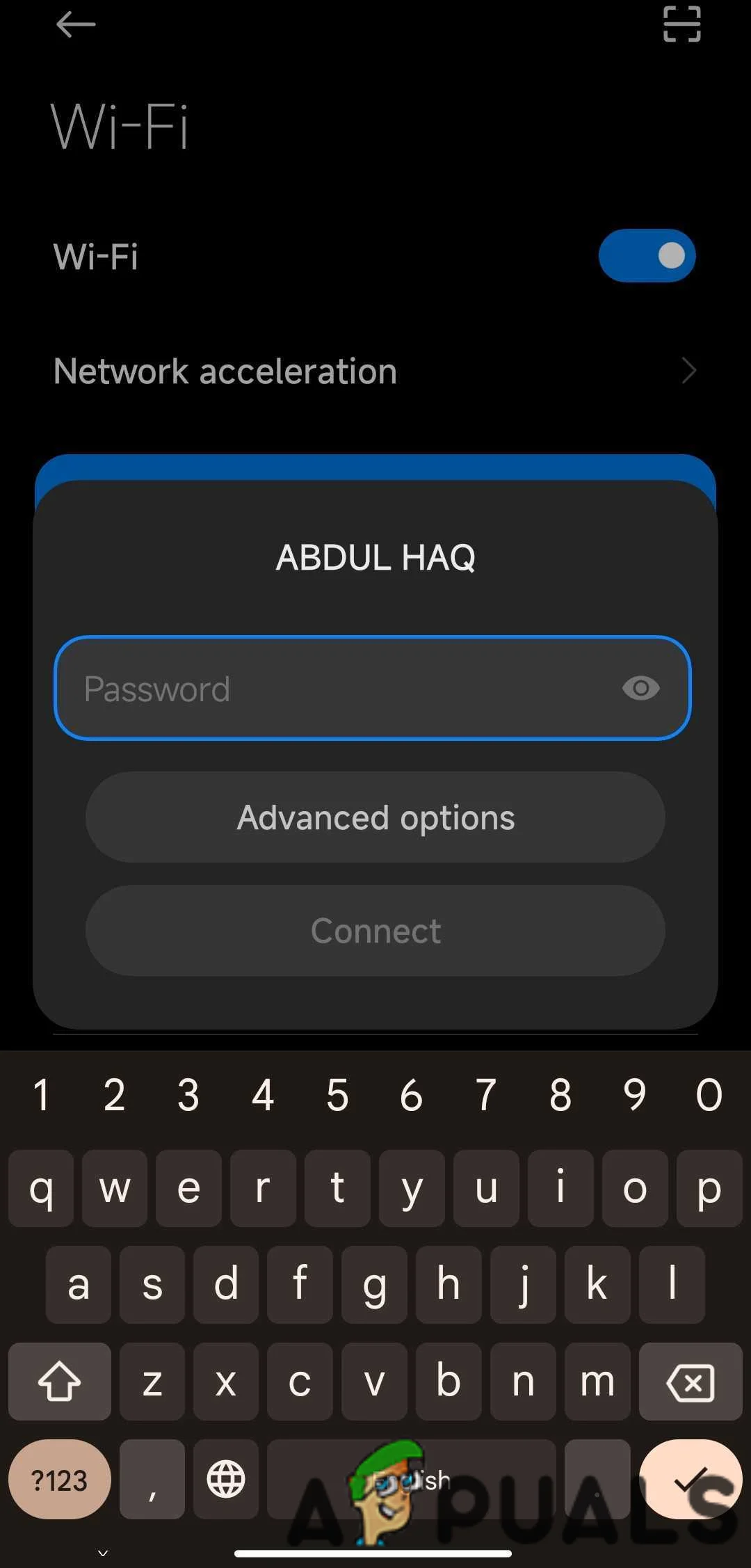
Password Option While Connecting To Wi-fi
However, for networks protected by WPA/WPA2/WPA3, pressing the WPS button temporarily enables a connection window, allowing compatible devices to connect without a password. WPS assumes that anyone with physical access to your device is a trusted person, hence, this feature is provided.
Benefits of WPS
There are multiple benefits of having this feature. It becomes relatively quick and easy to connect to a network; imagine if many people want to connect simultaneously; what will be easier, telling them all the WPA-PSK or simply resetting the router so that everyone can instantaneously connect?
As mentioned before, it is also easier to connect smart devices such as printers, speakers, televisions, and fridges to the network, as their interfaces are not relatively more straightforward. Also, it is a good feature to have, in case someone has to connect to a network during an emergency and does not have access to password of the network.
Risks of WPS Button
Although this feature has many benefits, it does not mean it is entirely secure. As mentioned before, WPS assumes that anyone with physical access to your device is a trusted person; however, if someone can access your router only once, for example, a neighbor and connect their device to it, they can easily use your connection forever if your router has a good range.
Especially if your router is at a public place like a school, university or an office available for a few staff members; however, if one student can connect to it successfully, then your network is compromised as it is effortless to share network connections with other members using the Wi-Fi sharing QR code which every smartphone has nowadays. Even if your phone doesn’t have the aforementioned option, you can still get the functionality on older Android devices through some simple tricks.

Wifi QR code scanner
Not only will this lead to heavy internet usage leading to over-billing, but it will also result in a plodding internet speed. Additionally, WPS PINs are vulnerable to brute-force attacks, in which an attacker can attempt to guess the PIN by systematically trying all possible combinations. This could potentially grant unauthorized access to your Wi-Fi network.
A slight inconvenience of the WPS button is that Apple devices like Mac , iPhone , and iPad do not connect to networks through this feature as Apple does not consider this secure enough to allow its devices to establish a connection.
Disabling WPS On Router
In case you decide that you want to disable this feature, here is how you can do it:
- On a device connected to the network, open a browser and log in to the router’s admin console. Admin Console
- Click on Advanced Settings and then Wireless Settings .
- Ujder WPS settings, select Disable Router’s PIN or unselect Enable Router’s PIN. The feature will be disabled.
Keep in mind that the exact wording and location of the WPS settings may vary depending on the router’s manufacturer and model. Refer to your router’s user manual or the manufacturer’s website for specific instructions tailored to your device
Should I Disable WPS?
In the end, it is up to you if you want to keep and use WPS or if you want to disable it. However, if your router is in a secure place, then there is no harm in keeping it enabled and using it to connect new devices in a jiffy.
How to Fix “Printer is in an error state” Issue?
The WPS method OR ( push button method ) is an easy and quick method for connecting the printer to the wireless router, access point, or gateway. Generally, the way it works is that you press this button on the printer first, and then on the router within 2 minutes, allowing both devices to connect to each other.
There are two ways you can access the WPS settings: either through the Setup or by pushing the WPS button on the printer. On some printer models, this button is not available; therefore, to access it, you will need to enter the printer’s setup menu, which is usually indicated by a Tools/Wrench icon on the printer’s panel.
If the button is available, how do i connect my printer to my router?
If the button is available, take a close look at the buttons on the printer to identify a button with a wireless icon. Press this button and then press the WPS button on your router within two minutes.
If the WPS button is not available, what do I do then?
If the button is not available, you can connect by entering the printer’s setup through touch. This article does not cover specific models but serves as a general guide.
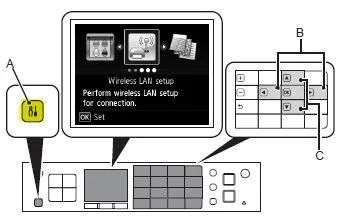
( A ) indicates the setup button, which is what you will need to press. Once you are in the settings, use the arrow keys to enter “ Wireless LAN Setup ,” “ Wireless Setup ,” or “ Network Setup “.
Once inside, locate the Push Button Method or WPS method and proceed with it.
You will then be told to press the WPS button on your router within 2 minutes.
Press the WPS button on the router for the connection to take place.
- Recognizing the importance of a printer’s duty cycle is crucial for choosing a device that matches your print volume needs. Staying within this limit ensures the printer operates efficiently and prolongs its lifespan, minimizing the risk of maintenance issues.
- Proper humidity, temperature, and cleanliness management can significantly enhance printer performance and maintain its duty cycle, preventing unnecessary wear.
- Enhancing a printer with upgrades like additional memory or better mechanical parts can improve its workload handling and extend its practical duty cycle, boosting overall durability and efficiency.
When choosing a new printer, you might come across the term “ duty cycle ” in the specifications. This guide will explain what a duty cycle is, why it matters, and how it can help you choose the right printer. We’ll keep things simple so you can easily understand how to use this information when shopping for a printer.
- Printer Duty Cycle: What It Means and Why It Matters?
- Why the Duty Cycle Is Key to Choosing the Right Printer?
- Duty Cycle vs. Recommended Monthly Print Volume: What’s the Difference?
- What Happens If You Ignore Printer Duty Cycle Recommendations? ↪ Real-World Scenarios: Why Exceeding the Duty Cycle Can Cost You
Printer Duty Cycle: What It Means and Why It Matters?

What is the meaning of Printer Duty Cycle?
The printer duty cycle represents the upper limit of a printer’s capacity—how many pages it can reliably process in a month before the risk of wear or malfunction increases. This figure is crucial for understanding printer performance limits and ensuring that your chosen printer can handle the expected work volume.
Manufacturers determine a printer’s duty cycle through stress testing, where the printer is pushed to its limit to identify how many pages it can produce each month before malfunctioning. These tests help set a reliable performance gateway for users.
A printer’s duty cycle is like a car’s speedometer—you wouldn’t drive a car at top speed all the time, and you shouldn’t push a printer to its maximum duty cycle. Doing so can lead to quicker wear and tear, more frequent maintenance, and a shorter lifespan.
If you’re unsure whether to choose an inkjet or laser printer, this detailed guide compares both options to help you make an informed decision.
Why the Duty Cycle Is Key to Choosing the Right Printer?

The Importance of Duty Cycle in printer selection
Knowing the duty cycle is essential when choosing a printer, as it determines how well the device can handle your monthly print volume without excessive wear or maintenance.
Here is why the duty cycle matters in printer selection:
- Fit for purpose: Selecting a printer with a suitable duty cycle ensures it can handle your monthly printing volume efficiently, reducing stress on its components.
- Longer lifespan and better performance: Staying within the duty cycle ensures optimal print quality and speed while prolonging the printer’s life, avoiding frequent breakdowns.
- Cost efficiency and reduced downtime: Operating within the duty cycle minimizes the need for repairs and reduces operational disruptions, managing long-term costs.
Duty Cycle vs. Recommended Monthly Print Volume: What’s the Difference?

Duty Cycle vs. recommended monthly print volume
The recommended monthly print volume is the optimal number of pages a printer should handle each month for the best performance and longevity. Unlike the maximum capacity indicated by the duty cycle, this number guides regular usage, ensuring the printer operates efficiently without excessive wear.
If your print volume regularly exceeds the recommended amount but stays within the duty cycle, the printer may operate safely in the short term, but it could still experience accelerated wear and reduced lifespan over time.
In such cases, consider upgrading to a higher-capacity printer or spreading print jobs across multiple devices to ensure long-term performance.
Here are the differences between the duty cycle and recommended monthly print volume:
- Duty cycle: Represents the maximum number of pages a printer can handle in a month without breaking down. It assesses the printer’s upper limit.
- Recommended monthly print volume: Suggests a practical, workable number of pages to print each month to keep the printer in good condition over its lifespan.
What Happens If You Ignore Printer Duty Cycle Recommendations?

Consequences of ignoring Duty Cycle recommendations |AndranikHakobyan via Canva
Ignoring the duty cycle limits poses more severe risks than exceeding the recommended monthly print volume, leading to serious long-term consequences.
While exceeding the recommended volume occasionally may result in additional wear and tear, consistently exceeding the duty cycle can lead to frequent breakdowns, reduced performance, and a shortened lifespan.
Ignoring duty cycle limits leads to frequent breakdowns, reduced performance, and increased maintenance, ultimately shortening the printer’s lifespan and causing more frequent operational downtime and higher repair costs. Long-term, pushing a printer beyond its limits leads to greater financial burdens due to premature replacements and inefficiencies.
↪ Real-World Scenarios: Why Exceeding the Duty Cycle Can Cost You
For example, in a busy law firm, overlooking duty cycle limits during a high-stakes period could cause a printer breakdown just before a critical deadline, delaying crucial legal filings and ultimately compromising client service.
For small businesses, consistently exceeding a printer’s duty cycle can lead to costly emergency repairs or premature equipment replacements, straining financial resources.
