In today’s fast-paced computing world, some features can easily go unnoticed or be misunderstood. One such feature is the Scroll Lock key on keyboards. In this guide, we will explain what Scroll Lock is, its functions, its relevance on Mac computers, and how to activate it.

Scroll Lock key on a modern keyboard (QK80) | markerchun
The Scroll Lock key is found on many older external keyboards and is typically labeled as “ Scroll Lock ” or “ Scrlk .” It dates back to the early days of computing when it played a more significant role. Originally, the Scroll Lock key was designed to modify the behavior of the arrow keys. When activated, instead of moving the cursor, the arrow keys would scroll the content of a text window or a terminal interface. This feature was especially useful in the era of text-based computing environments, where graphical interfaces were not yet widespread.
Early computer systems often relied on text-based outputs, and having the ability to scroll through information without altering the position of the typed text was crucial.
What Does Scroll Lock Do in a Keyboard?
In today’s computing world, the role of the Scroll Lock key has greatly diminished . The introduction of graphical user interfaces (GUIs) and advances in computer hardware and software have made the original function of the Scroll Lock key largely irrelevant for most users.
However, it still retains functionality in certain specific applications and environments. One notable example is its use in Microsoft Excel . When Scroll Lock is active in Excel, pressing the arrow keys causes the worksheet to scroll in the direction of the arrow key pressed, instead of moving the active cell .
This can be particularly useful for navigating large spreadsheets without shifting the focus from a particular cell or set of cells.

Scroll Lock can be useful inscrollingthrough large spreadsheets
Another area where Scroll Lock finds its use is in some programming and database environments. In these contexts, activating Scroll Lock allows users to scroll through logs or code without moving the cursor, similar to its original purpose in early computing.
Scroll Lock on Mac
Apple’s design philosophy for Mac computers focuses on minimalism and improving user experience by streamlining functionalities. This approach is evident in their keyboard design, where there is a noticeable absence of a dedicated Scroll Lock key on their laptops.

Missing Scroll Lock Key on macOS Laptops
Unlike traditional PC keyboards, macOS-based laptop keyboards omit this less frequently used key, aligning with Apple’s focus on a cleaner, more modern keyboard layout.
However, if you use an external full-sized keyboard offered by Apple, it may include the Scroll Lock functionality. To activate it, press the Control + F14 keys . In some cases, you may need to press and hold the Fn key before using this combination.

Scroll Lock on Apple’s External Full-Sized Keyboard
How to Activate Scroll Lock
Activating Scroll Lock on a Windows-based keyboard is usually straightforward. The key is typically labeled “ Scroll Lock ” or “ Scrlk ” and is often found in the top right section of the keyboard. This key, when pressed, toggles the Scroll Lock function on or off. However, its location and method of activation can vary depending on the keyboard or laptop type you are using.
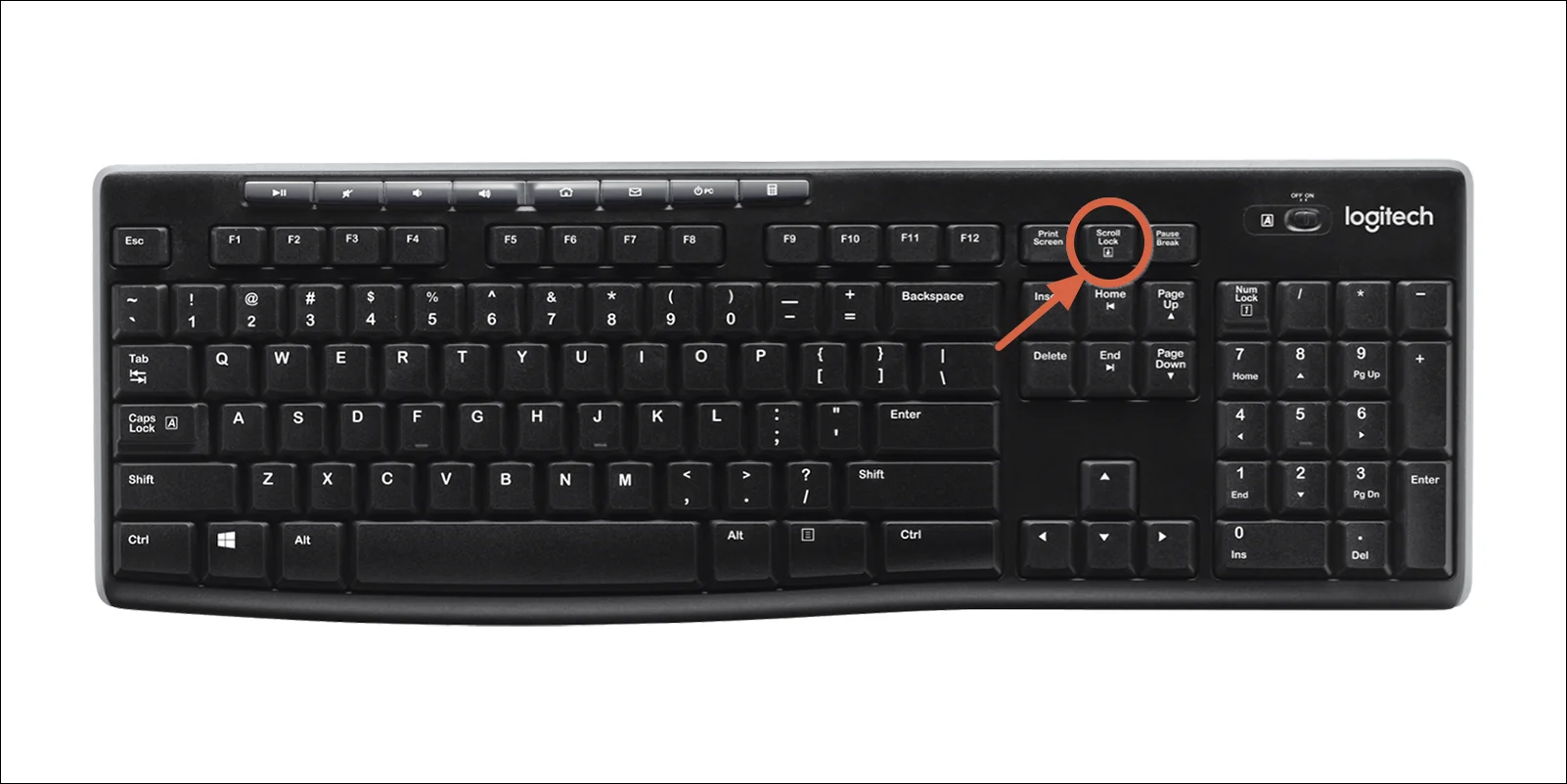
Scroll Lock Key on Full-Sized Keyboards
On most full-size keyboards, the Scroll Lock key is directly accessible and clearly marked. Simply pressing this key will activate or deactivate the Scroll Lock function. On laptops or smaller keyboards where space is at a premium, the Scroll Lock function might be part of a multi-function key.
Generally, this involves holding down the “ Fn ” (Function) key combined with the key that contains the Scroll Lock function, which might be shared with another key. The exact key combination can vary, so it’s advisable to refer to the laptop’s or keyboard’s manual for your specific combination.
How to Fix “Printer is in an error state” Issue?
- Recognizing the importance of a printer’s duty cycle is crucial for choosing a device that matches your print volume needs. Staying within this limit ensures the printer operates efficiently and prolongs its lifespan, minimizing the risk of maintenance issues.
- Proper humidity, temperature, and cleanliness management can significantly enhance printer performance and maintain its duty cycle, preventing unnecessary wear.
- Enhancing a printer with upgrades like additional memory or better mechanical parts can improve its workload handling and extend its practical duty cycle, boosting overall durability and efficiency.
When choosing a new printer, you might come across the term “ duty cycle ” in the specifications. This guide will explain what a duty cycle is, why it matters, and how it can help you choose the right printer. We’ll keep things simple so you can easily understand how to use this information when shopping for a printer.
- Printer Duty Cycle: What It Means and Why It Matters?
- Why the Duty Cycle Is Key to Choosing the Right Printer?
- Duty Cycle vs. Recommended Monthly Print Volume: What’s the Difference?
- What Happens If You Ignore Printer Duty Cycle Recommendations? ↪ Real-World Scenarios: Why Exceeding the Duty Cycle Can Cost You
Printer Duty Cycle: What It Means and Why It Matters?

What is the meaning of Printer Duty Cycle?
The printer duty cycle represents the upper limit of a printer’s capacity—how many pages it can reliably process in a month before the risk of wear or malfunction increases. This figure is crucial for understanding printer performance limits and ensuring that your chosen printer can handle the expected work volume.
Manufacturers determine a printer’s duty cycle through stress testing, where the printer is pushed to its limit to identify how many pages it can produce each month before malfunctioning. These tests help set a reliable performance gateway for users.
A printer’s duty cycle is like a car’s speedometer—you wouldn’t drive a car at top speed all the time, and you shouldn’t push a printer to its maximum duty cycle. Doing so can lead to quicker wear and tear, more frequent maintenance, and a shorter lifespan.
If you’re unsure whether to choose an inkjet or laser printer, this detailed guide compares both options to help you make an informed decision.
Why the Duty Cycle Is Key to Choosing the Right Printer?

The Importance of Duty Cycle in printer selection
Knowing the duty cycle is essential when choosing a printer, as it determines how well the device can handle your monthly print volume without excessive wear or maintenance.
Here is why the duty cycle matters in printer selection:
- Fit for purpose: Selecting a printer with a suitable duty cycle ensures it can handle your monthly printing volume efficiently, reducing stress on its components.
- Longer lifespan and better performance: Staying within the duty cycle ensures optimal print quality and speed while prolonging the printer’s life, avoiding frequent breakdowns.
- Cost efficiency and reduced downtime: Operating within the duty cycle minimizes the need for repairs and reduces operational disruptions, managing long-term costs.
Duty Cycle vs. Recommended Monthly Print Volume: What’s the Difference?

Duty Cycle vs. recommended monthly print volume
The recommended monthly print volume is the optimal number of pages a printer should handle each month for the best performance and longevity. Unlike the maximum capacity indicated by the duty cycle, this number guides regular usage, ensuring the printer operates efficiently without excessive wear.
If your print volume regularly exceeds the recommended amount but stays within the duty cycle, the printer may operate safely in the short term, but it could still experience accelerated wear and reduced lifespan over time.
In such cases, consider upgrading to a higher-capacity printer or spreading print jobs across multiple devices to ensure long-term performance.
Here are the differences between the duty cycle and recommended monthly print volume:
- Duty cycle: Represents the maximum number of pages a printer can handle in a month without breaking down. It assesses the printer’s upper limit.
- Recommended monthly print volume: Suggests a practical, workable number of pages to print each month to keep the printer in good condition over its lifespan.
What Happens If You Ignore Printer Duty Cycle Recommendations?

Consequences of ignoring Duty Cycle recommendations |AndranikHakobyan via Canva
Ignoring the duty cycle limits poses more severe risks than exceeding the recommended monthly print volume, leading to serious long-term consequences.
While exceeding the recommended volume occasionally may result in additional wear and tear, consistently exceeding the duty cycle can lead to frequent breakdowns, reduced performance, and a shortened lifespan.
Ignoring duty cycle limits leads to frequent breakdowns, reduced performance, and increased maintenance, ultimately shortening the printer’s lifespan and causing more frequent operational downtime and higher repair costs. Long-term, pushing a printer beyond its limits leads to greater financial burdens due to premature replacements and inefficiencies.
↪ Real-World Scenarios: Why Exceeding the Duty Cycle Can Cost You
For example, in a busy law firm, overlooking duty cycle limits during a high-stakes period could cause a printer breakdown just before a critical deadline, delaying crucial legal filings and ultimately compromising client service.
For small businesses, consistently exceeding a printer’s duty cycle can lead to costly emergency repairs or premature equipment replacements, straining financial resources.
