OBS (Open Broadcaster Service) is the leading software for recording and streaming game plays in the gaming industry right now. With numerous functions that are tweakable by the user, the software gives a unique experience where the user has control over almost all the aspects of the recording/streaming.
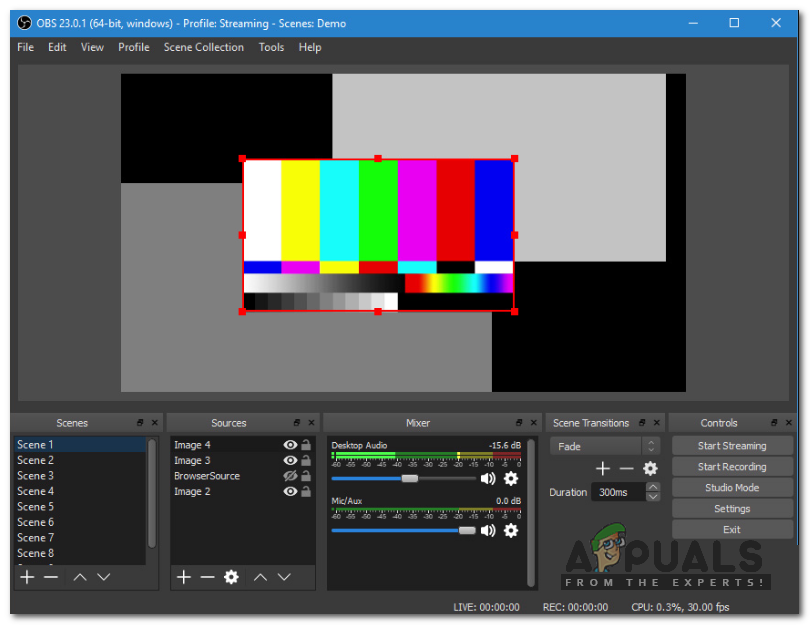
OBS Screen Recording
Every user might have searched for the best OBS settings for recording every now and then to make sure that his software generates top-notch quality recordings without taking a hit on performance. The thing about most ‘Best OBS Settings’ guides is that they don’t work for every case. They might work perfectly for some people but for others, they may cause additional problems.
In this article, we will go through all the technicalities on what to look for and what are variables which you can choose according to your hardware to provide an optimal result.
Navigating to Settings
First things first; we will be navigating to settings in your OBS Studio. First, you should make sure that you are running OBS as an administrator and should have all your recordings saved beforehand (which you have already made).
- Right-click on OBS Studio and select Run as administrator .
- Once in elevated OBS, click on the Settings button present at the bottom-right side of the screen.
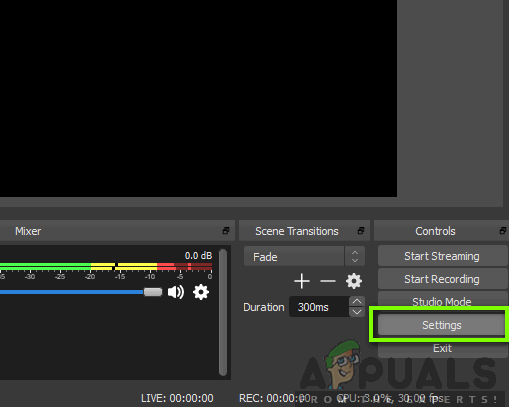
Launching OBS Settings
General Settings
There aren’t many options that you can change in the General settings of OBS. You can change the theme of your application (either light or dark). A noticeable thing that you should make sure is enabled is the System Tray . This option allows for great accessibility and enables you to launch the software instantly.
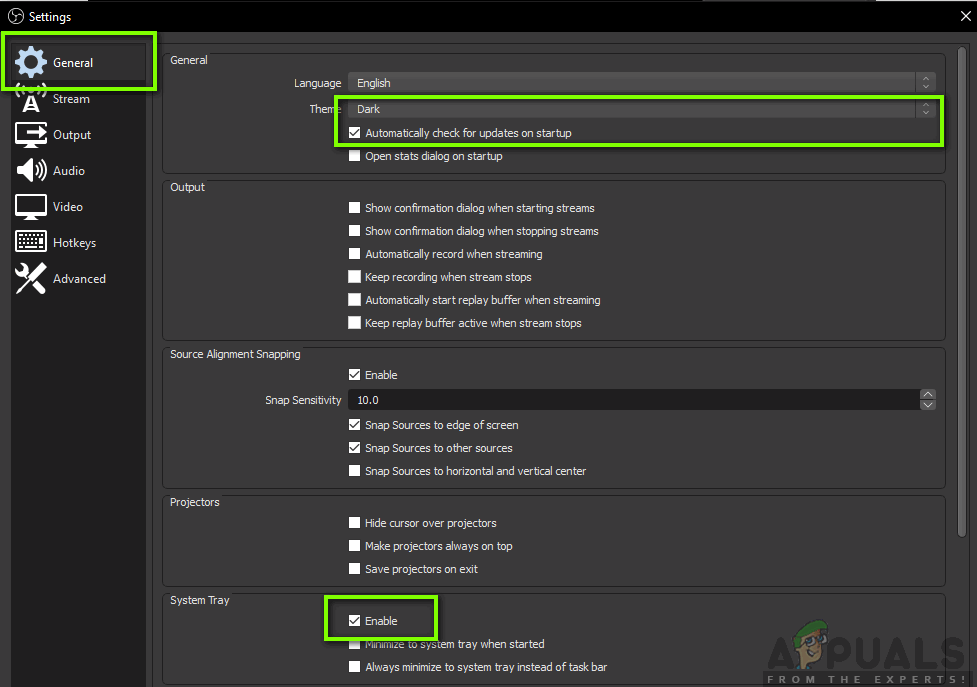
Enabling system tray – OBS General Settings
Output Settings
Let’s move on to the main module. Click on the Output tab present on the left side of the screen. There are two output options i.e. Simple and Advanced. In simple, we will change the format of the video file as well as decide the folder where the files are being saved. In advance, we will cover the encoding basics.
Recording path:
The recording path is the path where your recording will get stored after it is encoded and all. You should click on the browse button and navigate to a file location where you want your files to get saved.
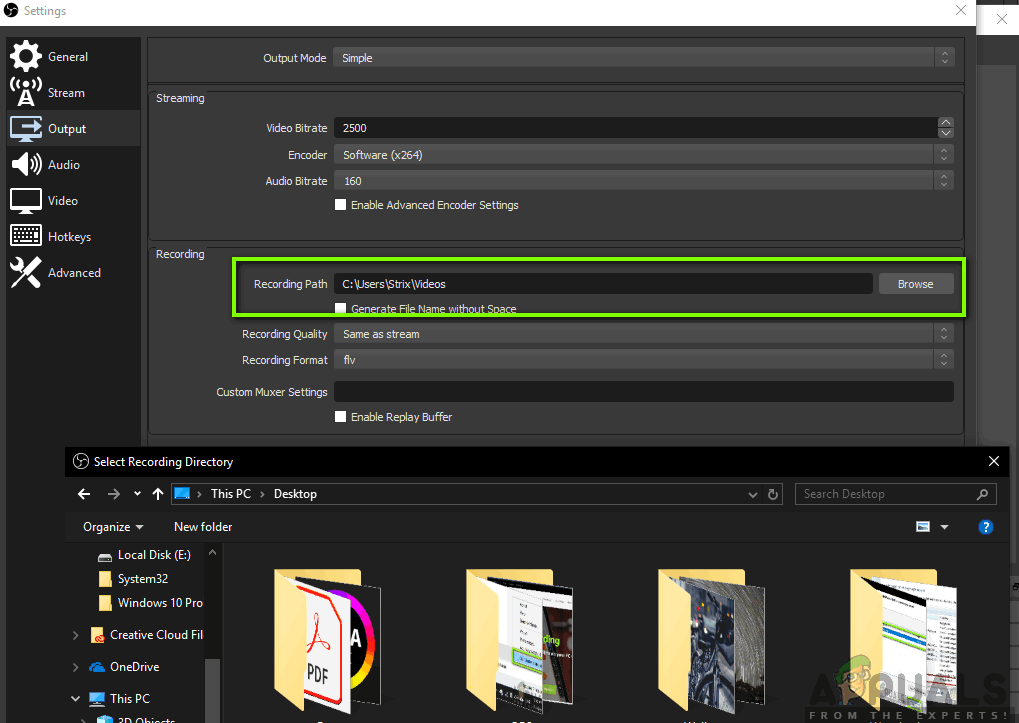
Changing recording path – OBS
Recording format:
Let’s move on to the recording format . The flv format (which is the default one) is considered to be an okayish format used for recording. However, if you prefer any other specific one, you can easily change the option by clicking the drop-down.
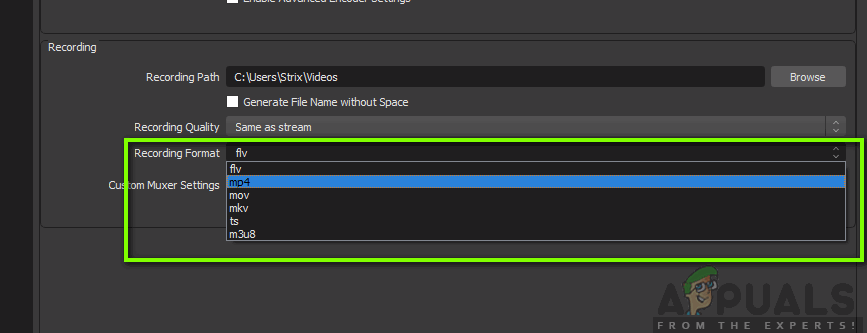
Recording format – OBS Studio
Recording Quality:
Recording Quality is an important factor in terms of the quality of recording which occurs in terms of size. There are namely 4 different qualities which you can preset. The default one is Same as stream . Below are listed more details onto which one suits you.
- Same as stream : This is the quality of the stream which you recording. The file size is somewhat medium with an okayish quality.
- High Quality, Medium File Size : In this option, you are specifying that regardless of the stream quality, the software should generate medium size files with not ‘too’ much accuracy but good enough to be viewed.
- Indistinguishable Quality, Large File Size : In this option, the file size will be very large and when playing the game and seeing the video, the user will not be able to distinguish between the two. This is a good option if you specifically require crystal clear and crisp quality recordings.
- Lossless Quality, Tremendously Large File Size : There is always the option of lossless quality. There will be absolutely no loss regarding the quality but the file will be extra-large so make sure that you have enough disk space.
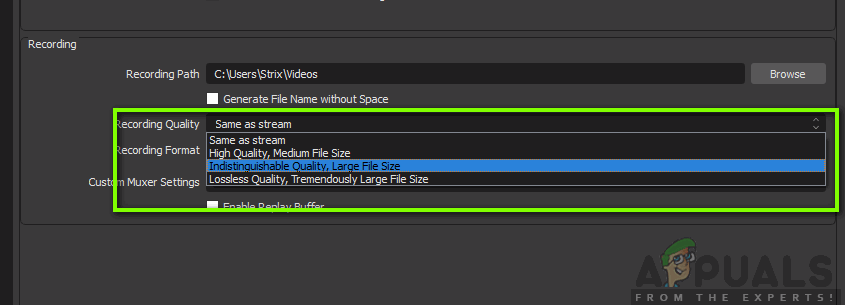
Changing recording quality
Advanced Settings
Now we will navigate to the Advanced settings to change the encoder and its settings. Click on the Output mode drop-down present at the top of the screen and select Advanced .
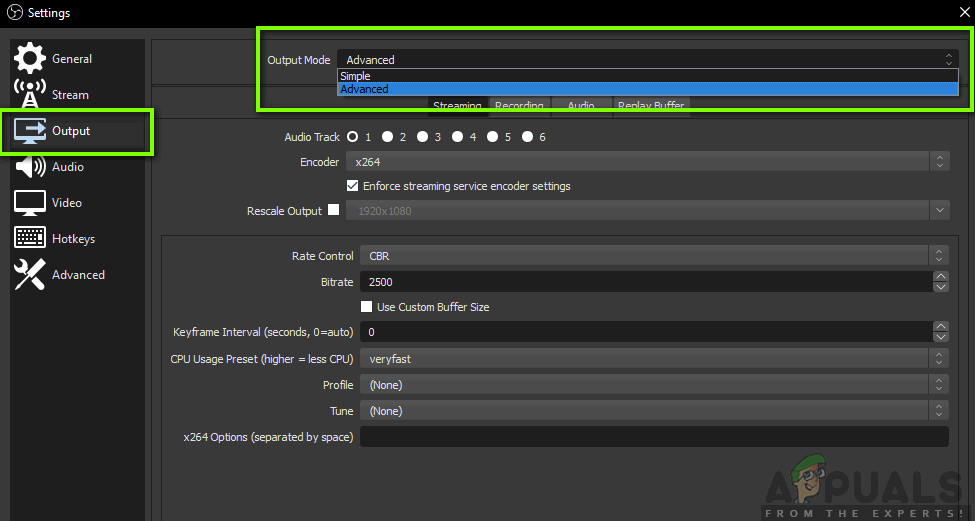
Navigating to Advanced settings – OBS
Encoder:
This is the game-changer that OBS introduced a while back. Before, users only had the option to use x264 encoding which is pure processor-based encoding. We also encountered several instances where people experienced high CPU usage when recording because of the amount of load the software placed on the computer.
The good thing is that OBS has introduced hardware supported encoding. This option allows users to make use of their dedicated graphics cards and use their power to encode the video.

Changing OBS Encoder
Depending on the graphics card installed on your computer, you will either see NVIDIA encoder or an AMD. You should prefer dedicated encoders over the stock software ones every time.
Rate control
If we talk about recording, it is proven that VBR is way better than the default (CBR) in all instances. The truth is that most people don’t know that yet. If you are only recording using OBS at the time being, we recommend that you select VBR.
In bitrate , you should set the normal number to 40,000 and the Max Bitrate to 60,000. If you really want to push your quality to the max or you have extra resources lying around, you can set the normal bitrate to 50,000 and the max bitrate to 100,000.
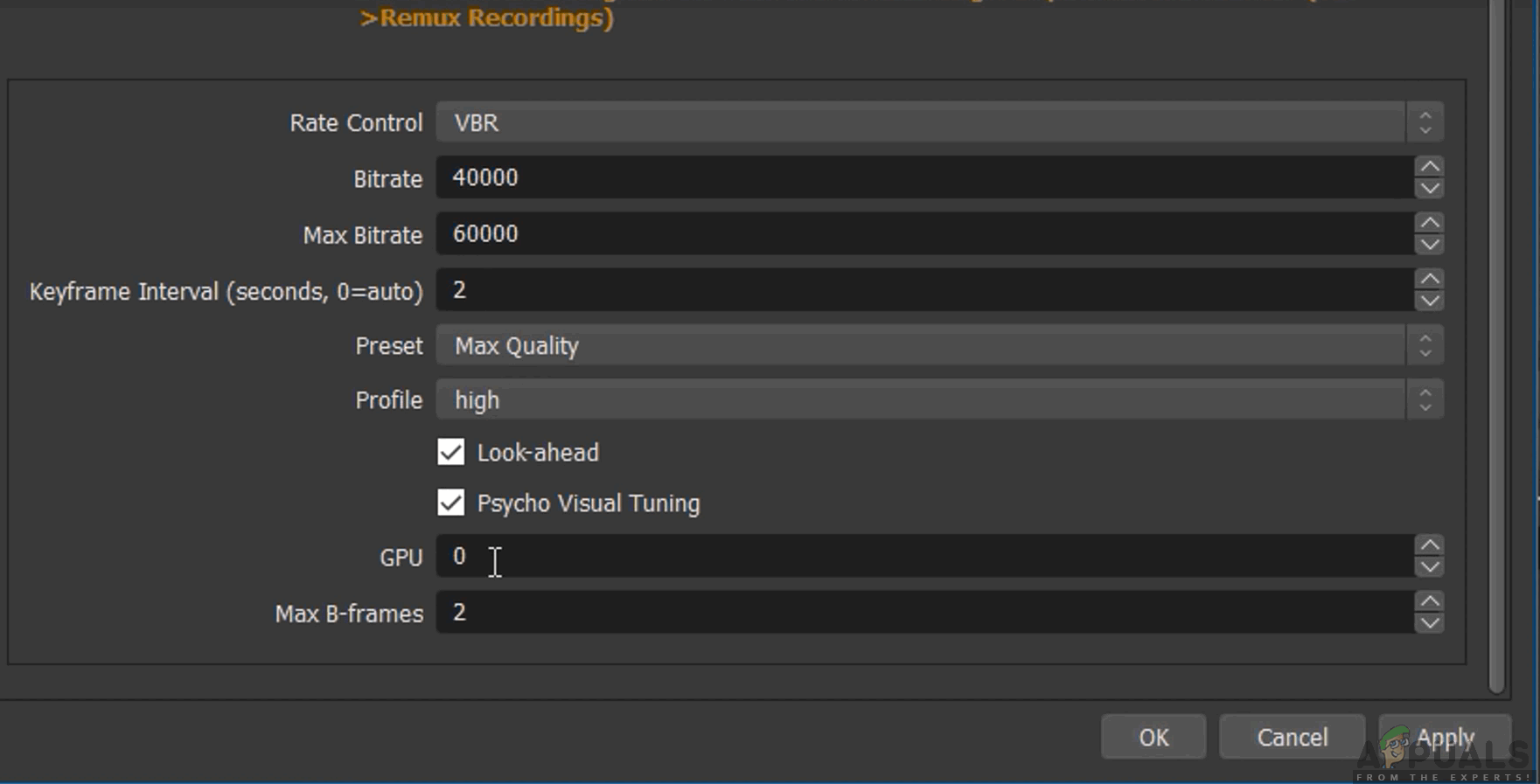
Rate control – OBS Studio
The keyframe interval should be set to 2 but you can adjust it according to your needs.
Let’s talk about preset . There are usually two recommended presets i.e. Max quality or Normal Quality (The normal quality doesn’t have ‘normal’ in it). You can try checking both presets and see which one works for you without putting too much strain on the CPU.
The Profile should be set to High . There are two new options available i.e. Look-ahead and Psycho Visual Tuning. These were introduced in the near past and you can check both items.
In the GPU section, the default value should be set to 0. This is used for dual-GPU systems which are usually set up using Crossfire or SLI. If you have dual GPUs running, you can easily specify the number on which one you want to use. Otherwise, let it sit at 0.
Audio Settings
Now that we’re done with the Output settings, let’s move on to the Audio settings. Click on the Audio tab present at the left side of the screen.
The Sample rate and Channels should be set to default values i.e. 44.1 kHz and Stereo . The Desktop Audio Device is where the sound travels to so you can hear it. These are mostly speakers if you have a speaker system connected to your computer or you can select the headphones if you are listening from there.
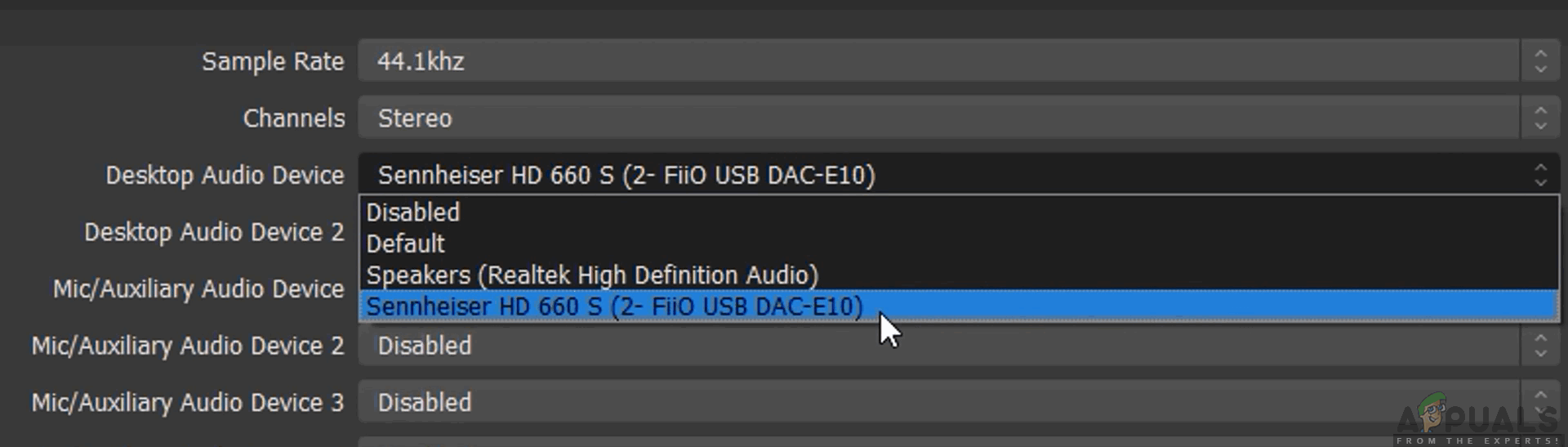
Setting Audio Output Device – OBS
Next comes the Mic/Auxiliary Audio device . This is the microphone from which the voice will be transmitted. Here you should select the dedicated mic (if you are using any) or leave it at default.
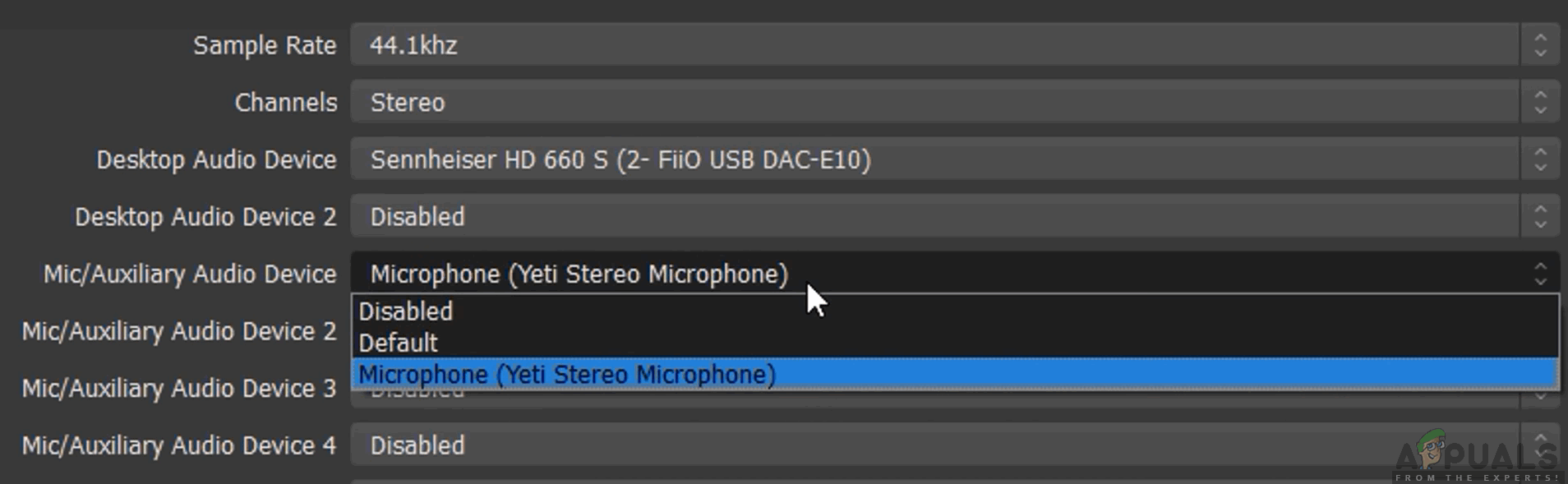
Selecting the microphone device – OBS
This is all for the Audio settings. Let’s move on to the video settings on your computer.
Video Settings:
In video settings, let’s talk about the first two settings. The Base (Canvas) Resolution is the resolution of your monitor. The Output (Scaled) Resolution is the setting which allows you to downscale your resolution. For example, if you play at 1080p but want to record at 720p, you need to set this option to 720p.
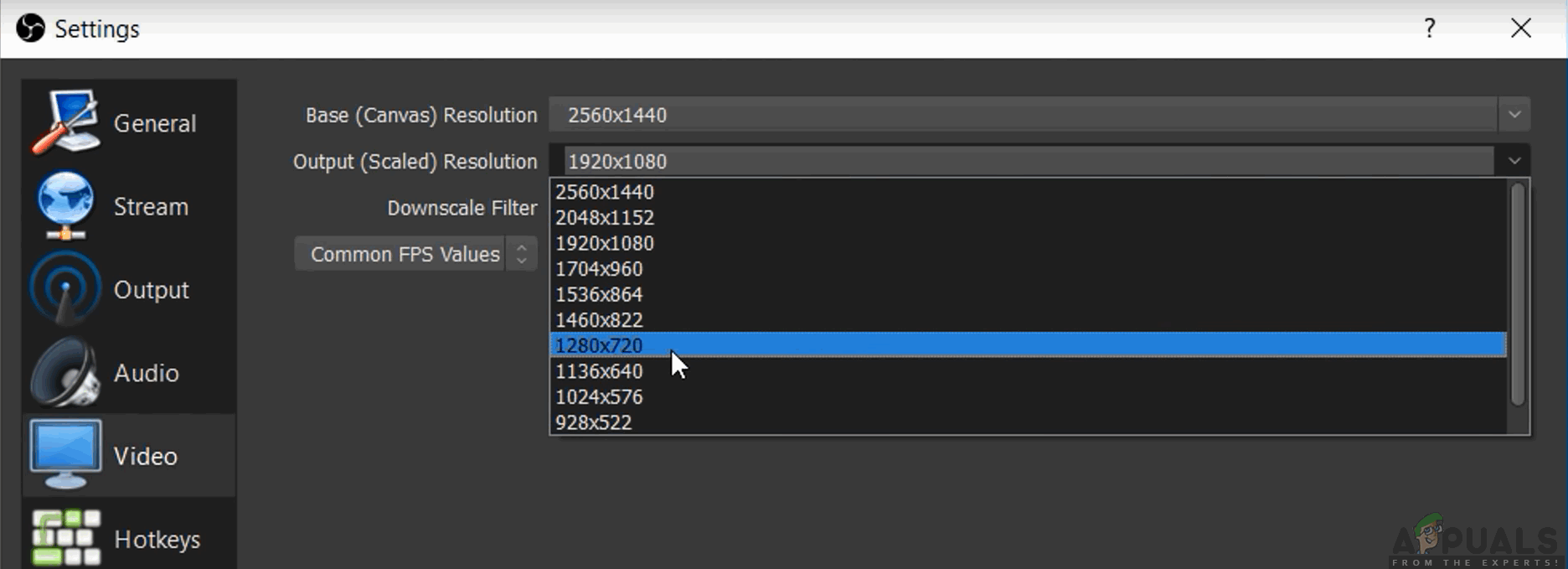
Video settings – OBS Studio
Now whenever you upload the video to YouTube, it will be in 720p. The Downscale Filter should be set to Lanczos (Sharpened scaling, 32 samples) . This option will increase the sharpness of your video. Next comes the FPS value. This should be set to 60 if you are planning to record at a high definition but if you have an older computer with low specs, you should set 5it as 30 as this your only choice.
Advanced Settings
Another flaw in OBS which we observed for several users was that when the OBS recording is complete, the recording looks really washed out just as you are about to click the stop button. If the ending isn’t good, it might leave a bad impression on your viewer or when you project the video to a larger screen, it makes a lot of difference.
Set the YUV Color Space to 709 and the YUV Color Range to Full . You don’t have to worry about the other settings. Just leave them as is.
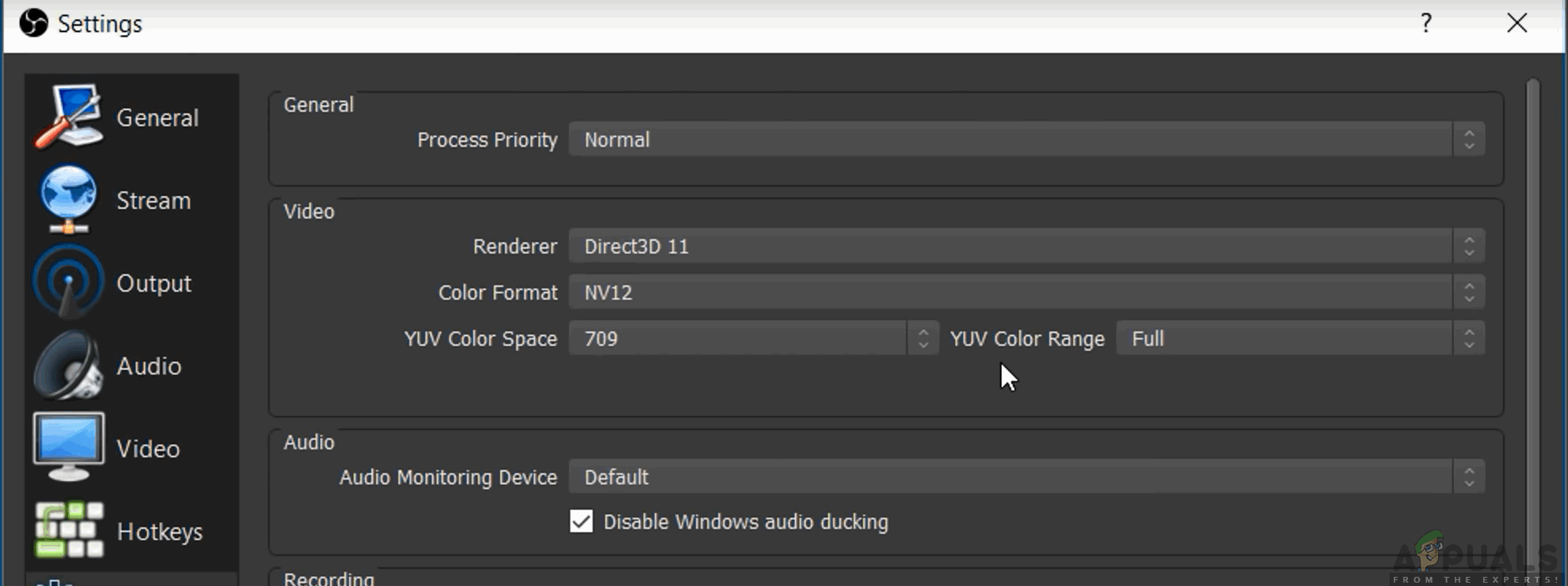
Advanced settings – OBS Studio
That’s it! Your OBS settings are set to the best to capture in the required quality. You can always make changes according to your will and tweak a little here and there to get a more personalized experience.
How to Fix “Printer is in an error state” Issue?
The error “ WinRAR Error: Next Volume Is Required ” usually appears when you’re extracting a multi-part RAR archive and WinRAR can’t find (or can’t correctly identify) the next file in the sequence . This often happens when a volume is missing , stored in a different folder , or renamed in a way that breaks the archive’s expected order .

In this guide, we’ll go over the most reliable fixes confirmed by affected users, along with what each method is doing behind the scenes so you can choose the right one for your situation.
Important: To extract multi-volume archives, you should always start extraction from the first file in the set. This is usually file.part1.rar , or (in older sets) the main .rar file that comes before .r01 , .r02 , and so on.
1. Download and Place the Missing RAR File
WinRAR needs all parts of a multi-volume archive to complete extraction. This error usually appears when one of the volumes in a set like .part2.rar , .r01 , .r02 , .001 , and similar naming formats is missing . Downloading the missing volume and placing it in the same folder as the other parts allows WinRAR to continue extracting normally .
- Look at the error message or review the list of archive parts in the folder.
- Identify which volume is missing (for example, part2.rar , .r02 , .001 , etc.).
- Go back to the website or source where you downloaded the archive.
- Locate and download the exact missing file using the same naming format as the others.
- Make sure the new file name matches the pattern of the rest. Example: If you have file.part1.rar and file.part3.rar , the missing one must be file.part2.rar .
- Move the downloaded missing volume into the same folder as the other archive parts.
- Confirm that all parts are in a single folder before extracting.
- Right-click the first file in the series (usually part1 or the main .rar file) and select Extract Here or Extract to Folder .
- WinRAR should now detect all volumes and continue extraction normally .
2. Manually Browse & Select the Next Volume
Use this method only if the next volume already exists , but WinRAR is failing to detect it automatically. This can happen due to incorrect naming , the file being in a different location , or a temporary file access issue. Manually browsing helps WinRAR locate the correct volume and resume extraction without interruption .
- Right-click the first file in the series (usually .rar or part1.rar ) and select Extract Here or Extract to Folder .
- When WinRAR cannot find the next volume, it will show the “ Next Volume Is Required ” message.
- A small window will appear, allowing you to manually select the next volume .
- Use the file explorer window to locate the folder where the other archive parts are saved.
- Select the next part based on the naming order (example: select file.part2.rar after file.part1.rar ).
- Make sure the selected file matches the naming format of the archive (no extra characters like (1) and no mismatched numbering).
- WinRAR will resume extraction using the selected volume .
- If additional volumes are missing or stored separately, WinRAR may prompt you again. Repeat the same process until extraction completes.
3. Rename the RAR files in Order
WinRAR relies on a proper naming sequence (such as file.part1.rar , file.part2.rar , file.part3.rar ) to extract multi-volume archives. If a file is named incorrectly, contains extra characters, or is out of order, WinRAR may fail to locate the next volume and show this error. Renaming the files correctly helps WinRAR follow the sequence and extract the archive without interruptions .
Note: Renaming only changes the file name , not the file contents. The goal is to restore the correct sequence so WinRAR can detect the next volume.
- Go to the folder where all the RAR files are saved.
- Make sure all parts of the archive are present and stored in the same folder .
- Check how the parts are currently named . Common patterns include:
file.part1.rar, file.part2.rar, file.part3.rar
file.rar, file.r01, file.r02, file.r03
- Look for files that don’t match the expected numbering pattern (for example, file.part01.rar , file.part1(1).rar , or unrelated names).
- Rename each file so it follows the same order without extra characters or mismatched numbering. Example:
Incorrect: file.part1.rar, file.part3.rar, file.part2(1).rar
Correct: file.part1.rar, file.part2.rar, file.part3.rar
- Make sure the text before the number is exactly the same for all files.
- Only the last part number should change.
- Right-click the first file in the series (usually part1.rar or the main .rar file) and select Extract Here .
- WinRAR should now recognize the sequence and continue extraction normally .
If you still get the same prompt: the archive set is likely incomplete (a part was never downloaded or was removed), or one of the volumes is corrupt and must be re-downloaded from the original source.
