Some time ago, photo organizing software were only necessary for professional photographers. However, with the revolution of the smartphone camera and the explosion of social media platforms like Instagram, you cannot begin to imagine how many pictures are taken each day on average. Which usually leaves people with an insurmountable number of photographs and no easy way to sort through them.
This is where a photo organizing software comes in. It is a software that helps you catalog your pictures so that you can easily navigate through them. Your OS might have a photo management app, but it will not be able to cope with the increasing number of pictures. A dedicated photo manager makes finding a particular picture from your sea of photos a breeze. It also affords you more ways to sort your images than you would ever see in the default photo organizer. Some even allow you to sort videos and documents.
And you know how you take ten photos and end up using just one? I am guessing that you never remember to delete those other pics. Good news, the photo organizing software can automatically detect the duplicate images and help you to eliminate them.
But not all these software are great. So to ensure you do not get disappointed, especially after spending cash on them, we give you 5 of the best software to organize your photos. In case you are not sure about them, we recommend you first try the free trial before making your purchasing decision. We have also included completely free software for good measure.
Important factors to consider when getting a Photo Organizing Software
These are some of the key aspects we considered in compiling our list. They are what we feel define an excellent photo organizer. But in the end, it depends on the specific needs of the user.
Metadata Handling

The key to effective photo organization lies in how well the software can manage the picture’s metadata (information about the photo). Things like the photographer’s name, location details, camera settings, these are just a few examples of metadata. Photo managers allow you to edit this information so that you have an easy way of identifying your images. Bonus tip, search engines rely on this data to produce better results and thus using the right tags can increase your picture’s exposure.
Responsiveness

If you are working with numerous high-quality pictures, then your software needs to be able to handle it. Your computer’s specs may play a significant role in how smoothly the software runs but truthfully some software are faster than others.
Ease of use

It’s also essential that the organizing software should be easy to use. Just like any chore, organizing your photos will not be enjoyable. Therefore, you don’t need your photo manager to complicate things further. If it’s straightforward enough you might even end up liking the process.
Editing Tools

Although editing is a secondary feature in an organizing software, it comes in handy. They may not perform the advanced customizations available in software like Photoshop, but you will be surprised what a little colour adjustment can do to your photo.
Security

Sometimes we have private pictures that we don’t want anybody to see. You can choose to hide the images via windows, but there is a simpler method. Putting them in a password-protected folder using the photo organizer. You can also encrypt the pictures using this facility.
| # | Name | Editing Tools | Sharing Options | Data Encryption | Backup | Details |
|---|---|---|---|---|---|---|
| 1 | ACDsee photo studio | View | ||||
| 2 | Smartpix manager 12 | View | ||||
| 3 | Magix photo manager | View | ||||
| 4 | Adobe Bridge | View | ||||
| 5 | Digikam | View |
| # | 1 |
|---|---|
| Name | ACDsee photo studio |
| Editing Tools | |
| Sharing Options | |
| Data Encryption | |
| Backup | |
| Details | View |
| # | 2 |
|---|---|
| Name | Smartpix manager 12 |
| Editing Tools | |
| Sharing Options | |
| Data Encryption | |
| Backup | |
| Details | View |
| # | 3 |
|---|---|
| Name | Magix photo manager |
| Editing Tools | |
| Sharing Options | |
| Data Encryption | |
| Backup | |
| Details | View |
| # | 4 |
|---|---|
| Name | Adobe Bridge |
| Editing Tools | |
| Sharing Options | |
| Data Encryption | |
| Backup | |
| Details | View |
| # | 5 |
|---|---|
| Name | Digikam |
| Editing Tools | |
| Sharing Options | |
| Data Encryption | |
| Backup | |
| Details | View |
1. ACDsee photo studio
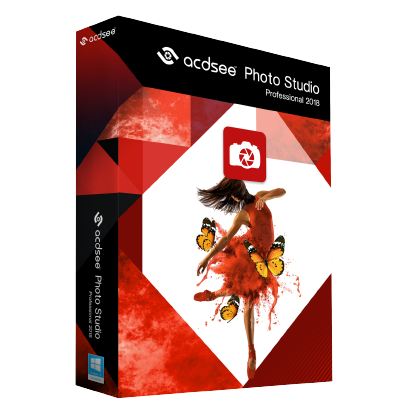
This is one of the most popular organizing tools and my personal favorite. It has various methods you can use to organize your photos, so it’s up to you to find the best fit for you. You can arrange the pictures according to their ratings, label them with colors or you can assign them different keywords. GPS tagging also allows you to find a photo based on the location it was shot, and the calendar menu sorts them based on the date taken.
Another impressive feature is Create sync that allows you to back up your photos on a different folder on the computer, an external drive or in the cloud. ACDSee automatically detects duplicate pictures in your library for you then you can decide whether or not to remove them.
This software also supports the Extensible Metadata Platform (XMP) standard that gives you access to some vital information like the camera settings used to take a particular picture. This can be useful when trying to replicate the exact qualities of a given image. Something else that makes ACDsee such a great organizer is the Import feature that lets you add pictures to ACDsee from any source. It could be from your camera, smartphone, scanner, CD, DVD, or a flash drive. And you do not have to worry about the file format since this software supports over 85 different file types.
On top of doing the basic editing stuff like cropping, resizing and red-eye removal, it also enables you to play around with the photo color, contrast, hue, and saturation. It also includes 54 special effects and allows you to create a slideshow of your pics with the option to add some background music. On the downside the edited photos need to be saved separately or otherwise they will overwrite the original photo.
You can also share your pictures via email or to various social media platforms including Facebook. And finally, ACDSee provides you with numerous video tutorials and has an active online community you can join to interact with other users. You can also be part of the Live interactive setting through their ACDSee workshop.
Download free trial ( here )
Pros
- Excellent organization tools
- Facilitates easy backup of photos
- Enables you to track the camera settings used
- Gives you access to basic editing tools
- Allows you to share photos with social media
- Great online support
Cons
- You need to pay to access their cloud services
2. Smartpix manager 12

This is a great photo organizer that you can also use to sort your videos, music and text files. This results in an intricate User Interface that might be hard to get at first. But the good thing is that Smartpix has included a help wizard that takes you through standard procedures. Smartpix allows you to search and sort your images according to their file names, assigned keyword or description. It automatically generates the keywords for you based on the file and folder names, but you can still choose one yourself. The preview window on this software is also larger than similar software giving you a better view of each image before you have opened it. It may not support the same number of file types as ACDsee, but it is compatible with most of the common file formats like RAW , PNG, JPEG, and PSD. It also allows you to directly import photos from different sources like the camera and smartphone.
Some of the editing functions you can perform with Smartpix include red-eye removal and color enhancements. And what’s better is that you can use batch editing to apply changes to numerous pictures. Moreover, if your images need further editing, Smartpix includes some buttons to help you open the image in your preferred image editing program.
It also allows you to create slideshows and share them via email but unfortunately, you cannot upload your pics to social media platforms. Additionally, I should mention that Smartpix includes a security feature called Blowfish that you can use to encrypt your files. It also automatically detects duplicate photos and will notify you so that you delete them.
Download Free Trial ( here )
Pros
- Allows you to sort videos and documents too
- Help wizard to guide you
- Larger preview window
- Basic editing capabilities
- Security feature to encrypt your images
- Automatic detection of duplicate images
Cons
- Limited sharing options
3. Magix photo manager

Magix has a free standard edition that will be great for basic photo organizing. However, for advanced features, I recommend their Deluxe edition. It comes with more features and further streamlines the organizing process. It’s most notable feature is Facial recognition that you can use to find photos of a particular person. Their import function also allows you to add images directly from your cloud service. This photo manager is also able to intelligently sort out through your photo library to detect duplicates and poorly shot pictures. You can then choose to either delete them or try and edit them to make them better.
The editing toolset is not as loaded, but it will allow you to perform various functions like adjusting the brightness, color, contrast, and sharpness of the image. It also enables you to remove red-eye and includes several photo filters and effects. Additionally, you can combine 8 single shots to create a perfect panorama. You can also make your slideshows even more memorable with great transition effects and beautiful background music of your choosing.
Regarding security, you can encrypt your files including those sent via the internet so that anybody without the password cannot access them. The software also features constant reminders to back up your data and the good thing is that you can complete the backup process from within the software. The backup also ensures that you can retrieve any photo that you accidentally delete.
Download Free Trial ( here )
Pros
- Facial recognition for better identification of images
- Automatic detection of duplicate and poor shots
- Sufficient editing tools
- Enables you to create a panorama from single shots
- Enables you encrypt your images
- Facilitates easy backup
Cons
- Somewhat complicated UI
4. Adobe Bridge

Bridge is the most overlooked software in the Adobe Suite, but it is an excellent photo organizing tool. And it’s surprisingly easy to use unlike the Adobe Photoshop and Adobe Lightroom. Unfortunately, it does not allow much editing apart from picture rotating.
One good thing about this software is that it also supports scanned photos which may not be true for most of the other software. Also, the lack of editing functionality means the interface is less cluttered and easier to understand.
Bridge does not store your pictures in a centralized database. Instead, you access each file from the exact folder it is stored in the system. The good thing is that if you need to save a picture in a new folder, you do not have to exit the program to create the folder or subfolder.
There are many ways to organize your photos in Bridge which include giving them a star rating, assigning them keywords, stacking them or labelling them using text and colours.
The software gives you access to the photo’s Metadata Panel that contains various fields such as Camera EXIF, Video and Audio data, and GPS. The average user may not understand most of these options, but Bridge allows you to create a metadata template that features only the most fields. Like date of the photo taken. Another impressive feature is the Batch editing. It allows you to create a specific formula that Bridge will apply for all your selected photos.
Download Bridge ( here )
Pros
- Supports scanned format
- Simple user interface
- Numerous ways to organize your pics
- Batch renaming
- Facilitates easy transition to Adobe Photoshop and Lightroom
Cons
- No editing capabilities
5. Digikam

For completely free software, Dijikam sure is loaded with great features. The first thing you will like is how light it is. It installs quickly and does not slow down other programs while running. Another great thing is that it is open-source software. This means that it is under the support of a community of developers who are regularly reviewing it and improving it. And if you have a knack for programming, then you can also tweak it to suit your needs.
The software packs a complete set of editing tools that allow you to perform simple tasks like cropping and adjusting image color and sharpness. Moreover, you can execute some advanced actions like curve adjustment and creating panoramas. The software also allows you to export your pictures to various social media platforms or a remote computer using KIO protocols.
Download Digikam ( here )
Pros
- Light and easy to install
- It’s open-source
- Great ways to organize the photos
- Great editing tools
- Completely free
- Supports various sharing methods
Cons
- Not the easiest UI
How to Fix “Printer is in an error state” Issue?
The error “ WinRAR Error: Next Volume Is Required ” usually appears when you’re extracting a multi-part RAR archive and WinRAR can’t find (or can’t correctly identify) the next file in the sequence . This often happens when a volume is missing , stored in a different folder , or renamed in a way that breaks the archive’s expected order .

In this guide, we’ll go over the most reliable fixes confirmed by affected users, along with what each method is doing behind the scenes so you can choose the right one for your situation.
Important: To extract multi-volume archives, you should always start extraction from the first file in the set. This is usually file.part1.rar , or (in older sets) the main .rar file that comes before .r01 , .r02 , and so on.
1. Download and Place the Missing RAR File
WinRAR needs all parts of a multi-volume archive to complete extraction. This error usually appears when one of the volumes in a set like .part2.rar , .r01 , .r02 , .001 , and similar naming formats is missing . Downloading the missing volume and placing it in the same folder as the other parts allows WinRAR to continue extracting normally .
- Look at the error message or review the list of archive parts in the folder.
- Identify which volume is missing (for example, part2.rar , .r02 , .001 , etc.).
- Go back to the website or source where you downloaded the archive.
- Locate and download the exact missing file using the same naming format as the others.
- Make sure the new file name matches the pattern of the rest. Example: If you have file.part1.rar and file.part3.rar , the missing one must be file.part2.rar .
- Move the downloaded missing volume into the same folder as the other archive parts.
- Confirm that all parts are in a single folder before extracting.
- Right-click the first file in the series (usually part1 or the main .rar file) and select Extract Here or Extract to Folder .
- WinRAR should now detect all volumes and continue extraction normally .
2. Manually Browse & Select the Next Volume
Use this method only if the next volume already exists , but WinRAR is failing to detect it automatically. This can happen due to incorrect naming , the file being in a different location , or a temporary file access issue. Manually browsing helps WinRAR locate the correct volume and resume extraction without interruption .
- Right-click the first file in the series (usually .rar or part1.rar ) and select Extract Here or Extract to Folder .
- When WinRAR cannot find the next volume, it will show the “ Next Volume Is Required ” message.
- A small window will appear, allowing you to manually select the next volume .
- Use the file explorer window to locate the folder where the other archive parts are saved.
- Select the next part based on the naming order (example: select file.part2.rar after file.part1.rar ).
- Make sure the selected file matches the naming format of the archive (no extra characters like (1) and no mismatched numbering).
- WinRAR will resume extraction using the selected volume .
- If additional volumes are missing or stored separately, WinRAR may prompt you again. Repeat the same process until extraction completes.
3. Rename the RAR files in Order
WinRAR relies on a proper naming sequence (such as file.part1.rar , file.part2.rar , file.part3.rar ) to extract multi-volume archives. If a file is named incorrectly, contains extra characters, or is out of order, WinRAR may fail to locate the next volume and show this error. Renaming the files correctly helps WinRAR follow the sequence and extract the archive without interruptions .
Note: Renaming only changes the file name , not the file contents. The goal is to restore the correct sequence so WinRAR can detect the next volume.
- Go to the folder where all the RAR files are saved.
- Make sure all parts of the archive are present and stored in the same folder .
- Check how the parts are currently named . Common patterns include:
file.part1.rar, file.part2.rar, file.part3.rar
file.rar, file.r01, file.r02, file.r03
- Look for files that don’t match the expected numbering pattern (for example, file.part01.rar , file.part1(1).rar , or unrelated names).
- Rename each file so it follows the same order without extra characters or mismatched numbering. Example:
Incorrect: file.part1.rar, file.part3.rar, file.part2(1).rar
Correct: file.part1.rar, file.part2.rar, file.part3.rar
- Make sure the text before the number is exactly the same for all files.
- Only the last part number should change.
- Right-click the first file in the series (usually part1.rar or the main .rar file) and select Extract Here .
- WinRAR should now recognize the sequence and continue extraction normally .
If you still get the same prompt: the archive set is likely incomplete (a part was never downloaded or was removed), or one of the volumes is corrupt and must be re-downloaded from the original source.
