The File Transfer Protocol (FTP) is a networking protocol that enables the transfer of files between a local computer and a remote system over the internet. Since its implementation in 1971, FTP has maintained a large user base, largely because of its advantages over other transfer protocols. One such advantage is the absence of file size limits for transfers. Additionally, FTP supports the resumption of transfers following interruptions.
As a client-server protocol, FTP requires two communication channels to facilitate file transfers. Consequently, you need to install FTP server software on the remote server and FTP client software on the local computer. The client initiates a connection request to the server, and once a connection is established, you can download and upload files. You also have the flexibility to delete, rename, or modify the files in various ways. In this post, we recommend the top FTP server software options to consider. If you’re seeking an FTP client, refer to our other post on the best FTP clients .
However, it’s important to note that FTP, by default, is not a secure transfer method. This is because data, usernames, and passwords are transmitted in plain text. Fortunately, more secure versions have evolved, such as FTPS — which uses TLS for data encryption — and SFTP — which utilizes SSH for secure transfers. Some software vendors also include dedicated encryption modules in their offerings. Keep these factors in mind when choosing an FTP server solution. We’ve considered these and other factors while curating our list.
Read on to find the ideal FTP server software for your needs.
1. Serv-U FTP Server
The Serv-U FTP Server is part of SolarWinds’ impressive portfolio. Network engineers may be familiar with the acclaimed SolarWinds Network Performance Monitor , and the Serv-U FTP Server is equally commendable. Simple to use, it supports FTP, FTPS, and SFTP protocols without costing as much as similar products.
Serv-U features a web client, which means you can manage file transfers from your mobile phone with browsers like Firefox, Chrome, Safari, and Internet Explorer. It imposes no file size restrictions and provides comprehensive visibility into the transfer queue. Downloadable transfers can be paused and resumed at will, with bandwidth prioritization available to ensure network performance is not impacted.
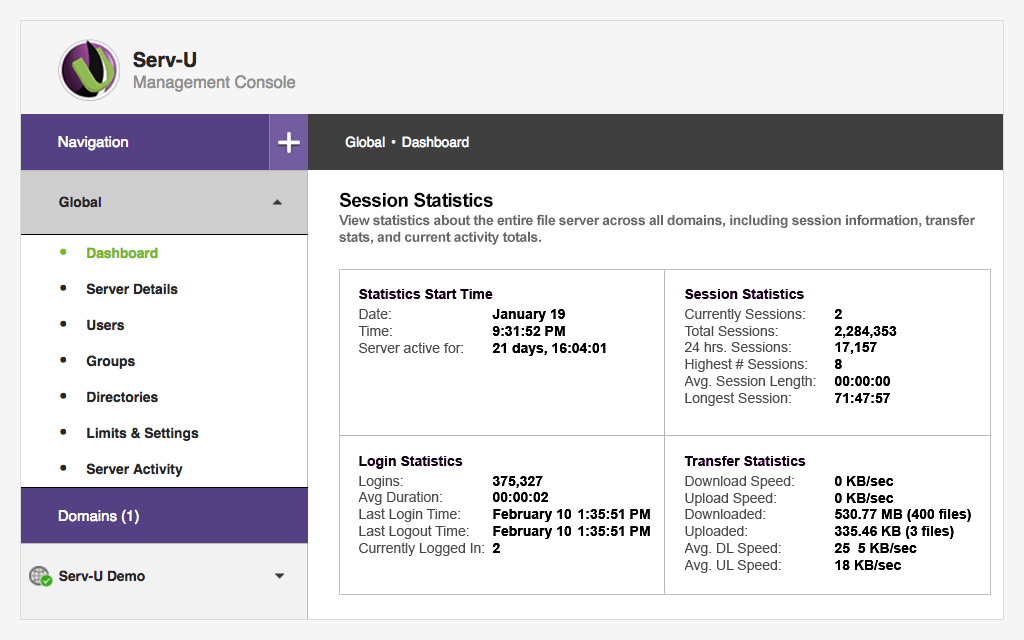
SolarWinds Serv-U FTP Server
With the Serv-U FTP Server, you maintain full control over file access on the server, setting up permissions on a user and group basis directly from the software interface. The software allows for the customization of active session limits and automated file management post-transfer.
The Serv-U Gateway, an ancillary module, promotes compliance with standards like PCI DSS by preventing data storage in the DMZ. The server software is compatible with Windows and Linux and offers database and LDAP server integration options.
2. FileZilla

FileZilla’s FTP server is renowned for its robust free offering, rivaling many commercial solutions — expected given its open-source nature. Supporting FTP alongside FTPS and SFTP protocols, FileZilla’s interface, albeit dated, is intuitive.
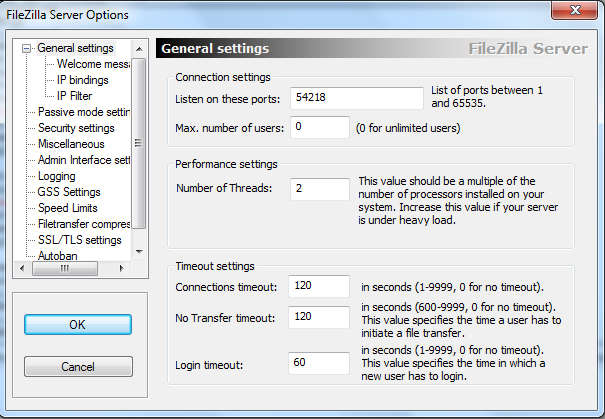
FileZilla FTP Server
For security, FileZilla automatically blocks IP addresses after multiple failed login attempts and allows the blocking of specific IPs or ranges. The server can be secured or completely shut down, inaccessible until manually restarted. FileZilla offers access control via user and group creation, and despite reports of session timeouts, these issues did not arise during product testing.
3. WS_FTP Server

Ipswitch is better known for WhatsUp Gold Network Performance Monitor, but their FTP server software, the WS_FTP Server, is equally noteworthy. The web-accessible console facilitates easy management, and the tool offers extensive control over user and group interactions with FTP servers.
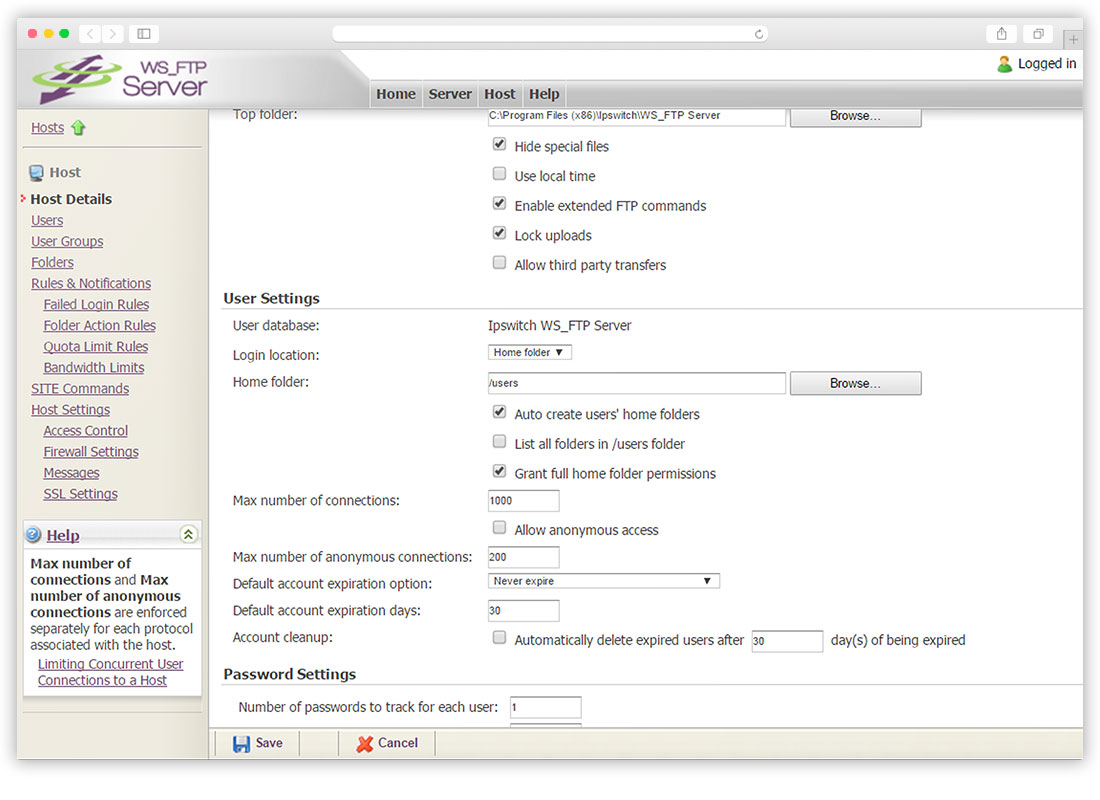
WS_FTP Server
The WS_FTP Server incorporates 256-bit AES encryption, SSH and SCP transfers support, and SSL certification. The server boasts an Ad hoc module for person-to-person transfers and advanced failover capabilities using cluster technology, reducing transfer failures. Integration with Ipswitch’s MOVEit Automation allows for scriptless workflow automation.
4. Wing FTP

Wing FTP may be less known than other solutions mentioned but shines with its flexibility and enterprise suitability. Compatible with multiple operating systems and supporting FTP, SFTP, and HTTP/S protocols, it provides comprehensive server management and performance monitoring through a web interface.
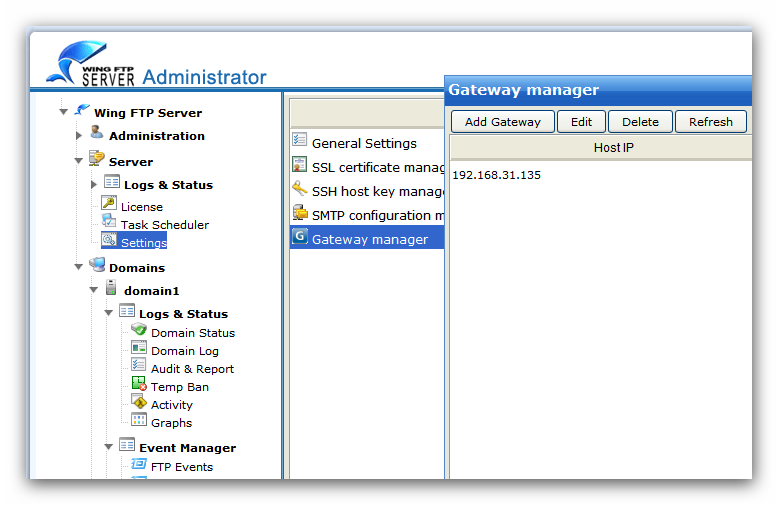
Wing FTP Server
The Wing FTP server’s free version is designed for personal use and supports up to 10 user accounts and 10 concurrent connections. For commercial use, a 30-day trial is available. With high regard for security, Wing FTP includes anti-hammering measures, FIPS 140-2 encryption for login details, and a task scheduler for automated transfers. All server events are logged for troubleshooting and report generation.
5. Xlight FTP Server

The Xlight FTP Server lives up to its name as a lightweight, portable solution capable of handling thousands of simultaneous connections. Integrated with Microsoft AD, LDAP, and existing databases, it secures data with SSL and SSH encryption and supports both IPv4 and IPv6.
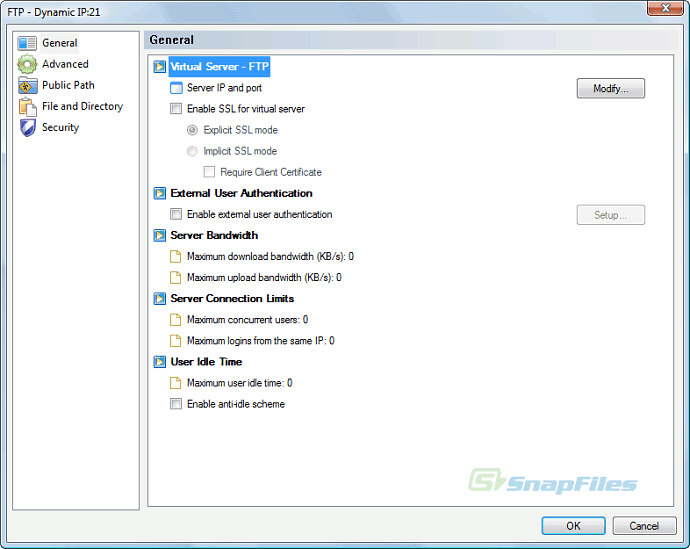
Xlight FTP Server
Customizable email alerts notify users of key activities such as file uploads and user logins. The Xlight FTP Server’s minimal system footprint doesn’t compromise its performance or security, cementing it as a reliable option for both personal and professional use.
How to Fix “Printer is in an error state” Issue?
The error “ WinRAR Error: Next Volume Is Required ” usually appears when you’re extracting a multi-part RAR archive and WinRAR can’t find (or can’t correctly identify) the next file in the sequence . This often happens when a volume is missing , stored in a different folder , or renamed in a way that breaks the archive’s expected order .

In this guide, we’ll go over the most reliable fixes confirmed by affected users, along with what each method is doing behind the scenes so you can choose the right one for your situation.
Important: To extract multi-volume archives, you should always start extraction from the first file in the set. This is usually file.part1.rar , or (in older sets) the main .rar file that comes before .r01 , .r02 , and so on.
1. Download and Place the Missing RAR File
WinRAR needs all parts of a multi-volume archive to complete extraction. This error usually appears when one of the volumes in a set like .part2.rar , .r01 , .r02 , .001 , and similar naming formats is missing . Downloading the missing volume and placing it in the same folder as the other parts allows WinRAR to continue extracting normally .
- Look at the error message or review the list of archive parts in the folder.
- Identify which volume is missing (for example, part2.rar , .r02 , .001 , etc.).
- Go back to the website or source where you downloaded the archive.
- Locate and download the exact missing file using the same naming format as the others.
- Make sure the new file name matches the pattern of the rest. Example: If you have file.part1.rar and file.part3.rar , the missing one must be file.part2.rar .
- Move the downloaded missing volume into the same folder as the other archive parts.
- Confirm that all parts are in a single folder before extracting.
- Right-click the first file in the series (usually part1 or the main .rar file) and select Extract Here or Extract to Folder .
- WinRAR should now detect all volumes and continue extraction normally .
2. Manually Browse & Select the Next Volume
Use this method only if the next volume already exists , but WinRAR is failing to detect it automatically. This can happen due to incorrect naming , the file being in a different location , or a temporary file access issue. Manually browsing helps WinRAR locate the correct volume and resume extraction without interruption .
- Right-click the first file in the series (usually .rar or part1.rar ) and select Extract Here or Extract to Folder .
- When WinRAR cannot find the next volume, it will show the “ Next Volume Is Required ” message.
- A small window will appear, allowing you to manually select the next volume .
- Use the file explorer window to locate the folder where the other archive parts are saved.
- Select the next part based on the naming order (example: select file.part2.rar after file.part1.rar ).
- Make sure the selected file matches the naming format of the archive (no extra characters like (1) and no mismatched numbering).
- WinRAR will resume extraction using the selected volume .
- If additional volumes are missing or stored separately, WinRAR may prompt you again. Repeat the same process until extraction completes.
3. Rename the RAR files in Order
WinRAR relies on a proper naming sequence (such as file.part1.rar , file.part2.rar , file.part3.rar ) to extract multi-volume archives. If a file is named incorrectly, contains extra characters, or is out of order, WinRAR may fail to locate the next volume and show this error. Renaming the files correctly helps WinRAR follow the sequence and extract the archive without interruptions .
Note: Renaming only changes the file name , not the file contents. The goal is to restore the correct sequence so WinRAR can detect the next volume.
- Go to the folder where all the RAR files are saved.
- Make sure all parts of the archive are present and stored in the same folder .
- Check how the parts are currently named . Common patterns include:
file.part1.rar, file.part2.rar, file.part3.rar
file.rar, file.r01, file.r02, file.r03
- Look for files that don’t match the expected numbering pattern (for example, file.part01.rar , file.part1(1).rar , or unrelated names).
- Rename each file so it follows the same order without extra characters or mismatched numbering. Example:
Incorrect: file.part1.rar, file.part3.rar, file.part2(1).rar
Correct: file.part1.rar, file.part2.rar, file.part3.rar
- Make sure the text before the number is exactly the same for all files.
- Only the last part number should change.
- Right-click the first file in the series (usually part1.rar or the main .rar file) and select Extract Here .
- WinRAR should now recognize the sequence and continue extraction normally .
If you still get the same prompt: the archive set is likely incomplete (a part was never downloaded or was removed), or one of the volumes is corrupt and must be re-downloaded from the original source.
