Extensible Markup Language , or XML , is a language used to define the rules for the format in which documents are encoded. This format is readable by both humans and machines. However, XML files often appear complex, making people think that once such files are created, they cannot be easily edited or modified. This is not true. XML files can be conveniently edited just like any other type of file. Today, we are going to share with you a list of The 5 Best Free XML Editors so that you can get one immediately without spending any money. Let’s go through this list quickly.
1. Notepad++

Notepad++ is a free text editor that comes with a plugin for editing XML files. The Color Coding feature of this software is used to differentiate the code and the content of an XML file. You can also launch Notepad++ with the help of Command Line Arguments very conveniently. Just like any other good text editor, you can easily Highlight , Copy , or Paste text within your XML file using this software. It also allows you to work on multiple XML files simultaneously.
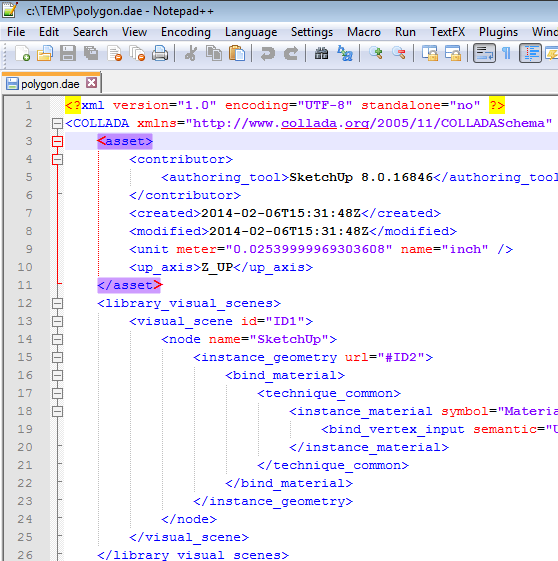
Notepad++
This software has a very friendly user interface which is fully customizable. You can improve the readability of your XML files with the Line Number mentioned at the beginning of every line of your XML files. Notepad++ also enables you to define Macros consisting of bulk actions that can be applied to multiple XML files together. The XML Syntax Check feature of this software lets you analyze and correct the syntax of your XML files. This software has a layout known as Pretty Print that structures your XML file to make it look more organized.
2. Code Browser

Code Browser is a free XML editor designed for the Windows and Linux operating systems. It is a very easy-to-use XML editor that allows you to edit multiple XML files simultaneously. The Code Folding feature of this software enables you to hide multiple lines of code under one main headline to prevent your screen from getting overloaded. There is also a Built-in Links feature used to create links within XML files that point to some other section within the same file. This enhances the navigability of your XML files.
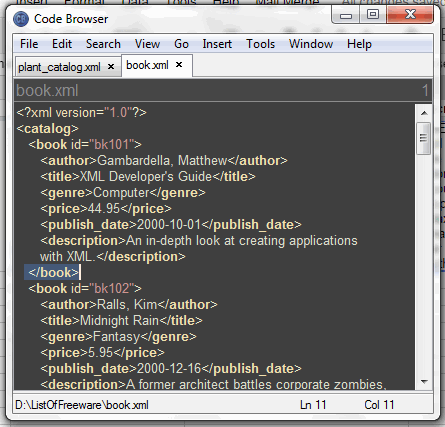
Code Browser
If you want to group certain XML files according to the content they contain or on any other basis, you can easily use the Project Support feature of Code Browser and keep all your desired files in one single folder. The best thing about this XML editor is that it provides support for Custom Tools which can help you take certain customized actions such as launching another application through Code Browser. This feature makes this software highly usable.
3. Microsoft XML Notepad

Microsoft XML Notepad is a free XML editor designed by Microsoft for the Windows operating system. It has a very simple and friendly user interface which is perfect for experienced as well as naive users. The Tree View feature of this software allows you to break down your XML file into classes, tags, and key values to make them more readable. You can also drag and drop your nodes within a tree or any other XML file opened in XML Notepad. The fonts and colors of your XML files are fully customizable.
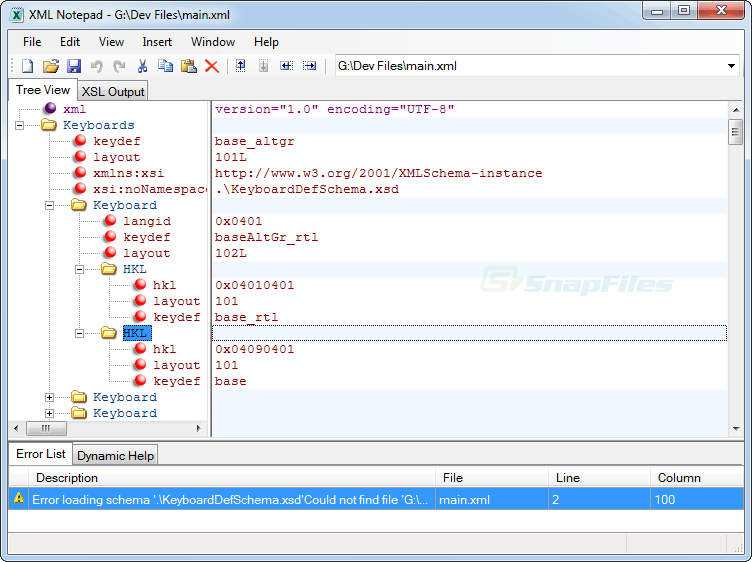
Microsoft XML Notepad
XML Notepad provides an infinite number of undo and redo actions, which is a very helpful feature, especially for beginners. The Incremental Search feature of this XML editor enables you to search within tree and text views conveniently. The XML Schema Parser of XML Notepad highlights all the errors present in your XML file and lets you correct them. You can easily edit the names and values within your XML files using the Synchronized Tree View and Node View of this software. Moreover, XML Notepad also boasts unmatched Speed , which is ideal for loading and editing large-sized files.
4. XmlPad

XmlPad is a free XML editor for the Windows and Mac operating systems. This software offers three different views for your XML files: Grid , Table , and Preview , which provide improved functionality. You can also open your XML files through their URLs with the help of this software. The Color Syntax Highlighting feature of this software allows you to highlight the text of your XML files. You can also enable Line Numbers for every line within your XML file for enhanced readability.
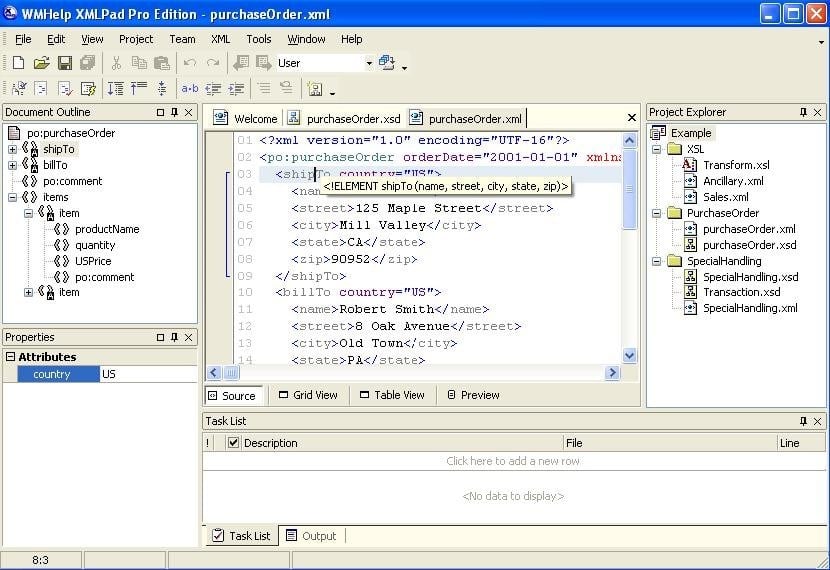
XmlPad
The Auto Formatting and Auto Parsing features of XmlPad easily find the errors within your XML files and enable you to correct them. Once you have edited your XML files, you can preview them for any further modifications with the help of the Preview and the Built-in Browser Window . Moreover, XmlPad also lets you print your XML Schema in a Graphical Diagram Window .
5. TextEdit

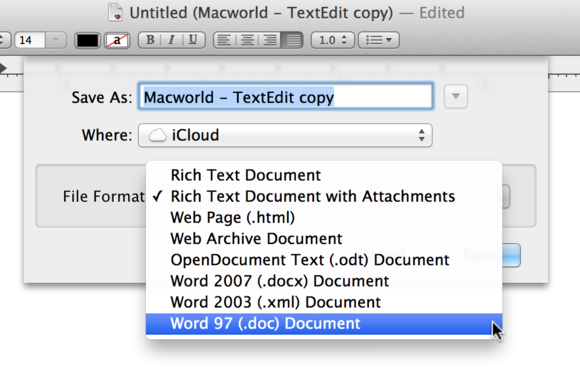
TextEdit is another free text editor that allows you to edit XML files along with other file formats. This software allows you to open and edit multiple XML files at once. You can use the Syntax Highlighting feature of TextEdit to make the content within your XML files look more prominent. You can even Bookmark your XML files for future reference. TextEdit supports very large file sizes, allowing you to edit your XML files without size limitations.
TextEdit
You can also add Line Numbers to your XML files for better visibility. You can Find and Replace within an XML file. TextEdit allows an unlimited number of Undo and Redo actions, making it convenient even for first-time users. Moreover, you can use the Drag and Drop feature of this software to drag and drop your XML files within a project.
How to Fix “Printer is in an error state” Issue?
The error “ WinRAR Error: Next Volume Is Required ” usually appears when you’re extracting a multi-part RAR archive and WinRAR can’t find (or can’t correctly identify) the next file in the sequence . This often happens when a volume is missing , stored in a different folder , or renamed in a way that breaks the archive’s expected order .

In this guide, we’ll go over the most reliable fixes confirmed by affected users, along with what each method is doing behind the scenes so you can choose the right one for your situation.
Important: To extract multi-volume archives, you should always start extraction from the first file in the set. This is usually file.part1.rar , or (in older sets) the main .rar file that comes before .r01 , .r02 , and so on.
1. Download and Place the Missing RAR File
WinRAR needs all parts of a multi-volume archive to complete extraction. This error usually appears when one of the volumes in a set like .part2.rar , .r01 , .r02 , .001 , and similar naming formats is missing . Downloading the missing volume and placing it in the same folder as the other parts allows WinRAR to continue extracting normally .
- Look at the error message or review the list of archive parts in the folder.
- Identify which volume is missing (for example, part2.rar , .r02 , .001 , etc.).
- Go back to the website or source where you downloaded the archive.
- Locate and download the exact missing file using the same naming format as the others.
- Make sure the new file name matches the pattern of the rest. Example: If you have file.part1.rar and file.part3.rar , the missing one must be file.part2.rar .
- Move the downloaded missing volume into the same folder as the other archive parts.
- Confirm that all parts are in a single folder before extracting.
- Right-click the first file in the series (usually part1 or the main .rar file) and select Extract Here or Extract to Folder .
- WinRAR should now detect all volumes and continue extraction normally .
2. Manually Browse & Select the Next Volume
Use this method only if the next volume already exists , but WinRAR is failing to detect it automatically. This can happen due to incorrect naming , the file being in a different location , or a temporary file access issue. Manually browsing helps WinRAR locate the correct volume and resume extraction without interruption .
- Right-click the first file in the series (usually .rar or part1.rar ) and select Extract Here or Extract to Folder .
- When WinRAR cannot find the next volume, it will show the “ Next Volume Is Required ” message.
- A small window will appear, allowing you to manually select the next volume .
- Use the file explorer window to locate the folder where the other archive parts are saved.
- Select the next part based on the naming order (example: select file.part2.rar after file.part1.rar ).
- Make sure the selected file matches the naming format of the archive (no extra characters like (1) and no mismatched numbering).
- WinRAR will resume extraction using the selected volume .
- If additional volumes are missing or stored separately, WinRAR may prompt you again. Repeat the same process until extraction completes.
3. Rename the RAR files in Order
WinRAR relies on a proper naming sequence (such as file.part1.rar , file.part2.rar , file.part3.rar ) to extract multi-volume archives. If a file is named incorrectly, contains extra characters, or is out of order, WinRAR may fail to locate the next volume and show this error. Renaming the files correctly helps WinRAR follow the sequence and extract the archive without interruptions .
Note: Renaming only changes the file name , not the file contents. The goal is to restore the correct sequence so WinRAR can detect the next volume.
- Go to the folder where all the RAR files are saved.
- Make sure all parts of the archive are present and stored in the same folder .
- Check how the parts are currently named . Common patterns include:
file.part1.rar, file.part2.rar, file.part3.rar
file.rar, file.r01, file.r02, file.r03
- Look for files that don’t match the expected numbering pattern (for example, file.part01.rar , file.part1(1).rar , or unrelated names).
- Rename each file so it follows the same order without extra characters or mismatched numbering. Example:
Incorrect: file.part1.rar, file.part3.rar, file.part2(1).rar
Correct: file.part1.rar, file.part2.rar, file.part3.rar
- Make sure the text before the number is exactly the same for all files.
- Only the last part number should change.
- Right-click the first file in the series (usually part1.rar or the main .rar file) and select Extract Here .
- WinRAR should now recognize the sequence and continue extraction normally .
If you still get the same prompt: the archive set is likely incomplete (a part was never downloaded or was removed), or one of the volumes is corrupt and must be re-downloaded from the original source.
