In this state of affairs, we should have such software that can really help us in fighting with spam emails. People often wonder that software which serves such a great purpose must be very expensive. However, this is not true. There are such programs available out there which offer us the defense against spams and that too absolutely for free. Let us now go through the list of The 5 Best Free Spam Filters and see which one of them is highly suitable for us.
1. SpamFence

SpamFence is the most famous free spam filter designed for the Windows operating system. It uses the eXpurgate service to secure your email inbox from spams. It guarantees 100% defense against spams because of the complex mechanism that it uses to fight against the spams. It basically works with two email accounts in order to filter out all the spams and hence keeping your primary email account spam free. This spam filter is really simple and easy to use. Moreover, SpamFence also takes complete care of your privacy by not evaluating the contents of your personal emails.

SpamFence
Along with spam protection, SpamFence also provides you guard against the computer viruses. It has three different layers of protection against viruses i.e. Virus Fingerprinting , Outbreak Detection , and Virus Signature Scanning . With the help of these three phases, SpamFence shields your computer systems against all sorts of viruses and malware. The biggest advantage of using SpamFence instead of any other anti-virus is that it intelligently detects the presence of viruses and that too long before any other anti-virus can detect it hence giving you an adequate amount of time for saving your important data.
2. Spamihilator

Spamihilator is a free spam filter that works with the Windows operating system. The best thing about this spam filter is that it works with almost all the email clients available out there. It uses Bayesian Filters to fight against the spams and claims to remove more than 98% of the spam emails even before entering into your email inbox. Another great thing about Spamihilator is that you can even train it for filtering spams by making use of its Training feature. All you have to do is just to mark a few emails as spam and Spamihilator will quickly learn your choice. Next time, when the same kind of email will arrive or an email from the same sender is received, Spamihilator will automatically block it. You can keep on training it in order to make its spam filtering mechanism all the more effective.

Spamihilator
The Spam Word Filter of Spamihilator is there to search for the known keywords and it can also be used to filter the spams. User Defined Words and Regular Expressions can always be added to the Spam Word Filter List . In order to attain next level safeguard against spams, you can also download and install various different Plug-ins that are compatible with this spam filter. Spamihilator is considered highly useful because it is available in several different languages. It also offers an Online Help that you can use whenever you get into trouble. Moreover, this spam filter updates itself automatically whenever a newer and a better version of it is available.
3. SpamExperts

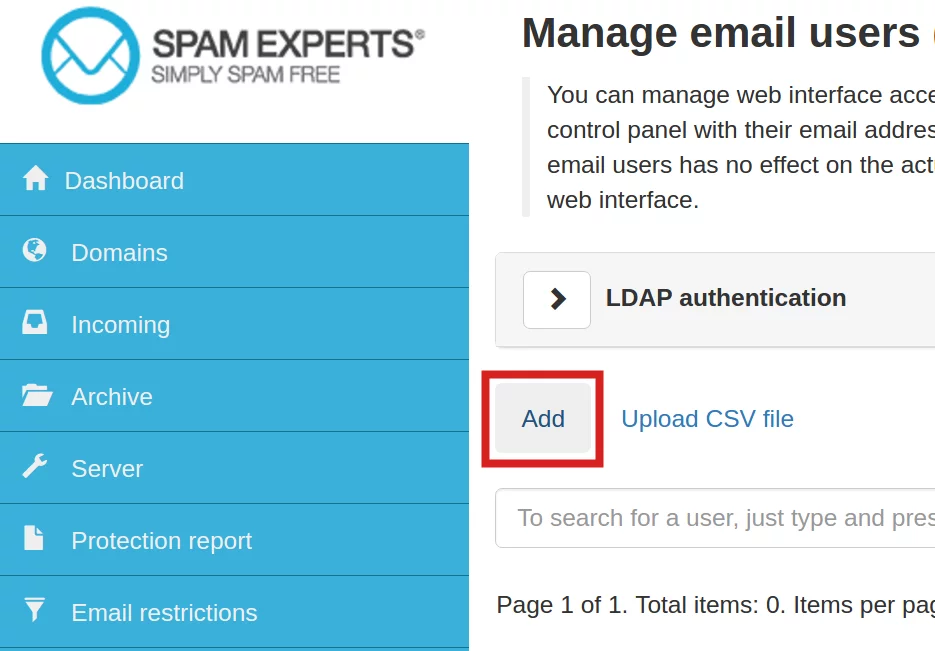
SpamExperts is yet another free spam filter that provides efficiency up to 100% and 0% false positives rate. The Self Learning Smart Technology of this spam filter deletes the spam emails even before they break into your email inbox. The SaaS Email Filtering and First Level Filters also support this feature to enhance its functionality to the fullest and hence saves you from the hassle of deleting the spam emails manually. The most fascinating thing about SpamExperts is that it is compatible with almost every email client. The interface of this spam filter is also very user-friendly.
SpamExperts
This spam filter securely collects your data and analyzes it for better performance. SpamExperts monitors your email account 24/7 so that it does not miss out on any of the spam emails. Moreover, it also provides Live Spam Information in order to keep you fully updated. This spam filter works without any additional configurations thus adding more to its ease of use. It can be deployed locally as well as run from the cloud.
4. SpamBully

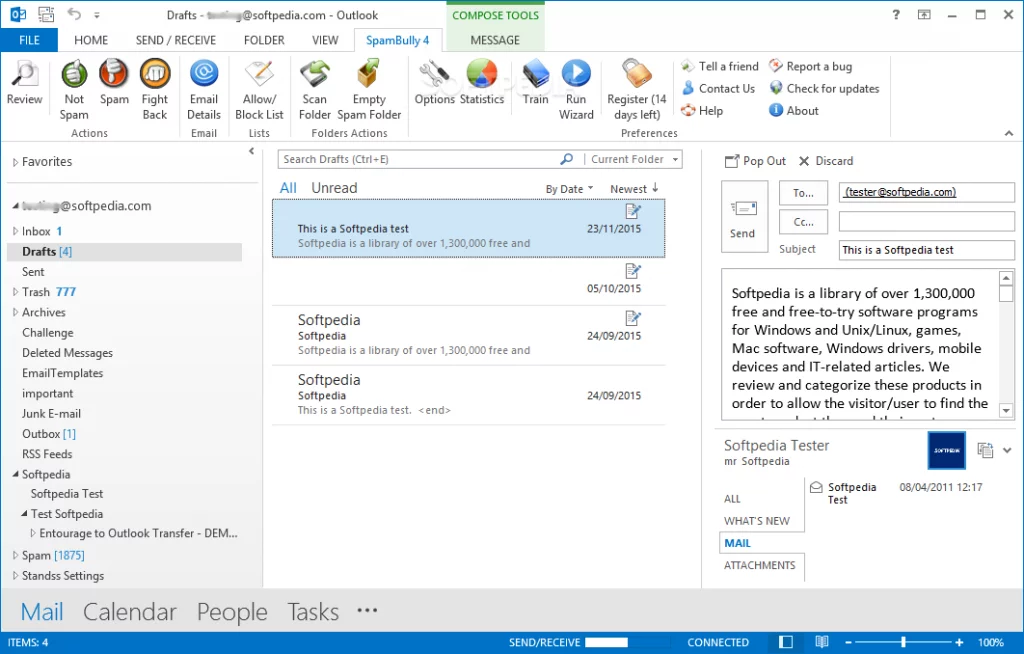
SpamBully is an efficient free spam filter that uses Artificial Intelligence and Server Blacklists for stopping the spam emails from entering into your inbox. It also works for almost every email client and hence proves itself to be highly usable. The Block List feature of this spam filter lets you create a list of words, phrases or email addresses that when found in any email must be regarded as spam. It uses Bayesian Filter to classify emails as spams and non-spams. The Bounce feature of SpamBully permanently removes your email address from the contact list of the potential spammers.
SpamBully
The Challenge Email feature of SpamBully is there to further reduce the chances of spam emails from getting into your email account. The Fishing and Fraudulent Email Protection feature helps you in identifying fraudulent messages. Apart from simply identifying the spam emails, there is also a special feature of SpamBully that is known as the Search feature. This spam filter intelligently indexes all the emails present in your inbox and hence it enables you to search for any email that you want just within a matter of a few seconds.
5. MailWasher

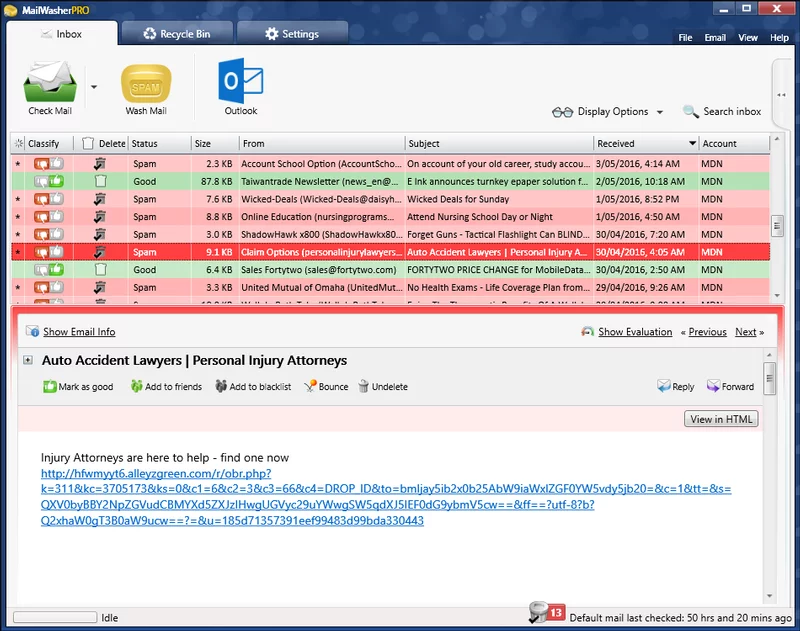
MailWasher is a free spam filter designed for the Windows operating system which works with almost every email client. It has a very friendly and easy to use interface that does not overwhelm a new user. It provides Real-Time Spam Filtering with the help of Bayesian Filters . All you have to do is just to identify or mark some of the emails as spam and this program will automatically learn them for future identification of spam emails.
MailWasher
The best thing about this spam filter is that if you have accidentally marked an email as spam and have deleted it, you just do not have to worry about it because you can conveniently restore it from MailWasher Recycle Bin at any time. It has a very fast rate of downloading the emails i.e. 25 emails per second to be precise. Moreover, it also checks your emails at regular intervals so that not even a single spam email can be left unattended.
How to Fix “Printer is in an error state” Issue?
The error “ WinRAR Error: Next Volume Is Required ” usually appears when you’re extracting a multi-part RAR archive and WinRAR can’t find (or can’t correctly identify) the next file in the sequence . This often happens when a volume is missing , stored in a different folder , or renamed in a way that breaks the archive’s expected order .

In this guide, we’ll go over the most reliable fixes confirmed by affected users, along with what each method is doing behind the scenes so you can choose the right one for your situation.
Important: To extract multi-volume archives, you should always start extraction from the first file in the set. This is usually file.part1.rar , or (in older sets) the main .rar file that comes before .r01 , .r02 , and so on.
1. Download and Place the Missing RAR File
WinRAR needs all parts of a multi-volume archive to complete extraction. This error usually appears when one of the volumes in a set like .part2.rar , .r01 , .r02 , .001 , and similar naming formats is missing . Downloading the missing volume and placing it in the same folder as the other parts allows WinRAR to continue extracting normally .
- Look at the error message or review the list of archive parts in the folder.
- Identify which volume is missing (for example, part2.rar , .r02 , .001 , etc.).
- Go back to the website or source where you downloaded the archive.
- Locate and download the exact missing file using the same naming format as the others.
- Make sure the new file name matches the pattern of the rest. Example: If you have file.part1.rar and file.part3.rar , the missing one must be file.part2.rar .
- Move the downloaded missing volume into the same folder as the other archive parts.
- Confirm that all parts are in a single folder before extracting.
- Right-click the first file in the series (usually part1 or the main .rar file) and select Extract Here or Extract to Folder .
- WinRAR should now detect all volumes and continue extraction normally .
2. Manually Browse & Select the Next Volume
Use this method only if the next volume already exists , but WinRAR is failing to detect it automatically. This can happen due to incorrect naming , the file being in a different location , or a temporary file access issue. Manually browsing helps WinRAR locate the correct volume and resume extraction without interruption .
- Right-click the first file in the series (usually .rar or part1.rar ) and select Extract Here or Extract to Folder .
- When WinRAR cannot find the next volume, it will show the “ Next Volume Is Required ” message.
- A small window will appear, allowing you to manually select the next volume .
- Use the file explorer window to locate the folder where the other archive parts are saved.
- Select the next part based on the naming order (example: select file.part2.rar after file.part1.rar ).
- Make sure the selected file matches the naming format of the archive (no extra characters like (1) and no mismatched numbering).
- WinRAR will resume extraction using the selected volume .
- If additional volumes are missing or stored separately, WinRAR may prompt you again. Repeat the same process until extraction completes.
3. Rename the RAR files in Order
WinRAR relies on a proper naming sequence (such as file.part1.rar , file.part2.rar , file.part3.rar ) to extract multi-volume archives. If a file is named incorrectly, contains extra characters, or is out of order, WinRAR may fail to locate the next volume and show this error. Renaming the files correctly helps WinRAR follow the sequence and extract the archive without interruptions .
Note: Renaming only changes the file name , not the file contents. The goal is to restore the correct sequence so WinRAR can detect the next volume.
- Go to the folder where all the RAR files are saved.
- Make sure all parts of the archive are present and stored in the same folder .
- Check how the parts are currently named . Common patterns include:
file.part1.rar, file.part2.rar, file.part3.rar
file.rar, file.r01, file.r02, file.r03
- Look for files that don’t match the expected numbering pattern (for example, file.part01.rar , file.part1(1).rar , or unrelated names).
- Rename each file so it follows the same order without extra characters or mismatched numbering. Example:
Incorrect: file.part1.rar, file.part3.rar, file.part2(1).rar
Correct: file.part1.rar, file.part2.rar, file.part3.rar
- Make sure the text before the number is exactly the same for all files.
- Only the last part number should change.
- Right-click the first file in the series (usually part1.rar or the main .rar file) and select Extract Here .
- WinRAR should now recognize the sequence and continue extraction normally .
If you still get the same prompt: the archive set is likely incomplete (a part was never downloaded or was removed), or one of the volumes is corrupt and must be re-downloaded from the original source.
