An icon is a symbol that represents the identity of any product. It is also considered as a logo or a trademark for uniquely distinguishing a product amongst many others. Having said that, we do not need to go into the depths of understanding the importance of icons because we know that everything that we use these days, whether it is a website, a cell phone, a breakfast cereal, and even the places that we visit such as restaurants, hospitals, hotels, etc. have distinct icons or logos through which we recognize them instantly.
Because of this reason, every one of us falls into a dire need of an icon maker software at least for once in their life. We know that an icon is a combination of art and creativity however, many impractical people think that an icon maker software is not worth wasting their money on. Well, for such people we still have a great deal with which they can easily create outclass icons and that too absolutely for free. Yes, that is true. So here we present to you a list of The Five Best Free Icon Maker Software . Then what are you waiting for? Just read through this article quickly and grab your favorite icon maker software.
1. Junior Icon Editor

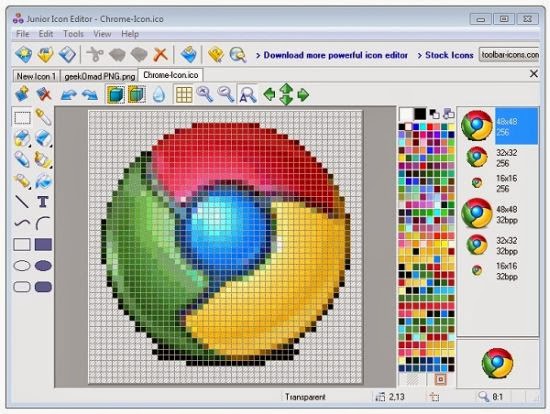
Junior Icon Editor is a versatile free icon editor that allows you to create and edit icons while using the Windows operating system as well as only edit icons on Android , iOS and Linux platforms. It means that you can either create an icon right from scratch or you can start modifying an existing image in order to create a new icon out of it with the help of this software. This software provides you with a wide range of colors, 16 million different colors to be precise, for beautifying your icons whereas it provides you with 32-bit color depth .
Junior Icon Editor
You can create icons with professional strokes with the help of tools such as Pen , Brush , Air Brush , Shapes , etc. Junior Icon Editor also gives you the ability to Rotate , Shift or Roll your icons. You can even Sort the images within an icon. This software is capable of copying images and color values and then pasting them onto the clipboard or to any other application. Moreover, you can Import and Export the icons in various formats including ICO , PNG , XPM , XBM , and ICPR by making use of Junior Icon Editor.
2. SimplyIcon

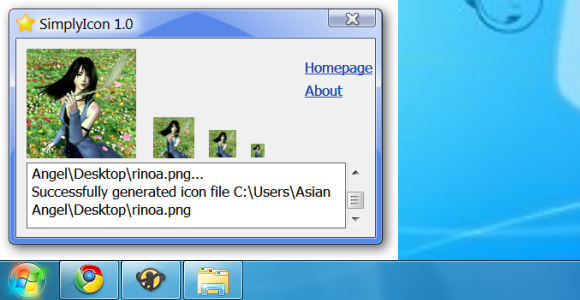
SimplyIcon is the name that says everything about the features of this software. This is indeed a very simple and easy to use free icon maker software which is designed for the Windows operating system. This software is capable of generating different sized icons i.e. 16 x 16 , 24 x 24 , 32 x 32 and even 128 x 128 . You can create your icons simply by dragging and dropping the images on to this program and then it saves your icons in the ICO format. The picture quality of the generated icons is also quite appreciable. You can draw almost any kind of pattern or shape for your icon by making use of different Pens , Pencils , Brushes , Retouch Tools , Layers , etc.
SimplyIcon
This software has got a huge Color Palette and fully customizable Toolbars . It also lets you use the Number Keys as shortcuts for performing various actions. You can even move your Canvas here and there in order to have a view of your own choice. The best thing about this software is that it also provides you with an Online Help which you can utilize for resolving any of your queries. The only thing that you need to make sure before using SimplyIcon is that you have a .Net Framework installed on your system so that you do not experience any bad response time and poor performance issues.
3. IconsFlow

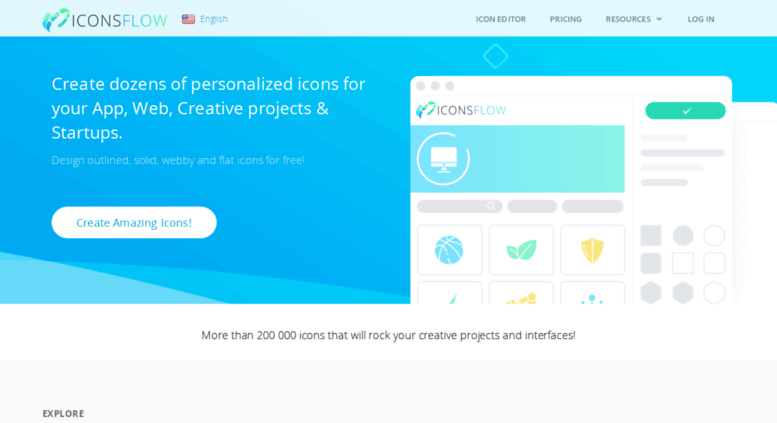
IconsFlow is an online free icon maker and editor. It has a wide range of ready to use icons available for you that you can immediately download and start using for whatever purpose you want. Along with that, you can also create your own icons with the help of IconsFlow Editor . This icon maker even gives you the flexibility to modify any old icons and turn them into new ones just within a few seconds. Along with a variety of online icons, you are also provided with several different Backgrounds for your icons for making them look more appealing.
IconsFlow
IconsFlow supports the SVG , ICO and PNG Export formats. With its Shapes Editor , you can add various different shapes such as square, rectangle, circle, etc. to your icons. The editing toolkit of this icon maker includes features such as Shape Coloring , Shape Scaling , Inner Shadow , Drop Shadow , Background Coloring , etc. You can also choose different Sizes for your icons. The best thing about this icon maker is that New Icons and Trendy Styles are added to it on a weekly basis, therefore, this icon maker never fails to amaze you with its fascinating designs.
4. Greenfish Icon Editor Pro

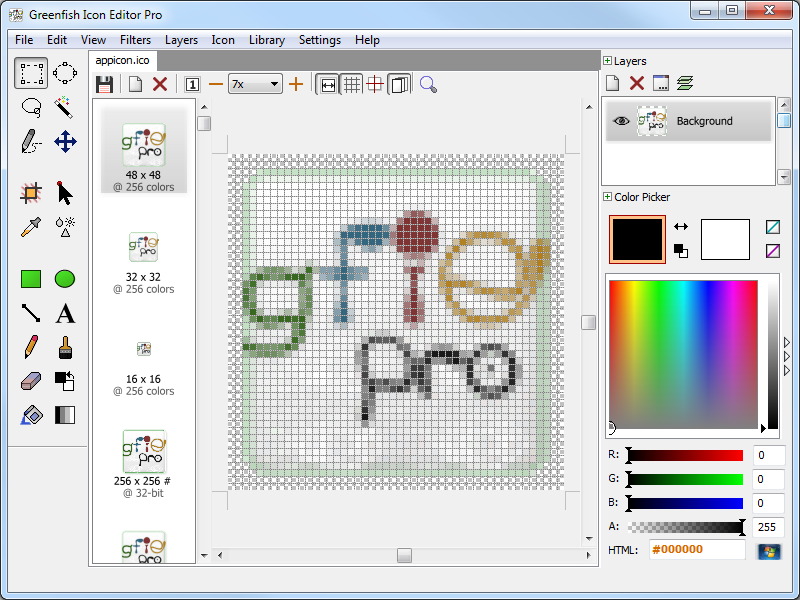
Greenfish Icon Editor Pro is a free icon maker and editor for the Windows operating system. This software is efficient enough for making new icons as well as modifying the older ones. Moreover, it is also capable of converting simple images to the ICO format. This icon maker software comes with a Drawing Toolkit that is composed of tools such as Pencils , Shapes , Brushes , Texts , etc. which help you in creating attractive icons. The Filters menu of this software is there for you to select various Effects for giving the finishing touches to your icons.
Greenfish Icon Editor Pro
You can make use of the Color Picker tool of Greenfish Icon Editor Pro to select the desired color for your icon. This software also provides you with the Layering feature with the help of which you can easily create professional looking icons. This software even presents you with a Portable Version which you can use when you do not want to install this software on your machine. Despite all these extraordinary features, this software is still very simple and easy to use and has a very intuitive interface that does not overwhelm a new user.
5. Iconion

Iconion is a free icon maker software designed for the Windows and Mac operating systems. If you do not want to create your own icons or you are not good at it, then you do not need to worry about it anymore because Iconion provides you with an extensive Icons Library from which you can easily download whichever icon you like for your product. However, if you trust your designing skills enough, then Iconion has a lot of features in store for you such as Icon Coloring , Icon Shadowing , Backgrounds , Borders , Rotations , etc.
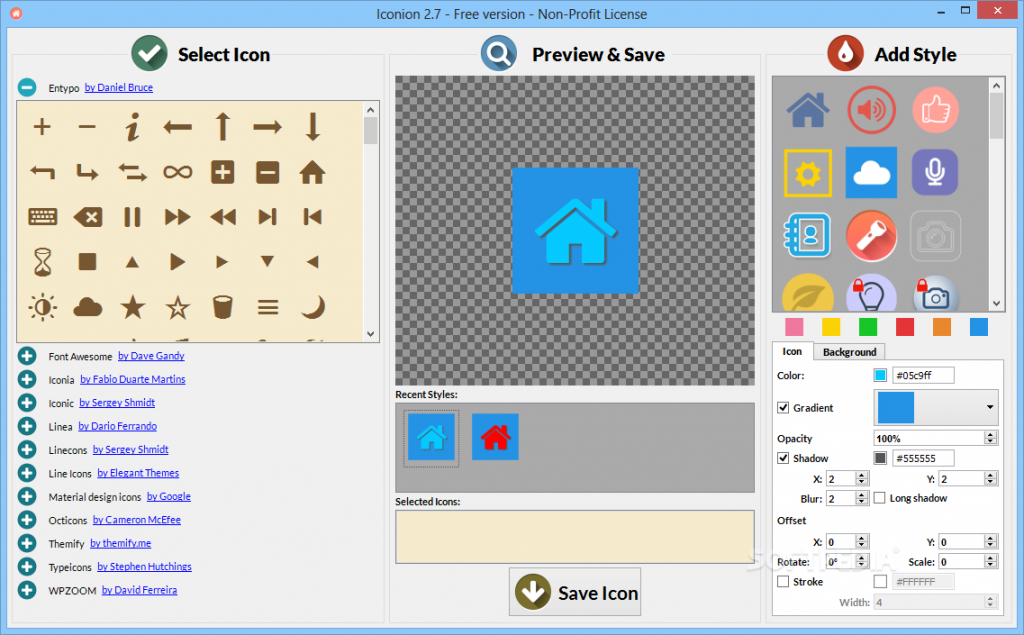
Iconion
With this software, you can choose any desired Size for your icon from 8 px to 1024 px . You can also select any Shapes you like for your icons. This software has a very friendly user interface that is good for you especially if you have never used this software before. It even lets you Preview your created icons before actually saving them so that you can make the final modifications if needed. Moreover, Iconion also provides you with a Quick Help by presenting you with the Video Walkthrough of the whole application so that you never get stuck while using it.
How to Fix “Printer is in an error state” Issue?
The error “ WinRAR Error: Next Volume Is Required ” usually appears when you’re extracting a multi-part RAR archive and WinRAR can’t find (or can’t correctly identify) the next file in the sequence . This often happens when a volume is missing , stored in a different folder , or renamed in a way that breaks the archive’s expected order .

In this guide, we’ll go over the most reliable fixes confirmed by affected users, along with what each method is doing behind the scenes so you can choose the right one for your situation.
Important: To extract multi-volume archives, you should always start extraction from the first file in the set. This is usually file.part1.rar , or (in older sets) the main .rar file that comes before .r01 , .r02 , and so on.
1. Download and Place the Missing RAR File
WinRAR needs all parts of a multi-volume archive to complete extraction. This error usually appears when one of the volumes in a set like .part2.rar , .r01 , .r02 , .001 , and similar naming formats is missing . Downloading the missing volume and placing it in the same folder as the other parts allows WinRAR to continue extracting normally .
- Look at the error message or review the list of archive parts in the folder.
- Identify which volume is missing (for example, part2.rar , .r02 , .001 , etc.).
- Go back to the website or source where you downloaded the archive.
- Locate and download the exact missing file using the same naming format as the others.
- Make sure the new file name matches the pattern of the rest. Example: If you have file.part1.rar and file.part3.rar , the missing one must be file.part2.rar .
- Move the downloaded missing volume into the same folder as the other archive parts.
- Confirm that all parts are in a single folder before extracting.
- Right-click the first file in the series (usually part1 or the main .rar file) and select Extract Here or Extract to Folder .
- WinRAR should now detect all volumes and continue extraction normally .
2. Manually Browse & Select the Next Volume
Use this method only if the next volume already exists , but WinRAR is failing to detect it automatically. This can happen due to incorrect naming , the file being in a different location , or a temporary file access issue. Manually browsing helps WinRAR locate the correct volume and resume extraction without interruption .
- Right-click the first file in the series (usually .rar or part1.rar ) and select Extract Here or Extract to Folder .
- When WinRAR cannot find the next volume, it will show the “ Next Volume Is Required ” message.
- A small window will appear, allowing you to manually select the next volume .
- Use the file explorer window to locate the folder where the other archive parts are saved.
- Select the next part based on the naming order (example: select file.part2.rar after file.part1.rar ).
- Make sure the selected file matches the naming format of the archive (no extra characters like (1) and no mismatched numbering).
- WinRAR will resume extraction using the selected volume .
- If additional volumes are missing or stored separately, WinRAR may prompt you again. Repeat the same process until extraction completes.
3. Rename the RAR files in Order
WinRAR relies on a proper naming sequence (such as file.part1.rar , file.part2.rar , file.part3.rar ) to extract multi-volume archives. If a file is named incorrectly, contains extra characters, or is out of order, WinRAR may fail to locate the next volume and show this error. Renaming the files correctly helps WinRAR follow the sequence and extract the archive without interruptions .
Note: Renaming only changes the file name , not the file contents. The goal is to restore the correct sequence so WinRAR can detect the next volume.
- Go to the folder where all the RAR files are saved.
- Make sure all parts of the archive are present and stored in the same folder .
- Check how the parts are currently named . Common patterns include:
file.part1.rar, file.part2.rar, file.part3.rar
file.rar, file.r01, file.r02, file.r03
- Look for files that don’t match the expected numbering pattern (for example, file.part01.rar , file.part1(1).rar , or unrelated names).
- Rename each file so it follows the same order without extra characters or mismatched numbering. Example:
Incorrect: file.part1.rar, file.part3.rar, file.part2(1).rar
Correct: file.part1.rar, file.part2.rar, file.part3.rar
- Make sure the text before the number is exactly the same for all files.
- Only the last part number should change.
- Right-click the first file in the series (usually part1.rar or the main .rar file) and select Extract Here .
- WinRAR should now recognize the sequence and continue extraction normally .
If you still get the same prompt: the archive set is likely incomplete (a part was never downloaded or was removed), or one of the volumes is corrupt and must be re-downloaded from the original source.
