All of us know about the importance of Calendars in our life. They help us in keeping a track of our daily routine and also enable us to stay organized and punctual. However, since every other thing is digitized these days therefore, there rarely exist the people who make use of the paper-based calendars now. Everyone prefers to keep a calendar app with them for easier accessibility. That is why we have jotted down a list of 5 Best Calendar Apps for Windows in order to save you from the hassle of looking for a good calendar app for yourself.
1. Google Calendar

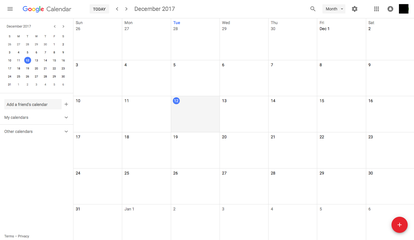
Google Calendar is a very helpful free calendar application designed by Google which is full of exciting tools and features. This software allows you to have multiple calendars at a time for managing different schedules. The Suggested Times feature of this application enables you to schedule your official or unofficial meetings. Google Calendar also lets you add the event details along with its date and time. However, some people consider this feature as a threat to their privacy. Therefore, to facilitate such users, this application also allows you to hide your event details by making them Private .
Google Calendar
The Add Attachments feature of Google Calendar helps you in adding different images or documents to your events. If you want to schedule meetings with someone who lives in a different time zone as yours, then you can make use of the World Clock feature of this app in order to find an appropriate time for the meeting. The Working Hours feature of this calendar app is there to facilitate you in informing others about your regular working or availability hours. You can even add Meeting Location along with the time in order to notify your friends or colleagues about where to meet.
You can enable the Desktop Notifications of Google Calendar whenever you want to receive notifications about any important events. You can arrange Appointment Slots for taking interviews or conducting meetings etc. You can fully customize the layout of your Google Calendar. You can use various keyboard shortcuts for accessing the most commonly used functions of this application. You can even synchronize this calendar with your Customer Relationship Management ( CRM ) software. Moreover, you can also Share your Google Calendar with other people.
2. Mail and Calendar

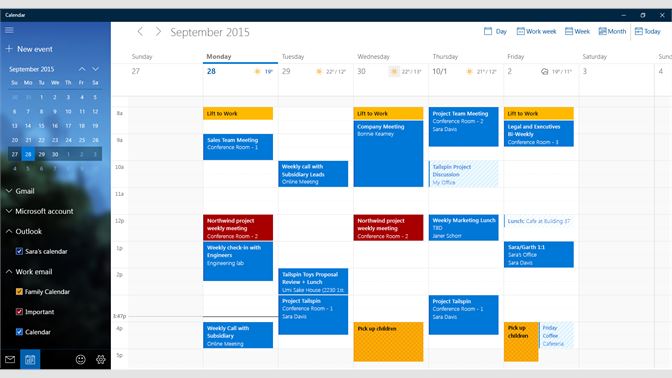
Mail and Calendar is the default mailing and calendar app designed for Windows 10 by Microsoft . This application allows you to manage multiple calendars at a time. You can Add Events to your calendars for keeping reminders. You can even print your whole schedule by making use of the Print Calendar feature. Mail and Calendar support multiple different accounts. Because of the email integration of this application, you can even email your calendars to someone.
Mail and Calendar
The biggest advantage of Mail and Calendar is that it is a very lightweight application. It supports all the famous emailing applications such as Gmail , Outlook.com , Yahoo, etc. Last but not least, since the Mail and Calendar app comes default with Windows 10, therefore, you do not need to download or install it separately. Moreover, this application is absolutely free to use.
3. Lightning Calendar

Lightning Calendar
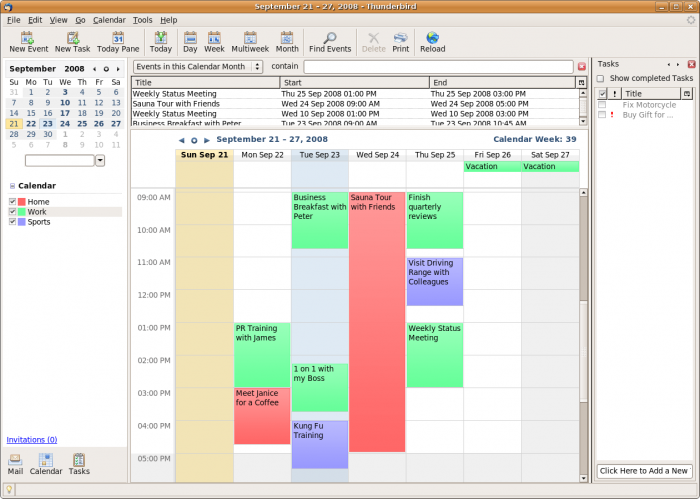
You can easily organize and manage your schedules by making use of this calendar app. You can Share your calendar with various people. The Track Attendance feature of this application enables you to keep a track of the presence of the people with whom you have shared your calendar. Moreover, this application also allows you to Change your Calendar Preferences so that you can easily customize it right according to your own needs.
4. OneCalendar

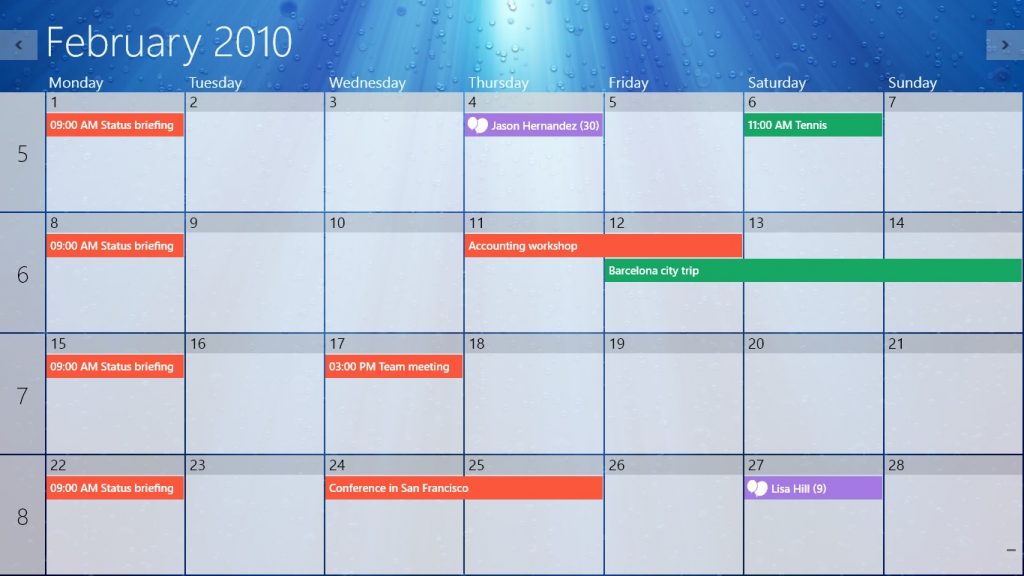
OneCalendar is another powerful calendar application that enables you to integrate your calendars from various other resources on one single platform in order to view them all together. The Quick Filtering feature of this application helps you in searching for the most relevant information by making use of different colors. You can even view and manage your appointments without an Internet connection with the help of Work Offline feature of OneCalendar.
OneCalendar
You can create multiple events and then invite different people to them through OneCalendar. This calendar application even supports Facebook Notifications . Although OneCalendar already has a very friendly user interface, however, you can still customize it to suit your needs. The most helpful feature of OneCalendar is that it supports multiple different languages including English , Chinese , Hindi, etc. OneCalendar offers all of these wonderful features for free . However, you can also enjoy some additional benefits by getting the Premium version of OneCalendar which costs $4.99 .
5. Hope Calendar

Hope Calendar is a simple and easy to use calendar app designed for the Windows operating system. It is compatible with calendars form various other sources such as Google Calendar , Outlook , Office 365 etc. You can easily create and manage your events and appointments with the help of Hope Calendar. It enables you to view your appointments in the form of L arge Live Tiles . You can conveniently get the images of your most prominent days with the help of Hope Calendar.
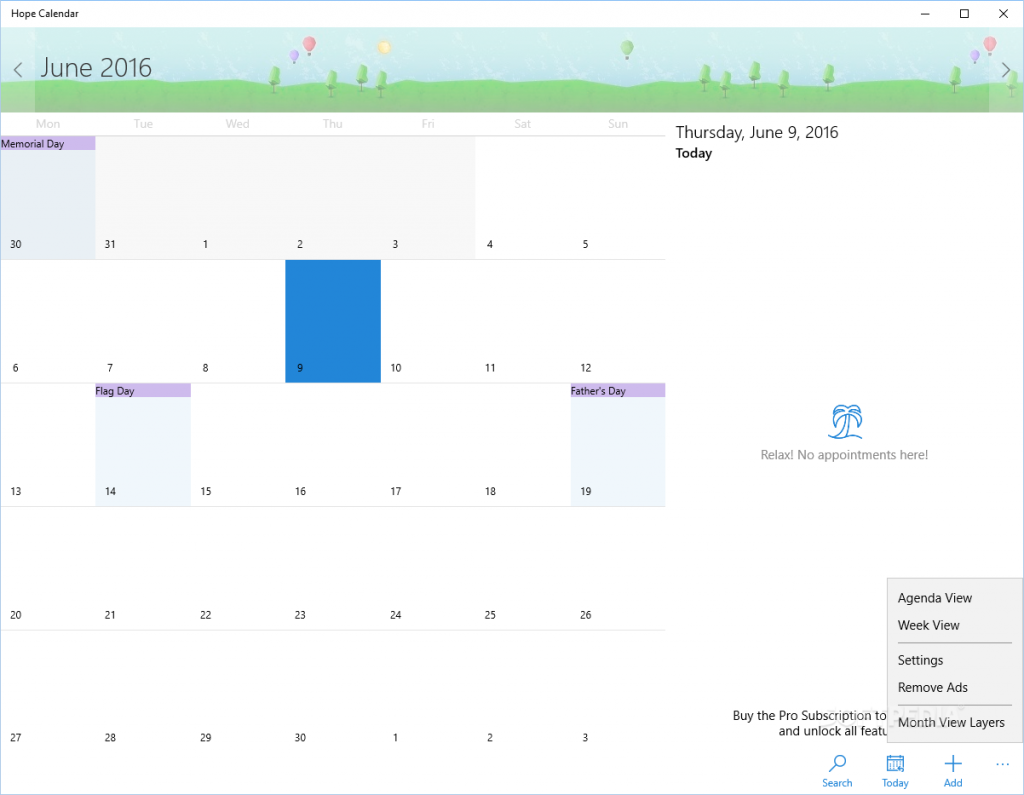
Hope Calendar
The Heat Map feature of this software allows you to view your busiest days marked on your calendar with a single glance. The most helpful feature of Hope Calendar is that you do not need to set it up or do any special configurations because it uses your existing calendars and their default settings. However, it gives you full liberty of changing these settings any time you want. As far as the security aspects of this application are concerned, then there is a good news for the users as their personal data never goes to the Hope Calendar Servers . Hope Calendar offers all these amazing services for free however, its Pro version costs $2.49 .
How to Fix “Printer is in an error state” Issue?
The error “ WinRAR Error: Next Volume Is Required ” usually appears when you’re extracting a multi-part RAR archive and WinRAR can’t find (or can’t correctly identify) the next file in the sequence . This often happens when a volume is missing , stored in a different folder , or renamed in a way that breaks the archive’s expected order .

In this guide, we’ll go over the most reliable fixes confirmed by affected users, along with what each method is doing behind the scenes so you can choose the right one for your situation.
Important: To extract multi-volume archives, you should always start extraction from the first file in the set. This is usually file.part1.rar , or (in older sets) the main .rar file that comes before .r01 , .r02 , and so on.
1. Download and Place the Missing RAR File
WinRAR needs all parts of a multi-volume archive to complete extraction. This error usually appears when one of the volumes in a set like .part2.rar , .r01 , .r02 , .001 , and similar naming formats is missing . Downloading the missing volume and placing it in the same folder as the other parts allows WinRAR to continue extracting normally .
- Look at the error message or review the list of archive parts in the folder.
- Identify which volume is missing (for example, part2.rar , .r02 , .001 , etc.).
- Go back to the website or source where you downloaded the archive.
- Locate and download the exact missing file using the same naming format as the others.
- Make sure the new file name matches the pattern of the rest. Example: If you have file.part1.rar and file.part3.rar , the missing one must be file.part2.rar .
- Move the downloaded missing volume into the same folder as the other archive parts.
- Confirm that all parts are in a single folder before extracting.
- Right-click the first file in the series (usually part1 or the main .rar file) and select Extract Here or Extract to Folder .
- WinRAR should now detect all volumes and continue extraction normally .
2. Manually Browse & Select the Next Volume
Use this method only if the next volume already exists , but WinRAR is failing to detect it automatically. This can happen due to incorrect naming , the file being in a different location , or a temporary file access issue. Manually browsing helps WinRAR locate the correct volume and resume extraction without interruption .
- Right-click the first file in the series (usually .rar or part1.rar ) and select Extract Here or Extract to Folder .
- When WinRAR cannot find the next volume, it will show the “ Next Volume Is Required ” message.
- A small window will appear, allowing you to manually select the next volume .
- Use the file explorer window to locate the folder where the other archive parts are saved.
- Select the next part based on the naming order (example: select file.part2.rar after file.part1.rar ).
- Make sure the selected file matches the naming format of the archive (no extra characters like (1) and no mismatched numbering).
- WinRAR will resume extraction using the selected volume .
- If additional volumes are missing or stored separately, WinRAR may prompt you again. Repeat the same process until extraction completes.
3. Rename the RAR files in Order
WinRAR relies on a proper naming sequence (such as file.part1.rar , file.part2.rar , file.part3.rar ) to extract multi-volume archives. If a file is named incorrectly, contains extra characters, or is out of order, WinRAR may fail to locate the next volume and show this error. Renaming the files correctly helps WinRAR follow the sequence and extract the archive without interruptions .
Note: Renaming only changes the file name , not the file contents. The goal is to restore the correct sequence so WinRAR can detect the next volume.
- Go to the folder where all the RAR files are saved.
- Make sure all parts of the archive are present and stored in the same folder .
- Check how the parts are currently named . Common patterns include:
file.part1.rar, file.part2.rar, file.part3.rar
file.rar, file.r01, file.r02, file.r03
- Look for files that don’t match the expected numbering pattern (for example, file.part01.rar , file.part1(1).rar , or unrelated names).
- Rename each file so it follows the same order without extra characters or mismatched numbering. Example:
Incorrect: file.part1.rar, file.part3.rar, file.part2(1).rar
Correct: file.part1.rar, file.part2.rar, file.part3.rar
- Make sure the text before the number is exactly the same for all files.
- Only the last part number should change.
- Right-click the first file in the series (usually part1.rar or the main .rar file) and select Extract Here .
- WinRAR should now recognize the sequence and continue extraction normally .
If you still get the same prompt: the archive set is likely incomplete (a part was never downloaded or was removed), or one of the volumes is corrupt and must be re-downloaded from the original source.
