The transition of Windows over the years has been phenomenal. And I know because I have been using it since Windows XP. I was not always very enthusiastic about upgrading especially since it involved parting with some cash but once I became adjusted to the new version of the Operating System it always proved to be better than the last.
But the hardest part about the upgrade is not even the money but the countless features we have had to lose after growing to love them. And being the good person I am, I forgave Microsoft every time. Well, that was until they killed my favorite pass time when I had to upgrade from Windows 7. Yes, the heartless guys removed Spider Solitaire, Chess and Hearts games. So now how was I going to kill time in the office as I waited to clock out in the evening? But this was not even the real nightmare. It was the announcement that they were discontinuing Windows Media Center that completely broke my heart.
Do you know how convenient it was for me to be able to manage all my media files from a centralized location? And how about being able to stream the media wirelessly to my TV and record live shows. But so is life, and for change to occur then we have to make sacrifices. So with WMC gone, I had to find an alternative. Well, the good news is I am over it. I have found new loves which I am going to share with you. Follow along as I highlight the 5 best Media Center software you can use instead of Windows Media Center.
1. Kodi

Kodi
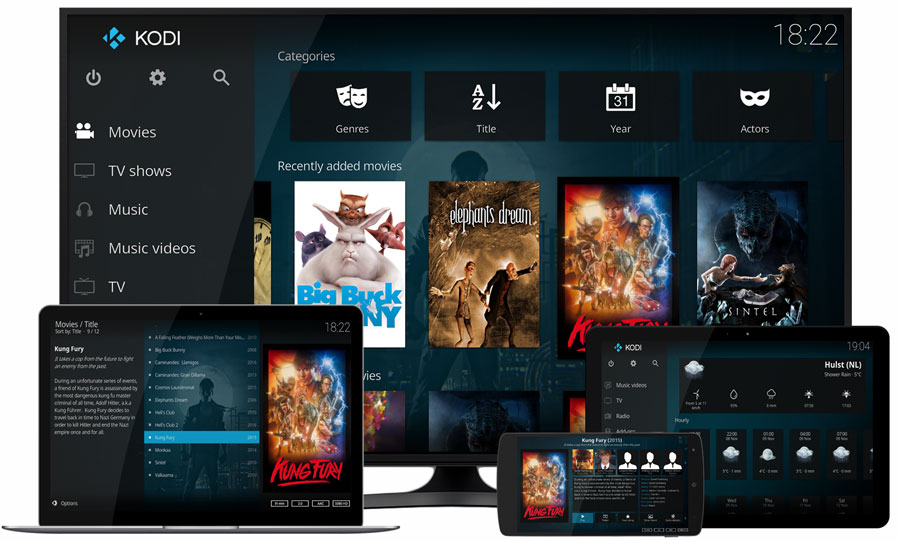
Kodi is an open source, hence completely free, software that presents you with a flawless way to organize and manage your media files. You can use Kodi to stream media files either from your local storage, home network or directly from the internet. It offers support for just about all media file types. The TV shows library can be organized according to episodes or seasons and also includes a preview of its poster/banner alongside the titles. It also includes watched tags and plot descriptions that will be useful in helping you keep track of your watching progress.
Recording live TV has never been this easy. The user interface is quite easy to follow even for the beginner. In case you are not impressed with its general outlook, Kodi has a list of skins you can use to customize the interface to your liking. Which is another beauty of Kodi and all open-source software in general. The amount of customization they allow.
The vast community of Kodi developers has managed to develop numerous add-ons for Kodi that lets you improve its functionality through integration with all the popular web services, applications, and scripts. Kodi can be controlled remotely via its web interface that can be accessed from specific browsers.
2. PLEX

Plex
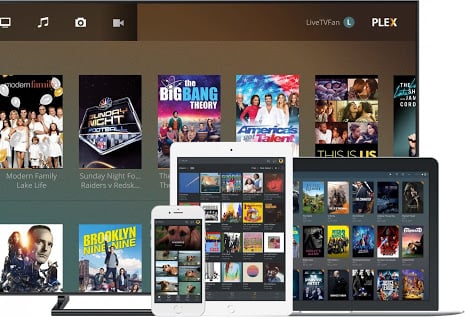
The biggest downside of using Plex has been its inability to record live TV but it seems like they have finally embraced this bit of technology. Now on top of casting your streams to your TV wirelessly, you can also record the live shows for viewing later.
Plex allows for easy integration with the major online streaming companies like Vimeo and Sound cloud to provide extra content. The other distinguishing feature is its compatibility with multiple devices. You can access Plex from your PC, TV, mobile or tablet through its various dedicated applications. Thanks to its compatibility with SSL encryption, Plex provides end to end data encryption.
3. MediaPortal 2

MediaPortal 2
4. Emby

Emby
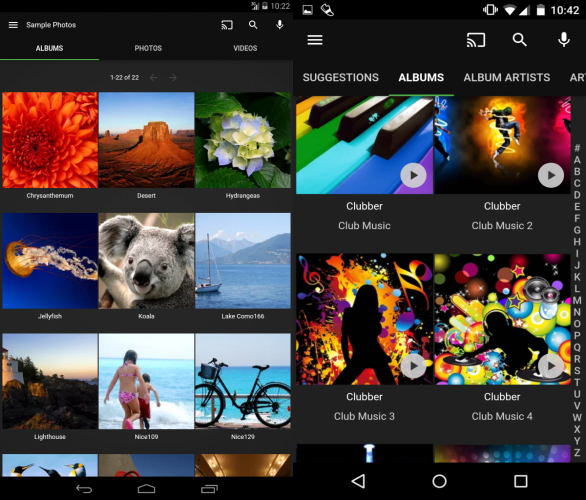
As expected of any respectable media center software, Emby has a number of useful plug-ins that you can use to improve its functionality. For instance, the GameBrowser plugin allows you to browse and play a variety of online games in your PC. It also has a Google Drive plugin that allows you to sync and back up your media files to the cloud.
5. Universal Media Server

Universal Media Server
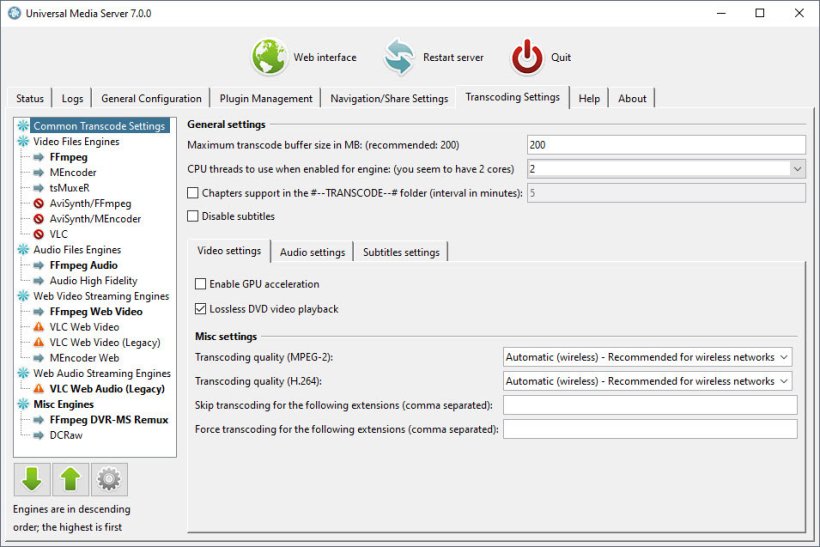
Another good thing about UMS is the multiple plugins that enable you to extend its usability. For instance, there is a plugin that enables integrate Google Play Music into the media center. There is also an IMDB integration that you can use to check best-rated movies and most popular shows to better choose what to watch.
UMS adapts a simple user interface that’s easy to understand even for the basic user. When displaying your movies and TV shows it includes the supplied metadata that describes the plots and also the name of the actors.
How to Fix “Printer is in an error state” Issue?
The error “ WinRAR Error: Next Volume Is Required ” usually appears when you’re extracting a multi-part RAR archive and WinRAR can’t find (or can’t correctly identify) the next file in the sequence . This often happens when a volume is missing , stored in a different folder , or renamed in a way that breaks the archive’s expected order .

In this guide, we’ll go over the most reliable fixes confirmed by affected users, along with what each method is doing behind the scenes so you can choose the right one for your situation.
Important: To extract multi-volume archives, you should always start extraction from the first file in the set. This is usually file.part1.rar , or (in older sets) the main .rar file that comes before .r01 , .r02 , and so on.
1. Download and Place the Missing RAR File
WinRAR needs all parts of a multi-volume archive to complete extraction. This error usually appears when one of the volumes in a set like .part2.rar , .r01 , .r02 , .001 , and similar naming formats is missing . Downloading the missing volume and placing it in the same folder as the other parts allows WinRAR to continue extracting normally .
- Look at the error message or review the list of archive parts in the folder.
- Identify which volume is missing (for example, part2.rar , .r02 , .001 , etc.).
- Go back to the website or source where you downloaded the archive.
- Locate and download the exact missing file using the same naming format as the others.
- Make sure the new file name matches the pattern of the rest. Example: If you have file.part1.rar and file.part3.rar , the missing one must be file.part2.rar .
- Move the downloaded missing volume into the same folder as the other archive parts.
- Confirm that all parts are in a single folder before extracting.
- Right-click the first file in the series (usually part1 or the main .rar file) and select Extract Here or Extract to Folder .
- WinRAR should now detect all volumes and continue extraction normally .
2. Manually Browse & Select the Next Volume
Use this method only if the next volume already exists , but WinRAR is failing to detect it automatically. This can happen due to incorrect naming , the file being in a different location , or a temporary file access issue. Manually browsing helps WinRAR locate the correct volume and resume extraction without interruption .
- Right-click the first file in the series (usually .rar or part1.rar ) and select Extract Here or Extract to Folder .
- When WinRAR cannot find the next volume, it will show the “ Next Volume Is Required ” message.
- A small window will appear, allowing you to manually select the next volume .
- Use the file explorer window to locate the folder where the other archive parts are saved.
- Select the next part based on the naming order (example: select file.part2.rar after file.part1.rar ).
- Make sure the selected file matches the naming format of the archive (no extra characters like (1) and no mismatched numbering).
- WinRAR will resume extraction using the selected volume .
- If additional volumes are missing or stored separately, WinRAR may prompt you again. Repeat the same process until extraction completes.
3. Rename the RAR files in Order
WinRAR relies on a proper naming sequence (such as file.part1.rar , file.part2.rar , file.part3.rar ) to extract multi-volume archives. If a file is named incorrectly, contains extra characters, or is out of order, WinRAR may fail to locate the next volume and show this error. Renaming the files correctly helps WinRAR follow the sequence and extract the archive without interruptions .
Note: Renaming only changes the file name , not the file contents. The goal is to restore the correct sequence so WinRAR can detect the next volume.
- Go to the folder where all the RAR files are saved.
- Make sure all parts of the archive are present and stored in the same folder .
- Check how the parts are currently named . Common patterns include:
file.part1.rar, file.part2.rar, file.part3.rar
file.rar, file.r01, file.r02, file.r03
- Look for files that don’t match the expected numbering pattern (for example, file.part01.rar , file.part1(1).rar , or unrelated names).
- Rename each file so it follows the same order without extra characters or mismatched numbering. Example:
Incorrect: file.part1.rar, file.part3.rar, file.part2(1).rar
Correct: file.part1.rar, file.part2.rar, file.part3.rar
- Make sure the text before the number is exactly the same for all files.
- Only the last part number should change.
- Right-click the first file in the series (usually part1.rar or the main .rar file) and select Extract Here .
- WinRAR should now recognize the sequence and continue extraction normally .
If you still get the same prompt: the archive set is likely incomplete (a part was never downloaded or was removed), or one of the volumes is corrupt and must be re-downloaded from the original source.
