The Spotify app automatically launches on every Windows startup, which is a common behavior for many apps nowadays. By default, these apps have a setting enabled that allows them to start with Windows.

Spotify
How to Prevent Spotify from Opening at Startup in Windows?
Spotify is configured to start at startup by default. To disable this feature, follow these steps: Go to Edit > Preferences > Set Startup Behavior to NO
If disabling the startup feature through the preferences doesn’t work, you can try the detailed methods provided below.
Method 1: Disable using Task Manager
Windows provides a method to access the list of applications scheduled to run at startup. You can review this list and disable the automatic startup of the Spotify app. Follow the steps below:
- Press and hold ( CTRL + SHIFT + ESC ). This will open the task manager
- Go to the ‘Startup’ tab
- Find Spotify and Click Disable from the bottom right corner
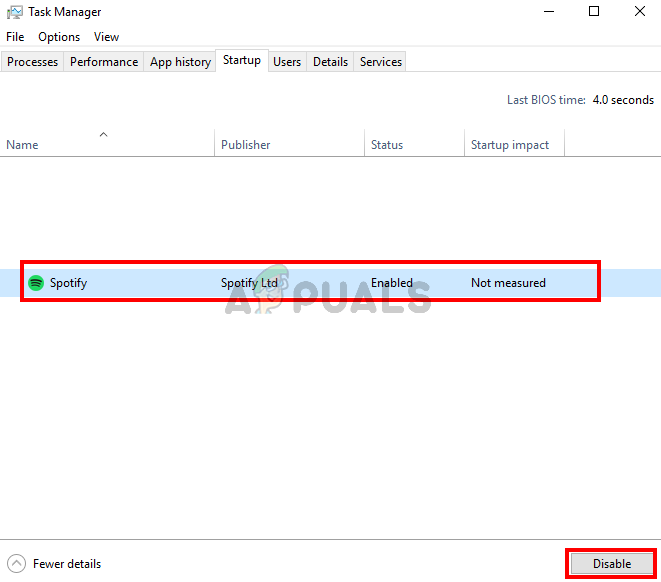
Spotify app auto-start option disabled (task manager)
This should disable the auto-start of the Spotify app.
Method 2. Use Autoruns Tool to Disable it from Startup
Autoruns is an official tool provided by Microsoft that contains all the startup entries, including the ones that are hidden in the registry. Using this tool, we can remove the Spotify entry, which will prevent Spotify from opening during startup.
- Download Autoruns Tool
- Extract the downloaded folder using 7zip
- Go to Extracted folder, open Autoruns.exe
- Press agree and go to Logon tab
- Uncheck Spotify and Close Autoruns
- Now restart your computer and check if it worked.
