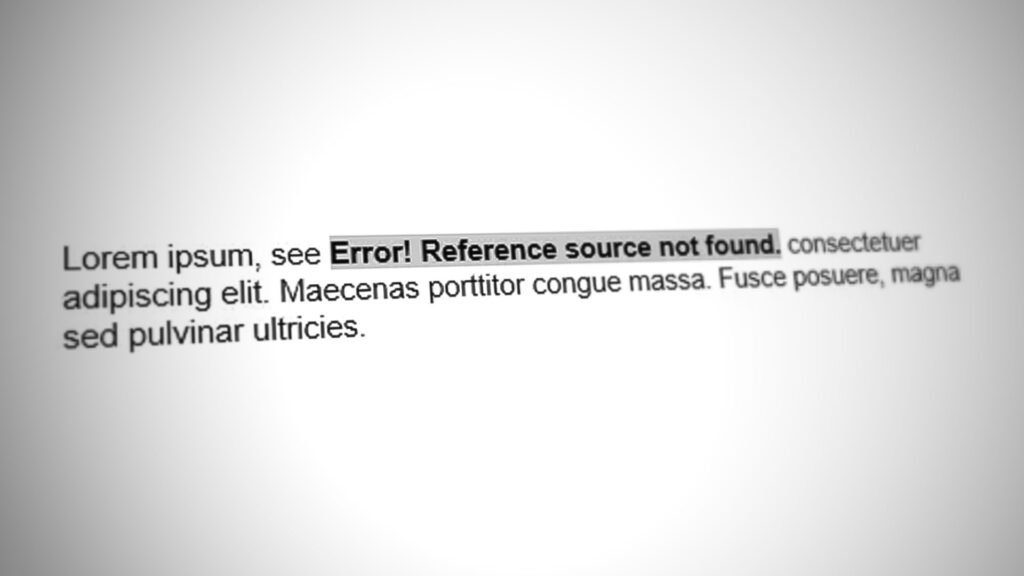
Some Office users are complaining that whenever they try to print documents with their home or work printers, the reference field disappears completely and all the reference text reads “ Error Reference Source Not found “. This is reported to occur with Word. This problem is not exclusive to a certain Windows or Office version since is reported to occur on Windows 7, Windows 8.1 and Windows 10 with various Office versions including Office 2010, Office 2013 and Office 2016.
Office Error ‘Reference Source Not Found’ Fix
What is causing the Error Reference Source Not Found an error?
We investigated this particular by looking at various user reports and the repair strategies that are commonly being used to either fix or circumvent this particular issue. Based on our investigations, there are several potential different culprits that are known to trigger this error message:
- Cross-referenced bookmark has been deleted – In most cases, the error message appears when a cross-referenced bookmark has been deleted. If this scenario is applicable, you will be able to resolve the issue by unlocking the affected fields and update them to a healthy state manually or by using a third-party tool. Additionally, you can lock the fields prior to printing the document.
- Corrupted Office installation – There are some reports of people saying the issue can also occur due to a corrupted Office installation. Whenever this occurs, healthy cross-reference fields are triggering this error message. In this case, you can resolve the issue by repairing the Office installation.
If your situation is similar and you’re struggling to resolve this exact issue, this article will provide you with several troubleshooting steps that will help you fix the problem. Down below, you’ll discover a collection of methods that other users in a similar situation have successfully used. In fact, every method featured below is confirmed to be effective by at least one user.
In order to remain as efficient as possible, we advise you to follow the methods in the order that they are presented because they are ordered by efficiency and difficulty. One of them is bound to resolve the issue since we tried to cover every possible scenario.
Method 1: Locking the fields before printing (temporary fix)
If you’re looking for a temporary fix that will allow you to print the document in quickly and without the Error Reference Source Not Found by locking the field prior to printing the document. Several users that tried to resolve the very same issue have reported that this issue was effective in allowing them to circumvent the issue.
Note: Keep in mind that this fix is only a workaround and doesn’t fix the underlying problem that is triggering the error message. If you’re looking for a viable fix (not a workaround), move down to the next method below.
Here’s a quick guide on locking the fields prior to printing the documents:
- Open the document in your Word application.
- Select the whole document by pressing Ctrl + A or by using your mouse.
- Once the whole document is selected, press Ctrl + F11 to lock the cross-reference (REF) fields. Selecting the whole documents and locking the REF fields
- When the cross-reference fields have been locked, go to File (using the ribbon-bar at the top) and click on Print. Printing the Word document
- Once the document is physically printed, see if the Error Reference Source Not Found message has been resolved.
If you’re still seeing the same message or you’re looking for a permanent fix, move down to the next method below.
Method 2: Removing all broken references manually
If you’re dealing with cross-reference (REF) fields, chances are you’re struggling with the issue because the bookmarks have been deleted from the document. In this case, the most efficient fix is to unlock the fixes and then update them until they no longer contain errors.
Here’s a quick guide on how to do this:
- First, select all text by pressing Ctrl + A . Once the whole text is selected, press F9 to unlock the fields. Unlocking the fields of the text documents
- Once the fields have been unlocked, take the time to revise all text that is referenced to the broken content.
- After you’ve done this, save the changes and go to File > Print and print out the document to see if the error has been resolved. Printing the Word document
If the Error Reference Source Not Found error message is still occurring or you’re looking for a different fix, move down to the next method below.
Method 3: Using the Kutools for Word tool
If you’re looking to install a Word add-in, there’s a much more convenient way of deleting your corrupted Cross-References fields. If you have a whole lot of broken fields, these solutions should be preferred since it makes it very easy to correct the issue.
To use this shortcut, you’ll need to install Kutools for Word – it includes groups of tools that will make your job easier. Here’s a quick guide on using Kutools for Word to fix the Cross-References errors:
- Visit this link ( here ) and click on the Free Download button to download the Kutools for Word installer.
- Double-click on the installation executable and follow the on-screen prompts to install the add-in on your Word application. When the install is completed, restart your computer.
- At the next system startup, open Word and go to the newly appeared menu Enterprise > More and click on Error Cross-References . Using the Kutools for Word
- After a short while, you will get a dialog box telling you how many errors where found. Decide whether you want to delete the text or not and click Ok to resolve the Cross-References errors. Deleting cross-references errors
- In a couple of seconds, all your broken references will be resolved.
If this didn’t allow you to resolve the issue, move down to the final method below.
Method 4: Repairing the Office installation
As it turns out, this particular issue can also occur if files from the Office installation have become corrupted. Several affected users have reported that the issue was resolved after they repaired the Office installation. After doing so and restarting their computer, printing the document no longer triggered the Error Reference Source Not Found message.
Here’s a quick guide on repairing the Office installation:
- Press Windows key + R to open up a Run dialog box. Then, type “appwiz.cpl” and press Enter to open up the Programs and Features screen. Typing in “appwiz.cpl” in the Run prompt
- Inside the Programs and Features screen, scroll down through the list of applications and locate your office installation.
- Once you see it, right-click on it and choose Change. Changing the Office installation
- At the repair prompt, choose Quick Repair and click the Repair button. Then, wait for the process to complete. Repairing the Office installation
- Once the repair sequence completes, restart your computer and see if the issue is resolved at the next startup.
- If the issue is still not resolved, use the Online Repair method instead.
How to Fix “Printer is in an error state” Issue?
The error “ WinRAR Error: Next Volume Is Required ” usually appears when you’re extracting a multi-part RAR archive and WinRAR can’t find (or can’t correctly identify) the next file in the sequence . This often happens when a volume is missing , stored in a different folder , or renamed in a way that breaks the archive’s expected order .
![Office Error ‘Reference Source Not Found’ [Try these Fixes] - 2](https://cdn.appuals.com/wp-content/uploads/2025/12/chrome_tMBLAHw3EO.png)
In this guide, we’ll go over the most reliable fixes confirmed by affected users, along with what each method is doing behind the scenes so you can choose the right one for your situation.
Important: To extract multi-volume archives, you should always start extraction from the first file in the set. This is usually file.part1.rar , or (in older sets) the main .rar file that comes before .r01 , .r02 , and so on.
1. Download and Place the Missing RAR File
WinRAR needs all parts of a multi-volume archive to complete extraction. This error usually appears when one of the volumes in a set like .part2.rar , .r01 , .r02 , .001 , and similar naming formats is missing . Downloading the missing volume and placing it in the same folder as the other parts allows WinRAR to continue extracting normally .
- Look at the error message or review the list of archive parts in the folder.
- Identify which volume is missing (for example, part2.rar , .r02 , .001 , etc.).
- Go back to the website or source where you downloaded the archive.
- Locate and download the exact missing file using the same naming format as the others.
- Make sure the new file name matches the pattern of the rest. Example: If you have file.part1.rar and file.part3.rar , the missing one must be file.part2.rar .
- Move the downloaded missing volume into the same folder as the other archive parts.
- Confirm that all parts are in a single folder before extracting.
- Right-click the first file in the series (usually part1 or the main .rar file) and select Extract Here or Extract to Folder .
- WinRAR should now detect all volumes and continue extraction normally .
2. Manually Browse & Select the Next Volume
Use this method only if the next volume already exists , but WinRAR is failing to detect it automatically. This can happen due to incorrect naming , the file being in a different location , or a temporary file access issue. Manually browsing helps WinRAR locate the correct volume and resume extraction without interruption .
- Right-click the first file in the series (usually .rar or part1.rar ) and select Extract Here or Extract to Folder .
- When WinRAR cannot find the next volume, it will show the “ Next Volume Is Required ” message.
- A small window will appear, allowing you to manually select the next volume .
- Use the file explorer window to locate the folder where the other archive parts are saved.
- Select the next part based on the naming order (example: select file.part2.rar after file.part1.rar ).
- Make sure the selected file matches the naming format of the archive (no extra characters like (1) and no mismatched numbering).
- WinRAR will resume extraction using the selected volume .
- If additional volumes are missing or stored separately, WinRAR may prompt you again. Repeat the same process until extraction completes.
3. Rename the RAR files in Order
WinRAR relies on a proper naming sequence (such as file.part1.rar , file.part2.rar , file.part3.rar ) to extract multi-volume archives. If a file is named incorrectly, contains extra characters, or is out of order, WinRAR may fail to locate the next volume and show this error. Renaming the files correctly helps WinRAR follow the sequence and extract the archive without interruptions .
Note: Renaming only changes the file name , not the file contents. The goal is to restore the correct sequence so WinRAR can detect the next volume.
- Go to the folder where all the RAR files are saved.
- Make sure all parts of the archive are present and stored in the same folder .
- Check how the parts are currently named . Common patterns include:
file.part1.rar, file.part2.rar, file.part3.rar
file.rar, file.r01, file.r02, file.r03
- Look for files that don’t match the expected numbering pattern (for example, file.part01.rar , file.part1(1).rar , or unrelated names).
- Rename each file so it follows the same order without extra characters or mismatched numbering. Example:
Incorrect: file.part1.rar, file.part3.rar, file.part2(1).rar
Correct: file.part1.rar, file.part2.rar, file.part3.rar
- Make sure the text before the number is exactly the same for all files.
- Only the last part number should change.
- Right-click the first file in the series (usually part1.rar or the main .rar file) and select Extract Here .
- WinRAR should now recognize the sequence and continue extraction normally .
If you still get the same prompt: the archive set is likely incomplete (a part was never downloaded or was removed), or one of the volumes is corrupt and must be re-downloaded from the original source.
