- The Snipping Tool in Windows 11 allows users to capture screenshots in various modes such as rectangular, window, full-screen, free-form, and video. It can be launched using the keyboard shortcut Windows key + Shift + S.
- Post-capture, images open in an editor for annotations and edits with options like cropping and highlighting. The tool is designed to be user-friendly and integrates well with touchscreens, enhancing accessibility for all users.
- The default screenshot shortcut is customizable via Windows settings, allowing the use of the Print Screen key for launching the snipping utility, simplifying the screen capture process.
Snipping Tool is a built-in utility in Windows that allows you to take screenshots with ease. Whether you’re saving a snippet of a conversation, a graph from a report, or a funny meme, this tool is your go-to for swift and simple screen captures.
Understanding how to use the Snipping Tool shortcut can streamline your workflow, saving you time and hassle. This article will guide you through the steps to utilize this handy feature effectively, ensuring that you can capture exactly what you need, when you need it, with just a few keystrokes.
While Ctrl + C and Ctrl + V may have been your best friends, it’s time to make room for a new pal on your keyboard shortcut squad. Don’t worry; we won’t be cutting corners in this article, but we might just help you cut out a few extra steps in your workflow. Let’s get started, shall we?
- What is the Snipping Tool? ↪ Capture Modes ↪ Usage ↪ Editing and Annotation ↪ Settings ↪ Integration ↪ Accessibility
- How to Use Snipping Tool with Keyboard Shortcut? Step 1: Open the Snipping Tool Step 2: Choose Snip Shape Step 3: Open the Screenshot in Snipping Tool Editor Step 4: Edit, Copy, and Save
- Changing the Default Keyboard Shortcut for Snipping Tool Using Print Screen for Snipping Tool
- Conclusion
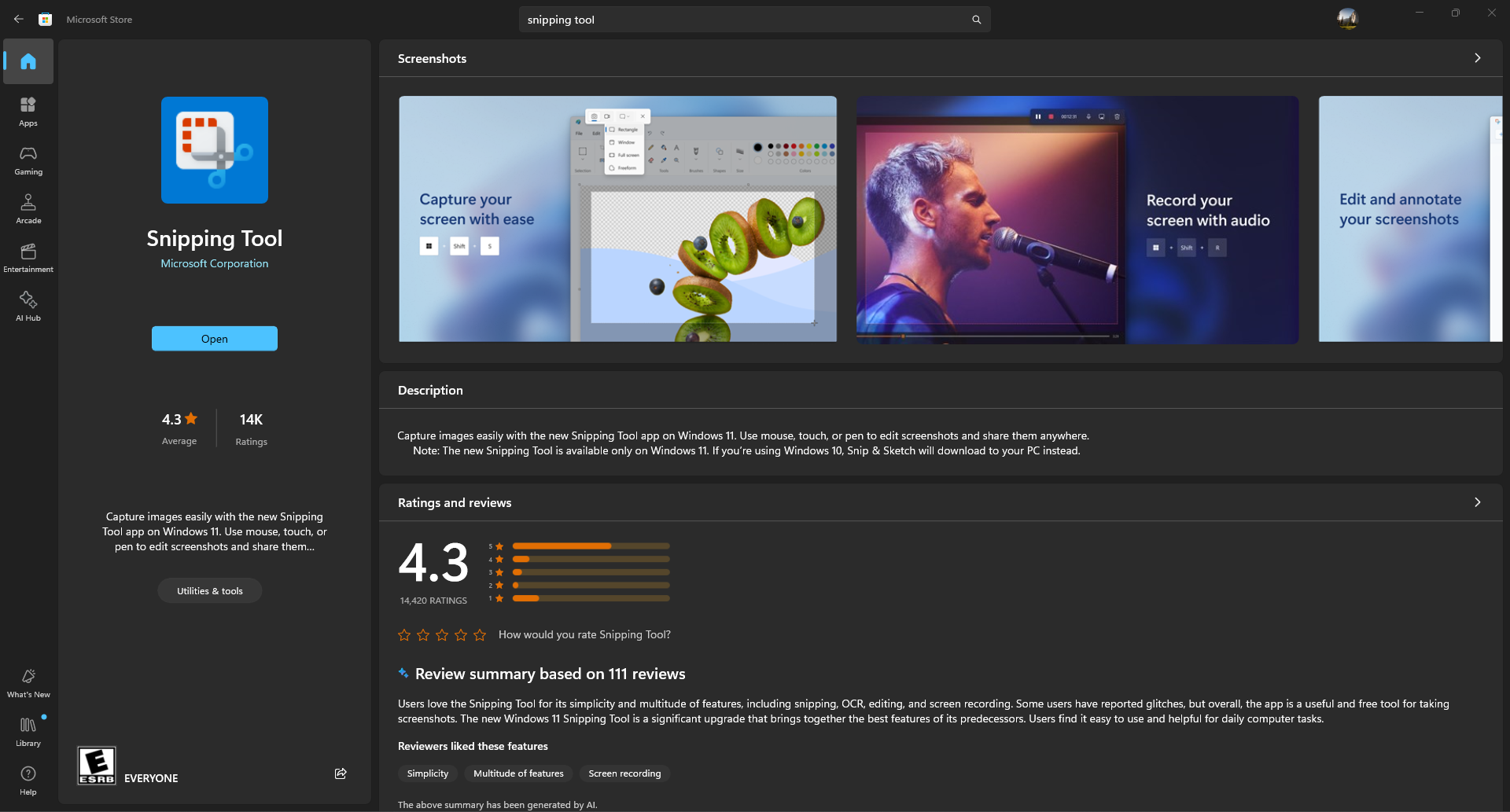
What is the Snipping Tool?
The Snipping Tool in Windows 11 is a versatile application designed for capturing screenshots in various ways. Here’s a detailed look at its features and functionalities:
↪ Capture Modes
- Rectangle mode: This allows you to draw a rectangular area to capture.
- Window mode: Captures the currently active window.
- Full-screen mode: Takes a screenshot of the entire screen.
- Free-form mode: Enables you to draw any shape on the screen and captures the area inside it.
- Video mode : Capture a video clip of a rectangular selection of any part of the screen you like.
↪ Usage
- You can launch the Snipping Tool via the Start Menu or using the keyboard shortcut Windows key + Shift + S .
- After initiating a snip, you can select the desired capture mode from the toolbar at the top of your screen.
- There’s an optional delay feature that lets you set a timer (up to 10 seconds ) before the screenshot is taken, which is useful for capturing dropdown menus or other temporary states.
↪ Editing and Annotation
- Once captured, the screenshot opens in the Snipping Tool Editor .
- The editor provides tools for cropping, annotating with a pen or highlighter, and erasing annotations.
- You can save your edited screenshot in various formats, share it, or print it directly from the editor.
↪ Settings
- The Snipping Tool settings allow you to configure default behaviors, such as the default snip mode or the option to use the Print Screen button to initiate a snip.
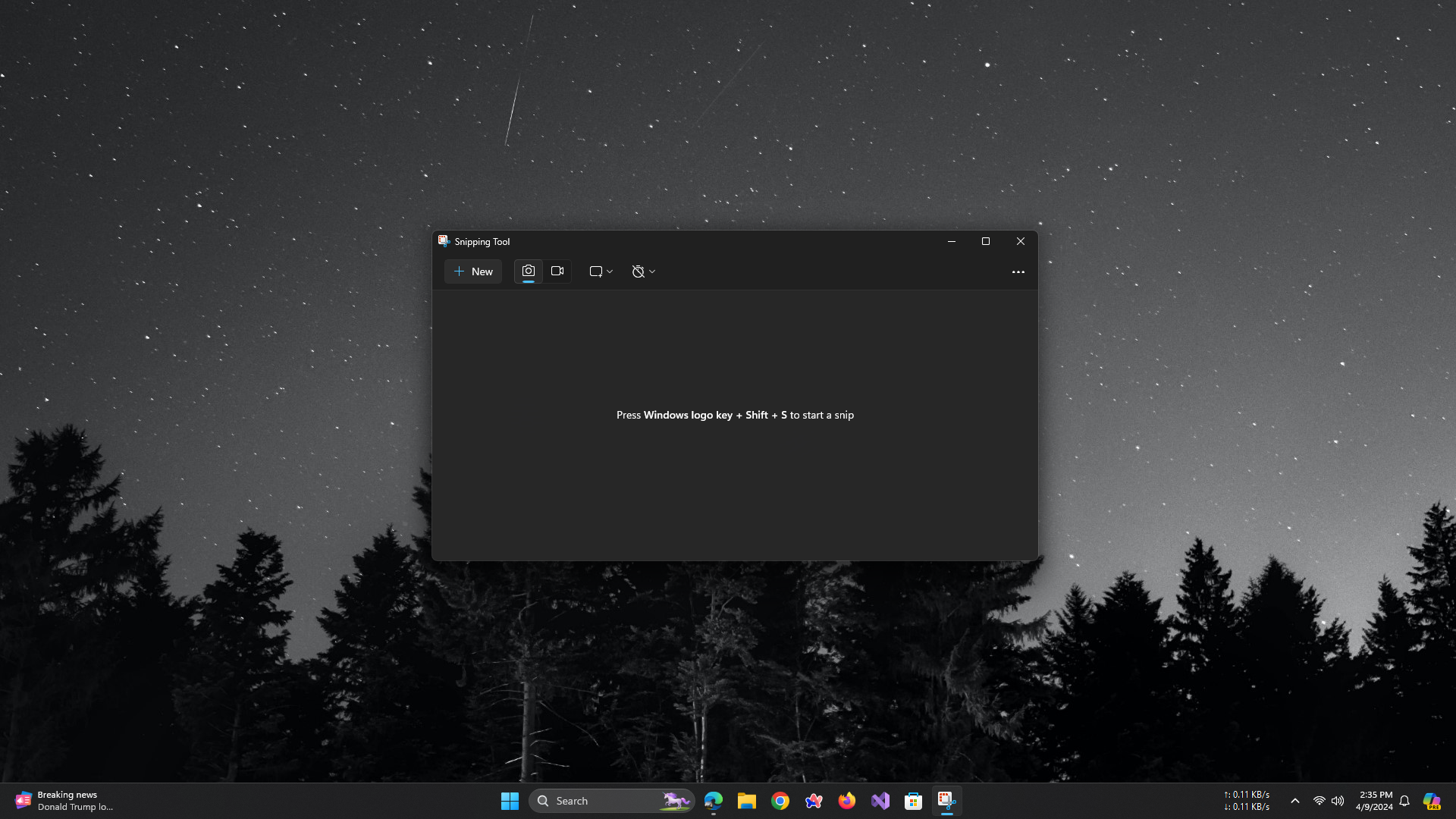
Snipping Tool in Windows 11
↪ Integration
- Screenshots taken with the Snipping Tool can be copied to the clipboard, saved as a file , or shared directly from the app.
- The tool integrates well with touchscreens, allowing for direct drawing or annotation with a finger or stylus.
↪ Accessibility
- The Snipping Tool is accessible to all users and is designed with simplicity in mind, making it easy to capture and share screenshots without the need for complex commands or third-party software.
This tool is particularly useful for creating tutorials, documenting issues, or simply sharing what’s on your screen with others. It’s a significant improvement over the legacy Snipping Tool and Snip & Sketch apps, combining their best features with an updated interface. Let’s dive into the easy steps for using this handy and useful tool with keyboard shortcuts.
How to Use Snipping Tool with Keyboard Shortcut?
Follow these steps carefully; the process is straightforward.
Step 1: Open the Snipping Tool
Press Windows logo key + Shift + S to directly initiate the screenshot process without opening the Snipping Tool window.
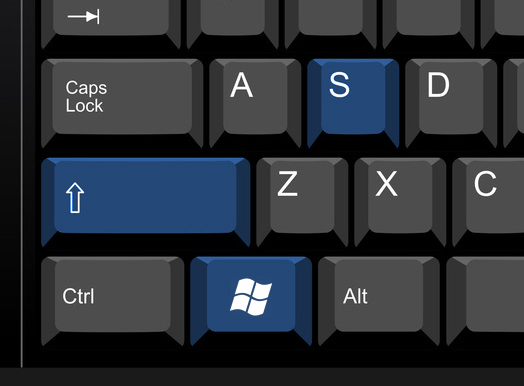
PressWindows + Shift + Ssimultaneously
Step 2: Choose Snip Shape
A Snipping Tool widget or utility will appear at the top of your screen. Choose your desired snip mode from it.
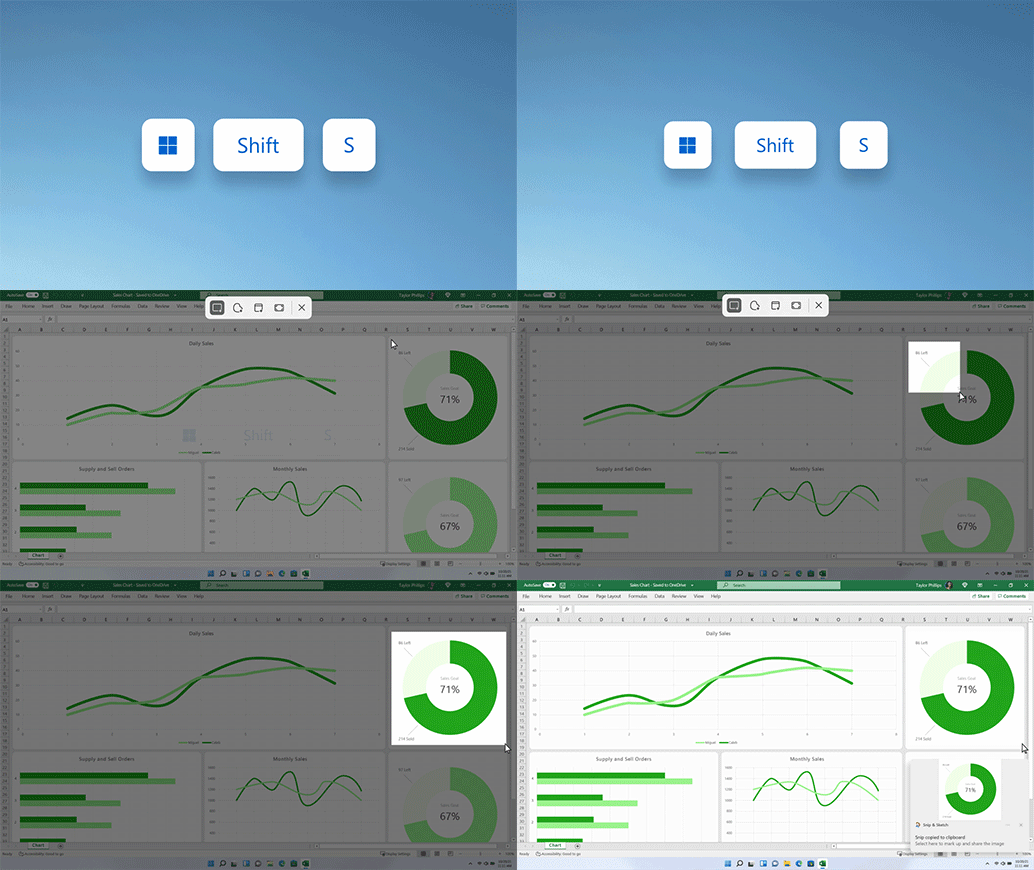
Snipping Tool utility will appear at the top of your screen
- Rectangular Snip: This is the default option and it captures your screenshots in a rectangular shape.
- Freeform Snip: If you’d like to capture screenshots in a freeform way, select this option.
- Window Snip: This option captures the entire window of a specific app open on your PC.
- Fullscreen Snip: This captures your entire screen, including all your open windows and even the taskbar.
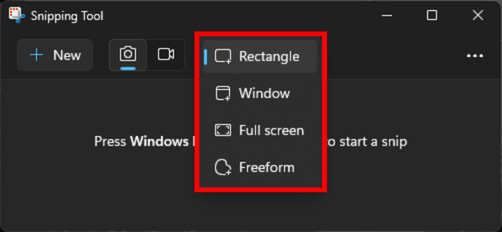
Choose your desired snip mode
Step 3: Open the Screenshot in Snipping Tool Editor
After selecting your desired snip mode and capturing the screenshot, you will see a ‘Screenshot copied to clipboard and saved’ notification in the bottom-right corner of your screen. Click on it to proceed. Your screenshot will then open in a new editing window.
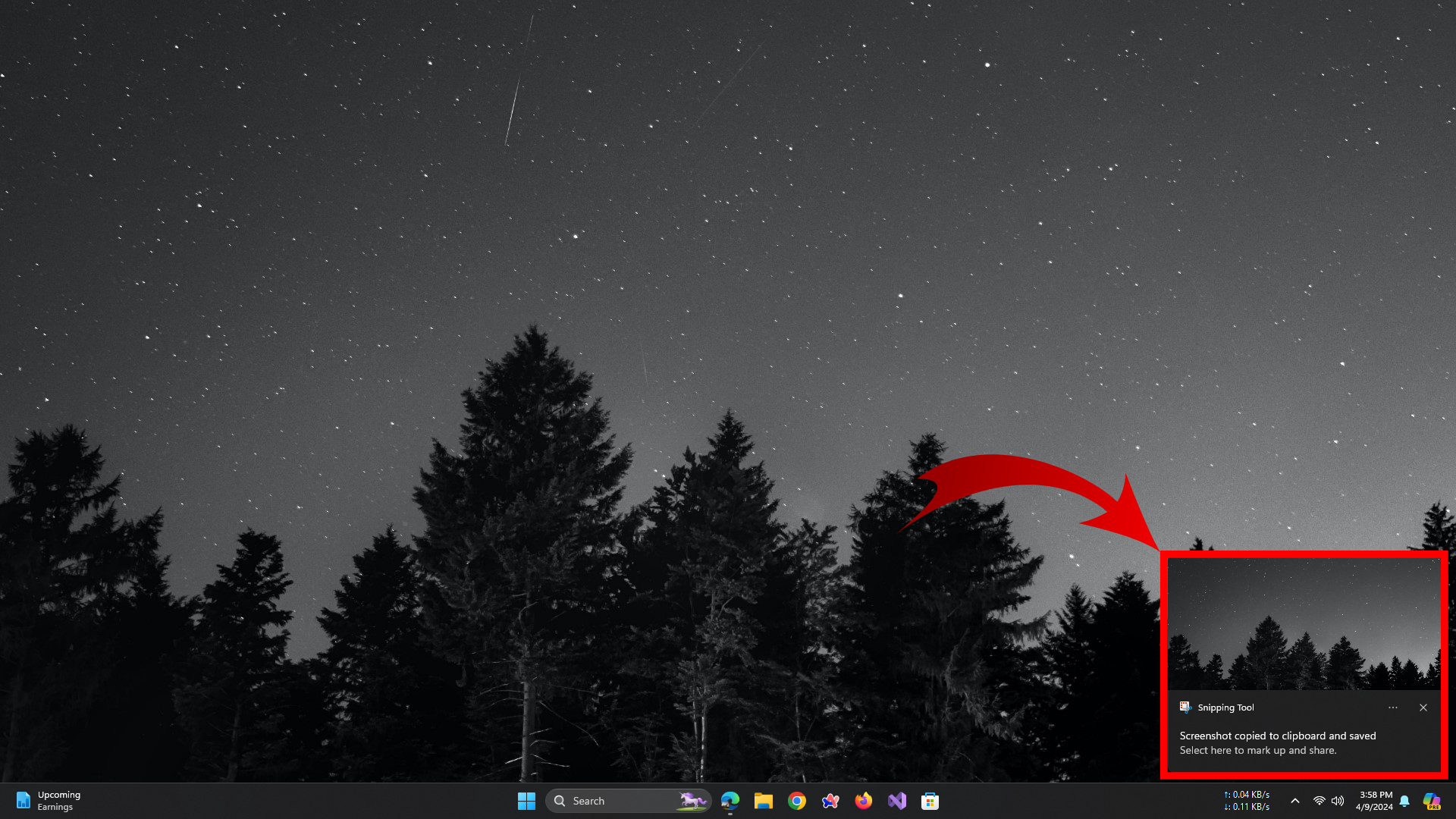
Click the pop-up window to open the screenshot in the editor
Step 4: Edit, Copy, and Save
- Edit: Use the Ballpoint pen, Highlighter , or Touch Writing features to annotate the image. The Ballpoint pen and Highlighter offer various options to change the color and stroke size for annotating the image.
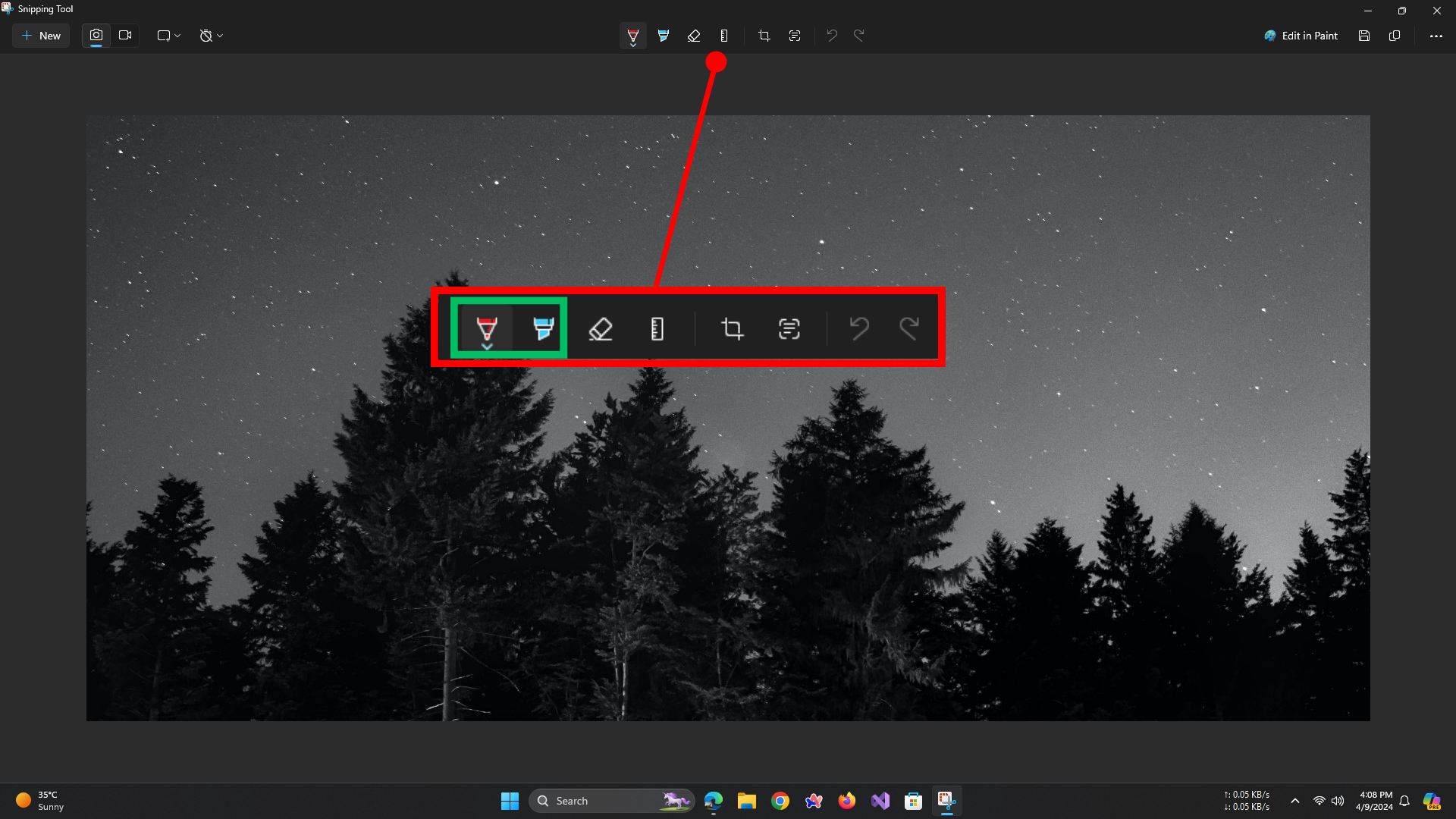
Ballpoint Pen (L) Highlighter (R)
- Use the Ruler to draw straight lines and the Eraser to delete strokes. Additionally, you can select the ‘Edit in Paint’ option in the toolbar to further edit your screen capture in the full-fledged Paint app for Windows.
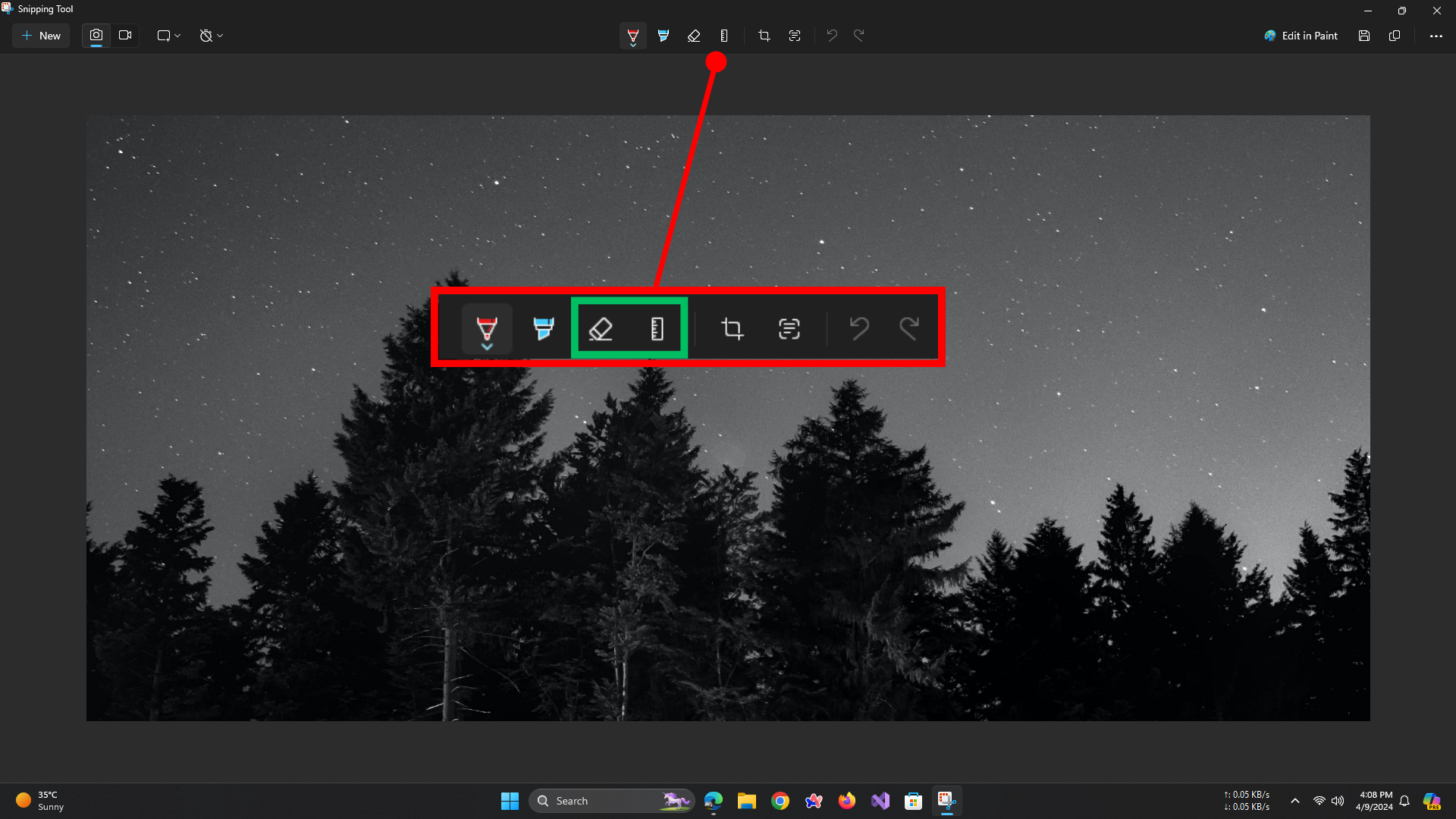
Eraser (L) Ruler (R)
- Copy: Press Ctrl + C to copy the screenshot to the clipboard.
- Save: Press Ctrl + S to save the screenshot.
- Capture Delay (Optional) : Press Alt + D to set a delay. Use the arrow keys to choose the delay time, then press Enter .
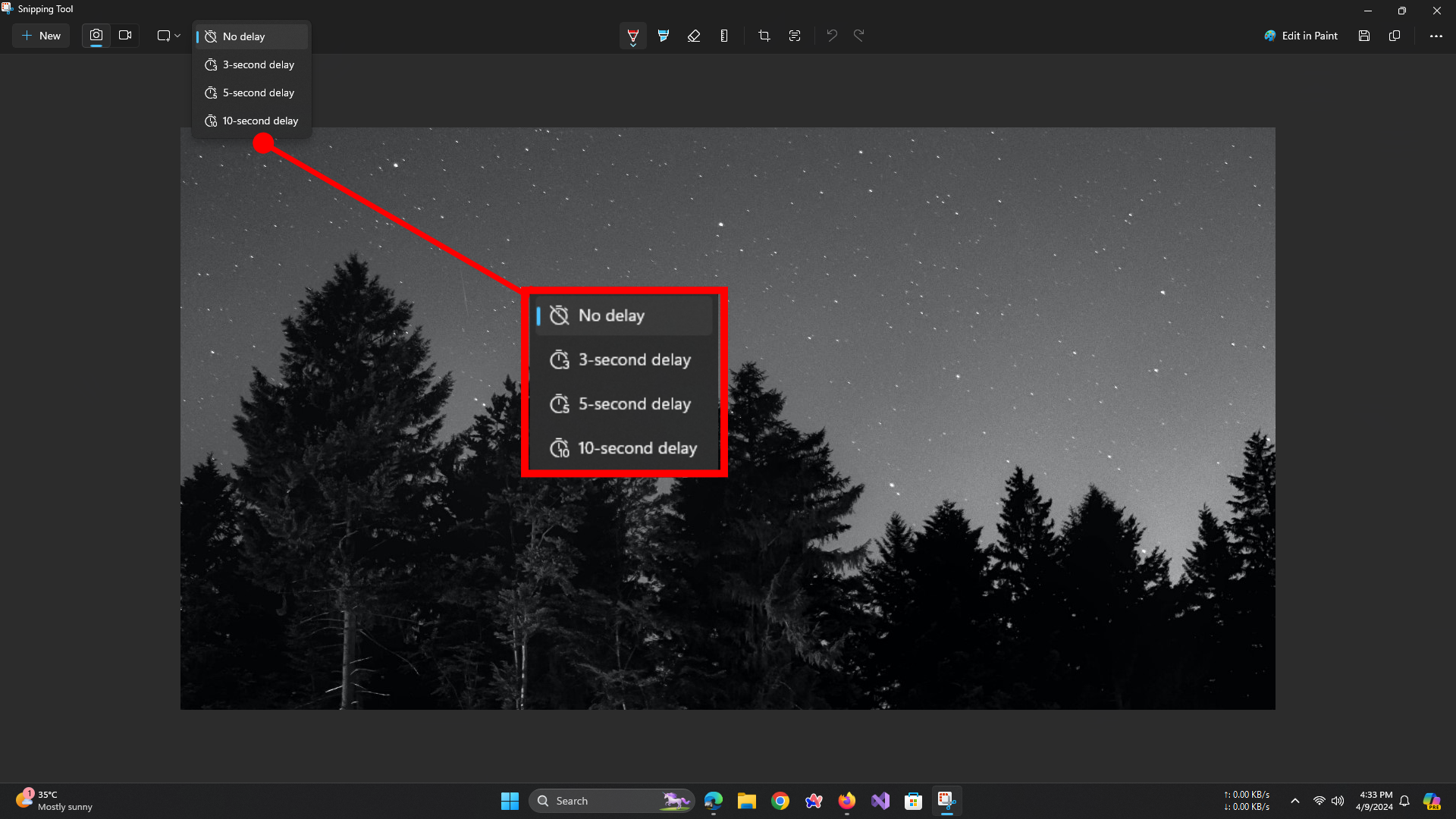
Choose Delay Timer
There you have it! It’s this easy to use the Snipping Tool and access all its available features. Plus, the keyboard shortcut makes it even handier and more useful.
Changing the Default Keyboard Shortcut for Snipping Tool
Most modern keyboards do not have a Print Screen key. However, if your keyboard has one, you can leverage it to your advantage by accessing the Snipping Tool utility with just one key press instead of pressing three keys simultaneously. This will make capturing your screen just a keypress away. Here’s how you can do it:
Using Print Screen for Snipping Tool
- Open Settings on Windows 11 .
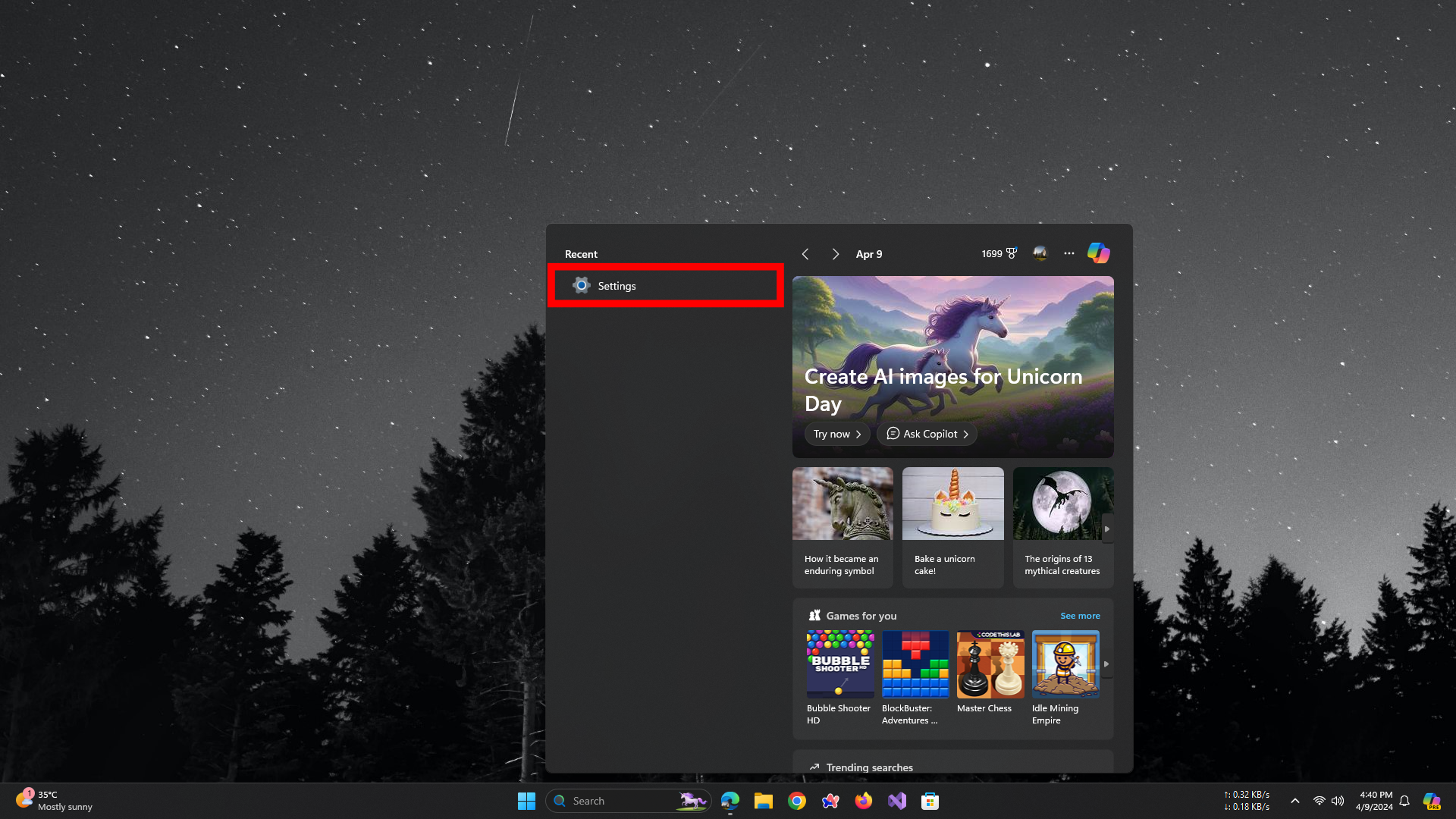
Open Settings
- Click on Access bility , then on Keyboard .
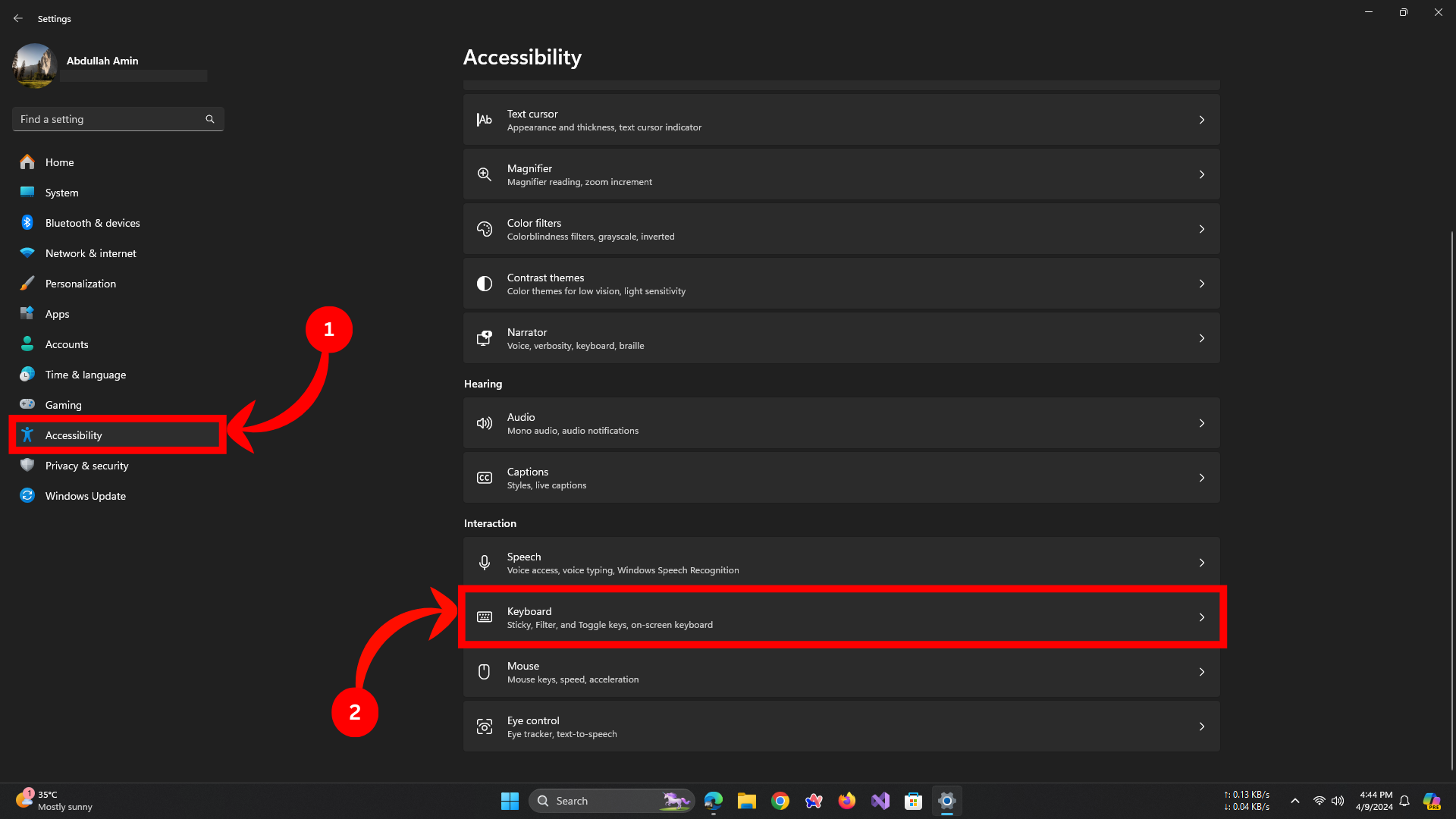
Click onAccessibilityand then selectKeyboard
- Under the “Print Screen shortcut” section, turn on the “Use the Print Screen Key to open screen capture” toggle switch.
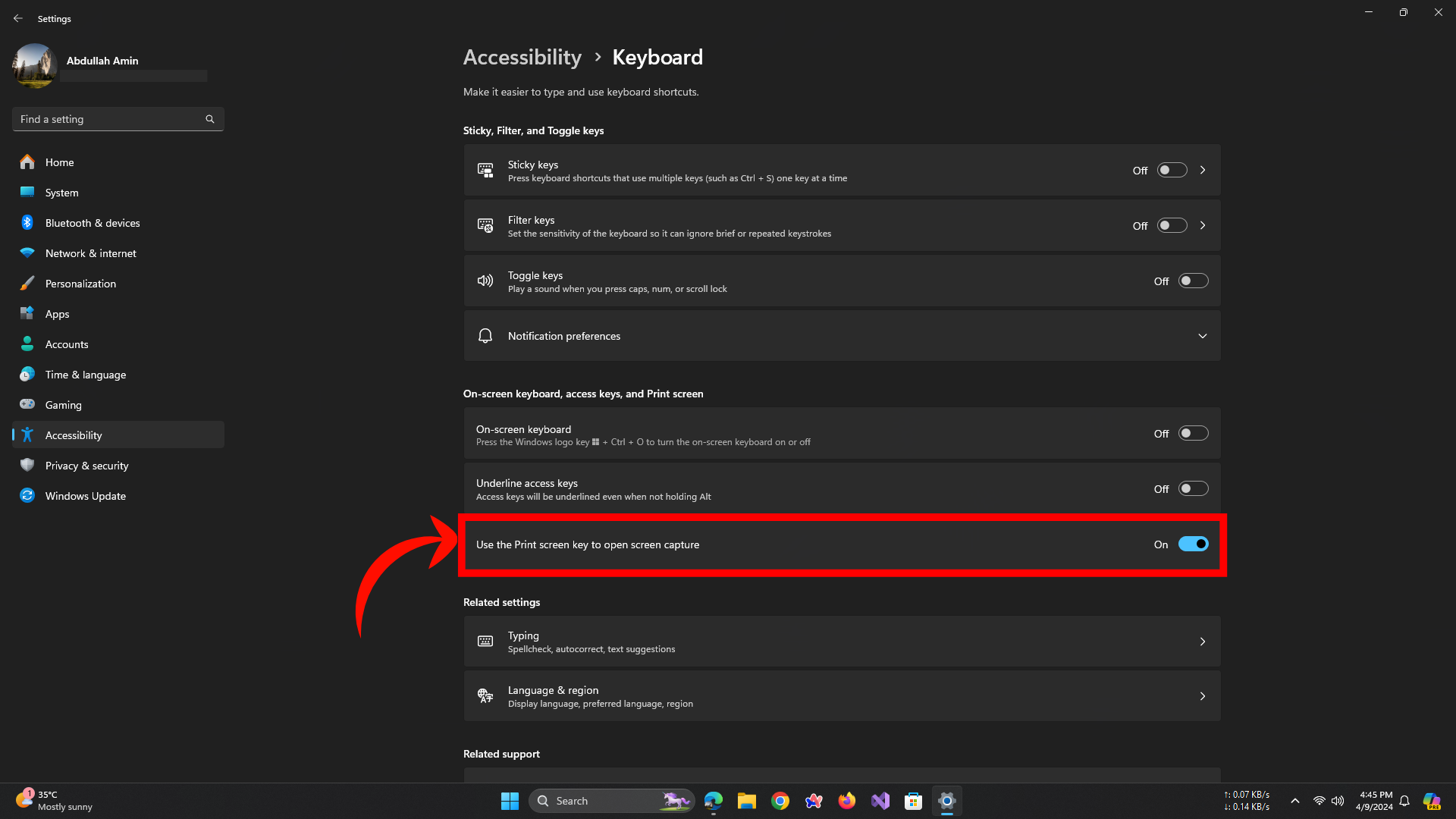
Accessibility>Keyboard> Toggle the option“Use the Print Screen Key to open screen capture”
That’s it! Now you can access the Snipping Tool utility with just one keypress.
Conclusion
To wrap up, the Snipping Tool’s shortcut is a handy trick to keep up your sleeve. It’s straightforward to use and can help you quickly capture whatever you need from your screen. Think of it as a quick-draw tool for all your screenshot needs. Use it wisely, and it’ll become a part of your everyday digital routine. Thanks for reading, and enjoy the simplicity of snipping.
No, the Snipping Tool cannot capture scrolling windows natively, but third-party tools offer this functionality.
Screenshots are not automatically saved. They are copied to the clipboard, and you can paste them into an image editor or document and save them from there.
If you can’t locate your screenshot, it’s likely still on your clipboard. Open an image editing program or document editor and paste the screenshot. Remember to save your work!
Yes, you can capture menus or pop-ups by setting a delay in the Snipping Tool. Once the delay is set, open the menu or pop-up you wish to capture, and the Snipping Tool will take the screenshot after the delay period.
Search for the Snipping Tool in the Start menu, right-click on it, and choose “Pin to taskbar.” This will create a shortcut on your taskbar, allowing you to launch the Snipping Tool with a single click.
If you encounter issues with the Snipping Tool not responding, several troubleshooting steps can be taken. Firstly, ensure that your Windows operating system is up to date by checking for and installing any pending updates. After updating, try restarting your computer to see if the problem resolves itself. If the issue persists, consider utilizing the ‘Repair’ or ‘Reset’ option for the Snipping Tool, which can be found in the Windows Settings under Apps & Features. These options may help in resolving any software-related issues causing the Snipping Tool to become unresponsive.
How to Fix “Printer is in an error state” Issue?
- The Snipping Tool in Windows 11 allows users to capture screenshots in various modes such as rectangular, window, full-screen, free-form, and video. It can be launched using the keyboard shortcut Windows key + Shift + S.
- Post-capture, images open in an editor for annotations and edits with options like cropping and highlighting. The tool is designed to be user-friendly and integrates well with touchscreens, enhancing accessibility for all users.
- The default screenshot shortcut is customizable via Windows settings, allowing the use of the Print Screen key for launching the snipping utility, simplifying the screen capture process.
Snipping Tool is a built-in utility in Windows that allows you to take screenshots with ease. Whether you’re saving a snippet of a conversation, a graph from a report, or a funny meme, this tool is your go-to for swift and simple screen captures.
Understanding how to use the Snipping Tool shortcut can streamline your workflow, saving you time and hassle. This article will guide you through the steps to utilize this handy feature effectively, ensuring that you can capture exactly what you need, when you need it, with just a few keystrokes.
While Ctrl + C and Ctrl + V may have been your best friends, it’s time to make room for a new pal on your keyboard shortcut squad. Don’t worry; we won’t be cutting corners in this article, but we might just help you cut out a few extra steps in your workflow. Let’s get started, shall we?
- What is the Snipping Tool? ↪ Capture Modes ↪ Usage ↪ Editing and Annotation ↪ Settings ↪ Integration ↪ Accessibility
- How to Use Snipping Tool with Keyboard Shortcut? Step 1: Open the Snipping Tool Step 2: Choose Snip Shape Step 3: Open the Screenshot in Snipping Tool Editor Step 4: Edit, Copy, and Save
- Changing the Default Keyboard Shortcut for Snipping Tool Using Print Screen for Snipping Tool
- Conclusion
What is the Snipping Tool?
The Snipping Tool in Windows 11 is a versatile application designed for capturing screenshots in various ways. Here’s a detailed look at its features and functionalities:
↪ Capture Modes
- Rectangle mode: This allows you to draw a rectangular area to capture.
- Window mode: Captures the currently active window.
- Full-screen mode: Takes a screenshot of the entire screen.
- Free-form mode: Enables you to draw any shape on the screen and captures the area inside it.
- Video mode : Capture a video clip of a rectangular selection of any part of the screen you like.
↪ Usage
- You can launch the Snipping Tool via the Start Menu or using the keyboard shortcut Windows key + Shift + S .
- After initiating a snip, you can select the desired capture mode from the toolbar at the top of your screen.
- There’s an optional delay feature that lets you set a timer (up to 10 seconds ) before the screenshot is taken, which is useful for capturing dropdown menus or other temporary states.
↪ Editing and Annotation
- Once captured, the screenshot opens in the Snipping Tool Editor .
- The editor provides tools for cropping, annotating with a pen or highlighter, and erasing annotations.
- You can save your edited screenshot in various formats, share it, or print it directly from the editor.
↪ Settings
- The Snipping Tool settings allow you to configure default behaviors, such as the default snip mode or the option to use the Print Screen button to initiate a snip.
Snipping Tool in Windows 11
↪ Integration
- Screenshots taken with the Snipping Tool can be copied to the clipboard, saved as a file , or shared directly from the app.
- The tool integrates well with touchscreens, allowing for direct drawing or annotation with a finger or stylus.
↪ Accessibility
- The Snipping Tool is accessible to all users and is designed with simplicity in mind, making it easy to capture and share screenshots without the need for complex commands or third-party software.
This tool is particularly useful for creating tutorials, documenting issues, or simply sharing what’s on your screen with others. It’s a significant improvement over the legacy Snipping Tool and Snip & Sketch apps, combining their best features with an updated interface. Let’s dive into the easy steps for using this handy and useful tool with keyboard shortcuts.
How to Use Snipping Tool with Keyboard Shortcut?
Follow these steps carefully; the process is straightforward.
Step 1: Open the Snipping Tool
Press Windows logo key + Shift + S to directly initiate the screenshot process without opening the Snipping Tool window.
PressWindows + Shift + Ssimultaneously
Step 2: Choose Snip Shape
A Snipping Tool widget or utility will appear at the top of your screen. Choose your desired snip mode from it.
Snipping Tool utility will appear at the top of your screen
- Rectangular Snip: This is the default option and it captures your screenshots in a rectangular shape.
- Freeform Snip: If you’d like to capture screenshots in a freeform way, select this option.
- Window Snip: This option captures the entire window of a specific app open on your PC.
- Fullscreen Snip: This captures your entire screen, including all your open windows and even the taskbar.
Choose your desired snip mode
Step 3: Open the Screenshot in Snipping Tool Editor
After selecting your desired snip mode and capturing the screenshot, you will see a ‘Screenshot copied to clipboard and saved’ notification in the bottom-right corner of your screen. Click on it to proceed. Your screenshot will then open in a new editing window.
Click the pop-up window to open the screenshot in the editor
Step 4: Edit, Copy, and Save
- Edit: Use the Ballpoint pen, Highlighter , or Touch Writing features to annotate the image. The Ballpoint pen and Highlighter offer various options to change the color and stroke size for annotating the image.
Ballpoint Pen (L) Highlighter (R)
- Use the Ruler to draw straight lines and the Eraser to delete strokes. Additionally, you can select the ‘Edit in Paint’ option in the toolbar to further edit your screen capture in the full-fledged Paint app for Windows.
Eraser (L) Ruler (R)
- Copy: Press Ctrl + C to copy the screenshot to the clipboard.
- Save: Press Ctrl + S to save the screenshot.
- Capture Delay (Optional) : Press Alt + D to set a delay. Use the arrow keys to choose the delay time, then press Enter .
Choose Delay Timer
There you have it! It’s this easy to use the Snipping Tool and access all its available features. Plus, the keyboard shortcut makes it even handier and more useful.
Changing the Default Keyboard Shortcut for Snipping Tool
Most modern keyboards do not have a Print Screen key. However, if your keyboard has one, you can leverage it to your advantage by accessing the Snipping Tool utility with just one key press instead of pressing three keys simultaneously. This will make capturing your screen just a keypress away. Here’s how you can do it:
Using Print Screen for Snipping Tool
- Open Settings on Windows 11 .
Open Settings
- Click on Access bility , then on Keyboard .
Click onAccessibilityand then selectKeyboard
- Under the “Print Screen shortcut” section, turn on the “Use the Print Screen Key to open screen capture” toggle switch.
Accessibility>Keyboard> Toggle the option“Use the Print Screen Key to open screen capture”
That’s it! Now you can access the Snipping Tool utility with just one keypress.
Conclusion
To wrap up, the Snipping Tool’s shortcut is a handy trick to keep up your sleeve. It’s straightforward to use and can help you quickly capture whatever you need from your screen. Think of it as a quick-draw tool for all your screenshot needs. Use it wisely, and it’ll become a part of your everyday digital routine. Thanks for reading, and enjoy the simplicity of snipping.
No, the Snipping Tool cannot capture scrolling windows natively, but third-party tools offer this functionality.
Screenshots are not automatically saved. They are copied to the clipboard, and you can paste them into an image editor or document and save them from there.
If you can’t locate your screenshot, it’s likely still on your clipboard. Open an image editing program or document editor and paste the screenshot. Remember to save your work!
Yes, you can capture menus or pop-ups by setting a delay in the Snipping Tool. Once the delay is set, open the menu or pop-up you wish to capture, and the Snipping Tool will take the screenshot after the delay period.
Search for the Snipping Tool in the Start menu, right-click on it, and choose “Pin to taskbar.” This will create a shortcut on your taskbar, allowing you to launch the Snipping Tool with a single click.
If you encounter issues with the Snipping Tool not responding, several troubleshooting steps can be taken. Firstly, ensure that your Windows operating system is up to date by checking for and installing any pending updates. After updating, try restarting your computer to see if the problem resolves itself. If the issue persists, consider utilizing the ‘Repair’ or ‘Reset’ option for the Snipping Tool, which can be found in the Windows Settings under Apps & Features. These options may help in resolving any software-related issues causing the Snipping Tool to become unresponsive.
Your print screen button may not work and cause your PC to freeze if your system is configured to boot into the debug mode. Moreover, a corrupt keyboard or graphics drivers may also cause the issue at hand.
The issue arises when the user tries to take a screenshot of his display while using the print screen button but the system freezes and the user has to restart the system (or kill the task in the task manager). The issue is not limited to a particular program.
Using the Print Screen Button Freezes the System
Before proceeding, check if clean booting your system resolves the issue. If so, then the issue could be caused by a conflicting application/process , and to find the problematic one, enable the applications/processes one by one till you find the problematic one. Once found, either update the application/process or remove it.
Solution 1: Disable Debug at the System’s Boot
Your system may freeze while using the Print Screen button if your system is configured to boot into the debug mode (the Debug mode may have been activated by a recently installed application). In this case, disabling Debug at the system’s boot may solve the problem.
- Press the Windows key and type System Configuration (or MSConfig). Now select System Configuration . Open the System Configuration from the Start Menu
- Now navigate to the Boot tab and click on the Advanced Options button. Open Advanced Boot Options in System Configuration
- Then uncheck the option of Debug and apply your changes. Uncheck Debug in the Advanced Boot Options
- Now reboot your PC and upon reboot, check if the freezing issue is resolved.
Solution 2: Reinstall the Keyboard and Graphics Drivers
You may encounter the print screen freezing issue if your keyboard or graphics driver is corrupt. In this scenario, reinstalling the keyboard and graphics drivers may solve the problem.
Before proceeding, make sure to remove the PIN or password of your user account (if being used) as we will be removing the keyboard driver which may cause issues when logging back into the system.
- Update your system drivers and check if the freezing issue is resolved.
- If not, launch a web browser and download the latest drivers of your keyboard and graphics card from the OEM website.
- Then right-click on the Windows button (to launch the Quick Access menu) and choose Device Manager .
- Now expand Display Adapters and right-click on your graphics card . Uninstall Graphics Driver and Delete its Driver Software
- Then select Uninstall and checkmark the option of Delete the Driver Software of This Device .
- Now click on the Uninstall button and let the uninstallation complete.
- Repeat the same to uninstall the keyboard driver and then reboot your PC.
- Upon reboot, check if the Print Screen issue is resolved (as Windows may install the default drivers).
- If not, then install the downloaded drivers and check if the Print Screen issue is resolved.
If the issue persists, then you may reset your PC or perform a clean installation of Windows.
The error “ WinRAR Error: Next Volume Is Required ” usually appears when you’re extracting a multi-part RAR archive and WinRAR can’t find (or can’t correctly identify) the next file in the sequence . This often happens when a volume is missing , stored in a different folder , or renamed in a way that breaks the archive’s expected order .

In this guide, we’ll go over the most reliable fixes confirmed by affected users, along with what each method is doing behind the scenes so you can choose the right one for your situation.
Important: To extract multi-volume archives, you should always start extraction from the first file in the set. This is usually file.part1.rar , or (in older sets) the main .rar file that comes before .r01 , .r02 , and so on.
1. Download and Place the Missing RAR File
WinRAR needs all parts of a multi-volume archive to complete extraction. This error usually appears when one of the volumes in a set like .part2.rar , .r01 , .r02 , .001 , and similar naming formats is missing . Downloading the missing volume and placing it in the same folder as the other parts allows WinRAR to continue extracting normally .
- Look at the error message or review the list of archive parts in the folder.
- Identify which volume is missing (for example, part2.rar , .r02 , .001 , etc.).
- Go back to the website or source where you downloaded the archive.
- Locate and download the exact missing file using the same naming format as the others.
- Make sure the new file name matches the pattern of the rest. Example: If you have file.part1.rar and file.part3.rar , the missing one must be file.part2.rar .
- Move the downloaded missing volume into the same folder as the other archive parts.
- Confirm that all parts are in a single folder before extracting.
- Right-click the first file in the series (usually part1 or the main .rar file) and select Extract Here or Extract to Folder .
- WinRAR should now detect all volumes and continue extraction normally .
2. Manually Browse & Select the Next Volume
Use this method only if the next volume already exists , but WinRAR is failing to detect it automatically. This can happen due to incorrect naming , the file being in a different location , or a temporary file access issue. Manually browsing helps WinRAR locate the correct volume and resume extraction without interruption .
- Right-click the first file in the series (usually .rar or part1.rar ) and select Extract Here or Extract to Folder .
- When WinRAR cannot find the next volume, it will show the “ Next Volume Is Required ” message.
- A small window will appear, allowing you to manually select the next volume .
- Use the file explorer window to locate the folder where the other archive parts are saved.
- Select the next part based on the naming order (example: select file.part2.rar after file.part1.rar ).
- Make sure the selected file matches the naming format of the archive (no extra characters like (1) and no mismatched numbering).
- WinRAR will resume extraction using the selected volume .
- If additional volumes are missing or stored separately, WinRAR may prompt you again. Repeat the same process until extraction completes.
3. Rename the RAR files in Order
WinRAR relies on a proper naming sequence (such as file.part1.rar , file.part2.rar , file.part3.rar ) to extract multi-volume archives. If a file is named incorrectly, contains extra characters, or is out of order, WinRAR may fail to locate the next volume and show this error. Renaming the files correctly helps WinRAR follow the sequence and extract the archive without interruptions .
Note: Renaming only changes the file name , not the file contents. The goal is to restore the correct sequence so WinRAR can detect the next volume.
- Go to the folder where all the RAR files are saved.
- Make sure all parts of the archive are present and stored in the same folder .
- Check how the parts are currently named . Common patterns include:
file.part1.rar, file.part2.rar, file.part3.rar
file.rar, file.r01, file.r02, file.r03
- Look for files that don’t match the expected numbering pattern (for example, file.part01.rar , file.part1(1).rar , or unrelated names).
- Rename each file so it follows the same order without extra characters or mismatched numbering. Example:
Incorrect: file.part1.rar, file.part3.rar, file.part2(1).rar
Correct: file.part1.rar, file.part2.rar, file.part3.rar
- Make sure the text before the number is exactly the same for all files.
- Only the last part number should change.
- Right-click the first file in the series (usually part1.rar or the main .rar file) and select Extract Here .
- WinRAR should now recognize the sequence and continue extraction normally .
If you still get the same prompt: the archive set is likely incomplete (a part was never downloaded or was removed), or one of the volumes is corrupt and must be re-downloaded from the original source.
