- A rumor says the Share > Other > Blocked feature on Instagram lets the users see who has blocked them.
- There’s no official update regarding it, neither can the users see the Other option.
- If you want to see who have blocked you, you can check their number of followers, or likes and comments on your posts.
Instagram is a super popular app used by over 2 billion people worldwide. People love it because it’s always getting cool updates and has fun features. Whether you’re sharing picture dumps, engaging reels, or daily stories to keep your followers in the loop, Instagram offers a dynamic space for self-expression. But lately, everyone’s buzzing about the new Share Other Blocked feature.
Are you also curious about who might have blocked you on Instagram? You’re in the right place. In this guide, we’ll check out if this new method really works or not. Let’s get into it!
- What is the “Share Other Blocked” Feature on Instagram
- Fact Check: Does Share Other Blocked Really Work?
- How to Know if Someone Has Blocked You on Instagram 1. Search Their Profile 2. Search the Direct Link from a Browser 3. Look for Their Chat in Your DM 4. Mention Them 5. Check Your Likes & Comments 6. Follow Them 7. See Their Followers
- Wrapping Up
What is the “Share Other Blocked” Feature on Instagram
Despite the buzz, it’s important to note that the legitimacy of this feature remains unverified, as Instagram has not made an official statement about it.
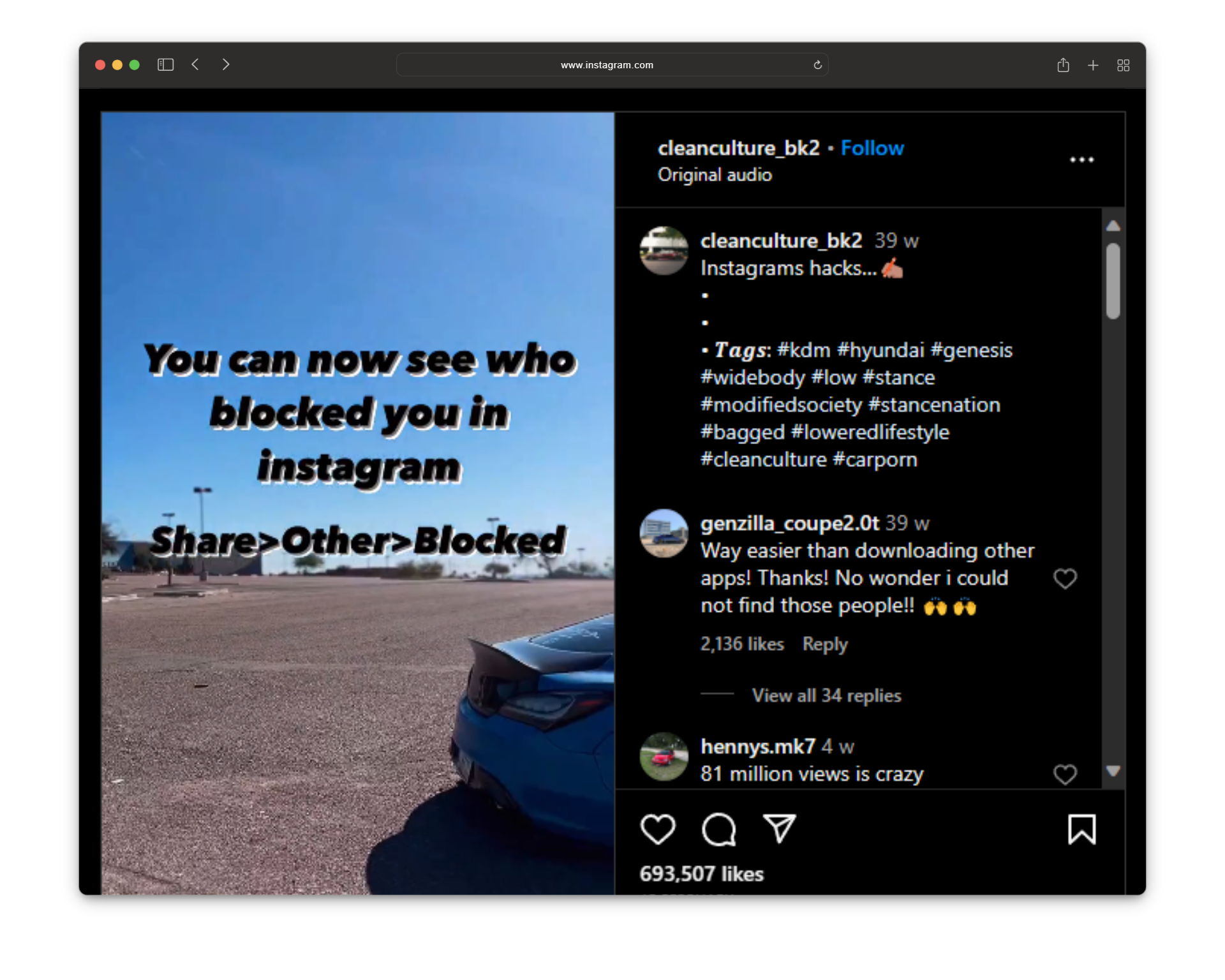
The infamous Share Other Blocked inception
According to claims, selecting “ Share > Other > Blocked ” should reveal a list of users who have blocked you on Instagram. However, many users report that this function doesn’t seem to be effective. Some users had issues finding the Other option, and some said this doesn’t work.
Fact Check: Does Share Other Blocked Really Work?
The simplest way to answer all the confusion around the Share Other Blocked method on Instagram is No; it does not work. It was just a move to maximize engagement, confuse people, and gain some likes.
There is no option named “Other” or “Blocked” on the app, which you can go to and check the list of people who have blocked you from seeing their profiles.
How to Know if Someone Has Blocked You on Instagram
Instagram keeps its users’ privacy at the utmost priority, and blocking is a privacy option. That’s why there is no official way to check the users who have blocked you on the platform. But here are some of the hacks you can try to check if someone has blocked on Instagram .
1. Search Their Profile
One method you can try to determine if someone has blocked you on Instagram is by searching for their profile using the following steps:
- Launch the Instagram app.
- Tap on the magnifying glass to access the “ Search ” window. Tap on the search icon
- Enter the username of the person you suspect may have blocked you. Enter the username
- If the person’s profile does not show up or you cannot access it, it may indicate that you’ve been blocked.
2. Search the Direct Link from a Browser
You can try searching for a user’s profile using the direct link from a browser by following this process:
- Open your preferred web browser on your computer or mobile device.
- Type “ www.instagram.com ” in the address bar and press Enter .
- Enter your Instagram username and password to log in. Enter username and password
- Enter the direct link to the suspected user’s profile in the address bar. The format for an Instagram profile link is usually “ www.instagram.com/username, ” where “ username ” is the actual username of the person. The profile after searching through link
- Press Enter to navigate to the specified profile. If the profile does not load or you receive an error, it might suggest that your profile has been blocked. Results if the profile has blocked you
3. Look for Their Chat in Your DM
Another method to check if someone has blocked you on Instagram is by looking for their chat in your Direct Messages (DM). Here are the steps:
- Go to the Instagram app and click on the messenger icon in the top right corner of the app or website to access your Direct Messages .
- Use the search bar at the top of the Direct Messages section to search for the username of the person you presume may have blocked you. Go to DM > Search for the profile
- If you have had previous conversations with the person, locate the chat in your Direct Messages and click on their username at the top.
- If a notification pops up indicating “ No Posts Yet ,” it means that the user has blocked you. If this is displayed, you are blocked
4. Mention Them
You can also try mentioning the user you suspect of blocking you in a comment or tagging them in a story. If the mention is successful, you haven’t been blocked. But if you can’t mention or tag them anywhere on the app, it’s clear that they have blocked you.
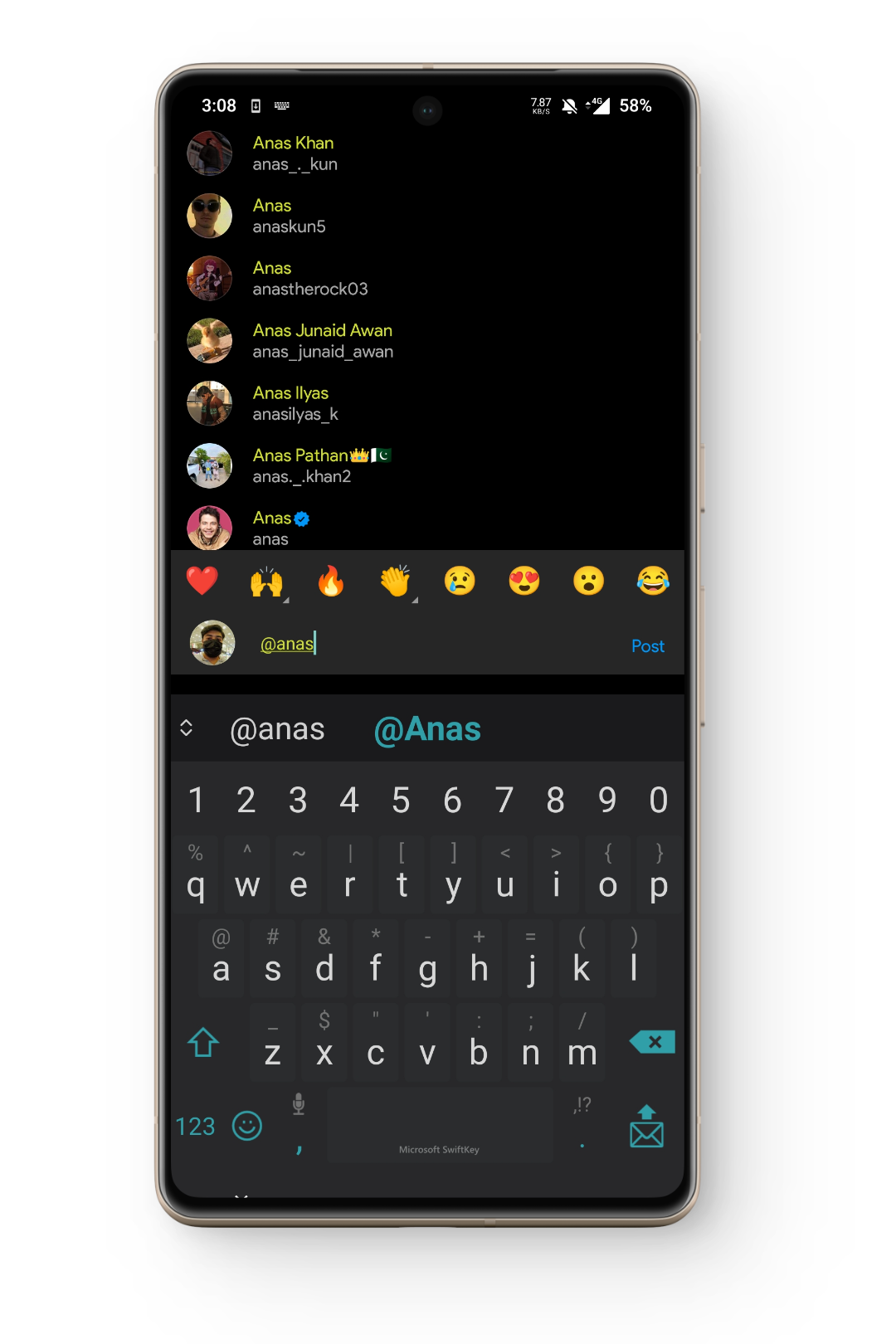
Tagging someone on Instagram

Likes on Insta | USA Today
6. Follow Them
You can also follow the user to determine if they have blocked you on Instagram. Implement this procedure to do so:
- Go to their chat in DM.
- Visit their profile and click the Follow button.
- In case you’re unable to follow them, it implies that they have blocked you.
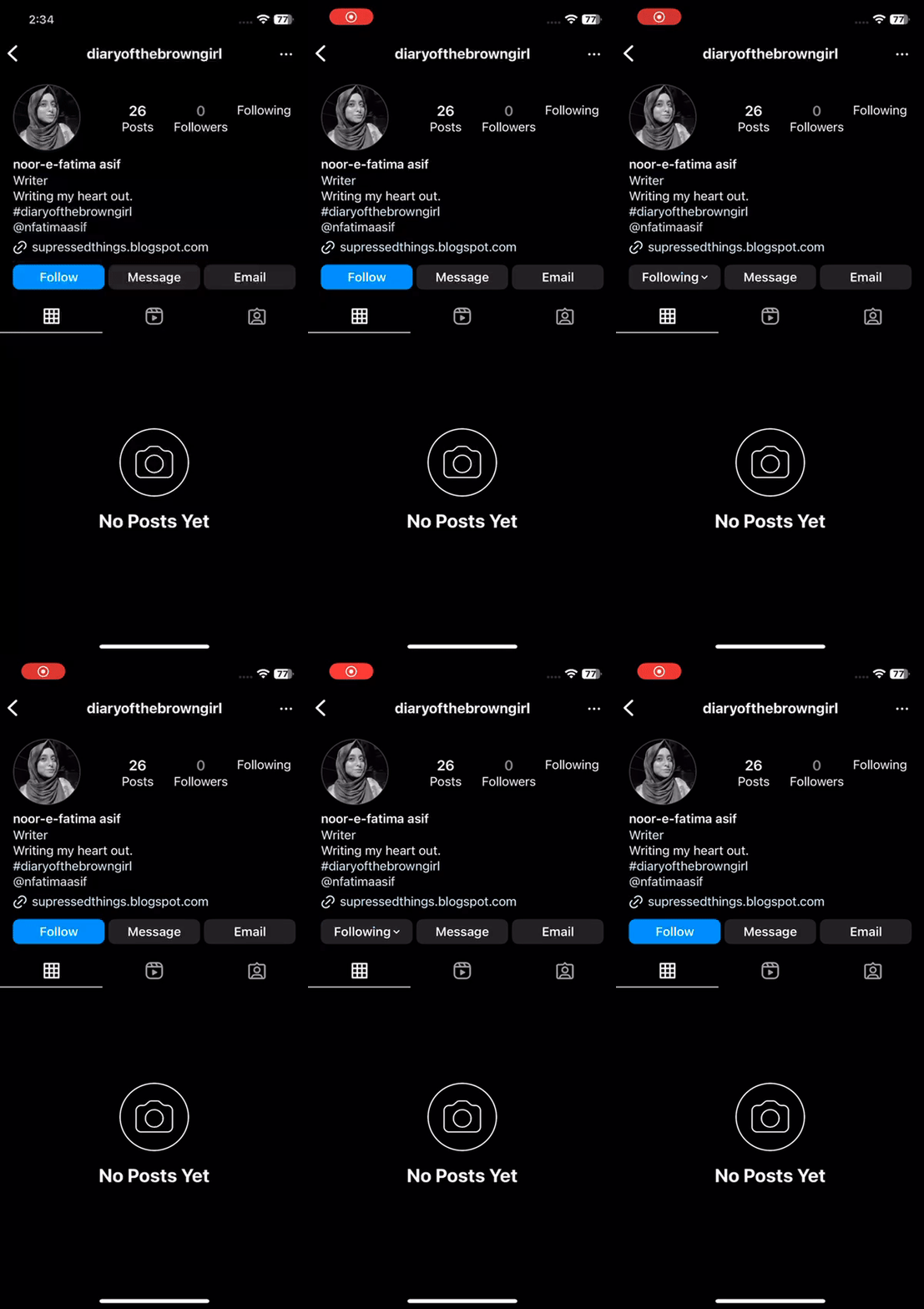
The follow button will bounce back
7. See Their Followers
You can also check the number of followers to know who has blocked you. If someone’s profile has a few posts and you see 0 under the followers option on that person’s profile , it hints that they’ve blocked you.
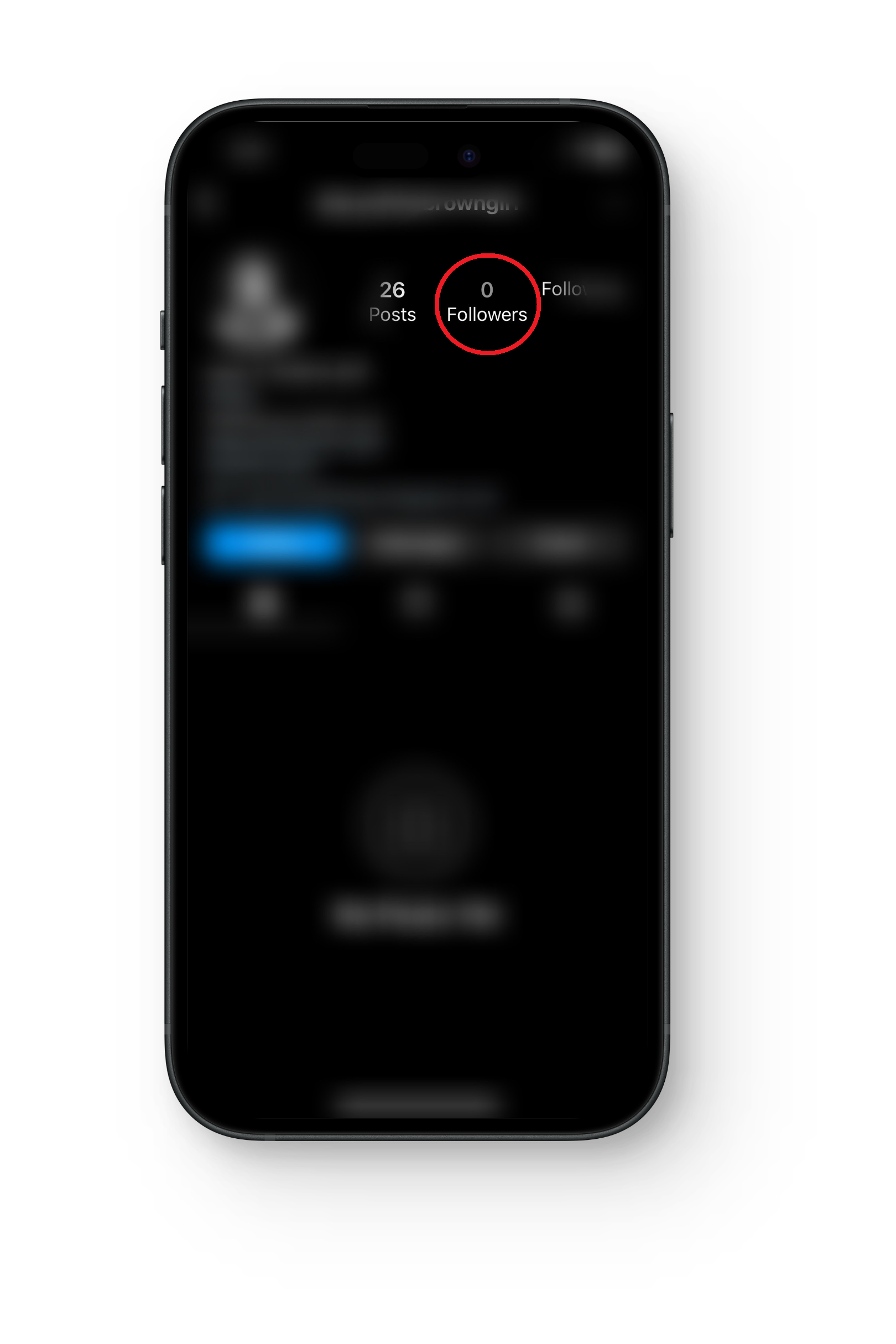
Check the number of followers
Wrapping Up
That’s it. All the information you needed on the Share Other Blocked method on Instagram. We hope that this guide helps you to see who has blocked you on the platform.
Remember to exercise caution when dealing with unverified information. Rumors can quickly spread and lead users astray due to the widespread occurrence of clickbait and inaccurate reports. It is advisable to depend on official announcements or information from trustworthy sources to stay well-informed.
No, Instagram does not provide an official feature to check who has blocked you. Use caution with third-party apps making such claims, as they may violate Instagram’s terms.
Yes, searching for their profile and encountering difficulties accessing it may suggest that you’ve been blocked, but it’s not an official method.
Absolutely, factors like modified privacy settings or account deactivation can also affect profile visibility, so it’s important to consider various possibilities before concluding that you’ve been blocked.
How to Fix “Printer is in an error state” Issue?
Google Docs is a perfect platform allowing the creation and sharing of documents effortlessly. With this tool, you can let others view, comment, or edit your documents, facilitating smooth collaboration and minimizing confusion.
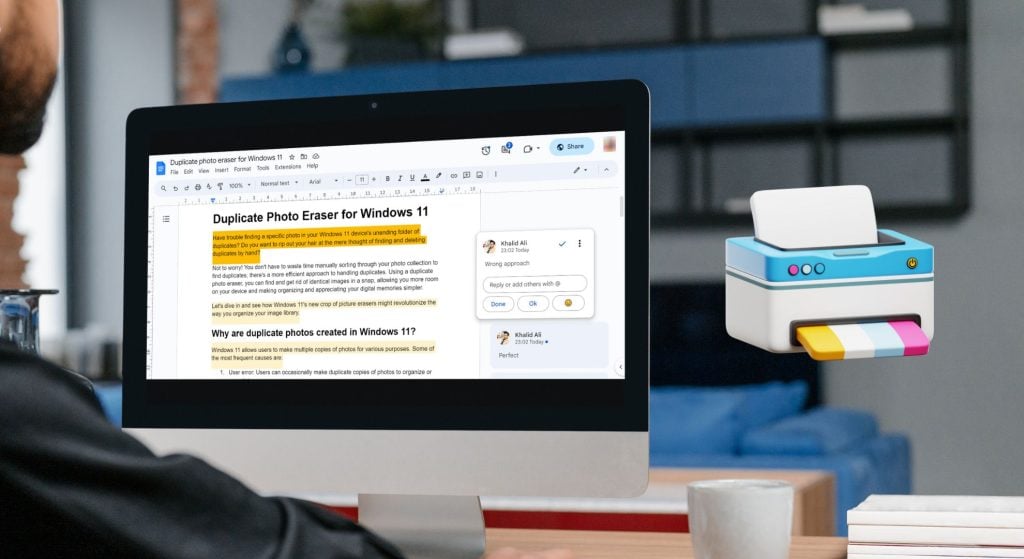
Can you print Google Doc with comments?
1. Capture the page as a screenshot and print
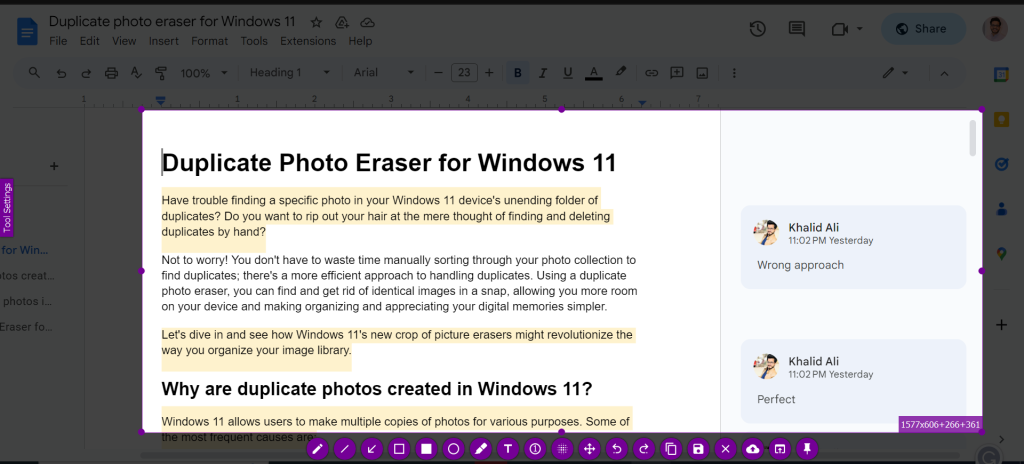
Capture the page as a screenshot and print
You can take a screenshot of the whole document page and then print it as a photo. This way is straightforward but doesn’t give you many options and has some limits.
2. Export the Google Doc to Microsoft Word
- Open your Google Doc and click “ File ” in the top menu. Click File
- Click Download, then select Microsoft Word (.docx). Save it on your computer. Click Download then select Microsoft Word
- Open the Word file from the “ Downloads ” folder. Open the Word file
- When you open the file in Microsoft Word, you’ll see that the comments are included. All comments are visible and can be printed
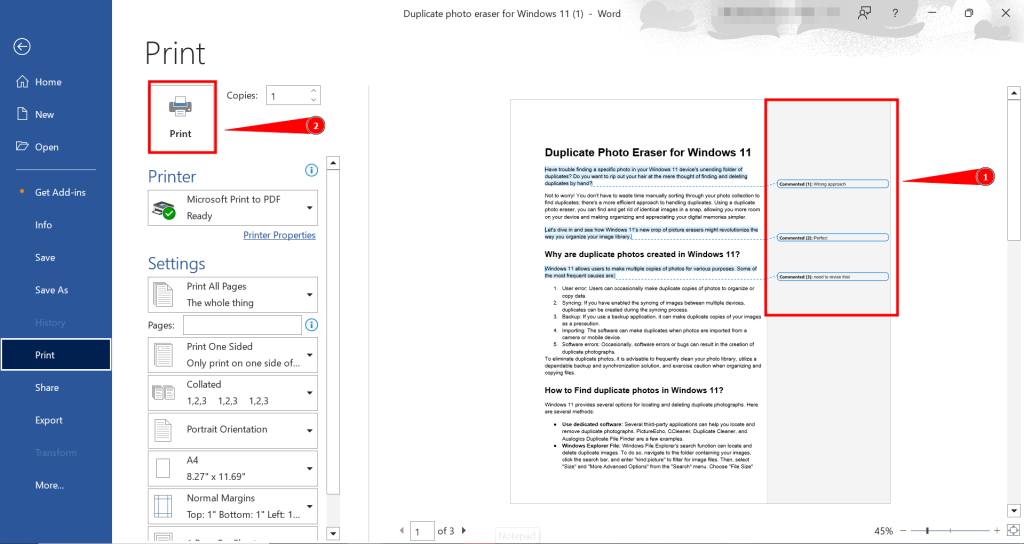
Comments visible in preview
3. Turn the Google Docs into a Webpage
Follow these simple steps to convert your Google Doc into a webpage for printing purposes.
- Click on “ File .” Click on File
- Then hit “ Download ” and choose the “ Webpage format ,” which is (.html). Choose the webpage format
- The webpage downloads as a zip. Unzip the File. Open the HTML file with the browser you like. Open the HTML file
- If you use Chrome , printing is easy. Click the three dots, click Print, or press “ CTRL+ P” on your keyboard. Print it directly from browser
4. Utilizing Chrome Extensions for Comment Printing
GoFullPage is a handy Chrome extension that lets you capture pictures of whole pages. Here’s how you can utilize it in our case:
- Visit the Chrome Web Store and click “ Add to Chrome ” for GoFullPage. Add the extension
- The extension will screenshot your entire document, including all the content and comments. You can save this image to your computer or print it. Download or print the file easily
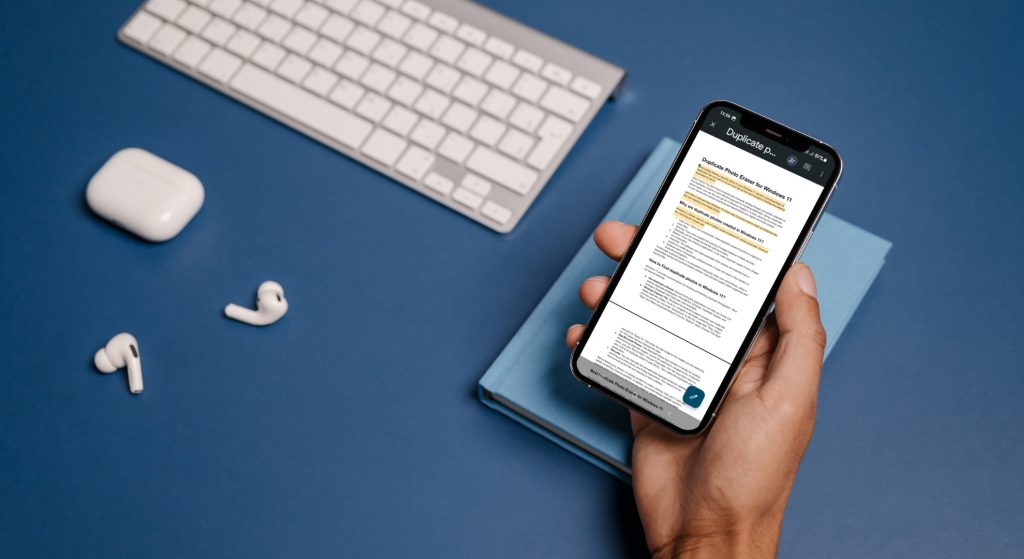
How to print Google Doc with comments on mobile?
You can quickly screenshot Google Docs on a mobile device by pressing specific button combinations and then print if connected to a compatible printer. Moreover, Google Docs also allows you to export as a Word file or webpage on mobile.
Remember, the exact steps may vary slightly based on your phone’s operating system and the versions of the apps you’re using. Ensure you have the necessary apps installed and updated, and a printer compatible with mobile devices.
