Bluetooth wireless technology has made many formerly inconvenient tasks simpler. When you are done using a Bluetooth device, you may disconnect it by selecting the “ Forget This Device ” option. However, when you need to reconnect, you may wonder how to unforget the device.
Pressing the Forget button makes forgetting the Bluetooth connection simple, but un-forgetting it is sometimes difficult. Learn how to un-forget a forgotten Bluetooth device in our easy-to-follow guide.
How to Unforget a Bluetooth Device on iOS?
If you have forgotten a device from “My Devices,” you can get your iOS to recognize your Bluetooth device again in one of three simple ways. The efficacy of these strategies is listed below:
Method 1: Resetting the Bluetooth Device (AirPods)
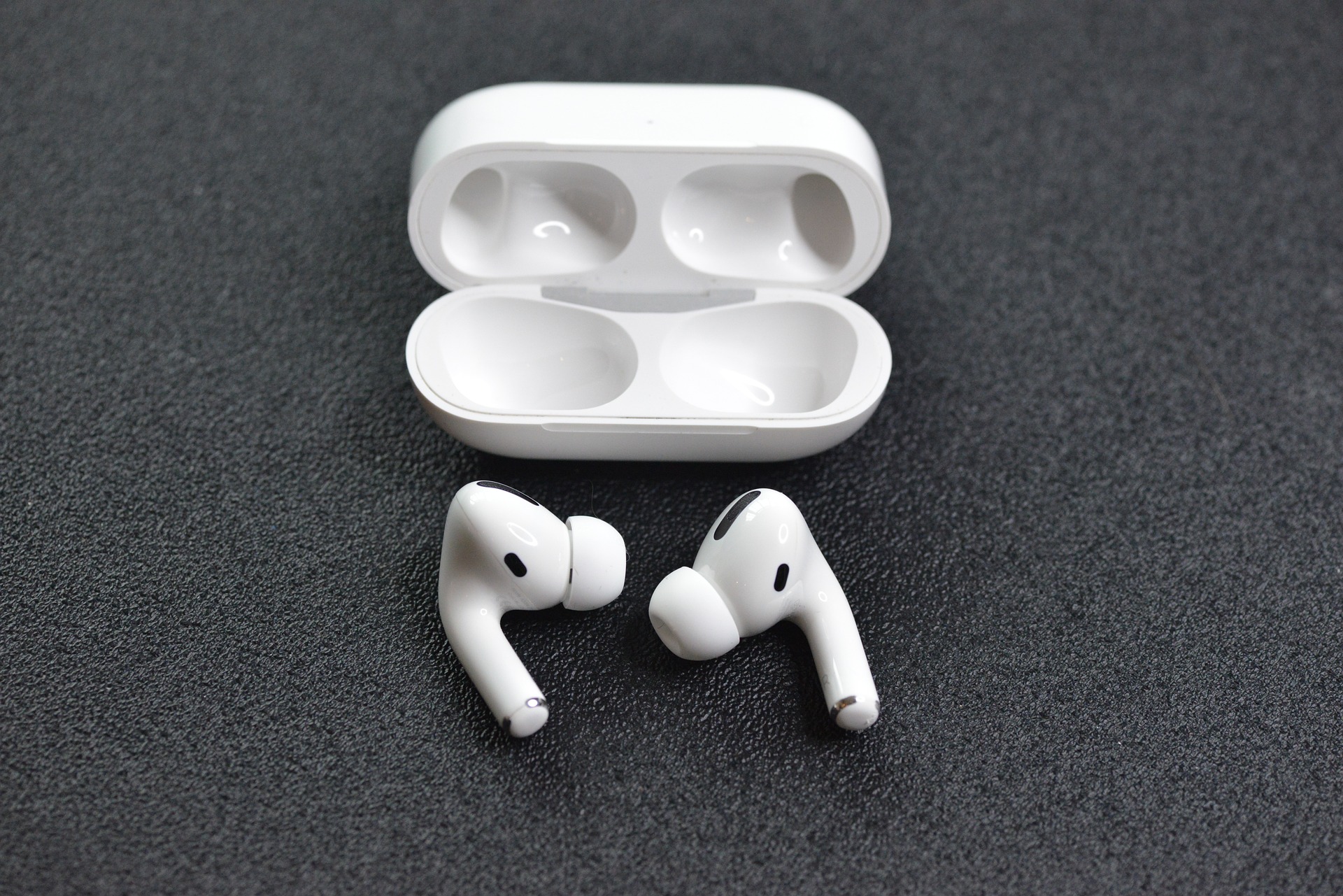
Apple AirPods | Pixabay
Using AirPods once your iPhone has forgotten about them is an easy procedure. If you have set your AirPods to “ Forget This Device “, your iPhone will not be able to find them again until you reset them.
You may factory reset your AirPods by opening the case’s lid and pressing (holding) the setup button. Do so until the status light alternates between amber and white, a process that should take around 15 seconds. This will reset the AirPods.
Follow the standard method for reconnecting your AirPods again.
In case, you have any other device, such as Sony Headphones , you can reset the headphones manufacturer’s guide. Each manufacturer and each headphone type has a different way of being reset, so it is better to check the guide for further information.
Pro Tip : Method 1 is not too complicated, but it does need some research on how to reset each unique Bluetooth device. However, un-forgetting a Bluetooth device using this approach is the most reliable way to do it on iOS.
Method #2: Reset Network Settings From Your iPhone
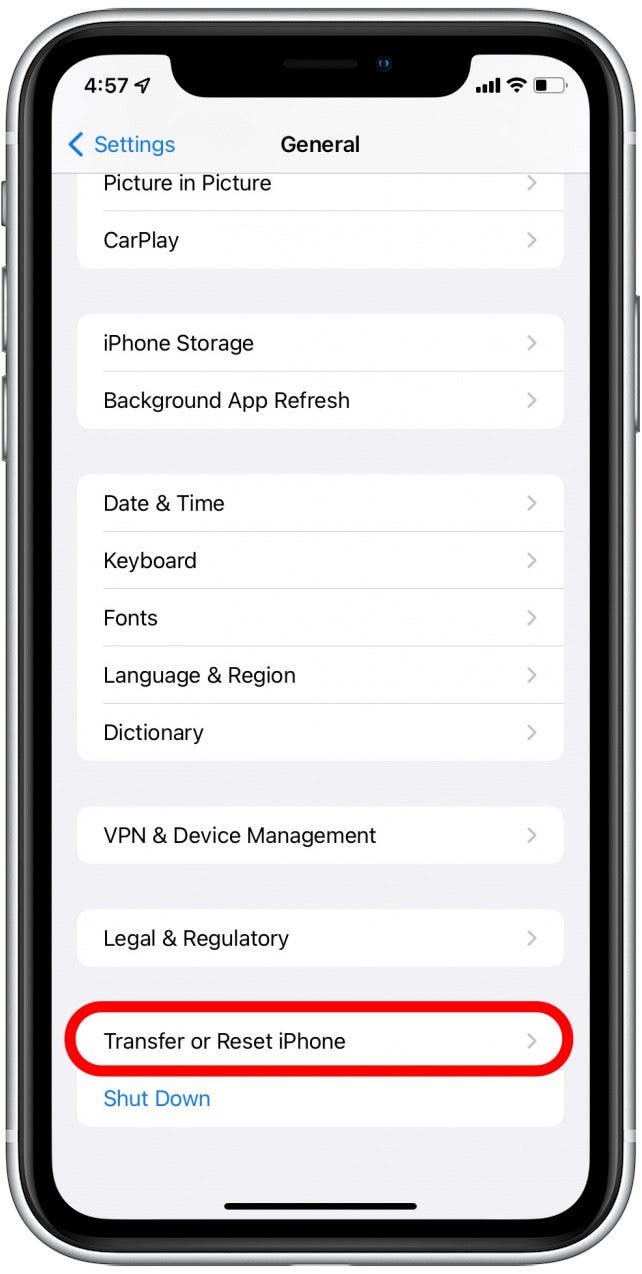
Transfer or Reset iPhone |iPhone Life
Resetting the iPhone’s network settings is the second most reliable method for getting it to un-forget a forgotten Bluetooth device. Resetting an iPhone’s network settings will wipe off all Wi-Fi networks (and their passwords), cellular data, and Virtual Private Networking (VPN) connections.
Network resets consist of the following:
- When you reset your network settings, you will lose access to any saved networks as well as any passwords you may have used to access Wi-Fi networks. It will also reset cellular data settings and reset any data calculators that you may have used earlier.
- You will lose access to your VPN configurations, including your username, password, server address, and VPN type.
- You will lose access to all your Bluetooth devices (paired).
- If wiping your iPhone’s network settings and losing access to any saved Wi-Fi or VPN networks is something you are comfortable with, then go ahead.
Resetting your iPhone’s network settings is one way to un-forget a forgotten Bluetooth accessory.
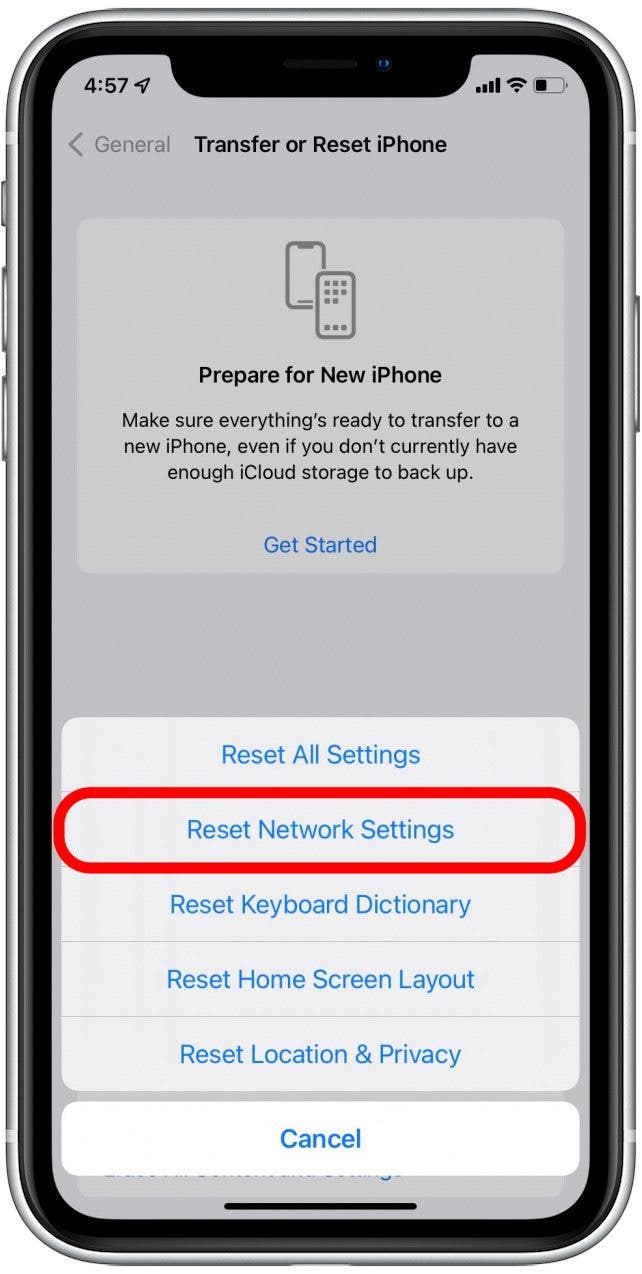
Reset Network Settings in iPhone |iPhone Life
- Go to your iPhone’s Settings → General → Transfer or Reset .
- Choose Reset → Reset Network Settings .
- If you are asked to “ Enter Your Passcode ” or confirm that you want to reset network settings, you should only do so if you are certain that you have made the right decision.
- After the reset and your iPhone restarts, tap the Settings icon.
- Devices that have been successfully connected with the iPhone will be shown. The forgotten Bluetooth device will be here too.
Remember that you may scan for nearby devices (make sure your Bluetooth device is set to “ON”) if the one you want to un-forget is not on the list.
Method #3: Restarting the iPhone
Restarting your iPhone is the easiest option. The potential ease of use make this approach attractive. However, in numerous cases, this does not make any difference which is why the other solutions were mentioned first.
After turning the iPhone back on, you may enable Bluetooth and attempt to re-establish the connection once again.
How to Unforget a Bluetooth Device on Android?

Bluetooth with Android |RXTX
Like the iPhone, Android smartphones do not come with an “Unforget” option. A forgotten Bluetooth device will no longer be shown by the phone. A Bluetooth device on Android must be reset in addition to being unforgotten. You need just proceed as outlined below.
- Start by selecting the “ Reset ” option from the device’s Setting. This will vary across different devices so make sure you look up instructions for your model if unsure.
- Choose “ Reset Network Settings ” (or your something equivalent) and then confirm your selection in the next box.
- Depending on the setup, you may need to enter your password to proceed.
- Once reset, there will be no more Bluetooth devices shown on your phone. Now, just go to Bluetooth and you will see all the Bluetooth devices there.
If your Bluetooth device still will not connect after trying these steps, you will need to try something else. We recommend trying one of the following:
Toggle Bluetooth “On and Off” on your Bluetooth Devices
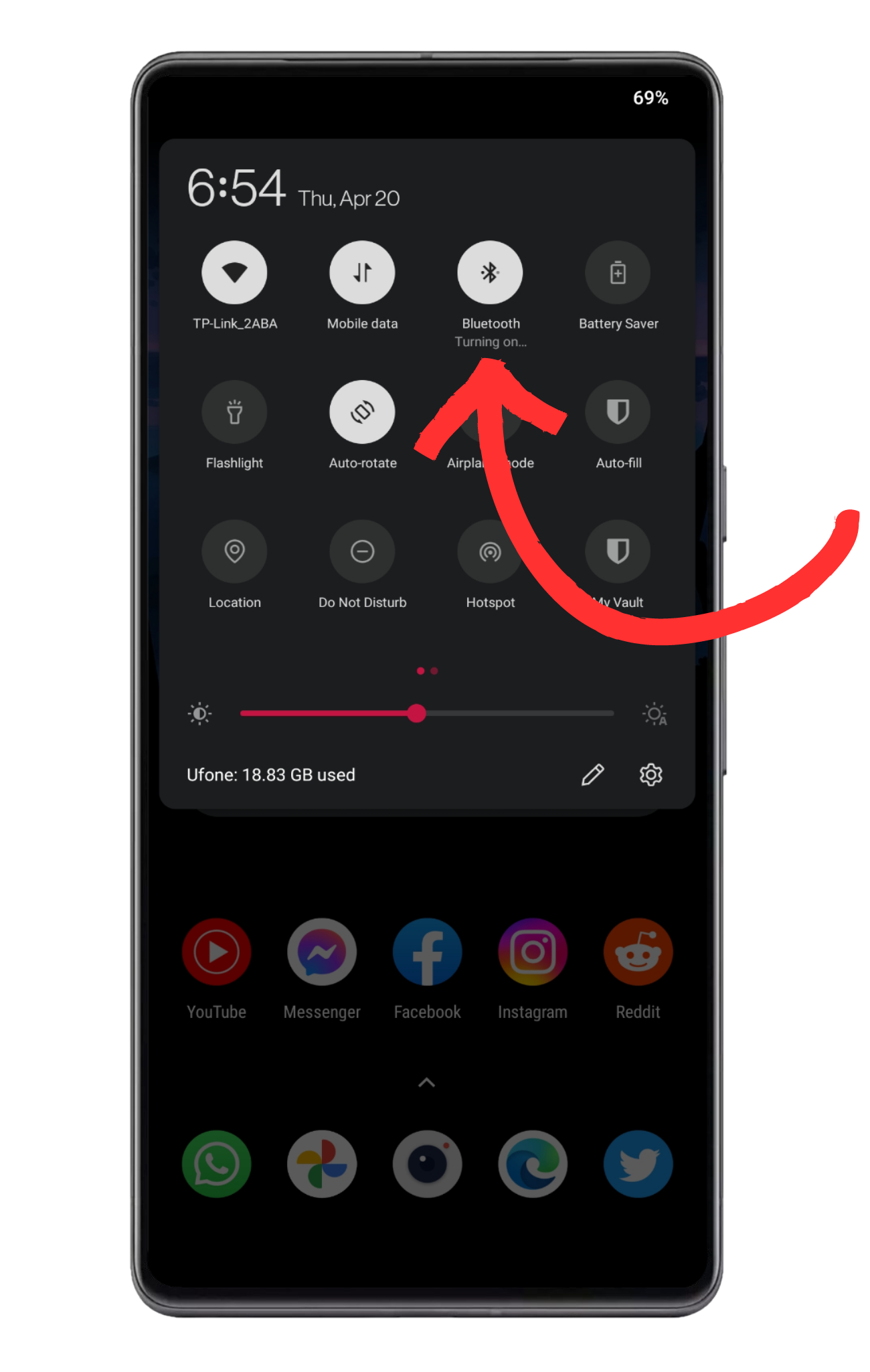
Toggling Bluetooth on/off in the quick tiles on a OnePlus phone
If your Bluetooth device still won’t connect after you have reset the network settings, try power cycling it. This is a basic method of troubleshooting that may be used on any device in an attempt to resolve software-related difficulties.
Try draining off the battery of your phone as well as the Bluetooth device. Once done, keep the devices turned off for 15 minutes. Plug-in charging after that.
Now, power cycle your Bluetooth device several times and do the same for your phone. Try reconnecting your device after turning it off and on again to see if the issue persists.
How to Unforget A Bluetooth Device on MacOS?
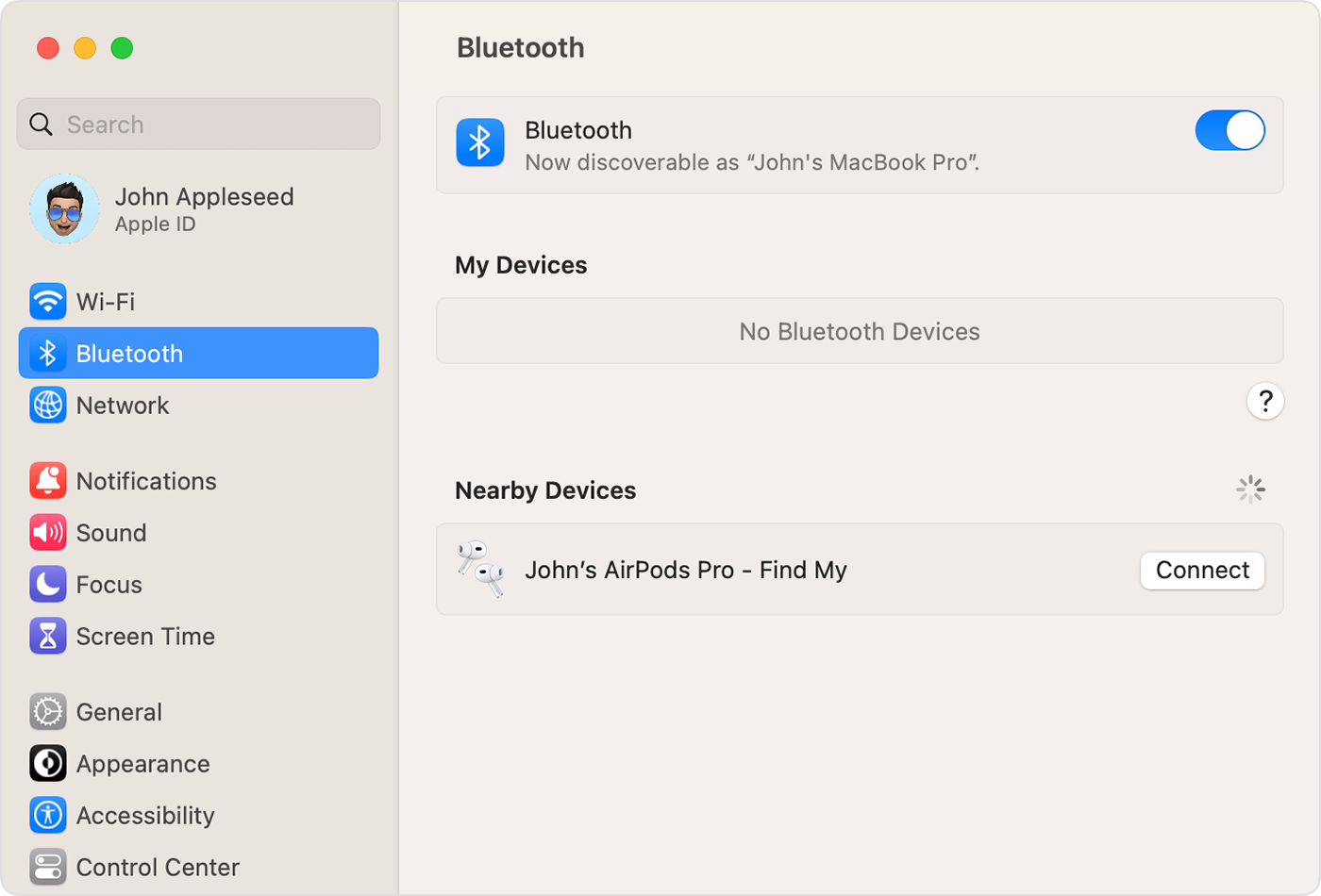
macOS Bluetooth Interface |Apple Support
When you forget a device on Mac, you are erasing all of its connection information. To un-forget it, just repeat the initial connection procedure.
It is usually not too difficult to get the Bluetooth device back online. To connect a Bluetooth device with your Mac, you need to switch on Bluetooth on your computer, put the device into pairing mode, and then choose it from your Mac’s Bluetooth menu.
Once the device has been re-paired, your Mac will automatically rebuild the necessary data and permissions to establish a connection.
If the Bluetooth menu fails to establish a connection, or if the device vanishes without your intervention, there is probably a deeper problem that needs to be investigated.
Perform SMC and PRAM Reset
Your Mac’s System Management Controller (SMC) and Parameter Random Access Memory (PRAM) are responsible for storing and managing data and procedures for a number of critical pieces of hardware. Everything from the track pad and keyboard to the batteries and fans to the camera and Wi-Fi and even Bluetooth functionality is included.
The SMC and PRAM resets may assist in certain situations.
Follow this procedure to reset SMC :
- Shut down your Mac.
- Press and hold the Shift + Control + Option keys on the left side of the keyboard and the power button at the same time.
- Hold these keys and the power button for 10 seconds.
- Release all keys.
- Press the power button again to turn on your Mac.
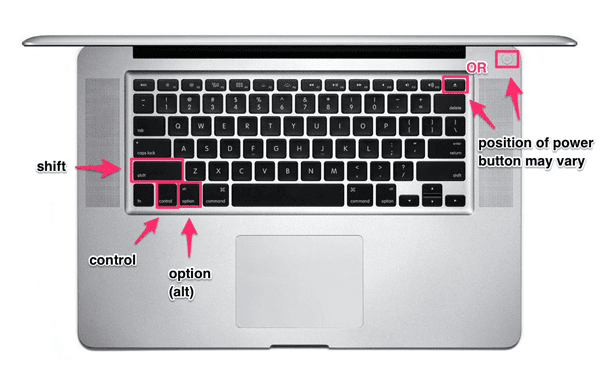
Reset macOS SMC |WYHHX
In case your MAC has removable batteries, you can simply shutdown the mac, remove the battery, press the power button for 10 seconds, and reinsert the battery to perform an SMC reset.
Follow this procedure to reset PRAM:
- Shut down your Mac.
- Press the power button to turn on your Mac.
- Press and hold the Command + Option + P + R keys immediately after you hear the startup sound.
- Hold these keys down until your Mac restarts and you hear the startup sound for a second time.
- Release the keys.
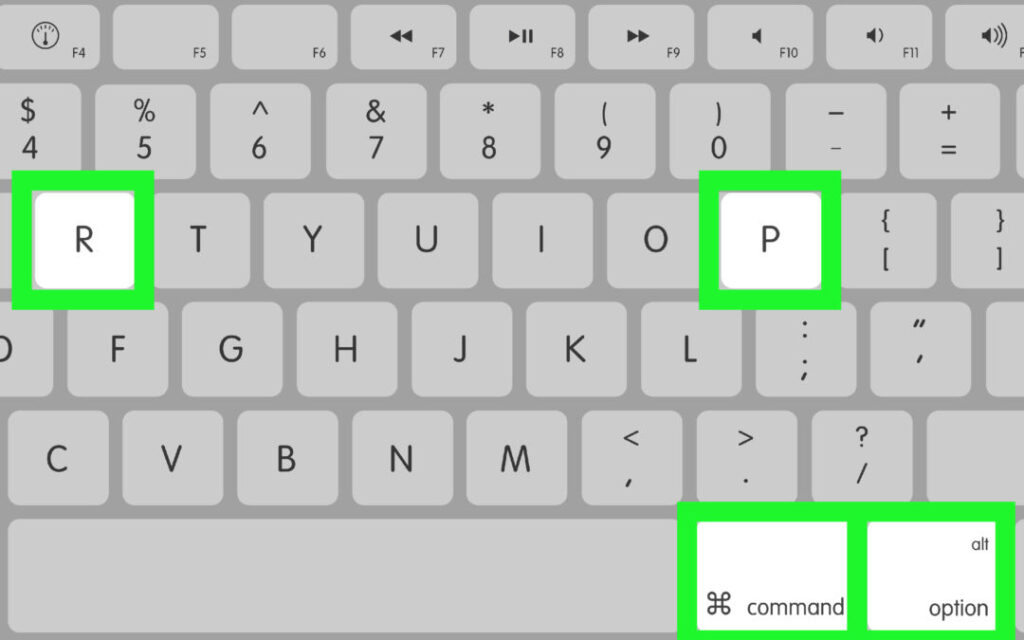
Reset macOS PRAM |Rosedale Computers
Keep in mind that if your Mac device has Apple T2 Security Chip, you will need to Press and hold the power button for at least 10 seconds, and then release it.
Resetting the SMC and PRAM is a fast and easy way to fix many problems. After this is done, you may try reconnecting all your devices (by hand the first time), and the problem will be fixed.
Bluetooth Module Reset Procedure
If resetting the SMC and PRAM did not fix the problem, or your device does not have SMC and PRAM support, you may try resetting the Bluetooth module. Disconnecting and re-pairing the Bluetooth module is normally unnecessary, particularly if you specifically instructed the computer to forget the device.
Please be aware that this will also delete any previously setup devices that were not accidentally left behind. However, there is nothing to worry about if the Bluetooth devices have been forgotten. The Bluetooth.plist file may be updated by manually re-pairing the devices to the Mac for the first time.
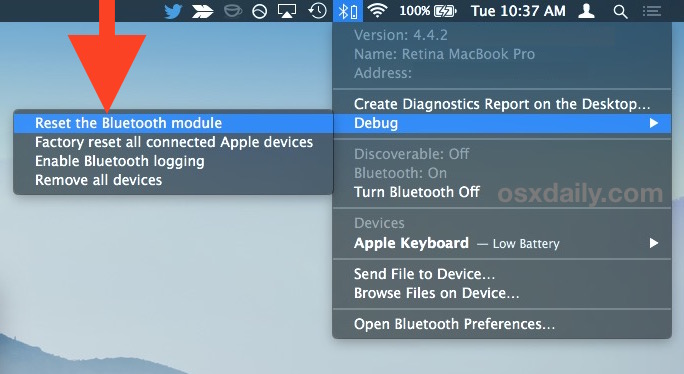
Reset Bluetooth Module macOS |OSX Daily
You will need to execute a little trick to access the debug settings after resetting your Bluetooth Module.
Click the Bluetooth icon in the toolbar while holding down the Shift and Option keys. The same pop-up menu, you saw before, will appear, but this time there should be a button labeled “ Debug ” there as well.
Click Debug → Reset the Bluetooth Module . This will eliminate all the known data of any Bluetooth device previously known. You can Re-pair your device using the standard procedure.
Fixing Other Frequent Mac Bluetooth Problems
Some of the basic solutions to remembering your gadgets are listed below:
- It may be as simple as restarting your computer or other device. Although it is a cliché, it gets the job done. Try disabling Bluetooth and then re-enabling it on both your Mac and your device.
- Macs are said to be able to handle no more than 7 devices at once, but in practice, even 2 or 3 might be too many , especially if one of them has a high data consumption rate. Try disconnecting or forgetting any devices that are not in use to see if it solves the problem.
- Keep your Mac up-to-date . Apple is constantly updating its Bluetooth connection software and procedures to accommodate new developments in the industry. It is conceivable that all you need is the latest software update for your PC;
How to Unforget a Bluetooth Device on Windows?
Follow the instructions in this section to un-forget a Bluetooth device on a Windows computer. All versions of Windows 8 , 8.1 , 10 , and 11 are included in the instructions.
Use Bluetooth Manager
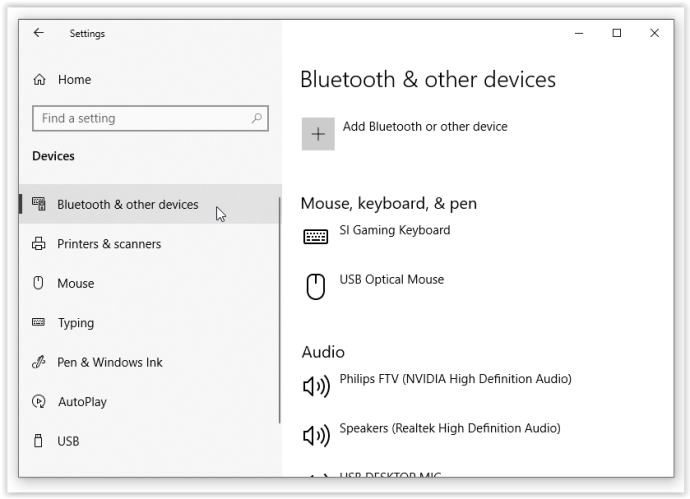
Bluetooth Manager |Alphr
Using Bluetooth manager is a quick and easy way that can be easily understood by beginners as well.
- Start by opening “ Windows Settings “
- Access the menu for “ Bluetooth & Devices ” on the left side
- If any of your Bluetooth devices are already linked, they will appear here
- If you accidentally removed a Bluetooth device, you may add it again by clicking the “ Add Device ” button
- Allow the Bluetooth device to be found easily
- When you choose “ Add Device ” from the Windows pop-up menu, a new window will open
- The option to choose “ Bluetooth ” will appear
- Windows will now begin looking for nearby Bluetooth devices. It is essential that the Bluetooth device you want to reconnect be open to discovery.
- To input the pairing code, go to the device’s settings and tap the “ Your Bluetooth Device Name ” option.
- Once the right pairing code has been entered, the gadget will be added to your device.
Use the Device Manager
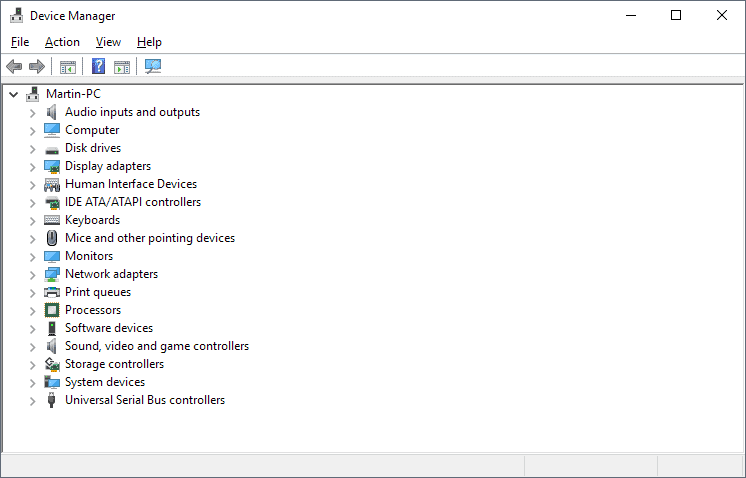
Windows 10 Device Manager |ghacks
This method is specifically recommended for someone with sound knowledge on “ Device Manager “.
- First, go to the search bar and type “ Device Manager “
- Choose “ View ”, and then “ Show Hidden Devices ”.
- Choose “ Uninstall Device ” after you have located your Bluetooth device.
- Restart your system. After the restart, access Devices in the Settings menu
- Click “ Add Bluetooth or Other Device “.
- Select the Bluetooth device, continue with any extra prompts, and then click Done.
Bluetooth Troubleshooter
If Bluetooth is not detected but still appears in Device Manager, you might try using “Windows Troubleshooter” instead. Instructions are as follows:
- Simply type “ Troubleshoot Bluetooth into Windows Search and click the first result to launch the Bluetooth troubleshooter.
- To begin the problem-finding procedure, Click “ Next “.
The problem may be fixed mechanically by using this tool.
Keep in mind that one reason why your Windows system cannot un-forget a Bluetooth device is because of outdated drivers. Ensure that your device drivers are always updated to avoid any such problem.
How to Unforget a Bluetooth Device on Linux?
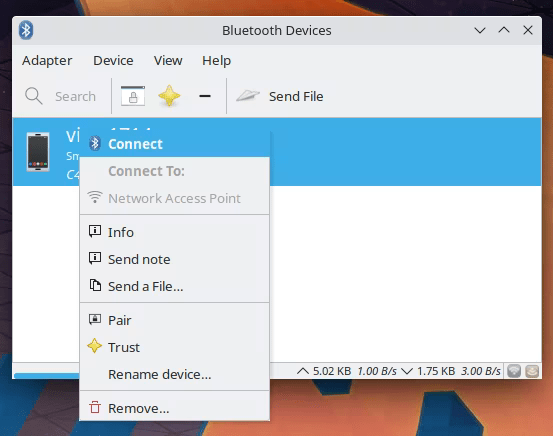
Bluetooth Settings on Linux |Make Tech Easier
Unforgetting a Bluetooth device is easy on a Linux. Once a device was forgotten, you can simply Re-pair it again.
- Use the Super (Window) key on your keyboard or the Linux Mint System Menu’s Button left corner search box.
- To access the Bluetooth menu, type “ Bluetooth ” into the search bar and hit “ Enter “.
- The Bluetooth window’s toggle button is next to Bluetooth.
- To activate Bluetooth, click the switch.
- You can now Re-pair your device.
Conclusion
Bluetooth is an essential part of modern devices, and sometimes we accidentally forget them. Unforgetting should be simple in most cases.
Remember that each Bluetooth device has unique connection characteristics. If you’re having trouble reconnecting, explore additional tips for help.
With this guide, you can unforget Bluetooth devices on various platforms like Android, iOS, Windows, Linux, and macOS. Enjoy smoother Bluetooth experiences!
How to Fix “Printer is in an error state” Issue?
- Recognizing the importance of a printer’s duty cycle is crucial for choosing a device that matches your print volume needs. Staying within this limit ensures the printer operates efficiently and prolongs its lifespan, minimizing the risk of maintenance issues.
- Proper humidity, temperature, and cleanliness management can significantly enhance printer performance and maintain its duty cycle, preventing unnecessary wear.
- Enhancing a printer with upgrades like additional memory or better mechanical parts can improve its workload handling and extend its practical duty cycle, boosting overall durability and efficiency.
When choosing a new printer, you might come across the term “ duty cycle ” in the specifications. This guide will explain what a duty cycle is, why it matters, and how it can help you choose the right printer. We’ll keep things simple so you can easily understand how to use this information when shopping for a printer.
- Printer Duty Cycle: What It Means and Why It Matters?
- Why the Duty Cycle Is Key to Choosing the Right Printer?
- Duty Cycle vs. Recommended Monthly Print Volume: What’s the Difference?
- What Happens If You Ignore Printer Duty Cycle Recommendations? ↪ Real-World Scenarios: Why Exceeding the Duty Cycle Can Cost You
Printer Duty Cycle: What It Means and Why It Matters?

What is the meaning of Printer Duty Cycle?
The printer duty cycle represents the upper limit of a printer’s capacity—how many pages it can reliably process in a month before the risk of wear or malfunction increases. This figure is crucial for understanding printer performance limits and ensuring that your chosen printer can handle the expected work volume.
Manufacturers determine a printer’s duty cycle through stress testing, where the printer is pushed to its limit to identify how many pages it can produce each month before malfunctioning. These tests help set a reliable performance gateway for users.
A printer’s duty cycle is like a car’s speedometer—you wouldn’t drive a car at top speed all the time, and you shouldn’t push a printer to its maximum duty cycle. Doing so can lead to quicker wear and tear, more frequent maintenance, and a shorter lifespan.
If you’re unsure whether to choose an inkjet or laser printer, this detailed guide compares both options to help you make an informed decision.
Why the Duty Cycle Is Key to Choosing the Right Printer?

The Importance of Duty Cycle in printer selection
Knowing the duty cycle is essential when choosing a printer, as it determines how well the device can handle your monthly print volume without excessive wear or maintenance.
Here is why the duty cycle matters in printer selection:
- Fit for purpose: Selecting a printer with a suitable duty cycle ensures it can handle your monthly printing volume efficiently, reducing stress on its components.
- Longer lifespan and better performance: Staying within the duty cycle ensures optimal print quality and speed while prolonging the printer’s life, avoiding frequent breakdowns.
- Cost efficiency and reduced downtime: Operating within the duty cycle minimizes the need for repairs and reduces operational disruptions, managing long-term costs.
Duty Cycle vs. Recommended Monthly Print Volume: What’s the Difference?

Duty Cycle vs. recommended monthly print volume
The recommended monthly print volume is the optimal number of pages a printer should handle each month for the best performance and longevity. Unlike the maximum capacity indicated by the duty cycle, this number guides regular usage, ensuring the printer operates efficiently without excessive wear.
If your print volume regularly exceeds the recommended amount but stays within the duty cycle, the printer may operate safely in the short term, but it could still experience accelerated wear and reduced lifespan over time.
In such cases, consider upgrading to a higher-capacity printer or spreading print jobs across multiple devices to ensure long-term performance.
Here are the differences between the duty cycle and recommended monthly print volume:
- Duty cycle: Represents the maximum number of pages a printer can handle in a month without breaking down. It assesses the printer’s upper limit.
- Recommended monthly print volume: Suggests a practical, workable number of pages to print each month to keep the printer in good condition over its lifespan.
What Happens If You Ignore Printer Duty Cycle Recommendations?

Consequences of ignoring Duty Cycle recommendations |AndranikHakobyan via Canva
Ignoring the duty cycle limits poses more severe risks than exceeding the recommended monthly print volume, leading to serious long-term consequences.
While exceeding the recommended volume occasionally may result in additional wear and tear, consistently exceeding the duty cycle can lead to frequent breakdowns, reduced performance, and a shortened lifespan.
Ignoring duty cycle limits leads to frequent breakdowns, reduced performance, and increased maintenance, ultimately shortening the printer’s lifespan and causing more frequent operational downtime and higher repair costs. Long-term, pushing a printer beyond its limits leads to greater financial burdens due to premature replacements and inefficiencies.
↪ Real-World Scenarios: Why Exceeding the Duty Cycle Can Cost You
For example, in a busy law firm, overlooking duty cycle limits during a high-stakes period could cause a printer breakdown just before a critical deadline, delaying crucial legal filings and ultimately compromising client service.
For small businesses, consistently exceeding a printer’s duty cycle can lead to costly emergency repairs or premature equipment replacements, straining financial resources.
