
Amazon Echo (An example of Alexa-enabled device)
What causes Alexa to Record your Conversations?
After receiving numerous reports from multiple users, we decided to investigate the issue and came up with a set of solutions that solved the problem for most of our users. Also, we looked into the reasons due to which this issue is triggered and listed them below.
- Amazon’s policy : Amazon uses the saved conversation for the sake of improving Alexa’s understanding of human speech. Their employees listen to what people say; therefore, they might invade someone’s private conversations which is not a good thing.
- Follow-up mode: If your follow-up mode is on, the Alexa-enabled device is likely to track and monitor your conversations after triggering the wake word. This will also involve monitoring and recording your conversations.
- Help Develop New Features: When this setting is on, Amazon is able to capture and save your voice recordings for the purpose of Alexa’s research and improvement. This can lead to recording and invasion of your conversations.
- Contacts access : When Alexa-enabled device has been allowed to access your contacts during the setup process, there is a higher chance for your conversations to be sent to any person in your contact lists.
- Wake Word : When a certain wake word is triggered, the Alexa-enabled device is likely to wake up and start performing its tasks even when you are not in need of it. This can lead to the recording and saving of your conversations without your consent.
- Microphone and camera : When your microphone and camera are on, the device is in a great position to record all your doings and talks including your private conversations and other activities.
Now that you have a basic understanding of the nature of the issue we will move on towards the solutions. Make sure to implement these in the specific order in which they are listed to prevent any conflicts.
Solution 1: Turn off the Follow-Up Mode
When you are having problems with the invasion of your privacy, you should first consider to turn off the follow-up mode. This will help you to stop Alexa-enabled devices from recording and saving your private conversations , therefore, enhancing your comfortability and ease to communicate. You need to follow the following steps in order to achieve your privacy goal.
- Launch the Alexa app on your phone.
- Open the side menu and click on Settings.

From the side menu and click on Settings.
- Click on Device Settings and scroll down on your Alexa Device.

Click on device settings and scroll down to your Alexa Device
- Turn off the Follow-up Mode

Click on the button to turn off the follow-up mode
Solution 2: Turn off Help Develop New Features
- Start the Alexa App on your phone.
- Click on the menu on the top left of the screen and click on Settings .
Tap on the side menu and click on Settings.
- Select Alexa Account.

Click on Alexa Account
- Choose Alexa Privacy.

Click On Alexa Privacy
- Select Manage How Your Data Improves Alexa .

Click on Manage How Your Data Improves Alexa
- Turn off the button next to Help Develop new features .
- Slide the switch to turn off the button next to your name under Use Messages to Improve Transcriptions .

Turn off the highlighted buttons above
Solution 3: Deny Access to your Contacts
Alexa-enabled devices can send your conversation to any person in your contact list without your consent. Therefore, the best way to prevent that from happening is to deny the devices access to your contacts when you are setting up your device for the first time. This will ensure that the devices will not be able to access your contacts.

Click on Don’t Allow during you first set-up process of your Device
Solution 4: Change the Wake Word
- On your phone, open the Alexa app.
- Tap on the Menu Icon (three horizontal lines) on the upper left corner.
- Select on Settings .

Click on the menu Icon then select settings and pick your Alexa device
- Pick the device whose wake word you wish to change.
- Tap the Wake Word Settings .
- Select the new wake word of your choice from the drop-down .

Click on the wake word and select the new wake word from the drop-down and click on done.
Solution 5: Turn off your Microphone
The Alexa-enabled devices have a microphone which speaks and also takes in the sounds from the surroundings. This can compromise your privacy by recording the conversations you are having. Therefore, when you turn the microphone off, you will be preventing the device from taking in and recording your conversations. This will ensure safety and comfort while having a sensitive dialogue. All you are required to do is to press the button on top of the device to turn it off as shown in the image below.

Press the button on top of the device to turn the microphone off.
Solution 6: Delete your Recorded Messages
Finally, the Alexa-enabled device is capable of storing your personal information like your favorite music and movies, your audio messages, as well as your voice and video calls among others. Luckily, if you don’t want your private information to be stored in the cloud, you can have them deleted. In order to be safe from the privacy invasion, you are required to clear the history by deleting all your recorded messages on your Alexa-enabled device. This will block other parties from accessing your data, hence preventing the recording of your private conversation. To achieve this procedure, you have to follow the steps below.
- Go to the Alexa app on your phone and select on Settings.
Go to the side menu and click on Settings.
- Select Alexa Account.
Click on Alexa Account
- Select on History . Here you will view a list of audio recordings stored by your device.

Click on History
- Select a recording.

Tap on a recording to delete
- Click on Delete Voice Recording.

Click on delete voice recording
How to Fix “Printer is in an error state” Issue?
Managing contacts on an Android device has gone as far as contact management on a phone can go, but still one question lingers. How can one print out the contacts on paper? The Android devices let you share messages with multiple contacts but some people feel that the paper gives more freedom when it comes to calling, especially if you have to call several people per day from a landline or office phone. This allows you to easily check off people you have already contacted or those that need to be contacted. If you want to make a hard copy of the contacts on your Android devices, this article will give you all the insights you need to get those contacts on a paper.
How Google Contacts works
There are two ways you can get the contact on your Android device onto paper. The first is using Google contacts. If you have a Google account (if you have a Gmail account, then you have a Google account by default), the contacts you choose to save to Google are periodically synced to the Google servers and stored there for backup. Your Android device allows you to save your contacts in three different ways, into your phone storage, into your SIM card, or into your Google Account. The latter provides backup on the Google servers but the other two don’t; therefore saving to a Google account is usually set as the default behavior for new contacts. Adding a contact from the phone or server end will sync the data between the two ends automatically. By signing into the contacts section of your Account, you can easily print your contacts.
The .CSV file database
There is a second method in which you can print your Android device contacts. This is by creating a .CSV format of the contacts in your phone. A .CSV (Comma Separated Values) file is a universal file that stores data using separators. By reading where these separators (e.g. commas and tabs) are, any spreadsheet or database software can sort the data into a table and make it available for printing. If you use a Google Play Store application to make a .CSV format of your contacts, then you will be able to print them. There are also apps that can sync your data between your PC and mobile device and save the contacts as a .CSV files.
Method 1: Printing Android Contacts from Google Contacts Account
You will need a Google/Gmail Account for this. Your contacts need to be saved into this account. If you have not done that already, on your device go to settings > accounts > Add Account > Google > then login to your Google account or create one. Go back to your contacts, edit them and save them as Google Contacts. Some devices allow you to export multiple contacts to your Google Account. Now go back to Accounts > Google > and sync all the data (or the contacts in this case) to transfer the contacts to the Google Servers. To print the synced contacts follow the steps below:
- Go to the Google Contacts web page here
- Login with your Gmail password for the account you used for your Google contacts backup
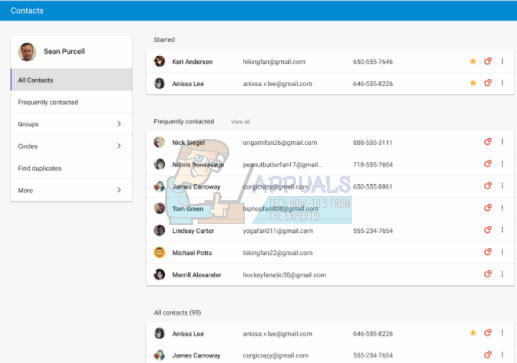
- On logging in, your synced contacts will be displayed.
- From the left hand panel, click on more and then “Print.” Print the file that is loaded or downloaded.
- If you get the message that “This preview version of Google Contacts doesn’t support printing yet.” Click on “Go to the old version.” You will be redirected to another page using an older version of the Google Contacts web application.
- From the top ribbon (above the contacts) click on ‘ more’ and then select ‘Print.’ To print the contacts uploaded from your phone only, select the group “ My Contacts ” and click on ‘Print.’
- A page listing your contacts will appear. Press Ctrl + P to print it (Or Ctrl + S to save it for printing later). Select your printer and click OK to get the hardcopy of your contacts.
Method 2: Use Google Play app to make a printable .CSV file of your contacts
If you want to avoid the process of backing up to the Google servers, you can save your contacts as a .CSV file. This is suitable for you if you have never backed up your contacts before. However, you will still need a Google Account to get into the Google Play Store unless you can find an app outside the controlled market.
- Go to Google Play from your Phone and download an app that makes a .CSV file from your contacts by searching for ‘Contacts Export CSV’. Here is a good free to install example of an app called ‘Contacts / SMS /LOG CSV Export’.
- Install the ‘Contacts / SMS /LOG CSV Export’ App and open it
- Click on “Export Contacts”
- On the next page, you will be asked on the format of your CSV.
- Choose a name and path/location you will remember for your file.
- To make the fields easily readable by all spreadsheet and database programs, we will use a comma separator. Click on the ‘Delimiter’ section and choose ‘Comma.’
- Click ‘Export’ and wait for the progress to complete
- You can decide to send it to an email or click on exit and use a USB cable to transfer the file that was created to your computer.
- Open the file on your computer using a spreadsheet application e.g. Microsoft Excel. The contacts should be arranged into rows listing phone numbers, names and emails (you can choose what to export from the app).
- Press Ctrl + P to print the list. Choose your printer and click OK to get the hardcopy.
What is more is that you can use the .CSV file you created to upload the contacts to your Google Account for backup. Just use method 1 above, and instead of choosing ‘Print,’ select ‘Import’ and choose the file to import.
