Desktop: On the YouTube website, view your subscriber count on your channel page. In YouTube Creator Studio, access detailed subscriber statistics, including recent subscriber details and live count.
Mobile: Use the YouTube app to see your subscriber count on your channel profile. For more detailed analytics, use the YouTube Creator Studio app.
Insights for Growth: Leverage YouTube Creator Studio’s detailed analytics on both desktop and mobile to understand subscriber behavior and trends, essential for tailoring content and driving channel growth.
How to See Your Subscribers on YouTube via Desktop 1. YouTube Website 2. YouTube Creator Studio ↪ Review Recent Subscribers ↪ View Live Subscriber Count
How to See Your Subscribers on YouTube via Mobile 1. Youtube App 2. Youtube Creator Studio
Keeping an Eye on Your YouTube Subscribers
1. YouTube Website
- Head to the official YouTube website and click on your profile icon in the top right. Click on your profile icon
- From here, click on the highlighted “ View your channel ” option. Click on View your channel
- Once your channel loads up, your subscribers will show up under your channel name. Your total subscribers should appear here
2. YouTube Creator Studio
- Open up the official YouTube Studio website and you’ll be directed to the Channel Dashboard . YouTube Studio channel dashboard
- From here, under the Channel Analytics option, you’ll have your current subscribers. Your channel’s total subscribers
- Apart from your current subscribers, you’ll also be able to see your subscriber performance over the last 28 days along with a summary of your entire channel’s performance. Channel’s performance summary
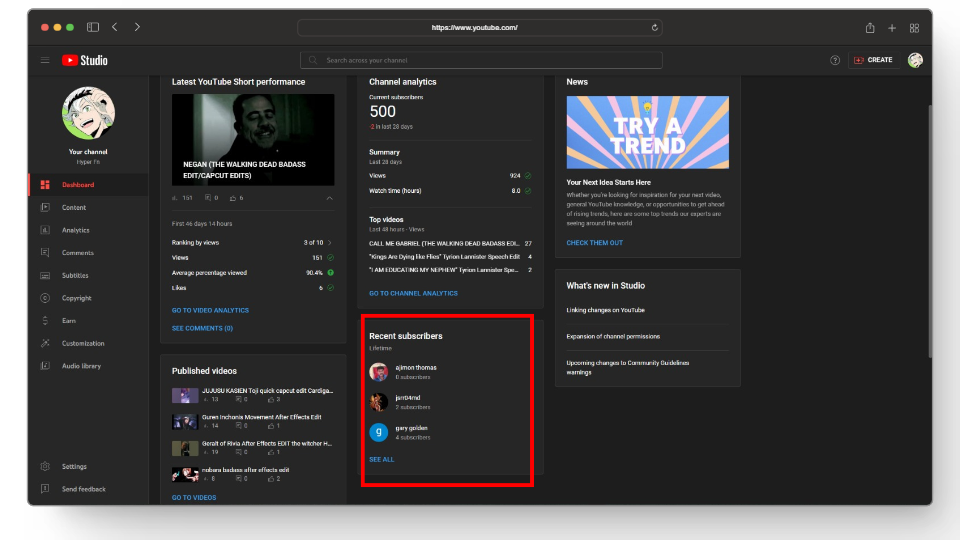
Your channel’s recent subscribers

View your top 100 recent subscribers
- On the dashboard, click on the “ Analytics ” tab from the left-side menu. Click on the Analytics tab
- Here, you’ll have a line graph showcasing your channel’s performance in terms of views , watch time , and subscribers in the last 28 days. Overview of your YouTube channel
- If you want to specifically assess your subscribers click on the Subscribers tab and now the line graph will only focus on your subscriber statistics. Subscriber statistics
- Now moving on to seeing your live count, under the Realtime tab, select the “ SEE LIVE COUNT ” option. Select the live view count option
- This will open up a new window displaying your live subscriber count. The live view count window is often used by YouTubers to show off their growing subscribers. Live subscriber count
1. Youtube App
- Open up the YouTube app on your phone and tap on your profile icon located at the bottom. Tap on your profile icon
- From here, tap on the View channel button . Tap on the view channel button
- Once that loads up, you should be able to see your subscribers under your channel name. Total subscribers on the YouTube app
2. Youtube Creator Studio
YouTube also has a mobile version of YouTube Studio for their content creators where you can check several metrics like Reach , Engagement , Audience , etc.
- Open up the YT Studio app and log in if you’re prompted to do so.
- Once that’s done, the Channel Dashboard section should be on your screen. YouTube Studio mobile channel dashboard
- Here, under your channel name your subscribers should show up. Your channel’s total subscribers
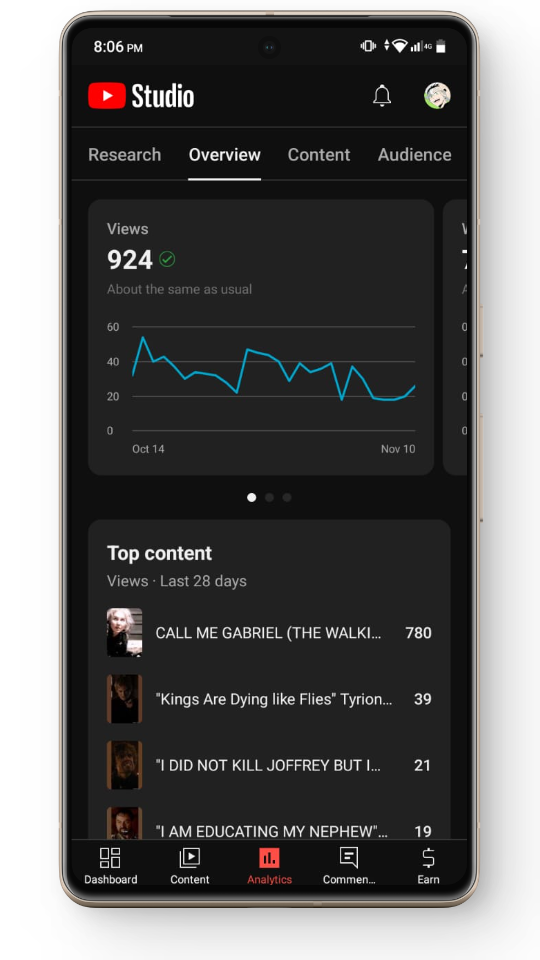
Track other metrics
