This procedure consists of three steps including:
- Step 1: Creating the IAM role
- Step 2: Attach IAM role to running Amazon EC2 instance
- Step 3: Reset the password by using AWS System Manager
Step 1: Create an IAM Role
In the first step, we will create an IAM role. The IAM role is an entity that defines a set of permissions for making AWS service requests. As we will execute a request for resetting the password, the IAM role must have enough permissions.
- Login into AWS Management Console
- Type IAM under Find Services and run it
- Click on Roles under Access Management under navigation panel and then click on Create role
- Select AWS service as a trusted entity and choose EC2 under Or select a service to view its use cases and then select EC2 Role for AWS System Manager as shown in the screenshot below. Once you do that, click on Next: Permissions .
- Verify that role AmazonEC2RoleforSSM is listed and then click Next: Tags.
- Create key pairs to your role and then click on Next: Review . Tags can include user information, such as an email address, or can be descriptive, such as a job title. You can use the tags to organize, track, or control access for this role. As this is optional, we will skip it.
- Type the name for the new role and review the settings. If everything is fine, click on Create role . You will need to use this role. In our case, the new role is called
- Click on the role you have just created.
- Click on Add inline policy .
- Choose JSON
- Delete the existing code and type the following JSON code:
{


"Version": "2012-10-17",


"Statement": [


{


"Effect": "Allow",


"Action": [


"ssm:PutParameter"


],


"Resource": [


"arn:aws:ssm:*:*:parameter/EC2Rescue/Passwords/i-*"


]


}


]


}
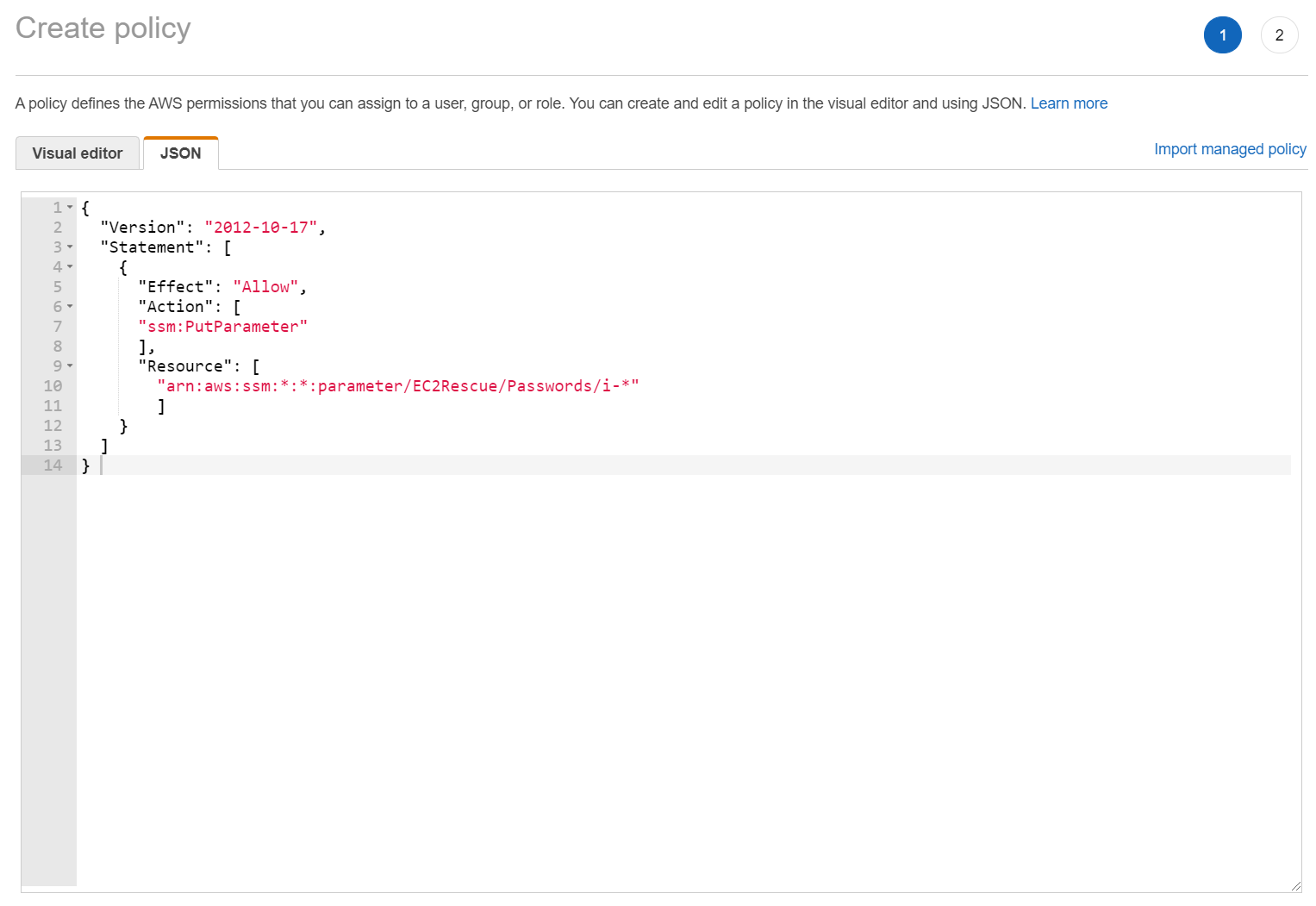
- Click on Review Policy
- Type the name of the policy and description and then click on Create Policy . In our case the name is ParameterStore .
Step 2: Attach IAM role to running instance
- In the main menu click on Services
- Under Compute click on EC2
- Click on Running instances
- Right click on running instance and then choose Instance Settings > Attach/Replace IAM Role
- Under Attach/Replace IAM Role choose an IAM role and click Apply . As you can see we choose IAM Role that we created in step 1: RoleforSSM.
- You have successfully attached the IAM role to instance. Click on Close . This process can take up to 5 minutes, for instance, to register itself with the AWS System Manager service.
Step 3: Reset the password by using AWS System Manager
- Navigate to AWS System Manager by clicking on this link . It is required that you are logged in.
- Click on Get Started with System Manager
- Click on Run Command under Instances & Nodes in the navigation pane
- Click on Run a Command under Manage your instance at the right side of the window.
- Choose AWSSupport-RunEC2RescueForWindowsTool under Command document . You can type it in the search field and press Enter.
- Under Targets click on Choose instances manually and then select your instance.
- Click on Run at the bottom right side of the window
- Command was successfully sent as shown in the screenshot below. You can track the progress of the executed command under Status .
- Under Target and outputs select the instance and then click on View output . As you can see here, the command was executed successfully. Expand Step 2 – Output.
- Copy the URL mentioned in the output section and open it in a new tab.
- Click on Show under Value to see the new password.
For security purposes, we do recommend you log into the Windows and change the password.
