One major complaint musicians have against digital amp simulators is the audible “fizz” in the high-end frequency. It’s difficult to explain through words, but if you’re a guitarist who uses amp simulators, you’ll know exactly what we’re talking about. Its true that the presets on a lot of amp simulators can be less than desirable, which is why you need to do some tone-tweaking to get the most realistic sound possible from guitar amp simulators.
Another problem ( though this isn’t limited to amp simulators, but guitar amplifiers in general) is that you can get some incredibly loud feedback in two different forms – the first is feedback hum, which typically comes from your pickups, and the second is harmonic feedback, which typically rears its ugly head when you’re using high levels of gain/distortion and a high input level.
Follow along with our screenshots and step-by-step guide for fixing these guitar amp simulator problems, and you’ll be able to enjoy your guitar amp simulators a whole lot more!
Related Appual’s articles:
- How to Record Guitar on PC Using Reaper DAW
- How to Create a Sound Rack Preset in Overloud TH3
- Ultimate Guide to Free DAW Plug-Ins for Guitarists
- How to Use Android as Guitar Amplifier
Requirements:
- Guitar amp simulator of your choice ( see Appual’s guide on free DAW plug-ins)
- A parametric equalizer plug-in
- A good peak limiter plug-in
How to Remove Fizz from Amp Simulators
https://youtube.com/watch?v=notrLDpzAIo
So to address the problem of fizz on the high-end frequency spectrum, first we should understand exactly what’s going on here. Amp simulators produce a digital signal, whereas real guitar amps produce analog signal. Analog signal is sound the way Mother Nature intended it, pure and unfiltered. Digital signal is man-made representation.
For the most part, that fizz on high-gain amp simulators is the digital interpretation of harmonic distortion. Its true that you would hear some fizz if you pointed a real amp cabinet directly at your head and cranked the gain up, but it’s generally an airier fizz that can actually enhance recording. When a digital amplifier tries to “recreate” this fizz, it ends up being a wall of white noise that adds all kinds of resonance to higher frequencies, which sounds unpleasant – because it isn’t natural . What you’re hearing is the unnatural simulation of natural high-gain fizz, in a nutshell.
To remove this fizz, what you need to do is set up your overall amp / cab tone first , and then use a parametric EQ to sweep for the offensive frequency, and cut it hard. For this step-by-step tutorial, we’re going to be using Reaper DAW with FabFilter Pro-Q 2, which is a paid plug-in but has a 30-day trial with all features. However, you can use whatever parametric EQ you want, if it allows you to do the same things we’ll be doing in this guide.
Our FX chain in the screenshots goes like this in Reaper:
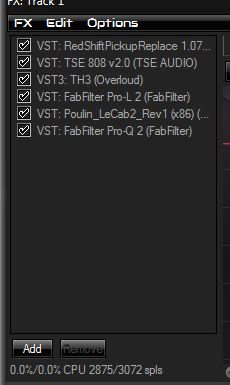
Amp simulator (Overloud TH3) -> Peak Limiter (Fabfilter Pro-L 2) -> Cabinet IR simulator (LeCab2) -> Parametric EQ (FabFilter Pro-Q 2)
However, you can really play with this placement to find your tone, especially if you’re throwing effects pedals into the mix.
In any case, once you’ve set up your basic FX chain without an EQ, and you like the sound of your guitar tone, throw the EQ at the end of the FX chain.
Now what you need to do is record yourself playing, some basic chords ( with heavy distortion) will do, just record a bunch of chords. Now play it back on repeat / loop.

Using your parametric EQ, sweep around the 4500 – 7500 kHz frequency range at around +24 DB. Its best if your parametric EQ has a frequency isolation button, so you will hear only the frequency you’re searching for .
You should start to hear a very audible “whistling” noise. Once you’ve found it, narrow your EQ band ( a bell shape at around 36DB works good for this), and drop it hard. Around -13DB should be fine.
Removing Extreme Harmonic Feedback
Another problem you’ll encounter with amp sims that have the distortion cranked up is really bad harmonic feedback. This will be in the form of extremely loud “squeals” whenever you mute your strings after playing – for example, you play a chord, mute the strings, and your speakers scream at you.
The best remedy is to just lower the gain / distortion on the amp sim, but if you’re intent on playing with maximum distortion, a peak limiter would probably help a bit ( combined with the parametric EQ trick we did above) .
You should know that a noise gate isn’t going to really help you here, you need a peak limiter that will quickly attack frequencies over a certain peak. This is because a noise gate only eliminates static hum from noisy pickups, whereas harmonic feedback gets passed through as normal signal.
You won’t be able to completely eliminate harmonic feedback when using high distortion, but you should be able to minimalize it without effecting your tone too much – unless you’re trying to play like Zakk Wylde and make lots of pinch-harmonic squeals.
What you want to do is throw a good peak limiter ( FabFilter Pro-L works good for this) into your FX chain, between your amp and cab .

FabFilter Pro-L comes with some good presets for exactly this problem, so adjust as necessary. But whatever peak limiter you’re using, you basically want to try and recreate those loud harmonic feedbacks and keep adjusting the DB limiter in your plug-in, until they go away.
How to Fix “Printer is in an error state” Issue?
The error “ WinRAR Error: Next Volume Is Required ” usually appears when you’re extracting a multi-part RAR archive and WinRAR can’t find (or can’t correctly identify) the next file in the sequence . This often happens when a volume is missing , stored in a different folder , or renamed in a way that breaks the archive’s expected order .

In this guide, we’ll go over the most reliable fixes confirmed by affected users, along with what each method is doing behind the scenes so you can choose the right one for your situation.
Important: To extract multi-volume archives, you should always start extraction from the first file in the set. This is usually file.part1.rar , or (in older sets) the main .rar file that comes before .r01 , .r02 , and so on.
1. Download and Place the Missing RAR File
WinRAR needs all parts of a multi-volume archive to complete extraction. This error usually appears when one of the volumes in a set like .part2.rar , .r01 , .r02 , .001 , and similar naming formats is missing . Downloading the missing volume and placing it in the same folder as the other parts allows WinRAR to continue extracting normally .
- Look at the error message or review the list of archive parts in the folder.
- Identify which volume is missing (for example, part2.rar , .r02 , .001 , etc.).
- Go back to the website or source where you downloaded the archive.
- Locate and download the exact missing file using the same naming format as the others.
- Make sure the new file name matches the pattern of the rest. Example: If you have file.part1.rar and file.part3.rar , the missing one must be file.part2.rar .
- Move the downloaded missing volume into the same folder as the other archive parts.
- Confirm that all parts are in a single folder before extracting.
- Right-click the first file in the series (usually part1 or the main .rar file) and select Extract Here or Extract to Folder .
- WinRAR should now detect all volumes and continue extraction normally .
2. Manually Browse & Select the Next Volume
Use this method only if the next volume already exists , but WinRAR is failing to detect it automatically. This can happen due to incorrect naming , the file being in a different location , or a temporary file access issue. Manually browsing helps WinRAR locate the correct volume and resume extraction without interruption .
- Right-click the first file in the series (usually .rar or part1.rar ) and select Extract Here or Extract to Folder .
- When WinRAR cannot find the next volume, it will show the “ Next Volume Is Required ” message.
- A small window will appear, allowing you to manually select the next volume .
- Use the file explorer window to locate the folder where the other archive parts are saved.
- Select the next part based on the naming order (example: select file.part2.rar after file.part1.rar ).
- Make sure the selected file matches the naming format of the archive (no extra characters like (1) and no mismatched numbering).
- WinRAR will resume extraction using the selected volume .
- If additional volumes are missing or stored separately, WinRAR may prompt you again. Repeat the same process until extraction completes.
3. Rename the RAR files in Order
WinRAR relies on a proper naming sequence (such as file.part1.rar , file.part2.rar , file.part3.rar ) to extract multi-volume archives. If a file is named incorrectly, contains extra characters, or is out of order, WinRAR may fail to locate the next volume and show this error. Renaming the files correctly helps WinRAR follow the sequence and extract the archive without interruptions .
Note: Renaming only changes the file name , not the file contents. The goal is to restore the correct sequence so WinRAR can detect the next volume.
- Go to the folder where all the RAR files are saved.
- Make sure all parts of the archive are present and stored in the same folder .
- Check how the parts are currently named . Common patterns include:
file.part1.rar, file.part2.rar, file.part3.rar
file.rar, file.r01, file.r02, file.r03
- Look for files that don’t match the expected numbering pattern (for example, file.part01.rar , file.part1(1).rar , or unrelated names).
- Rename each file so it follows the same order without extra characters or mismatched numbering. Example:
Incorrect: file.part1.rar, file.part3.rar, file.part2(1).rar
Correct: file.part1.rar, file.part2.rar, file.part3.rar
- Make sure the text before the number is exactly the same for all files.
- Only the last part number should change.
- Right-click the first file in the series (usually part1.rar or the main .rar file) and select Extract Here .
- WinRAR should now recognize the sequence and continue extraction normally .
If you still get the same prompt: the archive set is likely incomplete (a part was never downloaded or was removed), or one of the volumes is corrupt and must be re-downloaded from the original source.
