Adobe Genuine Software Integrity Service prevents the piracy of Adobe Sofware Products. We all know there is plenty of pirated Adobe Software available to online users but they compromise the integrity of your system since they are coupled with malware and viruses to infect your computer and hack your personal information. Therefore, Adobe has its own Integrity services to provide customers a genuine software experience.
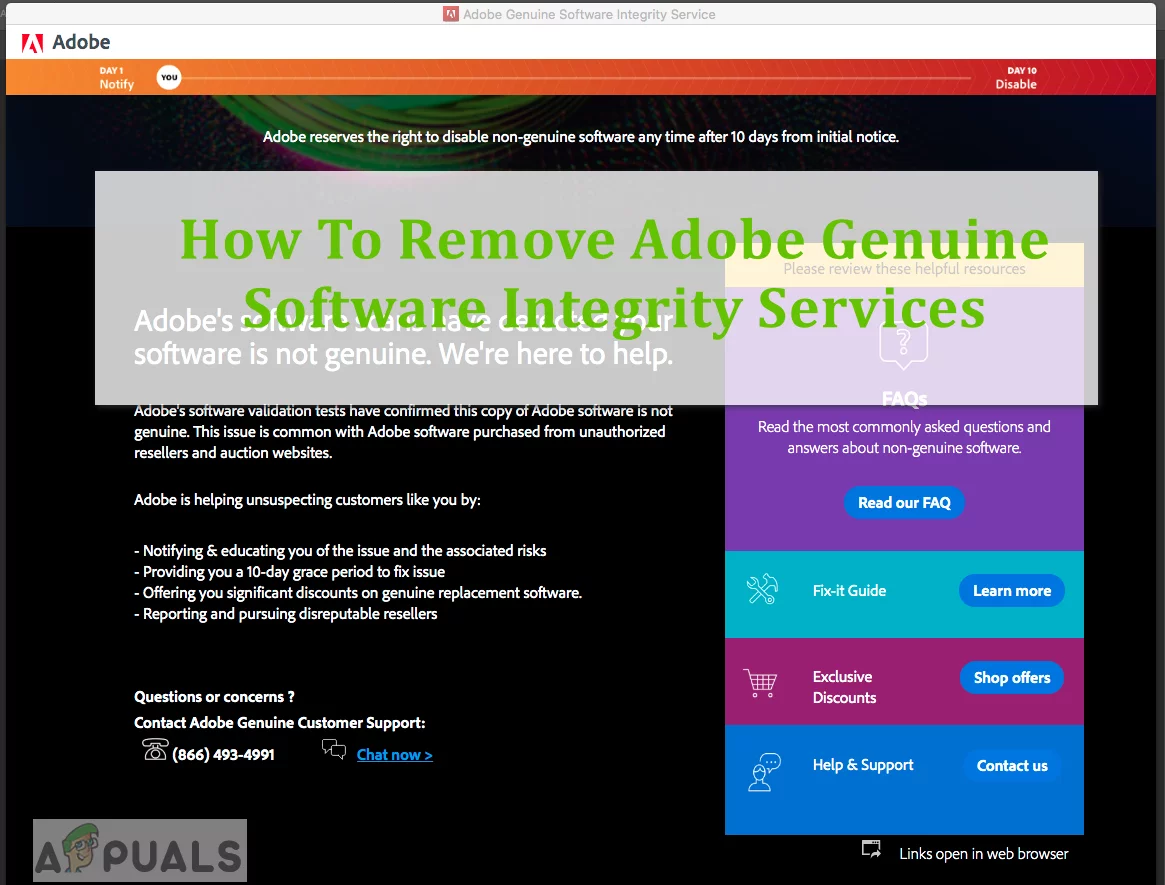
How To Remove Adobe Genuine Software Integrity Services
Adobe Genuine Software Integrity Service can determine the authenticity of all the installed Adobe Products on your system. However, for some users, Adobe Genuine Software Integrity Service keeps on running even after they have removed all the Adobe Sofware Products from their system and it even gives them an error that states the Software is not Genuine for users that have a legitimate copy of Adobe products because of the incompatibility issues due to using older versions.
Remove Adobe Genuine Software Integrity Services
In this method, we will use the Windows Task Manager to first stop the service and delete it directly by going to the location where Adobe was installed. This method has been reported to have worked for many users. For Mac, we will use the Activity Monitor which Apple’s alternate to Windows Task Manager which can accomplish the same task. You will need the Administrator privileges on the system to delete the service.
For Windows:
- On the Desktop press the Keys Ctrl + Alt + Esc , this will open the Windows Task Manager. Open Windows Task Manager
- Click on the Services tab and search for the service Adobe Genuine Software Integrity. Click the services tab on Task Manager and search for Adobe Genuine Software Integrity
- Righ-click on the service and click Stop.
- Now go to the folder named Program Files , it is located in the drive where you installed your Windows.
- Delete the Folder named Adobe and Common Files. Delete the Adobe and Common Files Folders
- Now restart your computer
For Mac
- Open Activity Monitor on Mac and search for the Adobe Genuine Software Integrity. Open Activity Monitor on Mac
- Double click the Adobe Genuine Software Integrity service to open the Files and Ports tab and copy the location of the service from there. Activity Monitor Open Files and Ports
- Now open each location individually by going to Finder and searching for that location. Open Finder App on Mac
- Delete all the associated files and you are done.
- Restart your computer and see if that works for you.
How to Fix “Printer is in an error state” Issue?
The error “ WinRAR Error: Next Volume Is Required ” usually appears when you’re extracting a multi-part RAR archive and WinRAR can’t find (or can’t correctly identify) the next file in the sequence . This often happens when a volume is missing , stored in a different folder , or renamed in a way that breaks the archive’s expected order .

In this guide, we’ll go over the most reliable fixes confirmed by affected users, along with what each method is doing behind the scenes so you can choose the right one for your situation.
Important: To extract multi-volume archives, you should always start extraction from the first file in the set. This is usually file.part1.rar , or (in older sets) the main .rar file that comes before .r01 , .r02 , and so on.
1. Download and Place the Missing RAR File
WinRAR needs all parts of a multi-volume archive to complete extraction. This error usually appears when one of the volumes in a set like .part2.rar , .r01 , .r02 , .001 , and similar naming formats is missing . Downloading the missing volume and placing it in the same folder as the other parts allows WinRAR to continue extracting normally .
- Look at the error message or review the list of archive parts in the folder.
- Identify which volume is missing (for example, part2.rar , .r02 , .001 , etc.).
- Go back to the website or source where you downloaded the archive.
- Locate and download the exact missing file using the same naming format as the others.
- Make sure the new file name matches the pattern of the rest. Example: If you have file.part1.rar and file.part3.rar , the missing one must be file.part2.rar .
- Move the downloaded missing volume into the same folder as the other archive parts.
- Confirm that all parts are in a single folder before extracting.
- Right-click the first file in the series (usually part1 or the main .rar file) and select Extract Here or Extract to Folder .
- WinRAR should now detect all volumes and continue extraction normally .
2. Manually Browse & Select the Next Volume
Use this method only if the next volume already exists , but WinRAR is failing to detect it automatically. This can happen due to incorrect naming , the file being in a different location , or a temporary file access issue. Manually browsing helps WinRAR locate the correct volume and resume extraction without interruption .
- Right-click the first file in the series (usually .rar or part1.rar ) and select Extract Here or Extract to Folder .
- When WinRAR cannot find the next volume, it will show the “ Next Volume Is Required ” message.
- A small window will appear, allowing you to manually select the next volume .
- Use the file explorer window to locate the folder where the other archive parts are saved.
- Select the next part based on the naming order (example: select file.part2.rar after file.part1.rar ).
- Make sure the selected file matches the naming format of the archive (no extra characters like (1) and no mismatched numbering).
- WinRAR will resume extraction using the selected volume .
- If additional volumes are missing or stored separately, WinRAR may prompt you again. Repeat the same process until extraction completes.
3. Rename the RAR files in Order
WinRAR relies on a proper naming sequence (such as file.part1.rar , file.part2.rar , file.part3.rar ) to extract multi-volume archives. If a file is named incorrectly, contains extra characters, or is out of order, WinRAR may fail to locate the next volume and show this error. Renaming the files correctly helps WinRAR follow the sequence and extract the archive without interruptions .
Note: Renaming only changes the file name , not the file contents. The goal is to restore the correct sequence so WinRAR can detect the next volume.
- Go to the folder where all the RAR files are saved.
- Make sure all parts of the archive are present and stored in the same folder .
- Check how the parts are currently named . Common patterns include:
file.part1.rar, file.part2.rar, file.part3.rar
file.rar, file.r01, file.r02, file.r03
- Look for files that don’t match the expected numbering pattern (for example, file.part01.rar , file.part1(1).rar , or unrelated names).
- Rename each file so it follows the same order without extra characters or mismatched numbering. Example:
Incorrect: file.part1.rar, file.part3.rar, file.part2(1).rar
Correct: file.part1.rar, file.part2.rar, file.part3.rar
- Make sure the text before the number is exactly the same for all files.
- Only the last part number should change.
- Right-click the first file in the series (usually part1.rar or the main .rar file) and select Extract Here .
- WinRAR should now recognize the sequence and continue extraction normally .
If you still get the same prompt: the archive set is likely incomplete (a part was never downloaded or was removed), or one of the volumes is corrupt and must be re-downloaded from the original source.
