The periods that appear on Google Docs are usually very small in comparison to the rest of the text. And many people are not comfortable with the fact that these periods are not as visibly clear as the text in the document is. Google Docs has no such feature where the periods can be increased in size or weight, however, there are two ways in which you can try to change the size of these periods manually.
Method 1: Increasing the Size of Periods on Google Docs
- First things first, sign in to your Gmail and open a blank document in Google Docs. Add the content in the document as needed. This is how your work will look originally. It is highly important that you add the content to your document when using the first method.
- Now there are two ways to go about it, you either add the content in the whole document first or then edit the periods in the end. Or, you edit the periods simultaneously. In my opinion, doing it at the end of the work is a better idea as it won’t be very time-consuming. Otherwise, you will need a lot of time to edit the periods on your documents while you are still adding content to the page.
- Select the period which is at the end of your sentence as done in the picture below. Select the period only.
- Go to the Font option, and change the font size specifically for the period. Choose the size. Don’t choose a very large font size as it will stand out in your text. Your period will be larger in this font size in comparison to the way it was in the beginning. changing the font size to make the periods manually bigger
If you are editing the periods while you are still adding the content in the file, you will have to change the font size again before starting the next sentence. And change it again, when you add the period. Or, select the period and then change it. You can compare the first picture that I have added and the second one in point number four to see how the size of the period has visibly changed.
Method 2: Increasing the Size of a Period on Google Docs
Instead of manually changing the font size of each and every period in your document, you can try different font styles on the document to see which font displays a better size of the period on your document. This might help you save the time which you otherwise will have to waste during method one.
I kept the original formatting of the font size and style at first and then tried a few different font styles to analyze. Here are a few font styles that I tried, which displayed period sizes slightly better than the one in font Arial.
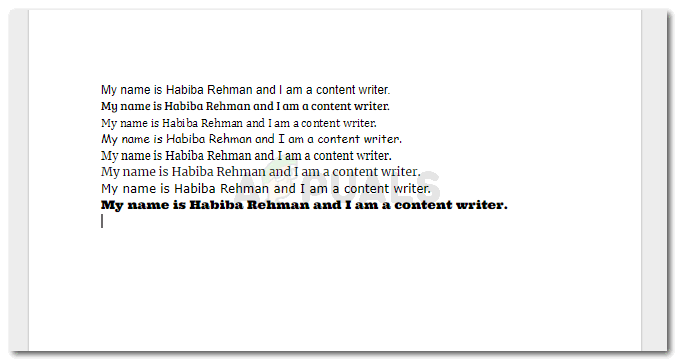
Compare the periods for all font styles which you can use if you want the periods to appear bigger on your document.
I managed to add all the sentences on one page so that you can compare the difference in the size of the periods and choose the font that fits your requirements the best. I have mentioned below the fonts that I have chosen for all the fonts in the image, mentioning them in the same order as displayed in the image.
Arial Bree Serif Cambria Comic Sans MS Georgia Merriweather Verdana Ultra
This method, however, can only work out for you in a situation when you don’t have a requirement for a specific font. That way, you might have to edit the periods as we did in the first method. For example, many academic reports, and many schools have a requirement to follow a certain format for the papers, including Times New Roman as the main font for the file. The text for Times New Roman in Google Docs, too, shows the period almost as small as the one shown in Arial font.
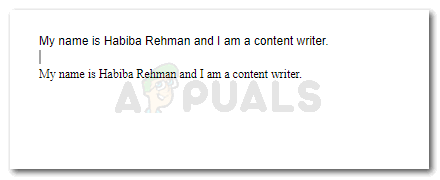
Times New Roman and Arial have periods of the same exact size. Which means if you want to make the periods bigger, you will have to opt for another font style or follow the steps in method one.
The second sentence in the image is in Times New Roman font, and the period in this font, to me, look even sleeker than the one in Arial.
Whether the document you are working on, say a proposal, a legal document or a project, has the requirement for a certain for a font or not, is something you need to be sure about when working on Google Docs, and when you have a problem with the small periods in the default font settings. Otherwise, you are good to work with this font as well.
How to Fix “Printer is in an error state” Issue?
- Recognizing the importance of a printer’s duty cycle is crucial for choosing a device that matches your print volume needs. Staying within this limit ensures the printer operates efficiently and prolongs its lifespan, minimizing the risk of maintenance issues.
- Proper humidity, temperature, and cleanliness management can significantly enhance printer performance and maintain its duty cycle, preventing unnecessary wear.
- Enhancing a printer with upgrades like additional memory or better mechanical parts can improve its workload handling and extend its practical duty cycle, boosting overall durability and efficiency.
When choosing a new printer, you might come across the term “ duty cycle ” in the specifications. This guide will explain what a duty cycle is, why it matters, and how it can help you choose the right printer. We’ll keep things simple so you can easily understand how to use this information when shopping for a printer.
- Printer Duty Cycle: What It Means and Why It Matters?
- Why the Duty Cycle Is Key to Choosing the Right Printer?
- Duty Cycle vs. Recommended Monthly Print Volume: What’s the Difference?
- What Happens If You Ignore Printer Duty Cycle Recommendations? ↪ Real-World Scenarios: Why Exceeding the Duty Cycle Can Cost You
Printer Duty Cycle: What It Means and Why It Matters?

What is the meaning of Printer Duty Cycle?
The printer duty cycle represents the upper limit of a printer’s capacity—how many pages it can reliably process in a month before the risk of wear or malfunction increases. This figure is crucial for understanding printer performance limits and ensuring that your chosen printer can handle the expected work volume.
Manufacturers determine a printer’s duty cycle through stress testing, where the printer is pushed to its limit to identify how many pages it can produce each month before malfunctioning. These tests help set a reliable performance gateway for users.
A printer’s duty cycle is like a car’s speedometer—you wouldn’t drive a car at top speed all the time, and you shouldn’t push a printer to its maximum duty cycle. Doing so can lead to quicker wear and tear, more frequent maintenance, and a shorter lifespan.
If you’re unsure whether to choose an inkjet or laser printer, this detailed guide compares both options to help you make an informed decision.
Why the Duty Cycle Is Key to Choosing the Right Printer?

The Importance of Duty Cycle in printer selection
Knowing the duty cycle is essential when choosing a printer, as it determines how well the device can handle your monthly print volume without excessive wear or maintenance.
Here is why the duty cycle matters in printer selection:
- Fit for purpose: Selecting a printer with a suitable duty cycle ensures it can handle your monthly printing volume efficiently, reducing stress on its components.
- Longer lifespan and better performance: Staying within the duty cycle ensures optimal print quality and speed while prolonging the printer’s life, avoiding frequent breakdowns.
- Cost efficiency and reduced downtime: Operating within the duty cycle minimizes the need for repairs and reduces operational disruptions, managing long-term costs.
Duty Cycle vs. Recommended Monthly Print Volume: What’s the Difference?

Duty Cycle vs. recommended monthly print volume
The recommended monthly print volume is the optimal number of pages a printer should handle each month for the best performance and longevity. Unlike the maximum capacity indicated by the duty cycle, this number guides regular usage, ensuring the printer operates efficiently without excessive wear.
If your print volume regularly exceeds the recommended amount but stays within the duty cycle, the printer may operate safely in the short term, but it could still experience accelerated wear and reduced lifespan over time.
In such cases, consider upgrading to a higher-capacity printer or spreading print jobs across multiple devices to ensure long-term performance.
Here are the differences between the duty cycle and recommended monthly print volume:
- Duty cycle: Represents the maximum number of pages a printer can handle in a month without breaking down. It assesses the printer’s upper limit.
- Recommended monthly print volume: Suggests a practical, workable number of pages to print each month to keep the printer in good condition over its lifespan.
What Happens If You Ignore Printer Duty Cycle Recommendations?

Consequences of ignoring Duty Cycle recommendations |AndranikHakobyan via Canva
Ignoring the duty cycle limits poses more severe risks than exceeding the recommended monthly print volume, leading to serious long-term consequences.
While exceeding the recommended volume occasionally may result in additional wear and tear, consistently exceeding the duty cycle can lead to frequent breakdowns, reduced performance, and a shortened lifespan.
Ignoring duty cycle limits leads to frequent breakdowns, reduced performance, and increased maintenance, ultimately shortening the printer’s lifespan and causing more frequent operational downtime and higher repair costs. Long-term, pushing a printer beyond its limits leads to greater financial burdens due to premature replacements and inefficiencies.
↪ Real-World Scenarios: Why Exceeding the Duty Cycle Can Cost You
For example, in a busy law firm, overlooking duty cycle limits during a high-stakes period could cause a printer breakdown just before a critical deadline, delaying crucial legal filings and ultimately compromising client service.
For small businesses, consistently exceeding a printer’s duty cycle can lead to costly emergency repairs or premature equipment replacements, straining financial resources.
