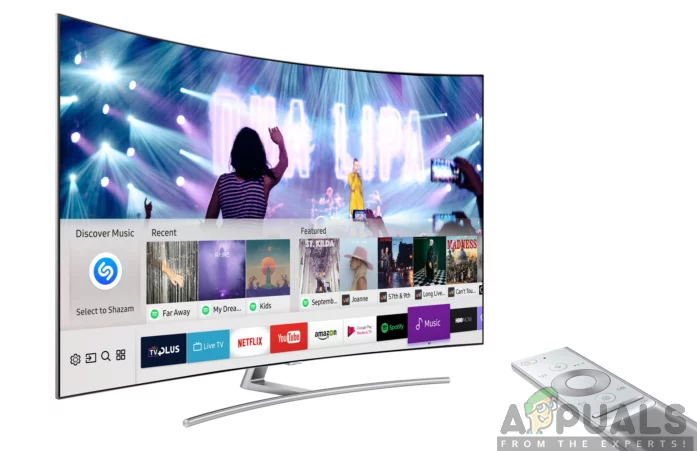
Smart Samsung TV
Connecting Alexa to your Smart Samsung TV
As you can see there are a lot of astonishing benefits that you get when your Smart Samsung TV connects to Alexa. Therefore, there is much need to have Alexa integrated into your Smart Samsung TV.
Before getting started, you will have to ensure that you have a stable internet connection in your home since these devices will not work without an active internet connection. Having an internet connection is just as important as having electricity in your home. As it is difficult to operate without electricity, so it is with the devices when there is no internet.
To attain a successful connection of your Smart Samsung TV and Alexa, you need to follow the steps outlined below:
Step 1: Set up your Smart Samsung TV and Alexa Device
You should begin by ensuring that your Smart Samsung TV is all set up and is functioning well. This may involve powering the TV on, signing in to your Samsung Account, completing the initial setup and connecting it to your wireless network.
Step 2: Connect your Smart Samsung TV to SmartThings Hub
You should then consider connecting your Smart Samsung TV to SmartThings Hub. As mentioned before, ensure that your TV is on the same network as the SmartThings Hub. To connect the two, you will have to follow the steps below:
- Power on your Samsung TV by connecting it to a power source. Then by use of your TV remote, press the power button to turn the TV on.
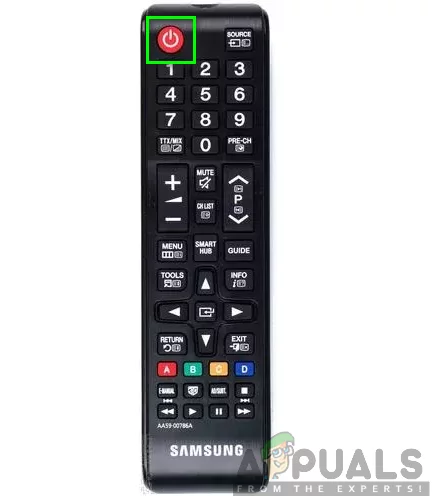
Samsung remote power button
- Press the Menu button on your remote and navigate to Smart Hub and select Samsung Account.
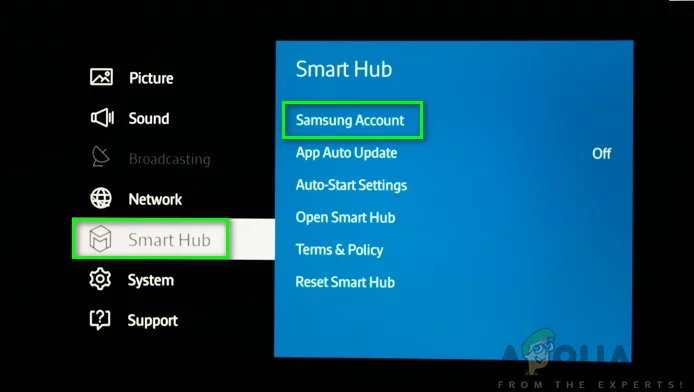
Navigating to Smart Hub and Selecting Samsung Account
- Sign in to your Samsung Account and then check for your Smart Samsung TV on Samsung SmartThing mobile app.
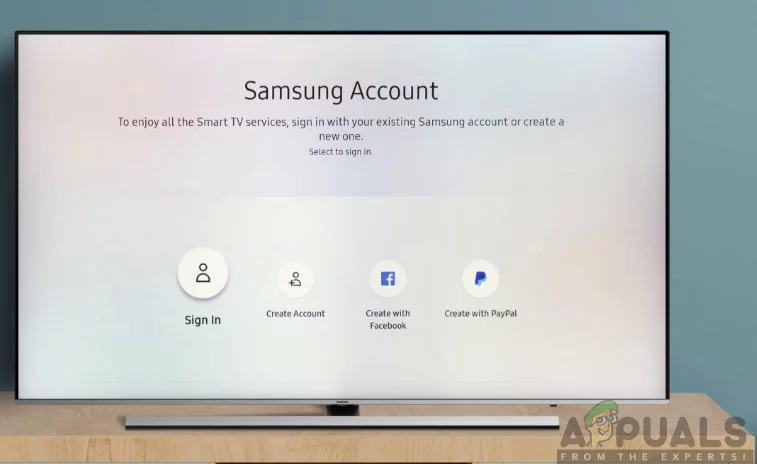
Signing on to your Samsung Account
- Now you will have connected your Samsung TV to SmartThings Hub.
Step 3: Launching the apps
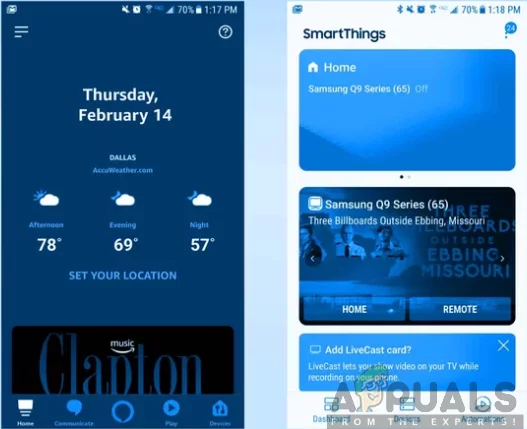
Samsung SmartThings app

Launching the Amazon Alexa app
Step 4: Discover your Samsung TV in the Samsung SmartThings app
In your Samsung SmartThings app, you have to discover your Samsung TV. This will enable you to regard it as a basic connected smart device when connecting it to your Alexa device. Therefore, to achieve this, you will have to follow the steps below:
- Open the Samsung SmartThings app on your phone
- Go to the Device menu located at the bottom-center of the screen.
- Now on the Devices screen, click on the Add Device option. With your TV powered on, your device will easily be found on the list.

Discovering your Samsung TV in SmartThings app
After you have found your device (Samsung TV) and paired your phone to the TV, you should now select the Smart Samsung TV and toggle the button next to it to enable its use as a smart device.
Step 5: Connect your Alexa to Samsung SmartThings
- Launch the Amazon Alexa app on your Smartphone.

Opening the Amazon Alexa app on your phone
- Click on menu option at the top-left corner of the screen.

Clicking on the menu option
- Select the Smart Home.

Selecting Smart Home
- On the search bar, type Samsung SmartThings and select it then click on Enable to Use to enable it.

Enabling Samsung SmartThings skill
- Next, a new window will appear that will prompt you to sign in to your Samsung SmartThings account via email and password. Enter the correct login credentials and click on sign in. This will enable you to link the accounts.

Signing in to your Samsung SmartThings account
- After enabling the skill, Alexa will automatically connect to your Samsung TV. Therefore, you can now start using Alexa to control your Smart Samsung TV.
Step 6: Select your Smart Samsung TV in Alexa app
Finally, after you have enabled the Samsung SmartThings skill, you can now select your Samsung TV and get ready to use Alexa. Consequently, Alexa will automatically pair to your Samsung TV; therefore, you can now start using Alexa to control your Smart Samsung TV with your voice. This may include powering the TV on and off, adjusting the volume, and switching to different channels.

Selecting your Samsung TV in Alexa app
