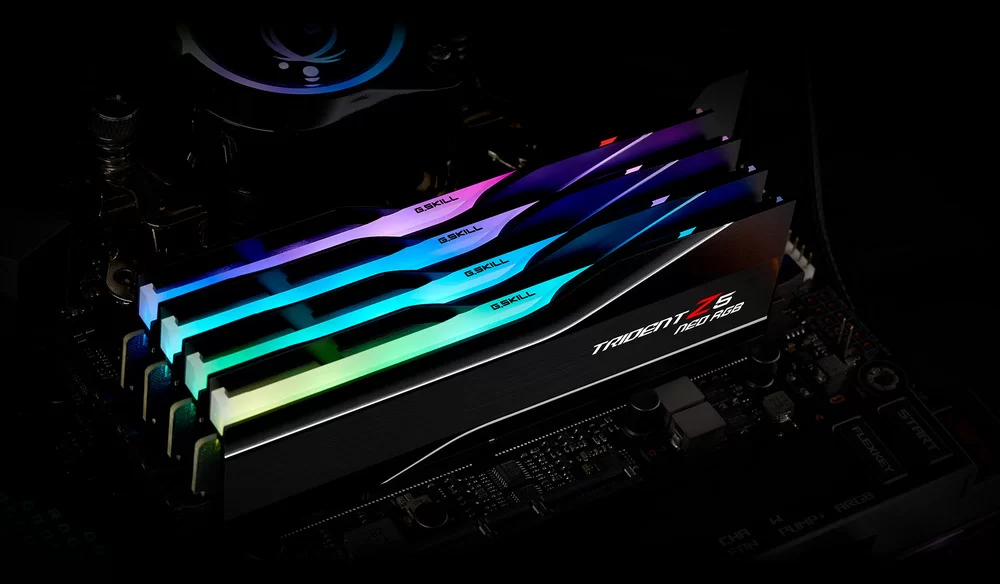
G.Skill Trident Z5 Neo RGB DDR5 RAM | G.Skill
How to free up your RAM?
1. Restart Your Computer
2. Verify Memory Utilization using Windows Programs
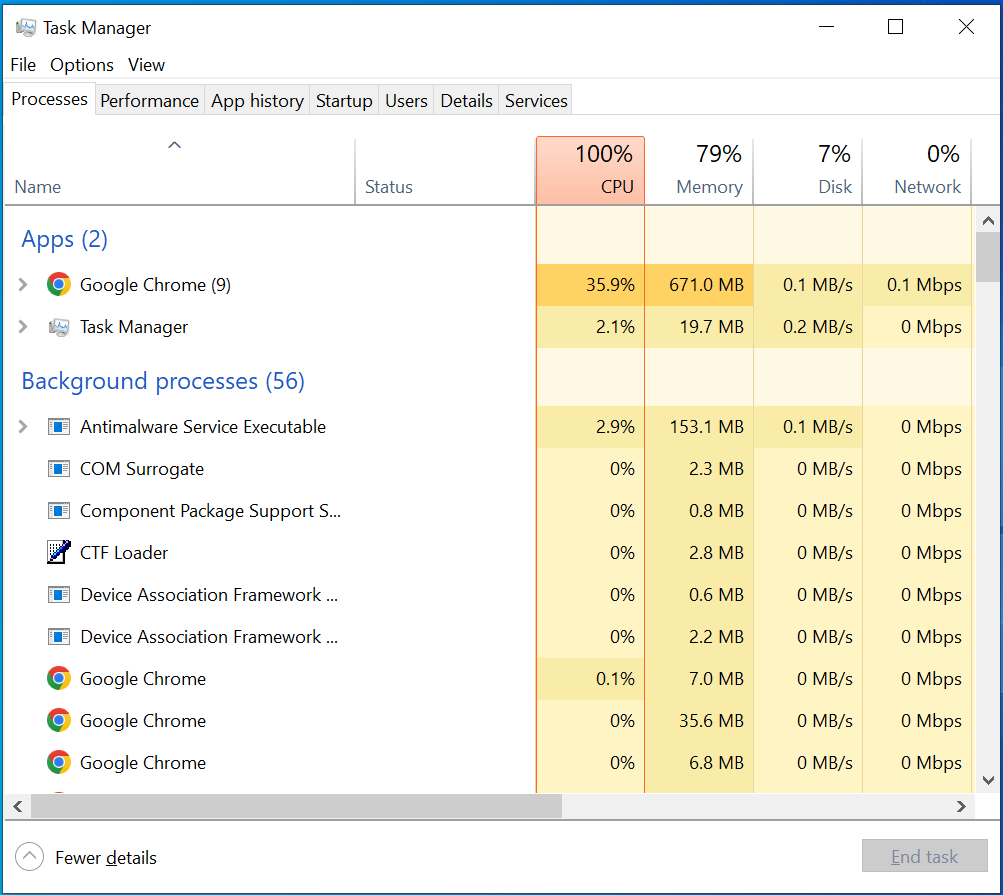
Windows Task Manager: Arranged by CPU Load
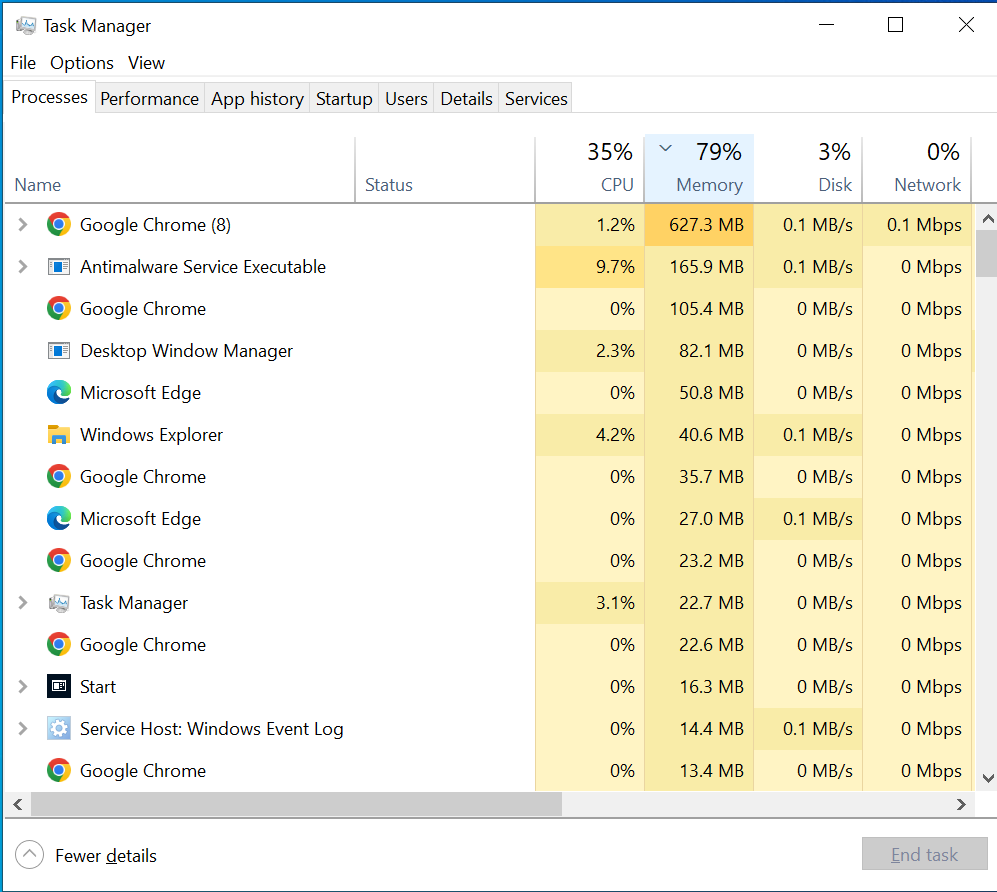
Windows Task Manager: Arranged by Memory Load
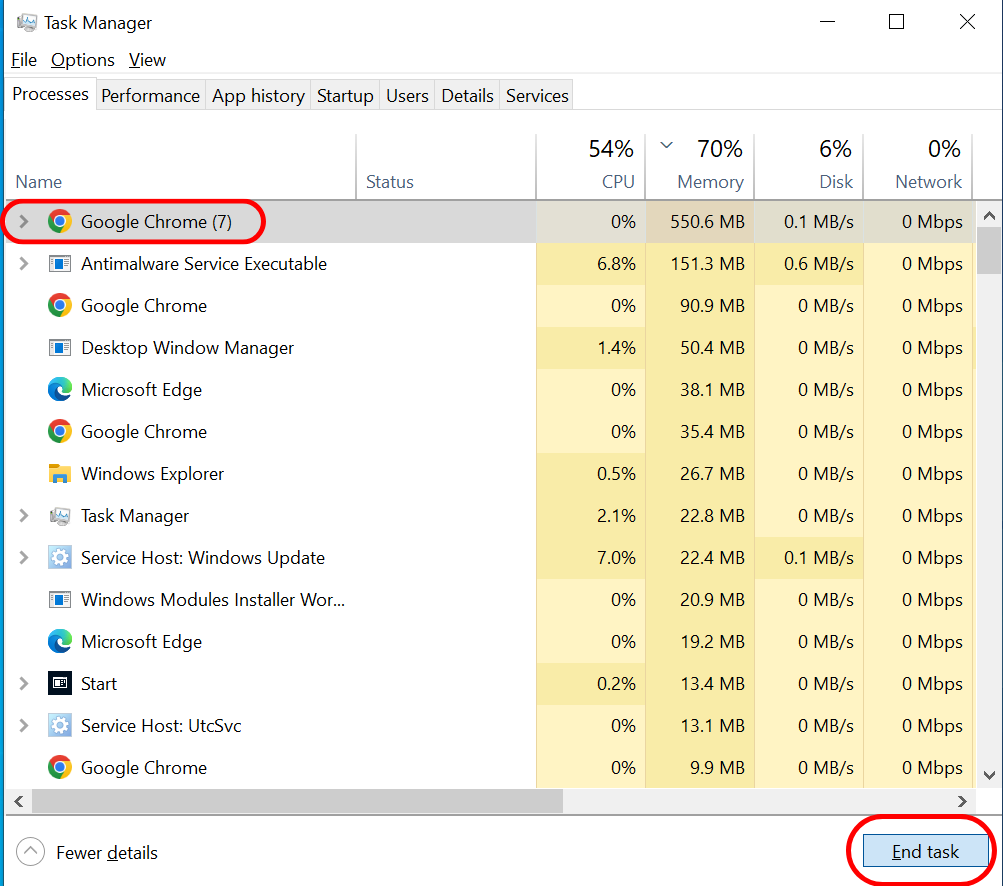
End Task via Windows Task Manager
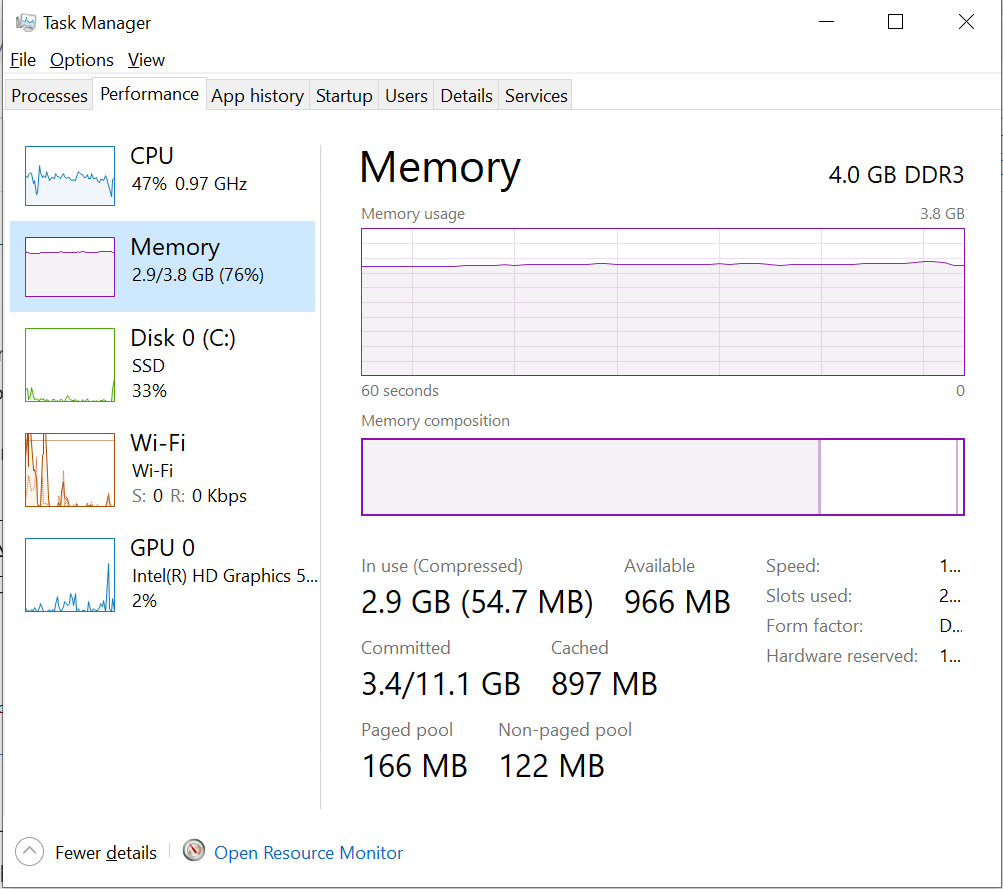
Windows Task Manager: Memory Section
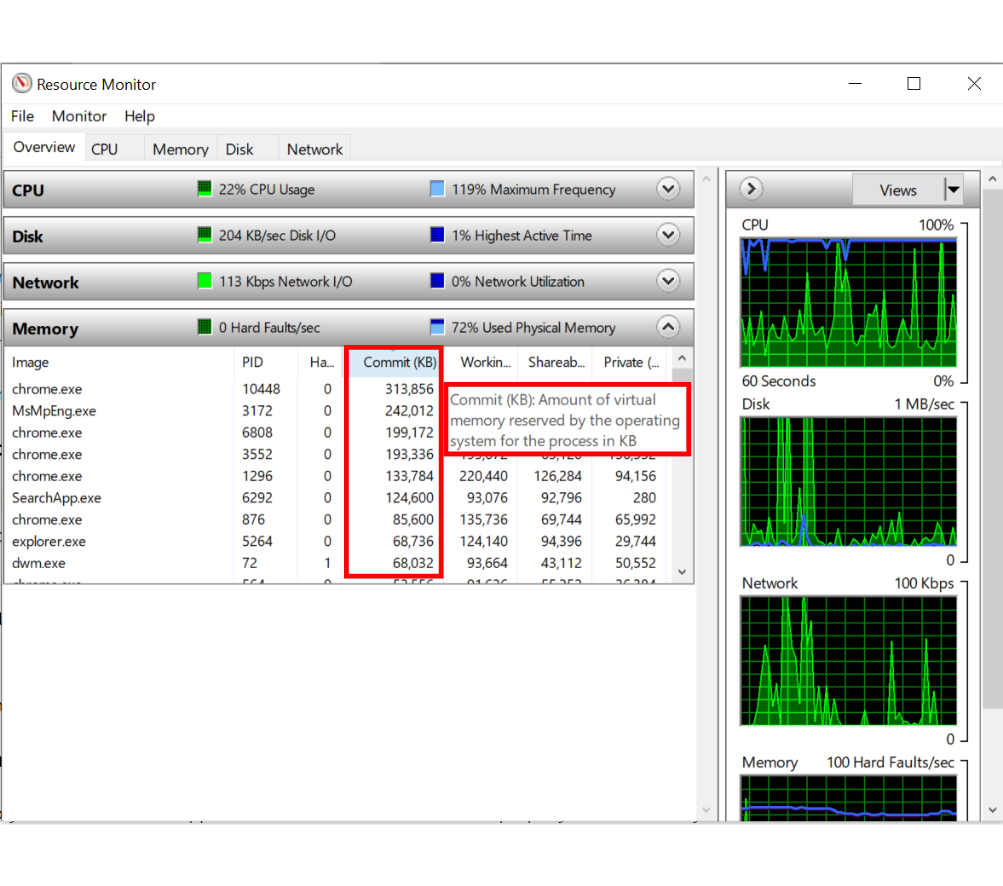
Windows Resource Monitor
3. Disable or Remove Unused Applications
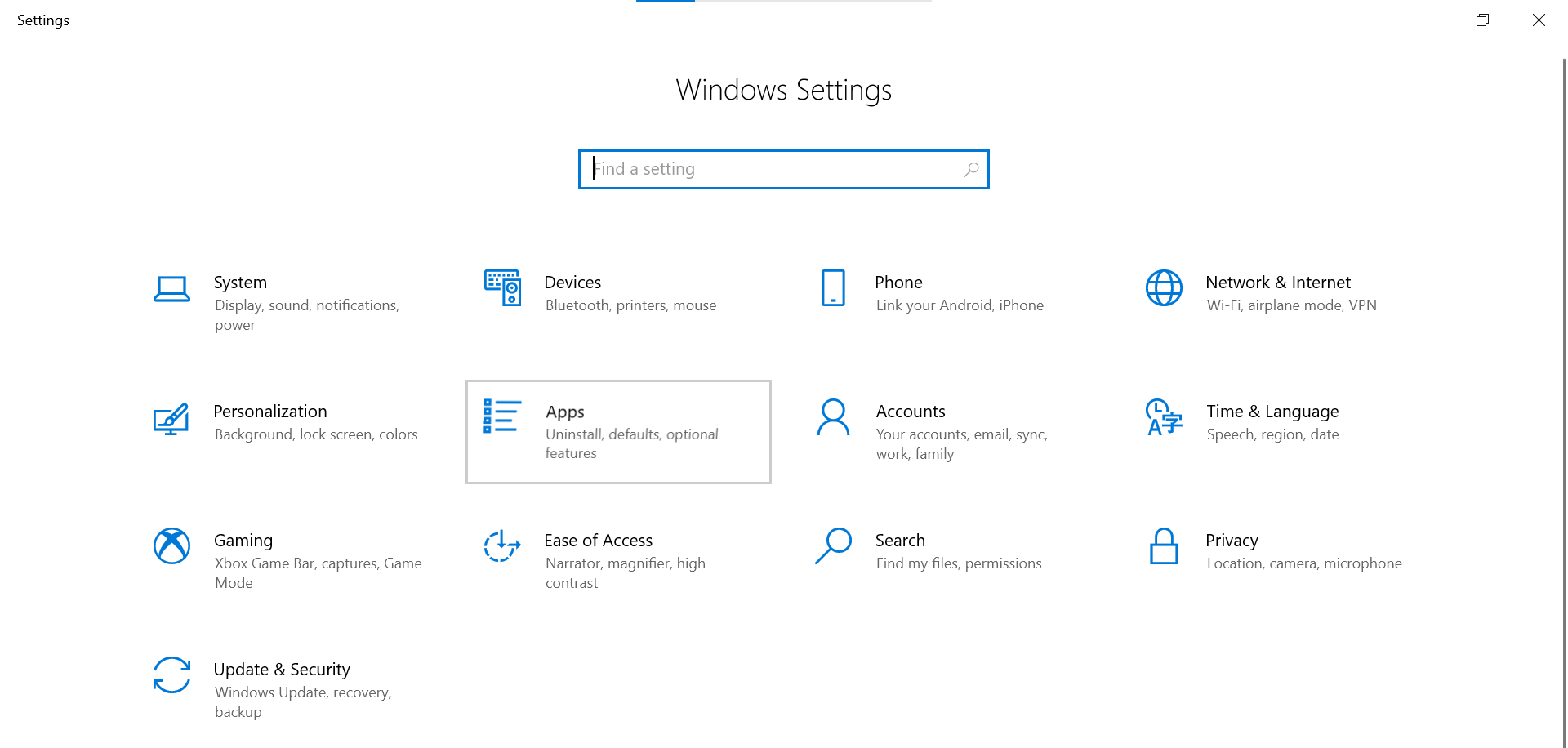
Windows Settings
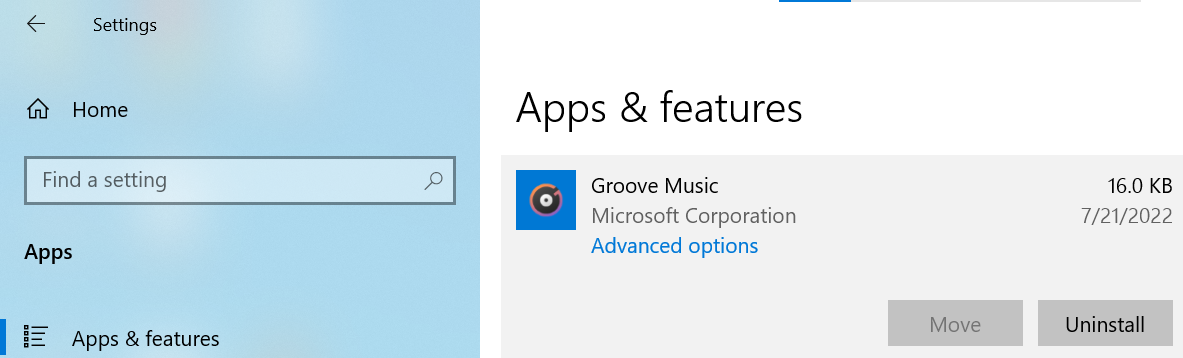
Uninstall Applications via Apps and Features Settings
4. Update Your Apps
5. Switch to Lighter Apps and Control Your Processes

Paint.NET Image Editing Software |Paint.NET
6. Change your Browser
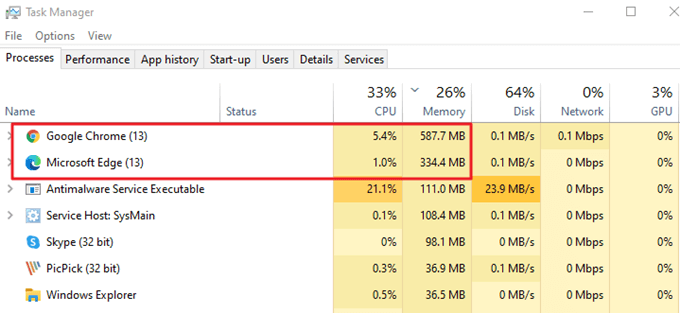
Google Chrome vs Microsoft Edge: Ram Consumption |Epubor
7. Check for Malware
8. Windows Virtual Memory Settings
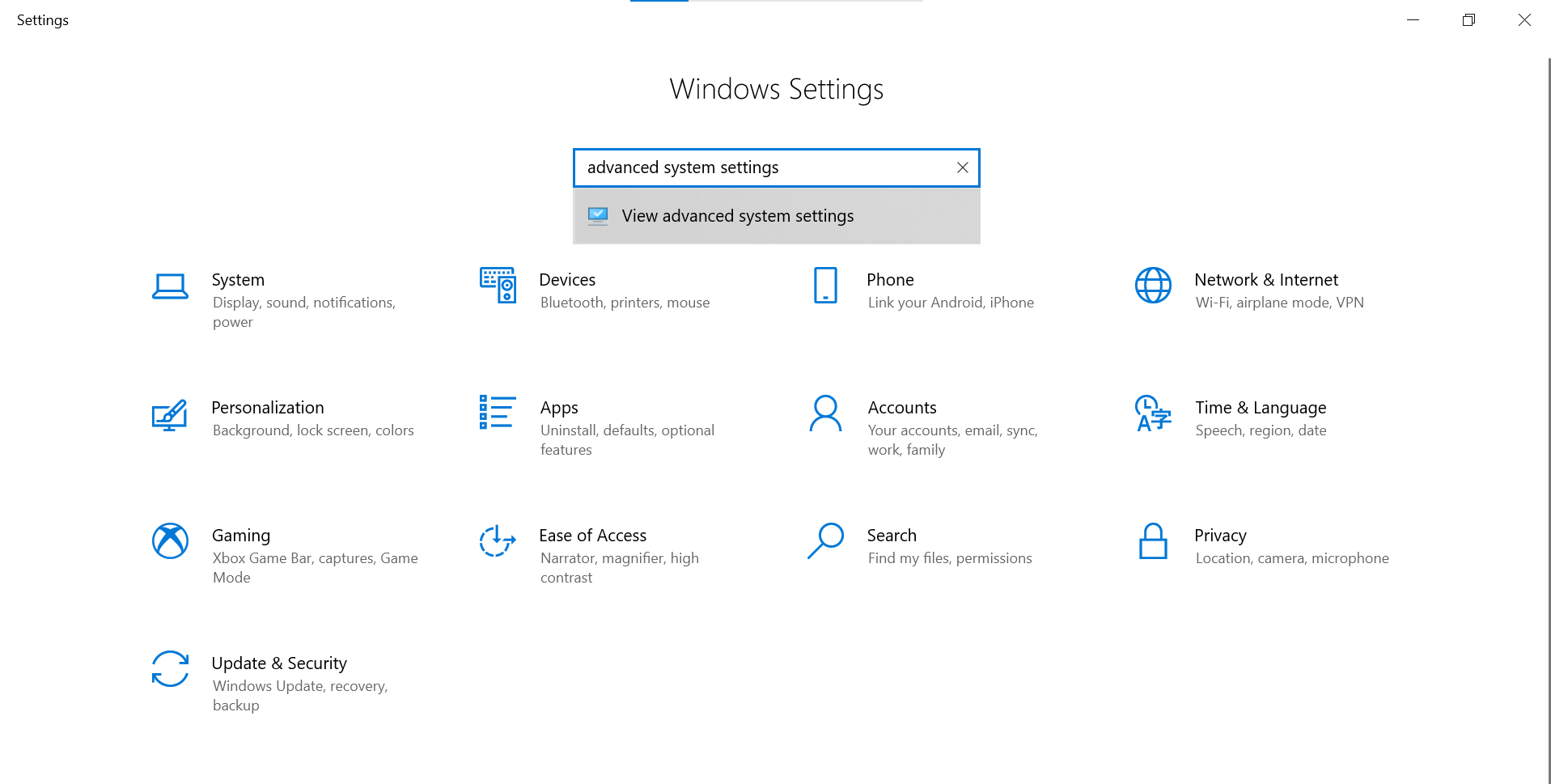
Accessing Windows Advanced System Settings
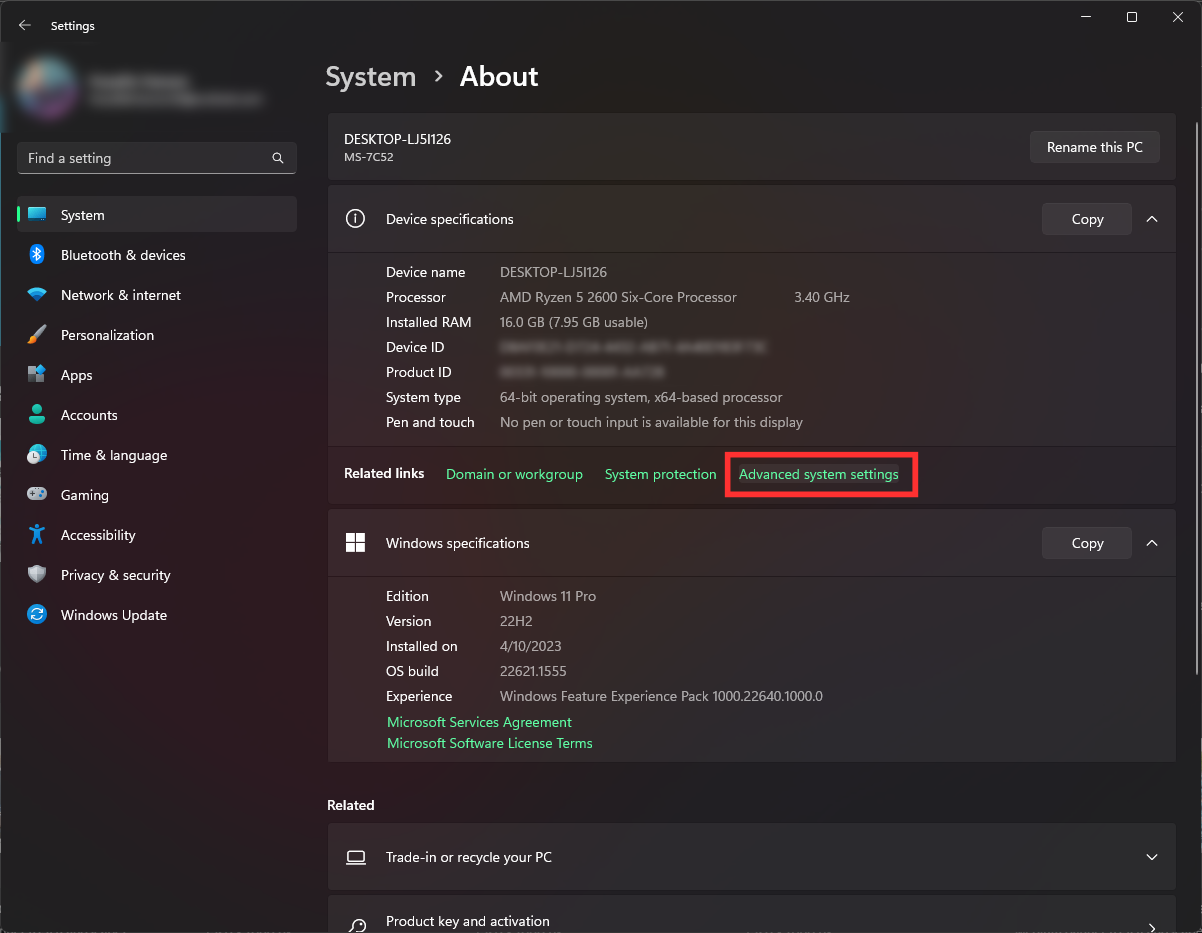
Advanced system settings option in Windows 11
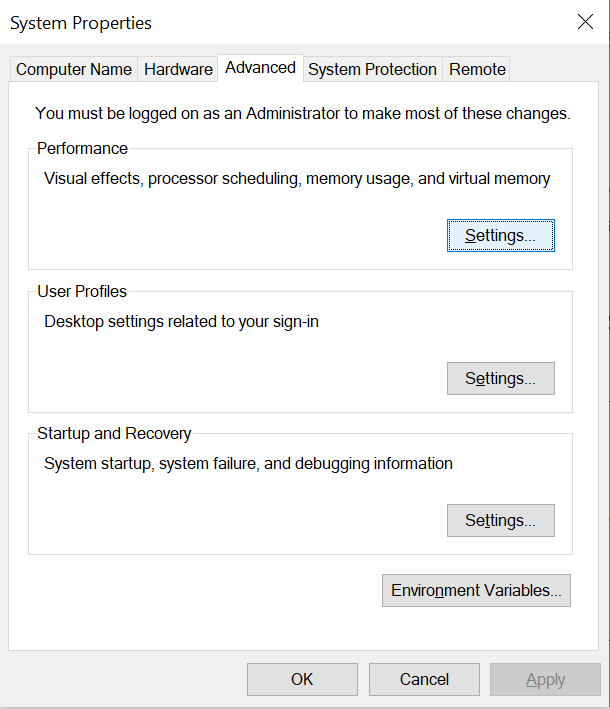
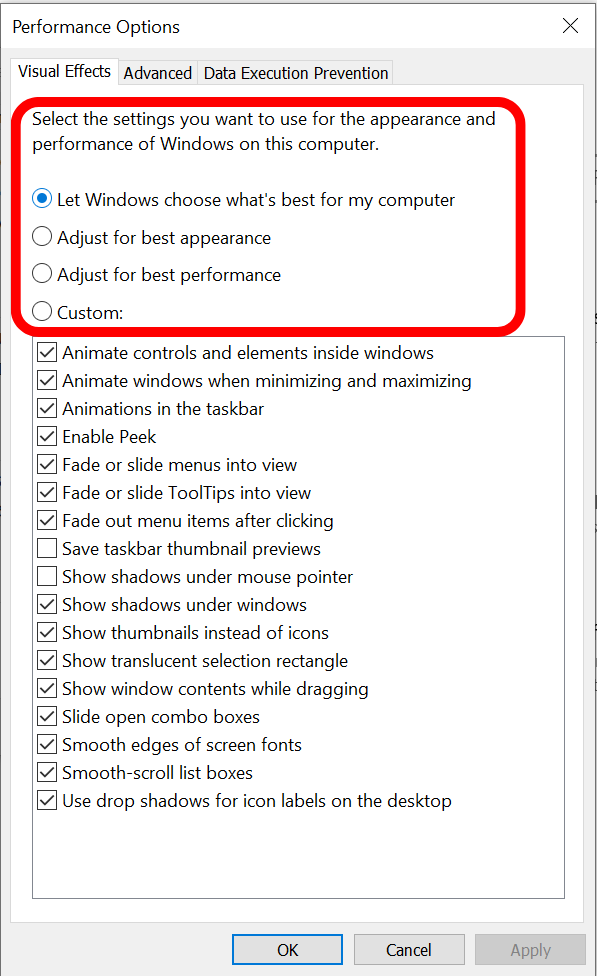
Settings: Windows Performance
9. Clear the Page File then Reboot
- Enter “ Registry Editor ” in the “ Start ” search field. Respond “ Yes ” when prompted to allow the Registry Editor to make changes to your device. Opening Registry Editor
- On the search bar, type the following “ Computer\HKEY_LOCAL_MACHINE\SYSTEM\CurrentControlSet\Control\Session Manager\Memory Management ” Accessing HKEY Memory Management
- Check the box labeled “ ClearPageFileAtShutdown “. Type “ 1 ” into the “ Value Data ” box, and then choose “ OK ”. Clean PageFile at Shutdown
10. Clean System’s Cache
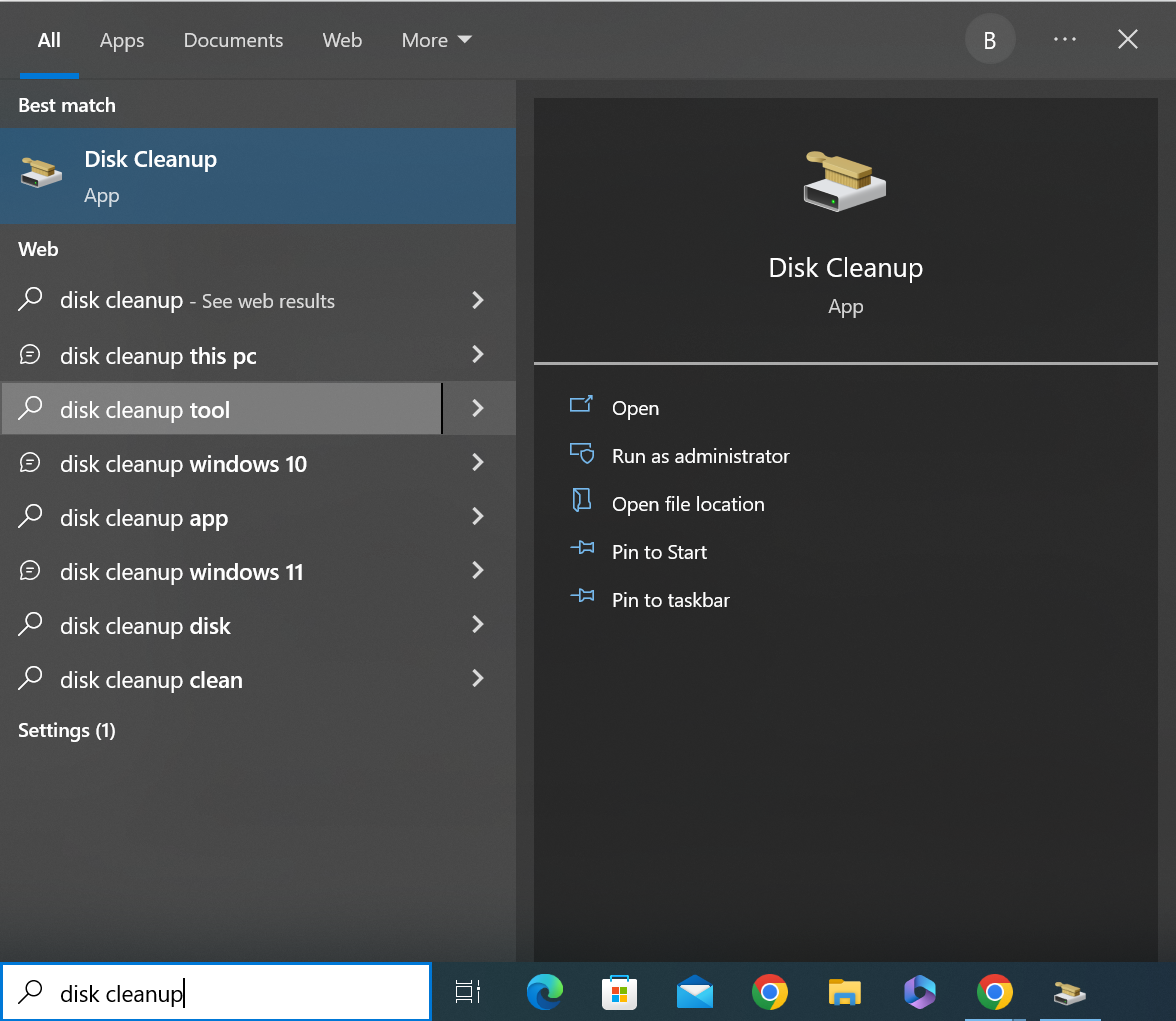
Accessing Disk Cleanup
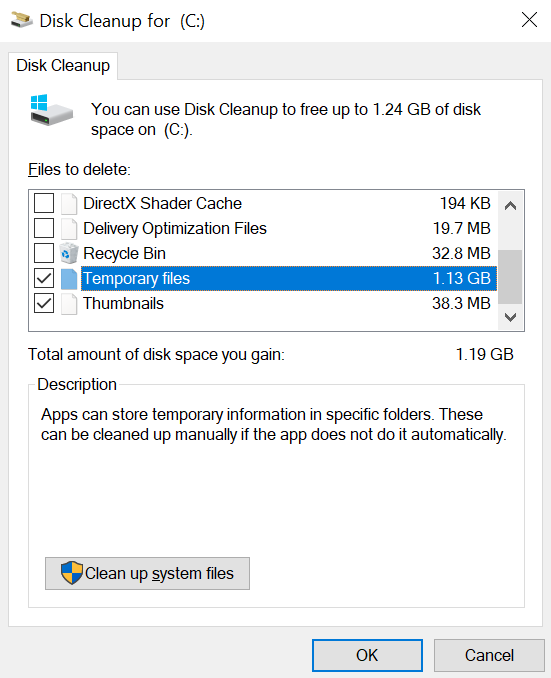
Deleting Temporary Files from Disk C:
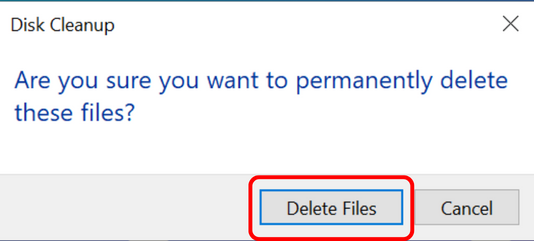
Permanently Deleting Cache from Disk C:
11. Choose a Reputable RAM Cleaning Software
12. Install more RAM
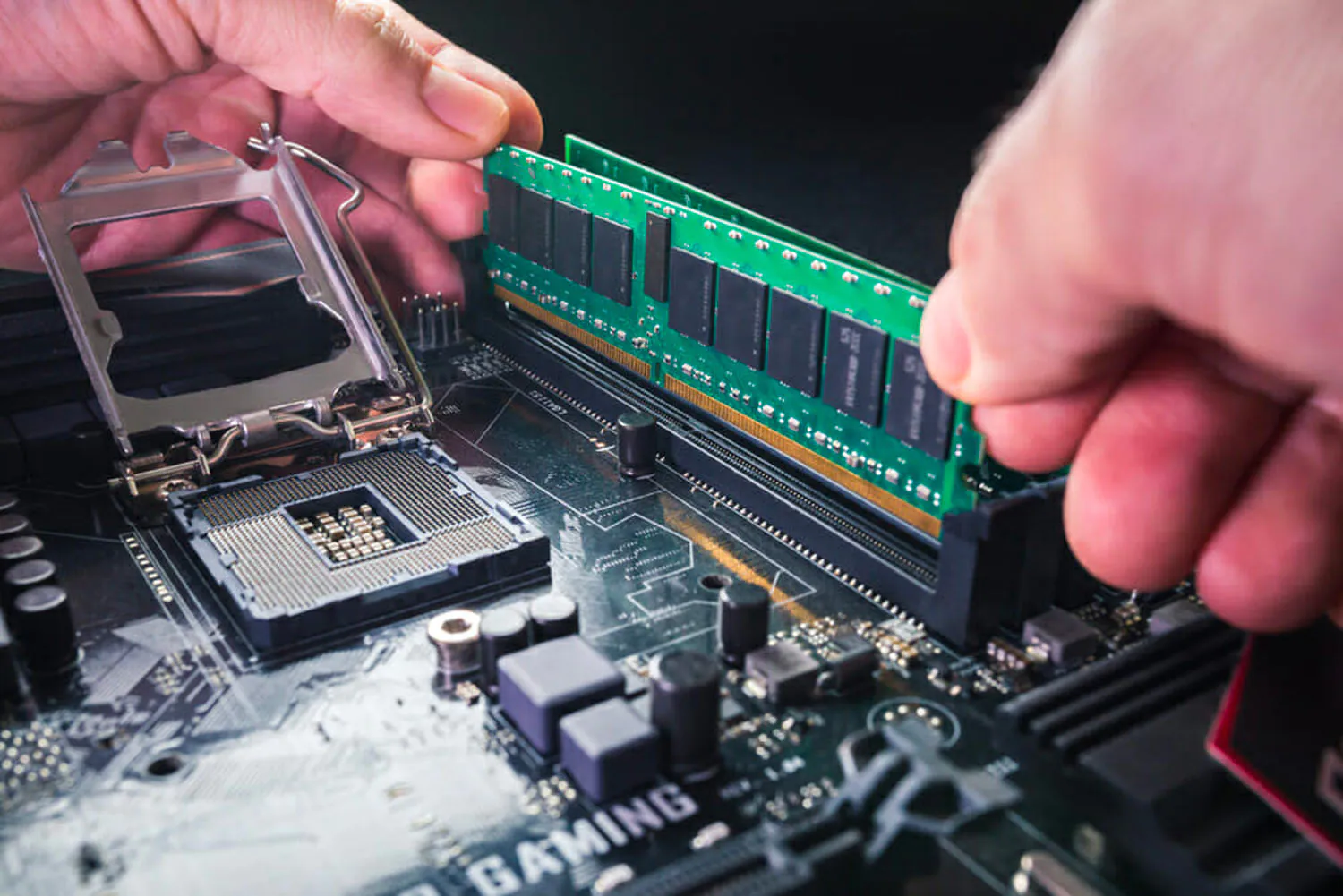
Installing a stick of RAM in a motherboard | Norton
