You may encounter the error 500 in Outlook due to an internal server error, which indicates a problem originating from the server’s side. This issue can also be caused by having too many roles assigned to your user account or by issues with your internet connection.
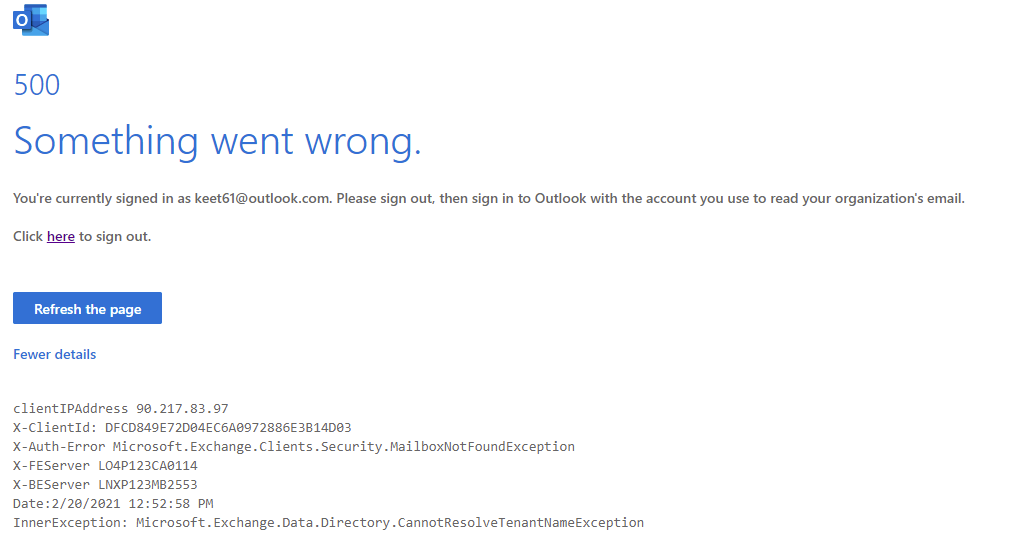
Before you begin, try logging out and logging into your Outlook account again as doing this simple step resolved this error for many users.
1. Check Microsoft’s Service Health
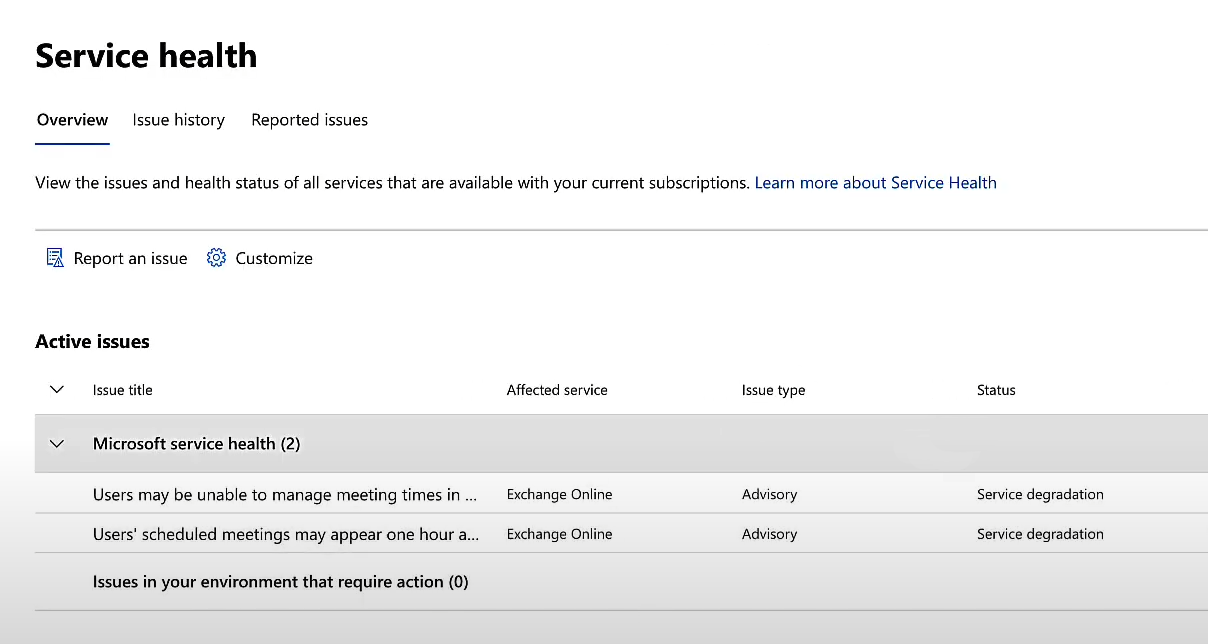
To determine if the error is due to a Microsoft service outage, visit the Service Health panel . If a Microsoft service is down, you must wait until it is fully restored.
- Visit https://admin.microsoft.com and sign in to your account.
- Select the Health tab.
- From the dropdown menu, choose the Service Health option.
- Here, you can see which services are currently degraded and which are functioning correctly. Any service experiencing issues will be flagged under advisories .
2. Remove Excessive User Permissions
The error can also occur if a user has too many administrator roles assigned, which can cause endless browser redirects. You can correct this by removing some permissions.
If you are not an admin, contact the admin managing your Microsoft 365 subscription and request the removal of all admin roles except for Global Administrator . If you are the Global Administrator, you can make these changes yourself.
- Log in at www.office.com .
- Click on the app launcher in the top left and select Admin .
- Select the user experiencing the issue.
- Click on Manage roles .
- Uncheck all roles except for Global Administrator and save your changes.
3. Use Microsoft’s Diagnostics Tool
The Microsoft Support and Recovery Assistant is a diagnostic tool that can help troubleshoot problems with a wide range of applications.
- Download the tool from the official website at this link .
- Uncompress the downloaded file and install the tool. Once installed, open it.
- Select the “ Outlook on the web ” option and click on the Next button.
- Choose “ I can’t run Outlook on the web ” and click the Next button.
- Confirm if the device you are using is affected by selecting Yes and then click the Next button.
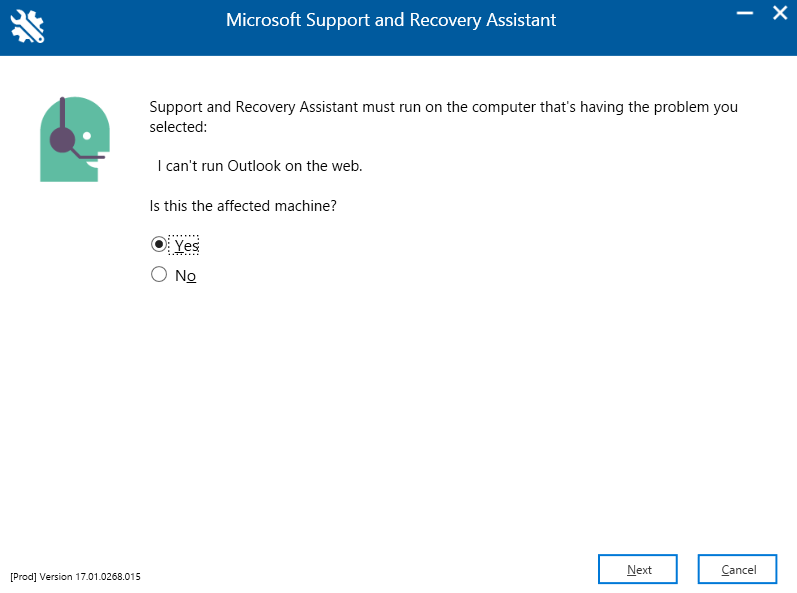
You’ll be prompted to log in to your account to commence the troubleshooting process.
