Chromecast lets you stream your favorite apps from your PC, laptop, or phone to your TV or any other device. However, the experience may sometimes become troublesome when you face the “ Source not supported ” error message upon using the device. As obvious, the error message indicates that the device that you are trying to cast is not being recognized by your Chromecast device. This can be caused by some misconfiguration in the Chrome browser, however, that may not always be the case.
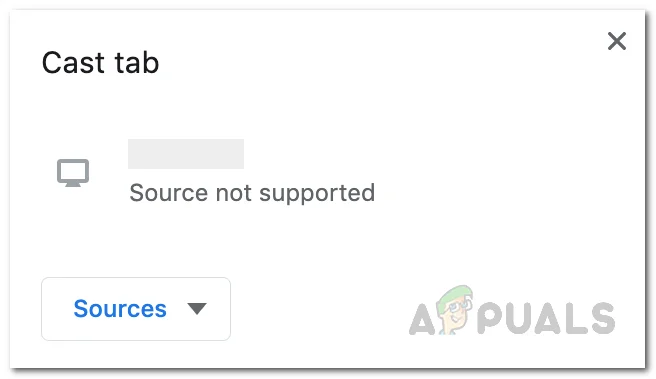
Chromecast Source Not Supported
To understand this more, let us understand what is happening behind the scenes. When you try to cast a device to your TV or any other device, Chromecast essentially acts as a bridge between those two devices and connects them over the network. Now, if there are any third-party interferences, this may not go as expected and you will be shown an error message. In addition, your Chrome browser settings can also impact this. For a better grasp of the issue, let us dive into the different reasons that can actually cause the issue.
- Mirroring Service — One of the major reasons the issue arises is due to the Mirroring Service found in the flags tab of your Chrome browser. The mirroring service is really important and needs to be enabled for the Chromecast to work. However, in some cases, this can be disabled by the browser. This usually happens after an update is installed for your Chrome browser and it changes the settings.
- Chromecast Update — Another reason the issue may occur is when your Chromecast software on your smartphone is not updated to the latest version available. Often, different software versions can cause such issues and as a result, you will have to ensure that you are running the latest software version available for Chromecast.
- Third-party Extensions — In addition to all of that, if you are using third-party extensions on your browser that are interfering with the network traffic, it is very likely that they might be causing the issue. In most cases, ad blockers and VPN extensions are found to be the culprit here. Therefore, you will have to disable them to get the Chromecast to work.
- Windows Defender — Finally, while this does not happen often, it still is a possibility. If you are casting from your personal computer running Windows, there are chances that the Windows Defender is interfering with the process and as a result, you get the Source not Supported error message. This can be easily resolved by disabling the real-time protection while you are about to screencast.
Now that we have gone through the possible causes of the issue in question, let us discuss the different solutions you can implement to get the issue resolved. So, without further ado, let us get started.
Update Google Chrome
The first thing that you should do when you face the said error message is to make sure that you are running the latest version of the Google Chrome browser on your device. If you are running an obsolete version, there is a good chance that the issue is being triggered because of it. This is something that you will have to do on the device that you are trying to cast. Follow the instructions down below to update Google Chrome:
- First of all, open up a Google Chrome window.
- Then, in the top-right hand corner, click on the More button (the three vertical dots).
- From the drop-down menu that appears, navigate to Help > About Google Chrome . Accessing About Chrome Tab
- Once you are there, Google Chrome will automatically check for any updates and install them.
- If an update is installed, you will be shown a Relaunch button. Click on that to finish installing the update.
If you are casting from a smartphone, you can easily update Google Chrome from the Play Store or App Store in your respective case.
Update Chromecast
In case you are still facing an issue after updating Google Chrome or if there wasn’t any update for you, it is time to check whether your Chromecast is up-to-date or not. This is done through the help of the Google Home app. Chromecast looks up for any available updates when you reboot it from the application so that’s all we really need to do. Follow the instructions down below to do this:
- First of all, download the Google Home app on your smartphone from the respective store.
- Now, open up the Google Home app and make sure that your Chromecast is powered on and connected to the same wireless network.
- In the app, tap on the device that the Chromecast is connected to.
- After that, tap on the Gear icon at the top. This will take you to the Device settings screen. Chromecast Device Details
- There, tap on the three dots found in the top-right corner which will bring up a new menu. From there, tap on the Reboot option to restart your Chromecast. Rebooting Chromecast
- This will power off the Chromecast dongle and it will lookup for any updates automatically. If there are any updates available, they will be installed.
Enable Mirroring Service
As it turns out, in some cases, an update to your Google Chrome browser can alter some settings in the background that you don’t notice until you run into an issue because of it. Similar is the case here as the Mirroring Service flag gets disabled usually after an update. Chromecast relies on this and if it isn’t enabled, you won’t be able to cast to your other devices successfully. Therefore, you will have to make sure that the Mirroring Service is enabled from the Chrome flags. To do this, follow the below instructions:
- To start, open up the Google Chrome browser.
- In the address bar, type in chrome://flags and then hit the Enter button.
- This will show you a list of all the flags available. In the search field, type Mirroring Service . Enabling Mirroring Service
- From the result shown, make sure that Mirroring Service is set to Enabled . Then, restart your browser and see if the issue persists.
Disable Ad Blockers and VPN
In some cases, the third-party extensions that you have added to your Chrome browser can sometimes cause certain issues with your browser functionality. Ad Blockers and VPN extensions are known to interfere with your network traffic and rightfully so because that’s their purpose, however, at times this interference can get you unwanted results. Therefore, if you have any ad blockers and VPNs installed on your browser, you will have to disable them to see if the issue is resolved. To do this, follow the instructions down below:
- First of all, in your Chrome browser, click on the More button (three vertical dots at the top-right corner). Chrome More Menu
- From the drop-down menu, navigate to More tools > Extensions .
- This will take you to the Extensions page where all of your installed extensions are shown.
- From there, disable any ad blockers or VPN extensions that you have. Disabling AdBlock
- Once done, try casting again to see if the error message still appears.
Temporarily Turn off Real-Time Protection
If you are casting from a Windows machine and the above solutions have not worked out for you, chances are that your issue is being triggered by the Windows Defender. This can be easily fixed by temporarily disabling real-time protection from the Windows Defender settings when you are about to cast. You can turn it back on once done and you should be good to go. To do this, follow the below instructions:
- Press the Windows key + I shortcut to open up the Settings window.
- There, in the search bar, type Virus & threat protection and then click on the option shown.
- This shall open up the Windows Security window. There, click on the Manage settings option under Virus and threat protection settings . Windows Security Window
- Finally, disable Real-time protection and then try casting. If it works, you can re-enable this as it is important and helps keep your system safe. Disabling Real-Time Protection
How to Fix “Printer is in an error state” Issue?
Some users have been complaining about using the ability to print directly from Chrome. Almost all affected users are reporting suddenly losing the ability to print from Chrome after doing it successfully for a long period of time.
Most of the time, users report receiving the Aw-Snap! erro r while they trigger the printing sequence in Chrome.

If you’re currently struggling with this issue, the following fixes might help. We have managed to identify a few methods that have been successful for users in a similar situation to resolve the issue. Please follow the methods below in order until you encounter a fix that works for your situation.
Method 1: Using the Ctrl + Shift + P shortcut (workaround)
If you’re looking for a quick fix that will spare you from going through time-consuming steps, using the Ctrl + Shift + P shortcut might just enable you to get around the issue.
However, keep in mind that this should only be regarded as a workaround since it doesn’t fix the underlying issues that caused Google Print to malfunction.
If this workaround isn’t effective or if you’re looking for some steps that will resolve the underlying issues, continue with the method below.
Method 2: Deleting the extra printers on Google Print
Some users have been able to resolve the issue without having to uninstall the browser by making sure the printers listed under Google Cloud Print are properly managed.
As it turns out, whenever Google Cloud Print has more than one listed active printer it might create issues that will prevent users from printing directly from Chrome.
To remedy this issue, you’ll have to delete the extra printers that you don’t use. Here’s a quick guide on how to do this:
- Open Google Chrome, hit the action box (top-right corner) and click on Settings .
- In the Settings list , scroll all the way down and click on Advanced to expand the drop-down menu. Then, scroll down through the Advanced list and click on Google Cloud Print under Printing .
- Next, click on Manage Cloud Print devices and click the Manage button associated with every printer that you’re not currently using then delete it.
- Once you’re only left with one active printer, restart Google Chrome and see if the issue has been resolved and you’re able to print directly from the browser. If you aren’t, move down to the method below.
Method 3: Deleting local browsing history then uninstall Chrome
Most users have been able to resolve the issue after uninstalling Chrome along with the local browsing history. Upon reinstalling the newest Chrome version available, most users have reported regaining the ability to print directly from Chrome.
Here’s a quick guide to deleting the local browsing history, uninstalling Chrome and reinstalling it again:
- Open Google Chrome, hit the settings menu and go to More tools > Clear browsing data .
- Next, set the time range to All time and make sure the boxes associated with Browsing history , Cookies and other site data and Cached images and files are checked. Then start the deletion process by clicking on Clear Data . Once the process is complete, you can safely close Google Chrome .
- Press Windows key + R to open up a Run command. Then, type “ appwiz.cpl ” and hit Enter to open Programs and Features .
- In Programs and Features , scroll down through the application list, right-click on Google Chrome and choose Uninstall . If you’re asked whether you want to delete the local browsing history of Chrome, accept and hit Next to continue.
- Once Chrome is uninstalled, reboot your computer and use the default browser to navigate to this link and download the last version installer of Chrome.
- Open the installer and follow the on-screen prompts to install Chrome and check if you’re now able to print directly from Chrome.
If this method didn’t work, start following the other methods below.
Method 4: Claiming Full Control over the Temp folder
Some users have been finally able to resolve the issue after tweaking the permissions of the temp folder (within the AppData update). Apparently, giving yourself full control over the temp folder will restore the ability to print directly from Google Chrome .
Although this is purely speculation, it’s widely believed that a WU update has modified the permissions for already-installed browsers.
Note: This method seems to be effective for users that are able to print from Internet Explorer but are prevented from printing on Google Chrome, Firefox, and any other 3rd party browser.
Here’s a quick guide to claiming Full Control over the temp folder in order to restore the printing ability in Google Chrome:
- Navigate to C:\ Users \ Your User Name \ AppData \ Local , right-click on the temp folder and choose Properties .
- In Temp Properties, go to the Security tab, select the first account under Group or user names , click Edit and make sure the Allow box associated with Full Control is ticked. Then, repeat the same procedure with all accounts under Group or user names .
- Reboot your system. Starting with the next restart, you should be able to print from all 3rd party browsers including Google Chrome.
If the method hasn’t managed to resolve your issue, move down to the final method.
Method 5: Repairing the Print Spooler driver
If all the methods above have been a bust, there’s a high chance that the print spooler driver or another Windows component tasked with handling a printing chore has become corrupted and unusable. This is most certainly the culprit if you notice that you’re PC is unable to print from anywhere else (any 3rd party app) than on Microsoft’s channels.
As some users have pointed out, it’s very likely that certain files located in SYSWOW64 need replacing. If that’s the case, you’re the best chance of resolving the issue without having to reinstall your OS is to trigger a system repair.
To trigger a system repair, we’re going to use System File Checker – a Windows utility that scans for system file corruption and replaces the corrupted files. Here’s a quick guide on how to trigger a System File Checker scan to fix the printing problem on Google Chrome:
- Access the Windows start menu (bottom-left corner) and search for “ cmd “. Then right-click on Command Prompt and choose Run as administrator .
- In the elevated command prompt, type the following command and press Enter to start the operation: DISM.exe /Online /Cleanup-image /Restorehealth Note: Keep in mind that the DISM command uses WU (Windows Update) to fetch the files that will end up replacing the corrupted once. Because of this, you’ll need to make sure that your internet connection is active and stable, otherwise, the attempt will end up in failure.
- Once the DISM operation is completed, you can finally initiate the System File Checker tool. To do this, type the following command in the elevated Command Prompt and press Enter: sfc /scannow Note: Once the process is kickstarted, the SFC utility will scan all protected system files and replace the corrupted occurrences with new and fresh copies. It’s important that you don’t close the elevated Command Prompt window until the process is complete.
- Once the process is complete, close the elevated Command Prompt and reboot your computer. At the next startup, check if the printing issue has been resolved and you’re able to print from 3rd party applications.
Method 6: Resetting Chrome to Default Settings
Some users reportedly got around this issue by resetting Chrome back to its default settings. We will be doing exactly that in this method. In order to do that:
- Launch Chrome and click on the “Three Dots” on the top right corner.
- Select “Settings” from the list and scroll down. Clicking on “Settings”
- Under the “Reset and Cleanup” heading, click on the “ Reset Google Chrome to its Defaults ” option. Click Reset Settings to their original defaults
- Check to see if the issue persists after the reset.
Note: Also, download the following apps and install them. XPX Essential NET 3.0 NET 3.5
