When users attempt to use the Snipping Tool’s recording feature on Windows, they often face the “Recording stopped” error, which interrupts the process immediately after it begins. A message pops up, indicating a stoppage due to an unexpected issue. This error commonly occurs when the recording countdown starts, causing the tool to freeze and display the error message.
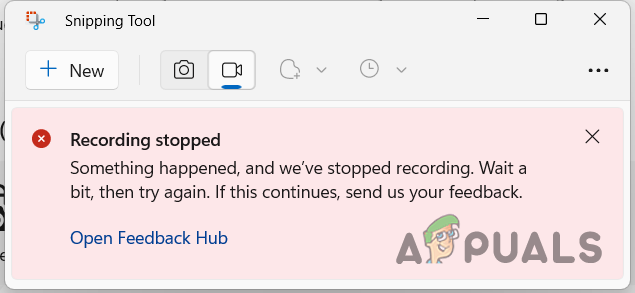
Recording Stopped Error Message in the Snipping Tool
The majority of cases suggest that a bug within the application itself is the most common root cause of this problem, as a significant number of users have reported experiencing this issue, pointing to a widespread software fault.
Other contributing factors include conflicts with the graphics adapter or incorrect projection mode settings, which complicate the troubleshooting steps.
Further investigation suggests that device-specific issues, particularly with graphics settings, can also trigger this error. Some users have successfully bypassed the error by switching their graphics to high-performance mode, or by disabling certain graphics adapters, like the Intel UHD, from the device manager.
However, these workarounds may result in new challenges, such as the loss of functionality for projecting to multiple monitors. Users must therefore strike a balance between practicality and solution effectiveness.
1. Change Display Projection Settings
If you are encountering this problem when using the Snipping Tool, especially with multiple monitors extending the Windows projection, altering your display projection settings may help.
This can lead to inconsistencies during recording with the Snipping Tool, resulting in the aforementioned error message.
- Press the Win key + P on your keyboard to open the projection menu in Windows.
- Choose the PC Screen Only option at the top to disable the display on your secondary monitor. Changing Projection Settings to PC Screen Only
- Then, start recording with the Snipping Tool again to check if the error persists.
2. Change Snipping Tool Graphics Preference
The graphics preference setting for the Snipping Tool can cause recording disruptions when set to power saving.
To resolve this, switch the graphics preference to high performance. This will ensure the Snipping Tool uses your machine’s primary graphics card, particularly if there is an integrated GPU on the motherboard.
- Open the Settings app by pressing the Win key + I .
- Navigate to System > Display > Graphics . Navigating to Graphics Settings
- Locate the Snipping Tool in the list of applications. If it’s not shown, click the top menu option called Add an app , and then select Microsoft Store app . Adding a Microsoft Store App
- Click Browse and select Snipping Tool . Adding Snipping Tool to Graphics Apps List
- Choose Snipping Tool from the list and click on Options .
- Select the High performance option and click Save . Changing Snipping Tool Graphics Preference
- Restart the Snipping Tool and check if the issue has been resolved.
3. Repair and Reset Snipping Tool
Damaged local app data could be causing the Snipping Tool to malfunction. To fix this, you may need to repair and reset the application.
- Open the Settings app with the Win key + I shortcut.
- Go to Apps > Installed Apps . Navigating to the Installed Apps List
- Find the Snipping Tool and click the three dots .
- Select Advanced options . Navigating to Snipping Tool Advanced Options
- Click Reset to clear the app data.
- Then, select Repair to fix any issues. Resetting and Repairing the Snipping Tool
- Check if the error is resolved after these steps.
4. Reinstall Snipping Tool
Corrupted installation files may also cause the “Recording stopped” error. Reinstalling the application can remove any corrupted files.
- Access the Settings app through the Win key + I shortcut.
- Navigate to Apps > Installed Apps . Navigating to the Installed Apps List
- Find the Snipping Tool and click the three dots .
- Choose the Uninstall option. Uninstalling the Snipping Tool
- Once uninstalled, open the Start Menu and search for the Microsoft Store . Open it. Opening the Microsoft Store
- Search for and reinstall the Snipping Tool from the Microsoft Store. Searching for the Snipping Tool
- Run the app to verify the problem is fixed.
5. Use Third-Party Alternative
If none of the previous methods resolve the “Recording stopped” error in the Snipping Tool, consider using a third-party alternative.
Such an option can be especially useful when the error stems from a software bug awaiting a fix from the developer team. In the meantime, a popular third-party alternative such as ShareX can be used for screen captures on your computer.
Download ShareX from the official website here . Once installed, open ShareX and select the Capture option to begin screen recording.
How to Fix “Printer is in an error state” Issue?
The error “ WinRAR Error: Next Volume Is Required ” usually appears when you’re extracting a multi-part RAR archive and WinRAR can’t find (or can’t correctly identify) the next file in the sequence . This often happens when a volume is missing , stored in a different folder , or renamed in a way that breaks the archive’s expected order .

In this guide, we’ll go over the most reliable fixes confirmed by affected users, along with what each method is doing behind the scenes so you can choose the right one for your situation.
Important: To extract multi-volume archives, you should always start extraction from the first file in the set. This is usually file.part1.rar , or (in older sets) the main .rar file that comes before .r01 , .r02 , and so on.
1. Download and Place the Missing RAR File
WinRAR needs all parts of a multi-volume archive to complete extraction. This error usually appears when one of the volumes in a set like .part2.rar , .r01 , .r02 , .001 , and similar naming formats is missing . Downloading the missing volume and placing it in the same folder as the other parts allows WinRAR to continue extracting normally .
- Look at the error message or review the list of archive parts in the folder.
- Identify which volume is missing (for example, part2.rar , .r02 , .001 , etc.).
- Go back to the website or source where you downloaded the archive.
- Locate and download the exact missing file using the same naming format as the others.
- Make sure the new file name matches the pattern of the rest. Example: If you have file.part1.rar and file.part3.rar , the missing one must be file.part2.rar .
- Move the downloaded missing volume into the same folder as the other archive parts.
- Confirm that all parts are in a single folder before extracting.
- Right-click the first file in the series (usually part1 or the main .rar file) and select Extract Here or Extract to Folder .
- WinRAR should now detect all volumes and continue extraction normally .
2. Manually Browse & Select the Next Volume
Use this method only if the next volume already exists , but WinRAR is failing to detect it automatically. This can happen due to incorrect naming , the file being in a different location , or a temporary file access issue. Manually browsing helps WinRAR locate the correct volume and resume extraction without interruption .
- Right-click the first file in the series (usually .rar or part1.rar ) and select Extract Here or Extract to Folder .
- When WinRAR cannot find the next volume, it will show the “ Next Volume Is Required ” message.
- A small window will appear, allowing you to manually select the next volume .
- Use the file explorer window to locate the folder where the other archive parts are saved.
- Select the next part based on the naming order (example: select file.part2.rar after file.part1.rar ).
- Make sure the selected file matches the naming format of the archive (no extra characters like (1) and no mismatched numbering).
- WinRAR will resume extraction using the selected volume .
- If additional volumes are missing or stored separately, WinRAR may prompt you again. Repeat the same process until extraction completes.
3. Rename the RAR files in Order
WinRAR relies on a proper naming sequence (such as file.part1.rar , file.part2.rar , file.part3.rar ) to extract multi-volume archives. If a file is named incorrectly, contains extra characters, or is out of order, WinRAR may fail to locate the next volume and show this error. Renaming the files correctly helps WinRAR follow the sequence and extract the archive without interruptions .
Note: Renaming only changes the file name , not the file contents. The goal is to restore the correct sequence so WinRAR can detect the next volume.
- Go to the folder where all the RAR files are saved.
- Make sure all parts of the archive are present and stored in the same folder .
- Check how the parts are currently named . Common patterns include:
file.part1.rar, file.part2.rar, file.part3.rar
file.rar, file.r01, file.r02, file.r03
- Look for files that don’t match the expected numbering pattern (for example, file.part01.rar , file.part1(1).rar , or unrelated names).
- Rename each file so it follows the same order without extra characters or mismatched numbering. Example:
Incorrect: file.part1.rar, file.part3.rar, file.part2(1).rar
Correct: file.part1.rar, file.part2.rar, file.part3.rar
- Make sure the text before the number is exactly the same for all files.
- Only the last part number should change.
- Right-click the first file in the series (usually part1.rar or the main .rar file) and select Extract Here .
- WinRAR should now recognize the sequence and continue extraction normally .
If you still get the same prompt: the archive set is likely incomplete (a part was never downloaded or was removed), or one of the volumes is corrupt and must be re-downloaded from the original source.
