Quicken error OL-221-A occurs due to a corrupted installation of your Quicken application, malware infection of your system, and an Outdated Quicken application.
Following are the case scenarios of this error code:
- Your Quicken application window crashes throwing the error OL-221-A.
- Your system crashes with the current Quicken error.
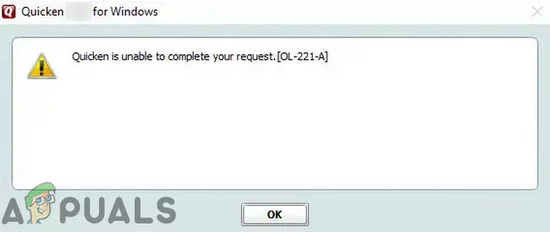
Quicken Error OL-221-A
This error message can either also be due to bad connectivity which is why you should ensure the following points:
- Make sure that your internet is working fine.
- Check if the servers of the problematic financial institute are down . If you cannot check, then wait for 24 to 48 hours and try again.
Solution 1: Update the Quicken Application
Like other applications, your Quicken application is updated regularly to improve performance and patch known bugs. If the Quicken error you are encountering has been caused by a known bug, then it may have been patched in the latest build of the application. In that case, updating your Quicken application may solve the problem.
- Launch your Quicken application.
- Now click on Help and in the menu displayed, click on Check for Updates . Check For Quicken Updates
- If there is an update available, click on Yes to update the application.
- Then restart your system.
- Upon restart, launch the Quicken application and check if it is working fine.
Solution 2: Perform a Malware Scan of Your System
Malware poses serious threats to your system and data. If your system is infected by malware, then it can throw many system errors including many Quicken errors. The same could be the case with the current Quicken error. In that case, performing a thorough malware scan may solve the problem.
- Perform a malware scan .
- Then launch Quicken and check if it is operating fine.
Solution 3: Temporarily Disable Your Antivirus/Firewall
Your antivirus/firewall applications play a vital role in the safety of your system and data. But these applications sometimes block access to a vital system/network resource required by the legitimate applications. The same could be the reason for the Quicken error under discussion. In that case, temporarily disabling your antivirus/firewall may solve the problem.
Warning : Proceed at your own risk as disabling your antivirus/firewall may make your system more vulnerable to threats like malware, viruses, etc.
- Disable your antivirus .
- Turn your firewall .
- Now, launch the application and check if it is operating fine.
Afterward, do not forget to turn on your antivirus/firewall.
Solution 4: Delete Temporary Files of Your System Drive
Like many applications, your Quicken application uses temporary files to perform certain operations. If these temporary files have conflicting entries, then the application may throw the error under discussion. In that case, deleting these temporary files (do not worry, your data will be unharmed and these files will be recreated over time) may solve the problem.
- Exit the Quicken application.
- Click on the Windows button and type Command Prompt . Then in the results shown, right-click on the Command Prompt and then click on Run as Administrator . Run Command Prompt as Administrator
- In the Command Prompt, type cleanmgr and press the Enter button. Open Cleanmgr
- Now select your system drive. Select Your System Drive For Running Cleanmgr
- Then the system drive will be scanned for the files to be deleted.
- Now select the categories of files to be deleted. Make sure to at least select Temporary Files . Select Temporary Files in Clean Manager
- Wait for the completion of the deletion process.
- Then restart your system.
- Upon restart, launch the Quicken application and check if it is working fine.
Solution 5:Update Your Bank Details
The issue you are facing could be due to a temporary communication glitch between your Quicken application and its servers. Updating your bank details may solve the problem.
- Launch Quicken and click on the Tools .
- Then click on One Step Update Summary and find the financial institution with the error code under discussion. Open One Step Update Summary
- Then click on the Account Actions button/gear icon near the top right corner of the window.
- Then click on Update Now. Press Update Now in Account Actions
- After updating, check if the Quicken application is operating fine.
Solution 6:Deactivate/Reactivate the Account
The corrupted entry corresponding to the problematic financial institution can cause the Quicken OL-221-A error. In that case, deactivating and reactivating the corresponding account may solve the problem.
- Launch Quicken and click on Tools .
- Then click on the Account List . Open Account List in Tools Menu of Quicken
- Now on Edit presented with the problematic account.
- Then select “ Online Services ” and click on the “ Deactivate ” button. Deactivate the Problematic Account
- Then click on “ Yes ” to confirm the deactivation.
- Now press on “ OK ” and then click on done.
- Now check the checkbox of the Validate file and then press OK .
- Upon completion of validation, again go to Tools > Account List .
- Click on the Edit button of the problematic account.
- Then click on the Online Services tab and click on “ Set up Now …”
- Key in your username and password for the financial institution
- Now click on Connect .
- Now your account information will be displayed.
- Then click on Link and check if it is clear of the error.
Solution 7: Reinstall the Quicken Application
Corrupt installation of the Quicken application can cause many issues for its users. The same could be the reason for the current quicken error. In that case, uninstalling the current installation of Quicken and then reinstalling the latest version may solve the problem. For illustration, we will discuss the process for Windows.
- Click on the Windows button and in the search box, type Control Panel . Then in the results list, click on the Control Panel . Open Control Panel
- Under Programs in the Control Panel, click on Uninstall a Program . Uninstall a Program
- Then in the list of installed programs, right-click on Quicken and then click on Uninstall .
- Now, follow the on-screen prompts to complete the uninstallation process of Quicken.
- Then, restart your system.
- Upon restart, download the latest version of the Quicken application from the official site.
- Then launch the downloaded file and complete the installation process.
- Now, open and set up your Quicken application.
- Then update the accounts in Quicken and check if it is clear of the Quicken OL-221-A error.
If the issue is still not solved, then contact your financial institute / quicken support .
How to Fix “Printer is in an error state” Issue?
The error “ WinRAR Error: Next Volume Is Required ” usually appears when you’re extracting a multi-part RAR archive and WinRAR can’t find (or can’t correctly identify) the next file in the sequence . This often happens when a volume is missing , stored in a different folder , or renamed in a way that breaks the archive’s expected order .

In this guide, we’ll go over the most reliable fixes confirmed by affected users, along with what each method is doing behind the scenes so you can choose the right one for your situation.
Important: To extract multi-volume archives, you should always start extraction from the first file in the set. This is usually file.part1.rar , or (in older sets) the main .rar file that comes before .r01 , .r02 , and so on.
1. Download and Place the Missing RAR File
WinRAR needs all parts of a multi-volume archive to complete extraction. This error usually appears when one of the volumes in a set like .part2.rar , .r01 , .r02 , .001 , and similar naming formats is missing . Downloading the missing volume and placing it in the same folder as the other parts allows WinRAR to continue extracting normally .
- Look at the error message or review the list of archive parts in the folder.
- Identify which volume is missing (for example, part2.rar , .r02 , .001 , etc.).
- Go back to the website or source where you downloaded the archive.
- Locate and download the exact missing file using the same naming format as the others.
- Make sure the new file name matches the pattern of the rest. Example: If you have file.part1.rar and file.part3.rar , the missing one must be file.part2.rar .
- Move the downloaded missing volume into the same folder as the other archive parts.
- Confirm that all parts are in a single folder before extracting.
- Right-click the first file in the series (usually part1 or the main .rar file) and select Extract Here or Extract to Folder .
- WinRAR should now detect all volumes and continue extraction normally .
2. Manually Browse & Select the Next Volume
Use this method only if the next volume already exists , but WinRAR is failing to detect it automatically. This can happen due to incorrect naming , the file being in a different location , or a temporary file access issue. Manually browsing helps WinRAR locate the correct volume and resume extraction without interruption .
- Right-click the first file in the series (usually .rar or part1.rar ) and select Extract Here or Extract to Folder .
- When WinRAR cannot find the next volume, it will show the “ Next Volume Is Required ” message.
- A small window will appear, allowing you to manually select the next volume .
- Use the file explorer window to locate the folder where the other archive parts are saved.
- Select the next part based on the naming order (example: select file.part2.rar after file.part1.rar ).
- Make sure the selected file matches the naming format of the archive (no extra characters like (1) and no mismatched numbering).
- WinRAR will resume extraction using the selected volume .
- If additional volumes are missing or stored separately, WinRAR may prompt you again. Repeat the same process until extraction completes.
3. Rename the RAR files in Order
WinRAR relies on a proper naming sequence (such as file.part1.rar , file.part2.rar , file.part3.rar ) to extract multi-volume archives. If a file is named incorrectly, contains extra characters, or is out of order, WinRAR may fail to locate the next volume and show this error. Renaming the files correctly helps WinRAR follow the sequence and extract the archive without interruptions .
Note: Renaming only changes the file name , not the file contents. The goal is to restore the correct sequence so WinRAR can detect the next volume.
- Go to the folder where all the RAR files are saved.
- Make sure all parts of the archive are present and stored in the same folder .
- Check how the parts are currently named . Common patterns include:
file.part1.rar, file.part2.rar, file.part3.rar
file.rar, file.r01, file.r02, file.r03
- Look for files that don’t match the expected numbering pattern (for example, file.part01.rar , file.part1(1).rar , or unrelated names).
- Rename each file so it follows the same order without extra characters or mismatched numbering. Example:
Incorrect: file.part1.rar, file.part3.rar, file.part2(1).rar
Correct: file.part1.rar, file.part2.rar, file.part3.rar
- Make sure the text before the number is exactly the same for all files.
- Only the last part number should change.
- Right-click the first file in the series (usually part1.rar or the main .rar file) and select Extract Here .
- WinRAR should now recognize the sequence and continue extraction normally .
If you still get the same prompt: the archive set is likely incomplete (a part was never downloaded or was removed), or one of the volumes is corrupt and must be re-downloaded from the original source.
