Some Windows users are encountering the ‘ Fatal Error: Rounding ‘ error message whenever they attempt to do a stress test using Prime95. Typically, this problem is associated with an overclocked CPU and it’s reported to occur on every recent Windows version.
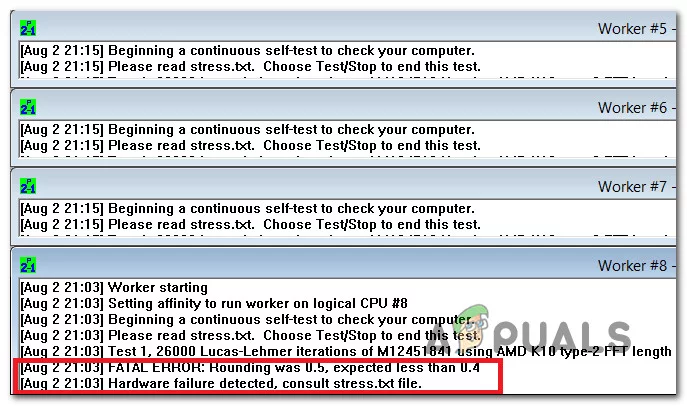
How to Fix Prime95 Fatal Error Rounding
After investigating this issue thoroughly, it turns out that there are several different causes that might be responsible for the apparition of this error code. Here’s a list of potential culprits that we managed to identify:
- Insufficient CPU Voltage – In some cases, this particular issue is caused by an insufficient voltage that’s being supplied to the CPU. In this case, you can fix the issue by slightly raising the voltage until you manage to find the sweet spot.
- Conflicting DOCP data stored by CMOS battery – Under certain circumstances, you can see this error occurring if DOCP data is affecting the behavior of your CPU. In this case, clearing the information maintained by the CMOS battery should help you fix the issue.
- Outstanding Component Temperatures – If your internals run very hot during demanding activities, chances are that’s why Prime95 is throwing this error while stress testing. In this case, improving (lowering) the temperature of your CPU and RAM should be the priority.
- Insufficient power supplied by PSU – Another reason that might trigger this error when you are stress-testing overclocked components is an insufficient PSU that can’t supply enough power. In this case, you can fix the issue either by reducing the OC frequencies or upgrading to a more powerful PSU.
Now that you know the most common causes with the potential to cause the ‘ Fatal Error: Rounding ‘ error, here’s a list of methods that other affected users have been successfully used to fix the CPU stability problem and complete the Prime 95 stress test without the same error code.
Method 1: Raising the CPU Voltage
In most documented instances, this issue is associated with a scenario in which insufficient voltage is supplied to your CPU. ‘ Fatal Error: Rounding ‘ error is Prime95 telling you that your CPU is not stable enough to run stressful tasks that require more processing power.
Several affected users that were dealing with the same problem have confirmed that they managed to fix this issue by slightly raising the CPU voltage and repeating the test until the ‘ Fatal Error: Rounding ‘ error stopped occurring.
Ideally, you’d want to raise the voltage by 10 mV until you can finally complete a stress test without the same errors.
NOTE: The fact that you are seeing this error in Prime95 is not really indicative that you will ever encounter real case problems with your CPU. But if you use your PC for gaming, rendering, mining, or other demanding tasks of this kind.
Of course, depending on your motherboard and if you’re using BIOS or UEFI, the steps of adjusting the voltage will be different from case to case. But chances are if you were previously able to overclock and test your CPU with Prime95, you’ll know how to adjust the voltages without additional help.
If you’ve already tried raising the voltages and you’re still facing this issue, move down to the next potential fix below.
Method 2: Clearing the CMOS Battery
According to some affected users, this issue can also occur due to temporarily saved data perpetuated by the CMOS battery that your motherboard uses. It’s possible that previously saved data related to the DOCP is currently affecting the behavior of your CPU under conditions of stress.
If this scenario is applicable, you should be able to fix the issue by opening your computer case and clearing the CMOS (Complementary Metal-Oxide Semiconductor) battery. Here’s what you need to do:
- Start by turning off your computer and unplug it from the power source.
- Next, equip yourself with a static wrist band and remove the side cover of your PC. Note: A static wrist band is important because it will ground you to the frame of the computer, thus eliminating the risk of damaging the internals of your PC.
- Once you have an overview of the motherboard, go ahead and identify the CMOS battery. When you see it, use your fingernail or a non-conductive screwdriver to remove it from its slot. Removing the CMOS battery
- Wait for a full minute in order to allow the power capacitors to drain completely, then put the CMOS battery back into place and put the side cover back.
- Plug your computer back to a power source and boot normally before initiating another stress test with Prime95.
In case the next test with Prime 95 returns the same ‘ Fatal Error: Rounding ‘ error, move down to the next potential fix below.
Method 3: Upgrading the Cooling System (if necessary)
The temperature of your internals (especially your CPU and RAM) can also be a deciding factor when it comes to receiving the ‘ Fatal Error: Rounding ‘ error when stress testing your rig via Prime95.
If you didn’t already, take the time to monitor the temperature of your PC while under heavy load. If you get temperatures of over 90c while all your CPU cores are running under full load, you absolutely need to do something about bringing that temperature down.
Potential solutions include cleaning your PC internals, upgrading your CPU coolers, improving the airflow of your case, and replacing the current thermal paste. For step by step instructions, follow this guide to lower your CPU temperature .
Method 4: Upgrade PSU or Lower the Overclocked Frequencies
If none of the instructions above have worked for you, chances are your PSU is simply not strong enough to handle the overclocked frequencies that you are attempting to stabilize.
In this case, you can either upgrade your PSU or you can find some middle ground and lower the overclocked frequencies until you get to a sweet spot in which the same problem is not occurring.
How to Fix “Printer is in an error state” Issue?
The error “ WinRAR Error: Next Volume Is Required ” usually appears when you’re extracting a multi-part RAR archive and WinRAR can’t find (or can’t correctly identify) the next file in the sequence . This often happens when a volume is missing , stored in a different folder , or renamed in a way that breaks the archive’s expected order .

In this guide, we’ll go over the most reliable fixes confirmed by affected users, along with what each method is doing behind the scenes so you can choose the right one for your situation.
Important: To extract multi-volume archives, you should always start extraction from the first file in the set. This is usually file.part1.rar , or (in older sets) the main .rar file that comes before .r01 , .r02 , and so on.
1. Download and Place the Missing RAR File
WinRAR needs all parts of a multi-volume archive to complete extraction. This error usually appears when one of the volumes in a set like .part2.rar , .r01 , .r02 , .001 , and similar naming formats is missing . Downloading the missing volume and placing it in the same folder as the other parts allows WinRAR to continue extracting normally .
- Look at the error message or review the list of archive parts in the folder.
- Identify which volume is missing (for example, part2.rar , .r02 , .001 , etc.).
- Go back to the website or source where you downloaded the archive.
- Locate and download the exact missing file using the same naming format as the others.
- Make sure the new file name matches the pattern of the rest. Example: If you have file.part1.rar and file.part3.rar , the missing one must be file.part2.rar .
- Move the downloaded missing volume into the same folder as the other archive parts.
- Confirm that all parts are in a single folder before extracting.
- Right-click the first file in the series (usually part1 or the main .rar file) and select Extract Here or Extract to Folder .
- WinRAR should now detect all volumes and continue extraction normally .
2. Manually Browse & Select the Next Volume
Use this method only if the next volume already exists , but WinRAR is failing to detect it automatically. This can happen due to incorrect naming , the file being in a different location , or a temporary file access issue. Manually browsing helps WinRAR locate the correct volume and resume extraction without interruption .
- Right-click the first file in the series (usually .rar or part1.rar ) and select Extract Here or Extract to Folder .
- When WinRAR cannot find the next volume, it will show the “ Next Volume Is Required ” message.
- A small window will appear, allowing you to manually select the next volume .
- Use the file explorer window to locate the folder where the other archive parts are saved.
- Select the next part based on the naming order (example: select file.part2.rar after file.part1.rar ).
- Make sure the selected file matches the naming format of the archive (no extra characters like (1) and no mismatched numbering).
- WinRAR will resume extraction using the selected volume .
- If additional volumes are missing or stored separately, WinRAR may prompt you again. Repeat the same process until extraction completes.
3. Rename the RAR files in Order
WinRAR relies on a proper naming sequence (such as file.part1.rar , file.part2.rar , file.part3.rar ) to extract multi-volume archives. If a file is named incorrectly, contains extra characters, or is out of order, WinRAR may fail to locate the next volume and show this error. Renaming the files correctly helps WinRAR follow the sequence and extract the archive without interruptions .
Note: Renaming only changes the file name , not the file contents. The goal is to restore the correct sequence so WinRAR can detect the next volume.
- Go to the folder where all the RAR files are saved.
- Make sure all parts of the archive are present and stored in the same folder .
- Check how the parts are currently named . Common patterns include:
file.part1.rar, file.part2.rar, file.part3.rar
file.rar, file.r01, file.r02, file.r03
- Look for files that don’t match the expected numbering pattern (for example, file.part01.rar , file.part1(1).rar , or unrelated names).
- Rename each file so it follows the same order without extra characters or mismatched numbering. Example:
Incorrect: file.part1.rar, file.part3.rar, file.part2(1).rar
Correct: file.part1.rar, file.part2.rar, file.part3.rar
- Make sure the text before the number is exactly the same for all files.
- Only the last part number should change.
- Right-click the first file in the series (usually part1.rar or the main .rar file) and select Extract Here .
- WinRAR should now recognize the sequence and continue extraction normally .
If you still get the same prompt: the archive set is likely incomplete (a part was never downloaded or was removed), or one of the volumes is corrupt and must be re-downloaded from the original source.
