Just like any other Windows application, Adobe Photoshop is not perfect either. It also has a lot of problems among which “Could not complete your request because there is not enough memory (RAM)”. Adobe Photoshop is a software application for image editing and photo retouching for use on Windows or macOS computers. Photoshop offers users the ability to create, enhance, or otherwise edit images, artwork, and illustrations. Due to many problems in Photoshop as discussed previously, users have reported a variety of issues on Windows 10 concerning Photoshop’s physical memory usage and management.
Namely, it seems that a lot of them, in a variety of instances, get a variation of the Not enough RAM Photoshop error. This occurs on startup and sometimes while using tools to edit photos in Photoshop. Once it appears, it prevents all running or ongoing operations. Furthermore, this error is of a recurring nature. That means it keeps happening now and then that affects the user’s work, making it difficult to achieve the user’s deliverables. The error notification is as follows:
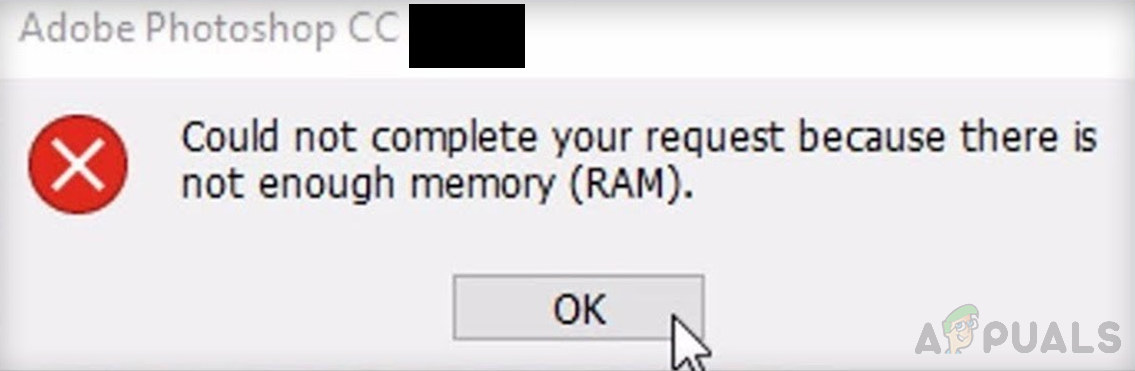
Error Notification
Often, after installing Adobe Photoshop and the run for the first time, the software works perfectly. You can retouch images or create a 3D model and save it in the format you want, without any problems. However, when you run Photoshop for the second time, you may encounter the error under consideration while loading or exporting photos. This seems to be a problem even though your PC has as much as 32 GBs of RAM.
Although, the user should always remember that since Adobe Photoshop is a graphics editing software, it is quite a powerful application that required more RAM anyway. Adobe Co. Adobe Co. recommends your PC to have at least 2.5GB of RAM to run Photoshop CC in Windows (3GB to run it on macOS) fastly and without legit lags. Note: Having tested on several laptops, we recommend you to use 5GB just to open the program and leave it running.
What Causes Photoshop not Enough RAM Error?
We have listed the causes of this problem after reviewing the user’s feedback and technical authorities in detail. This problem may arise due to any of the following reasons:
- Pirated Copy: When users are using pirated copies of Adobe Photoshop, this error is most likely to happen. In this case, the error is simply impossible to fix. Many people think that by downloading and installing Photoshop from another site, can avoid the Photoshop RAM error. But it is risky as Pirated software is more likely to be infected with severe computer viruses which can damage the user’s computer system. It is a highly unproductive practice. Most pirated software does not come with manuals or technical support that is given to legitimate users.
- Outdated Software: You may face this error if Photoshop is outdated. Unlike a software upgrade, updates need the existing software program you’re using to work. Updates sometimes run automatically in the background. That’s because software updates address any new-found security issues, fix recently discovered bugs, and add support for drivers and new hardware.
- Outdated Device Drivers: Device drivers are essential pieces of software that help different hardware components to work smoothly with your computer. When these drivers are properly updated, your computer will run smoothly. However, when they have become outdated they can start causing problems that are sure to irritate including the problem under consideration.
- Software Settings: Updates contain important changes to improve the performance, stability, and security of the applications that run on your computer. Installing them ensures that your software continues to run safely and efficiently. But it is a horrible reality that at the standard settings, the Photoshop software tries to load itself minimally and uses the minimum amount of RAM, approximately 1-1.5 GB. However, it is worth remembering that if you are working with several heavy files or if you are working on a 3D model, the mentioned RAM specification is logically not enough, ultimately leading to the error under consideration.
Now that we know the causes in detail, let us jump to the solutions to rectify the problem.
Solution 1: Overriding Physical Memory
As already discussed, at the standard settings, the Photoshop software tries to load itself minimally and uses the minimum amount of RAM, approximately 1-1.5 GB. Due to this, you are most likely to face the error under consideration if you are working on a 3d model or doing some work that requires heavy graphical processing. To fix things, an ideal approach would be to increase the bandwidth of physical memory to be used by Photoshop. Therefore, we are going to introduce a DWORD key that will allow photoshop to use more physical memory.
A DWORD value, which stands for Double Word, is one of the five main data types handled by the Registry Editor. The registry displays these in decimal or hexadecimal values and is generally used for True and False or 1 and 0 functions. These numbers (32-bit or 64-bit) do not correspond to the Windows 10 operating systems but they represent the type of data that will be stored in a value. Adding the key will allow Photoshop to manage the registry override from physical memory. This solution proved to be helpful for many users in the online community. Follow the steps given below:
- Press Windows + R keys on your keyboard to open the Run dialog box. Type regedit.exe and click OK . This will take you to a built-in Windows Registry Editor. This allows you to view and edit keys and entries in the Windows registry database. Note: If you are prompted for an administrator password or confirmation, type the password or provide confirmation. Opening Windows Registry Editor
- Navigate to HKEY_CURRENT_USER > Software > Adobe > Photoshop > 130.0 . Note: You will find a folder named “130.0” only If you’re using Photoshop CC 2019. The folder name will differ with different versions of Photoshop. Opening Photoshop Registry Folder
- Based on the Photoshop version you’re running, right-click the folder mentioned in the previous step (13.0) and select New > DWORD (32-bit) Value from the menu. Creating DWORD (32-bit) Value
- In the right pane, name the new key as OverridePhysicalMemoryMB and press Enter . This name has been specified under Photoshop registry settings to be identified for Physical Memory Bandwidth settings. Renaming to OverridePhysicalMemoryMB
- Right-click the new key and select Modify from the menu. This will open the Edit window with multiple options. Set Base as Decimal . In the Value Data field, change the value from 0 to a numeric megabyte value that reflects your system’s physical memory. For example, enter 4096 for 4 GB, 8192 for 8 GB, 16384 for 16 GB, or 24576 for 24 GB. In general, we recommend using 16000 or 24000 . Finally, click OK to save changes. Editing DWORD (32-bit) Value
- Furthermore, just to be on the safe side, we suggest you edit performance settings directly from Photoshop to get rid of this problem once and for all. For this, click Start , search Adobe Photoshop and open it. This will open Adobe Photoshop. It may take some time to wait until it is fully loaded with all its utilities. Opening Adobe Photoshop
- Go to Edit > Preferences > Performance . This will open Photoshop settings that are relevant to the performance factor i.e. Physical memory settings, History & Cache, etc. Opening Photoshop Performance Settings
- Move the slider from 70% to 80% . This will allow Photoshop to use more RAM bandwidth during its processes. Increasing Photoshop Memory Usage
- Close Photoshop and restart your PC to save changes.
- Try running Photoshop and loading heavy 3d models to check if the error is fixed or not. In case it did not get fixed (which is highly unlikely) then you must be using Windows 10 Version 1803 as it directly affects Photoshop Physical Memory Settings. Please proceed with the next solution to resolve it.
Solution 2: Update or Roll Back From Windows 10 Version 1803
After reviewing the user’s feedback and technical authorities in detail, it was found that there’s a serious problem with the 1803 version of Windows 10 that directly affects Photoshop CC 2017, 2018, 2019, and 2020 to cause the physical memory error under consideration. Photoshop works fine with the 1703 or 1709 version of Windows 10 as a result of testing on different systems.
So Rolling Back the Windows 10 Creators Update to a Prior Version or Updating to a new version if available, serves the purpose of the solution to this problem. This has been reported to be working by many users in the online support community. Follow the steps below to check whether Windows updates are available or not:
- Click Start and then click Settings . This will open a new window that includes all major settings that you can play with, in Windows 10 i.e. Accounts, Hardware & Software, etc. Opening Windows Settings
- Click on Update & Security . This will open a window that contains settings relevant to Windows updates and their security i.e. Troubleshooting, Windows Applications Updates, etc. Opening Update & Security Settings
- Choose the Windows Update tab in the sidebar and then select Check for updates . It will take some time for Windows to connect with Microsoft Servers to check for available updates. If there is an available update, Windows will automatically start downloading and then later installing it. This procedure may take some time so wait until it gets finished completely. Checking for Windows Updates
- In case, there aren’t any updates available then we recommend you to downgrade to the previous versions of Windows (procedure given below). Although it is noted that you will be notified on this page if Windows updates are not available for your PC.
To Roll Back to the previous version of Windows, follow the steps given below:
- Repeat steps 1-2 given above.
- In the sidebar, choose Recovery and then click Get Started under Go back to the previous version of Windows 10. This will take you to the Recovery Prompt that helps you troubleshoot or downgrade Windows Operating System. Recovering Windows Update
- Select what you want to recover and why you’d like to go back to a previous build and click Next . If the link is grayed out then it means that you haven’t selected a reason from the checkboxes, given above. Choosing Reset this PC Options
- Click Next one more time after reading the prompt. This procedure may take time so wait until it gets finished.
- Once you have downgraded your Windows successfully, try running Photoshop and loading heavy 3d models. Photoshop should be working fine now.
How to Fix “Printer is in an error state” Issue?
The error “ WinRAR Error: Next Volume Is Required ” usually appears when you’re extracting a multi-part RAR archive and WinRAR can’t find (or can’t correctly identify) the next file in the sequence . This often happens when a volume is missing , stored in a different folder , or renamed in a way that breaks the archive’s expected order .

In this guide, we’ll go over the most reliable fixes confirmed by affected users, along with what each method is doing behind the scenes so you can choose the right one for your situation.
Important: To extract multi-volume archives, you should always start extraction from the first file in the set. This is usually file.part1.rar , or (in older sets) the main .rar file that comes before .r01 , .r02 , and so on.
1. Download and Place the Missing RAR File
WinRAR needs all parts of a multi-volume archive to complete extraction. This error usually appears when one of the volumes in a set like .part2.rar , .r01 , .r02 , .001 , and similar naming formats is missing . Downloading the missing volume and placing it in the same folder as the other parts allows WinRAR to continue extracting normally .
- Look at the error message or review the list of archive parts in the folder.
- Identify which volume is missing (for example, part2.rar , .r02 , .001 , etc.).
- Go back to the website or source where you downloaded the archive.
- Locate and download the exact missing file using the same naming format as the others.
- Make sure the new file name matches the pattern of the rest. Example: If you have file.part1.rar and file.part3.rar , the missing one must be file.part2.rar .
- Move the downloaded missing volume into the same folder as the other archive parts.
- Confirm that all parts are in a single folder before extracting.
- Right-click the first file in the series (usually part1 or the main .rar file) and select Extract Here or Extract to Folder .
- WinRAR should now detect all volumes and continue extraction normally .
2. Manually Browse & Select the Next Volume
Use this method only if the next volume already exists , but WinRAR is failing to detect it automatically. This can happen due to incorrect naming , the file being in a different location , or a temporary file access issue. Manually browsing helps WinRAR locate the correct volume and resume extraction without interruption .
- Right-click the first file in the series (usually .rar or part1.rar ) and select Extract Here or Extract to Folder .
- When WinRAR cannot find the next volume, it will show the “ Next Volume Is Required ” message.
- A small window will appear, allowing you to manually select the next volume .
- Use the file explorer window to locate the folder where the other archive parts are saved.
- Select the next part based on the naming order (example: select file.part2.rar after file.part1.rar ).
- Make sure the selected file matches the naming format of the archive (no extra characters like (1) and no mismatched numbering).
- WinRAR will resume extraction using the selected volume .
- If additional volumes are missing or stored separately, WinRAR may prompt you again. Repeat the same process until extraction completes.
3. Rename the RAR files in Order
WinRAR relies on a proper naming sequence (such as file.part1.rar , file.part2.rar , file.part3.rar ) to extract multi-volume archives. If a file is named incorrectly, contains extra characters, or is out of order, WinRAR may fail to locate the next volume and show this error. Renaming the files correctly helps WinRAR follow the sequence and extract the archive without interruptions .
Note: Renaming only changes the file name , not the file contents. The goal is to restore the correct sequence so WinRAR can detect the next volume.
- Go to the folder where all the RAR files are saved.
- Make sure all parts of the archive are present and stored in the same folder .
- Check how the parts are currently named . Common patterns include:
file.part1.rar, file.part2.rar, file.part3.rar
file.rar, file.r01, file.r02, file.r03
- Look for files that don’t match the expected numbering pattern (for example, file.part01.rar , file.part1(1).rar , or unrelated names).
- Rename each file so it follows the same order without extra characters or mismatched numbering. Example:
Incorrect: file.part1.rar, file.part3.rar, file.part2(1).rar
Correct: file.part1.rar, file.part2.rar, file.part3.rar
- Make sure the text before the number is exactly the same for all files.
- Only the last part number should change.
- Right-click the first file in the series (usually part1.rar or the main .rar file) and select Extract Here .
- WinRAR should now recognize the sequence and continue extraction normally .
If you still get the same prompt: the archive set is likely incomplete (a part was never downloaded or was removed), or one of the volumes is corrupt and must be re-downloaded from the original source.
