As Microsoft Teams is a recent development, users come across different errors every now and then. The microphone not working is one of the problems users face. They successfully connect to the MS Teams meetings, they hear others perfectly but their audio input (voice) does not get transferred to the connected audience. It wouldn’t be wrong to conclude that it is a hardware problem but in this kind of situation, it is mostly not. Microphones seem to work just fine when tested but the connected audience in MS Teams meeting is not able to hear the user’s voice. User is notified as follows:
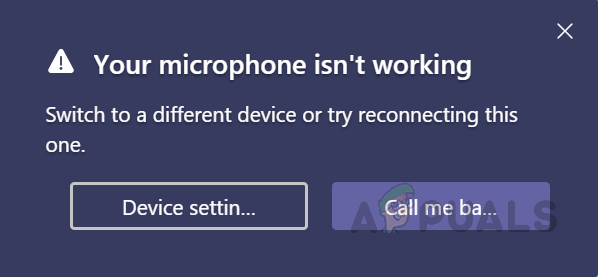
Error Notification
What Causes Microphone not Working on MS Teams?
In the wake of checking on the client’s input through network support, we concluded a list of reported reasons for this problem which is as follows:
- Disabled Microphone: In many circumstances, users are not technical experts. Thus, it is a possibility that their microphone is disabled (without them knowing) from Windows or MS TeamsSettings which would ultimately cause this problem.
- Device Connection Failure: Sometimes when we connect microphones to the computer via USB or 3.5mm jack, the system initializes background connection processes. If the processes fail then the microphone will not be added to Windows devices and MS Teams won’t be able to use it for MS Teams meetings.
- Corrupt MS Teams: Sometimes installation failures are not prominent enough to notice. Users do not get any warning messages but some of the program files are corrupted which may lead to multiple errors. Similarly, if MS Teams had installation failures then you are most likely to get this error.
- Miscellaneous: This may include hardware failures, microphone device driver issues, etc.
All the causes mentioned above are the result of thorough online research done by our technical researchers. Let us move forward now.
Pre-requisites:
Before jumping into the solutions, our advice is to go through these short but promising workarounds that helped many individuals online. If you are still facing the microphone not working problem then jump to the solutions to get rid of this problem. Discussed workarounds are as follows:
- Restart Microsoft Teams: Terminate Microsoft Teams and its processes from Task Manager. Once done then launch it back again to check whether the issue has been resolved or not.
- Restart PC: A computer restart will clear your Random Access Memory (RAM). This practice will help Windows to initialize the microphone device again. This gives your system a fresh start and your issue may get resolved.
- Unplug and Plug-in Microphone: Sometimes when the user plugs in the device, the system may not recognize it due to a system error as discussed in the causes. Therefore, unplug the microphone and plug it back in.
Solution 1: Configure Microphone Device Settings
Many MS Teams users are not technical experts thus there is a strong possibility that your Microphone is either disabled or not set as the default audio input device. Due to which MS Teams can not recognize your Microphone and thus your voice does not get transmitted to the connected audience in the meeting.
There are two methods by which you can check the status of your Microphone device, configure its settings, and set it as the default computer audio input device.
Using Settings:
- Right-click on the Speaker icon at the bottom-right corner of your PC’s taskbar and select the Open Sound settings option. This will open a window where all settings for Windows sound reside. Opening Sound Settings
- In the Input section, click the Manage Sound Devices option under Troubleshoot . Opening Sound Devices Settings
- Check if your microphone (mostly your microphone’s model name appears) is located under the Disabled section. If it’s there then your microphone is disabled which is ultimately causing this problem. Click on your Microphone Device option and then click Enable . This will allow Windows to use your microphone as a recording device for itself and different applications i.e. Microsoft Teams. Enabling Microphone Device
- To confirm that your PC’s microphone is working, head back to the Sound settings page and speak something in your microphone device. If you see the bar moving under Test your microphone then that means your microphone is working fine. Now your microphone is ready to be used by MS Teams. Testing Microphone Device
- Launch MS Teams and join or create a meeting to test your microphone with the application. Your problem should be fixed.
Using Control Panel:
- Right-click on the Speaker icon at the bottom-right corner of your PC’s taskbar and select the Open Sound settings option. This will open a window where all settings for Windows sound reside.
- On the right side of your screen, select Sound Control Panel under Related Settings. This will open the classic sound control panel just like it used to be on Windows 7. Opening Sound Control Panel
- Switch to the Recording tab and check if your microphone (mostly your microphone’s model name appears) has Disabled written under its option and greyed out. If it is the case as shown in the image below, right-click on your Microphone Device option and then click Enable . This will allow Windows to use your microphone as a recording device for itself and different applications i.e. Microsoft Teams. Enabling Microphone Device
- Now to configure your microphone settings, select your microphone device option and click Properties . This will open a window that contains all the options related to your microphone which you can play with. Opening Microphone Device Properties
- Switch to the Listen tab and check the box for Listen to this device option. Click Apply > OK . You will now be able to hear whatever you speak in your microphone. Move to the next step to understand the cause behind this action. Enabling Listening to Microphone Device Option
- Switch to the Levels tab. Now keep speaking something in the microphone device and adjust the intensity level by dragging the bar left and right or by putting in the numeric value between 10 and 100 until you hear your voice in a decent manner. Once done, click Apply > OK . Configuring Microphone Device Level Settings
- Select your Microphone Device and click Set Default . This will allow Windows to use your microphone device as a default audio input device in its services and applications i.e. Cortana, MS Teams, etc. Setting Microphone Device as Default
- Now perform a final check by speaking something in your microphone device. If bars are moving as shown in the image below then you are good to go. Click OK to close Sound Control Panel. Final Check on Microphone Device
- Launch MS Teams and join or create a meeting to test your microphone with the application. Your problem should be fixed.
Solution 2: Configure MS Teams Audio Settings
If the above solution did not work for you then there is a strong probability that your MS Teams audio settings are not configured properly, meaning your Microphone Device is not selected under MS Teams audio settings. It happens mostly when MS Teams fail to initialize Windows devices settings on startup. This was the case for many users online and their problem was resolved once they configured MS Teams audio settings properly. Follow the steps given below:
- Click Start , search Microsoft Teams in the search bar, and open it. Opening Microsoft Teams
- Left-click on your Avatar and then click Settings . This will take you to a window that contains all settings related to MS Teams i.e. General, Privacy, Notifications, etc. Opening MS Teams Settings
- Click on Devices and select your Connected Microphone Device under the Microphone option. Your microphone device is ready to be used by MS Teams now. Selecting Connected Microphone Device
- Launch MS Teams and join or create a meeting to test your microphone with the application. Your problem should be fixed.
Solution 3: Clean Reinstall MS Teams
If installing the latest versions of Microsoft Visual C++ Runtime Libraries didn’t fix your problem then there is a strong possibility that some of the MS Teams system files are corrupted. The easy fix would be to completely uninstall MS Teams and reinstall the latest fresh copy. Follow the steps given below to do so:
- Close MS Teams by right-clicking the MS Teams icon in the taskbar and select Quit . This will end all the background ongoing processes related to MS Teams.
- Right-click on Start and select Control Panel to open it. Opening Control Panel
- Select Uninstall a program under the Programs section. This will take you to the list of all installed programs on your PC. Opening Installed Programs List
- Select Microsoft Teams from the list of installed programs and click Uninstall . This will start uninstalling MS Teams. The procedure may take time so wait until it gets finished. Uninstalling Microsoft Teams
- Press Windows + R keys on your keyboard to open Run dialog box . Type %appdata% and click OK . This will take you to a hidden folder named AppData where user data is stored for different applications installed on your PC. Opening AppData Folder
- Open Microsoft folder, right-click on Teams folder and select Delete . Deleting MS Teams Folder
- Close all windows and again press Windows + R keys on your keyboard to start Run . Type %Programdata% and click OK . This will take you to a hidden folder named ProgramData where program-related settings or data are stored. Opening ProgramData Folder
- Repeat step 6. Now you have finally uninstalled Microsoft Teams completely from your computer.
- Download a fresh updated copy of Microsoft Teams desktop setup from the Official Microsoft Teams Download Webpage and then install it. This should finally fix your problem.
Bonus: Check Compatibility of Audio Device Adapter
Make sure that you also check the compatibility of your audio jack with your computer. We saw a number of users not being able to use the Microphone because they had USB connectors that weren’t working well with the system. A simple USB to 3.5mm converter did the trick. You can diagnose generally why your Microphone is not working on your computer.
How to Fix “Printer is in an error state” Issue?
The error “ WinRAR Error: Next Volume Is Required ” usually appears when you’re extracting a multi-part RAR archive and WinRAR can’t find (or can’t correctly identify) the next file in the sequence . This often happens when a volume is missing , stored in a different folder , or renamed in a way that breaks the archive’s expected order .

In this guide, we’ll go over the most reliable fixes confirmed by affected users, along with what each method is doing behind the scenes so you can choose the right one for your situation.
Important: To extract multi-volume archives, you should always start extraction from the first file in the set. This is usually file.part1.rar , or (in older sets) the main .rar file that comes before .r01 , .r02 , and so on.
1. Download and Place the Missing RAR File
WinRAR needs all parts of a multi-volume archive to complete extraction. This error usually appears when one of the volumes in a set like .part2.rar , .r01 , .r02 , .001 , and similar naming formats is missing . Downloading the missing volume and placing it in the same folder as the other parts allows WinRAR to continue extracting normally .
- Look at the error message or review the list of archive parts in the folder.
- Identify which volume is missing (for example, part2.rar , .r02 , .001 , etc.).
- Go back to the website or source where you downloaded the archive.
- Locate and download the exact missing file using the same naming format as the others.
- Make sure the new file name matches the pattern of the rest. Example: If you have file.part1.rar and file.part3.rar , the missing one must be file.part2.rar .
- Move the downloaded missing volume into the same folder as the other archive parts.
- Confirm that all parts are in a single folder before extracting.
- Right-click the first file in the series (usually part1 or the main .rar file) and select Extract Here or Extract to Folder .
- WinRAR should now detect all volumes and continue extraction normally .
2. Manually Browse & Select the Next Volume
Use this method only if the next volume already exists , but WinRAR is failing to detect it automatically. This can happen due to incorrect naming , the file being in a different location , or a temporary file access issue. Manually browsing helps WinRAR locate the correct volume and resume extraction without interruption .
- Right-click the first file in the series (usually .rar or part1.rar ) and select Extract Here or Extract to Folder .
- When WinRAR cannot find the next volume, it will show the “ Next Volume Is Required ” message.
- A small window will appear, allowing you to manually select the next volume .
- Use the file explorer window to locate the folder where the other archive parts are saved.
- Select the next part based on the naming order (example: select file.part2.rar after file.part1.rar ).
- Make sure the selected file matches the naming format of the archive (no extra characters like (1) and no mismatched numbering).
- WinRAR will resume extraction using the selected volume .
- If additional volumes are missing or stored separately, WinRAR may prompt you again. Repeat the same process until extraction completes.
3. Rename the RAR files in Order
WinRAR relies on a proper naming sequence (such as file.part1.rar , file.part2.rar , file.part3.rar ) to extract multi-volume archives. If a file is named incorrectly, contains extra characters, or is out of order, WinRAR may fail to locate the next volume and show this error. Renaming the files correctly helps WinRAR follow the sequence and extract the archive without interruptions .
Note: Renaming only changes the file name , not the file contents. The goal is to restore the correct sequence so WinRAR can detect the next volume.
- Go to the folder where all the RAR files are saved.
- Make sure all parts of the archive are present and stored in the same folder .
- Check how the parts are currently named . Common patterns include:
file.part1.rar, file.part2.rar, file.part3.rar
file.rar, file.r01, file.r02, file.r03
- Look for files that don’t match the expected numbering pattern (for example, file.part01.rar , file.part1(1).rar , or unrelated names).
- Rename each file so it follows the same order without extra characters or mismatched numbering. Example:
Incorrect: file.part1.rar, file.part3.rar, file.part2(1).rar
Correct: file.part1.rar, file.part2.rar, file.part3.rar
- Make sure the text before the number is exactly the same for all files.
- Only the last part number should change.
- Right-click the first file in the series (usually part1.rar or the main .rar file) and select Extract Here .
- WinRAR should now recognize the sequence and continue extraction normally .
If you still get the same prompt: the archive set is likely incomplete (a part was never downloaded or was removed), or one of the volumes is corrupt and must be re-downloaded from the original source.
