Chromebooks are cheap, portable and have excellent battery life, which puts them right in the radar of college students. However, Chromebooks don’t run MS Word, so all our document needs have to be fulfilled by Google Docs. Docs is almost as powerful as MS Word and is equipped with most Word features that the average student would need. However, there are a couple of glitches here and there in Google Docs that need to be fixed.
One of those glitches is that document margins seem to come out incorrectly while printing a document through Google Docs . With most colleges having extremely strict guidelines on formatting essays with specific margin requirements, this becomes a major problem for students using Chromebooks. In this tutorial, we will show you how to get rid of the margin discrepancy in Google Docs, and print your documents with the exact margins that you require.
Why does this happen?
On Google Docs, the default paper size is set to ‘Letter’, which is slightly shorter in length than the classic A4 sized printing sheet that is used in most printers. Hence, printed Google Documents do not utilize the full length of the A4 sheets, and your top and bottom margins look larger than you actually set them to be. Also, printing directly through Google Docs is known to be riddled with problems like incorrect fonts and margins.
All we need to do, then, is change the Page size on Google Docs from ‘Letter’ to ‘A4’, and download the document as PDF to print it. Follow the tutorial below for getting the margins correct on your Google Document.
How to Fix the Margin Error
Change Paper Size
First, open the document you want to print in Google Docs. Then, go to ‘Files’ on the left corner of the options menu on the top. In the Files dropdown menu, click on ‘Page Setup’.
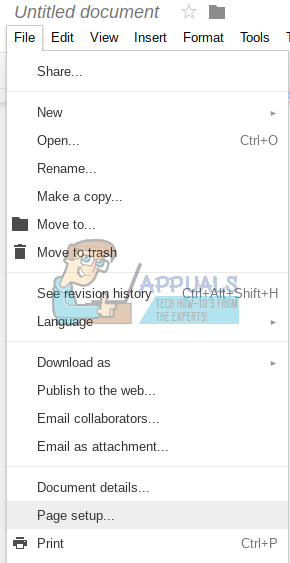
In the Page Setup window, you will see a dropdown menu for ‘Paper Size’, with the size set as ‘Letter’. Through the dropdown menu, change the size to ‘A4’. (On the right, you will see the Margin measurements in inches, and you can also change them according to your requirements from here.)

Once you change the Paper Size to A4, you can click on ‘Set as default’, to set the paper size as A4 by default for all your documents. Otherwise, you can click ‘Ok’ to return to your document.
Download as PDF
After you have changed the paper size, you will have to download your document as PDF. Printing the document directly from Google Docs reportedly has some glitches that tend to mess up margins, so we will download your document as PDF and then print it to preserve our margins.
To download as PDF, get to the ‘File’ drop-down from the options menu. Then go to ‘Download As’, and select PDF.
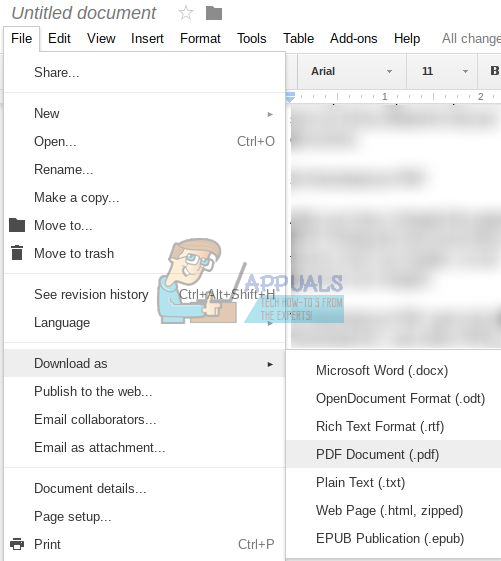
Once you have your document downloaded as PDF, you can go ahead and print it by opening it and pressing Ctrl + P for the Print command. The margins on your printed document should now be perfectly sized and ready for submission.
How to Fix “Printer is in an error state” Issue?
Google Docs is a perfect platform allowing the creation and sharing of documents effortlessly. With this tool, you can let others view, comment, or edit your documents, facilitating smooth collaboration and minimizing confusion.

Can you print Google Doc with comments?
1. Capture the page as a screenshot and print

Capture the page as a screenshot and print
You can take a screenshot of the whole document page and then print it as a photo. This way is straightforward but doesn’t give you many options and has some limits.
2. Export the Google Doc to Microsoft Word
- Open your Google Doc and click “ File ” in the top menu. Click File
- Click Download, then select Microsoft Word (.docx). Save it on your computer. Click Download then select Microsoft Word
- Open the Word file from the “ Downloads ” folder. Open the Word file
- When you open the file in Microsoft Word, you’ll see that the comments are included. All comments are visible and can be printed

Comments visible in preview
3. Turn the Google Docs into a Webpage
Follow these simple steps to convert your Google Doc into a webpage for printing purposes.
- Click on “ File .” Click on File
- Then hit “ Download ” and choose the “ Webpage format ,” which is (.html). Choose the webpage format
- The webpage downloads as a zip. Unzip the File. Open the HTML file with the browser you like. Open the HTML file
- If you use Chrome , printing is easy. Click the three dots, click Print, or press “ CTRL+ P” on your keyboard. Print it directly from browser
4. Utilizing Chrome Extensions for Comment Printing
GoFullPage is a handy Chrome extension that lets you capture pictures of whole pages. Here’s how you can utilize it in our case:
- Visit the Chrome Web Store and click “ Add to Chrome ” for GoFullPage. Add the extension
- The extension will screenshot your entire document, including all the content and comments. You can save this image to your computer or print it. Download or print the file easily

How to print Google Doc with comments on mobile?
You can quickly screenshot Google Docs on a mobile device by pressing specific button combinations and then print if connected to a compatible printer. Moreover, Google Docs also allows you to export as a Word file or webpage on mobile.
Remember, the exact steps may vary slightly based on your phone’s operating system and the versions of the apps you’re using. Ensure you have the necessary apps installed and updated, and a printer compatible with mobile devices.
