Since Adobe permanently discontinued the Flash Player (as of January 2021), the HP Solution Center has started malfunctioning on every system where Flash is not installed. If you are affected by this issue, you’ll see a Flash icon when attempting to open the HP Solution Center.
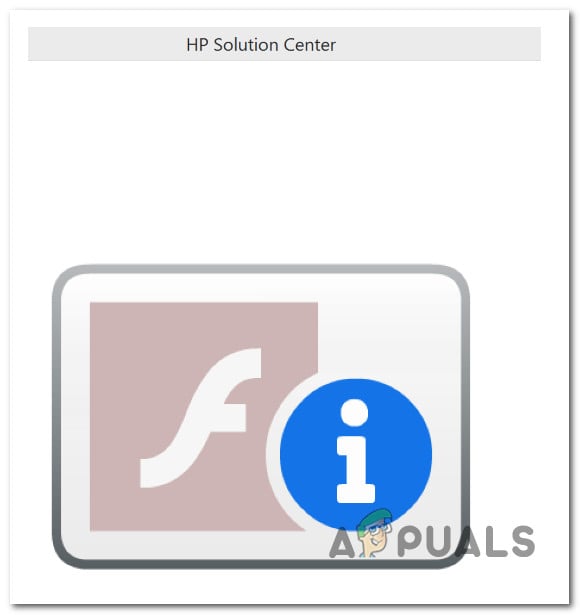
HP Solution Center Not Working
Note: HP Solution Center was initially created to support HP printers manufactured before 2010. The functionality was then extended to newer printer models where Flash was present. But now, since Flash is discontinued and no longer supported by the industry, this application doesn’t have any utility.
IMPORTANT : We don’t recommend any other workarounds that will allow you to use HP Solution Center now that flash is discontinued. It will leave your system vulnerable to a lot of potential security issues.
To continue using your HP printer without the HP Solution Center, there are a few workarounds that you can try:
1. Use the Windows Built-in Print Driver
Since using HP Solution Center is no longer an option, the only thing that will allow you to continue using your printer without installing 3rd party apps and without exposing yourself to vulnerabilities is to switch to the Windows built-in print driver.
Keep in mind that this is a generic driver that comes built into every build of Windows 10 and 11. While you don’t need to install any driver, you still need to configure your printer – depending if you’re using a USB-connected printer or a network printer, the instructions are different.
Note: To get the most out of your HP printer on Windows (now that HP Solution Center is gone), we recommend installing the HP Smart. This is a UWP app that HP released for Windows 10 and Windows 11. Additionally, you should download and install the dedicated full-feature driver for your HP printer model from the official download website.
Follow the instructions below to connect your HP printer to your Windows computer using the built-in driver.
Note: Follow sub-guide 1 if you’re adding a USB-connected print and sub-guide 2 if you’re adding a network printer.
1.1 Connect HP USB Printer via Windows built-in driver
Only follow these steps if your HP printer connects with a USB port and you only send printing instructions from a single PC.
Here’s what you need to do:
- Press the Windows Start key, then type ‘change device installation settings’ inside the search bar.
- From the list of results, click on Change device installation settings . Change device installation settings
- From the Device installation settings, ensure that the Yes toggle is checked, then click Save Changes to complete the operation. Saving the Recommended Settings
- Next, you’ll need to ensure that a working USB port is available on your PC. Important: DO NOT connect your printer to a docking station or USB Hub. Most HP printer models won’t receive enough power to work in normal parameters if you do this.
- Turn on the printer and wait until it enters idle mode. Note: Wait until you longer hear any noise coming from it.
- Connect your printer via the USB cable to your PC and wait until you notice a new printer has been discovered. Depending on your printer model, you might need to follow a series of on-screen prompts to install the printer locally.
- Once the operation is complete, see if you can print normally. If you still can’t continue with the steps below.
- Press the Windows key and type ‘ add a printer or scanner ‘ inside the search bar. From the list of results, click on Add a printer or Scanner . Adding a local printer
- Once Windows displays the full list of available printers, click Add Device . Adding a new printer
- Wait until the operation is complete, reboot your PC and see if the issue is now fixed. Note: If the printer isn’t added to the list, click on Add a new device manually, then choose the printer port and select your printer model. Adding a new printer manually
- Reboot your PC and see if you can use your printer normally.
If the issue is still not fixed, move to Method 2 (below the following sub-guide).
1.2. Connect Network Printer to Windows via built-in driver
If you want to connect a Wi-Fi or wired network printer to your network while using the generic Windows printer drivers, follow the instructions below:
- Press the Windows key and type ‘ change device installation settings ‘, then click on Change device installation settings .
- Next, physically place the printer near the Wi-Fi router (or a Wi-Fi expander).
- Make sure you connect your printer to the same network as your computer. Connecting the printer Note: The instructions on doing this are different from model to model. • On HP models with a touchscreen interface, go to Setup > Network > Wireless > Wireless Setup Wizard . • On HP models without a touchscreen interface, press and hold the wireless button for 5 seconds or until you see the wireless light flashing, then press and hold the WPS button on your router . • On HP models that connect via ethernet cable, connect a network cable between your printer’s ethernet port and an access point on your router.
- Press the Windows key on your PC and type ‘ add a printer ‘ in the search bar. From the list of results, click on Add a printer or scanner . Adding a printer or scanner
- Next, click on Add device from the next menu and wait until the initial scan is complete. Adding a new network printer
- Wait and see if Windows can locate the available printer (it should work as long as it’s connected to the same network as your PC). Note: If the network printer is not identified automatically, move to the next method below.
- Click on Add a new device manually from the hyperlink that just appeared after the unsuccessful procedure. Add a new network printer automatically
- From the next screen that just appeared, select the Add a printer using an IP address or hostname toogle, then click Next. Add a new printer using the IP address or hostname
- At the next screen, set the Device Type drop-down menu to AutoDetect, then add the printer IP address in the box below and click Next to continue. Configuring the network printer Note: The instructions for finding your printer IP address will differ depending on what type of HP printer you’re using. Example of a printed HP network report • On HP models with a touchscreen control panel , go to Wireless Summary or Network Settings menu to view the IP address. • On HP inkjet printers without a touchscreen panel , press and hold the wireless + the information button simultaneously (or the Start Copy Back buttons if available). This will prompt your device to print out a report containing network information, including your IP address. • On HP laserjet printers, press the Wireless button for 10 seconds until you see the Ready light blinking. This will print out a report containing the IP address. • On HP DeskJet 6000 and 6400, ENVY 6000 and 6400, and Tango printers, press and hold on to the information button until you see every panel button lighting up. When this happens, release the information button, then press it again with the resume button to print out a network report with your IP address. • On Laser NS and Neverstop Laser printers, press and hold the resume button + wireless button for 3 seconds to print out an IP address report
- Follow the remaining instructions to complete the printer installation, then see if you can print properly.
If your printer is already connected successfully, but you can’t use any of the scanning features we’re available with HP Solution Center, move down below.
2. Use a Printer Scanning app (if applicable)
Depending on your printer model, following the instructions above might not allow you to utilize some of the most advanced features, such as scanning.
Fortunately, there are apps that will allow you to compensate for the inconvenience brought about by the ‘death’ of the HP Solution Center program.
You can use several apps to circle this issue, but we recommend the official app – HP Scan and Capture .
Note: This is the newer app released by HP to facilitate Windows 10 and 11 with access to features that were only available via HP Solution Center. You can use it to scan and capture photos and documents from your printer or your computer camera.
Important: This UWP (Universal Windows Platform) app will only work for Windows 8.1 or higher.
To use this UWP app, you need to download & install it from the official channels.
Here’s what you need to do:
- Open your browser and navigate to the official download page of HP Scan and Capture . Note: You can also find it inside Windows Store.
- Click on Get in Store app from the next screen, then follow the on-screen instructions to initiate the download. Download the HP Scan & Capture app
- Once the app is downloaded locally, launch it and go to Settings. From inside, select your HP printer.
- Click on Document Scan Options or Photo Scan Options and configure your settings before saving the changes.
- Click on Capture Documents or Capture Settings (depending on what you want to do) to start using this feature. Selecting the app mode
If this app doesn’t work for some reason or you’re looking for an alternative, here are a few:
- Windows Scan app – This is another 3rd party alternative you can download directly from the Microsoft Store. It’s compatible with most HP models. However, it’s a UWP app, meaning you can only use it on Windows 8.1 and higher.
- Windows Fax and Scan – This is a rudimentary tool that comes preinstalled with every recent Windows version. You can access it by searching for ‘fax’ inside your windows search bar. Unfortunately, it’s not compatible with every HP printer model.
How to Fix “Printer is in an error state” Issue?
- Inkjet printers excel in high-quality color printing, making them ideal for photos and images but require frequent ink replacements.
- Laser printers are better suited for high-volume, text-heavy documents, offering faster printing speeds and lower long-term costs.
- Choose based on needs—inkjet for versatile, vibrant prints and laser for durability, speed, and cost efficiency in office settings.
Just as a Polaroid camera isn’t suited for professional wedding shoots but excels at capturing true moments, in the world of printing, the two printer types— inkjet and laser — excel in their respective use cases , and one cannot overshadow the other as the best option for everyone. But there certainly can be a better choice for you! How would you know which one? By learning about both, of course !

Which Is Better Inkjet or Laser Printer
- How Do Printers Work?
- What is an Inkjet Printer?
- What is a Laser Printer?
- Inkjet vs. Laser Printer: Pros & Cons 1. Paper Compatibility 2. Timing 3. Cost 4. Durability
- Which One Should You Use?
How Do Printers Work?
With advancements in technology and increased resource availability , printers that were once exclusive to specific groups are now accessible to a broader audience. However, affordability in no way equals a compromise in quality, all thanks to the wide range of printer options available today.
At the basic level, all printers transfer minuscule dots onto a sheet of paper to replicate images and text documents. This is done by sending electronic signals from the computer to the printer’s control board , which interprets them into instructions suitable for the specific printing technology used. And that’s exactly what differentiates the various printer types from one another.
While there are various printing technologies available today, the two most common ones are inkjet and laser . Funny enough, the difference between the two is what remains a mystery for many.
What is an Inkjet Printer?

Inkjet Printer
The mechanism of an inkjet printer is hinted at by its name. But for those who want a bit more explanation, this type of printer produces text and images by spraying liquid ink droplets onto paper. It uses ink cartridges that come in separate colors or combined into a single unit . These cartridges have one or more nozzles that dispense ink in precise patterns, producing the desired output.
But what does that say about inkjet printers’ applications, you ask ? Well, due to their ability to produce vivid colors and fine details , these high-quality prints make them popular for personal / home use and even some areas of commercial printing.
What is a Laser Printer?

Laser Printer
Laser printers, on the other hand, use electrical currents and toner (fine solid particles of powder) to produce images and text on paper.
The laser beam is targeted at a light-sensitive rotating drum to create charged particles (an electrostatic image) that attract the toner dust. This toner is then transferred to a sheet of paper , which passes through a set of heated rollers called a fuser . This helps bond the toner particles to the paper, resulting in a permanent print.
This is what makes laser printers ideal for office and business use. They’re also larger than inkjet printers and capable of printing high volumes at a faster speed. What’s more ? Considering their target audience, they also come with optional trays and advanced security features .
Inkjet vs. Laser Printer: Pros & Cons
While the fundamental difference between the two printer types lies in their printing mechanism , one cannot ignore how the prints come out to be, leading to distinctions in quality , performance , and overall cost .
In terms of quality, both printers have areas in which one excels the other. Inkjet is particularly useful for image printing and color reproduction because of the use of ink cartridges and laser for text-based documents ideal for high-volume environments. But wait, there’s more to the debate !
1. Paper Compatibility
Inkjet printers are capable of printing on numerous paper types , so they can produce glossy photographs, matte prints for framing, or even prints on non-traditional materials like vinyl or plastic .

Various options for photo paper
On the other hand, laser printers don’t work well with many options, which limits their applications beyond those requiring standard printer paper , especially because heat-sensitive paper won’t work with the heat rollers .
2. Timing
Though laser printers are known for quick batch printing, they do, however, take time to warm up before getting started, something that inkjet printers do not require. In terms of printing, inkjet printers do take a little extra time , but they are lighter and more compact , making them easy to fit into cramped settings or limited space desks.
3. Cost
There’s a price at purchase and a price you pay in the long run . Laser printers have a higher initial cost , however, they rely on toner rather than ink cartridges, which takes longer to use up.
Contrarily, ink cartridges get used up quickly and require either a replacement or a refill (if you want to go green ). In fact, they may even dry out if there’s an extended gap between printing jobs , rendering them unusable. However, between ink and toner cartridges, the replacement is easier and cheaper for the former than the latter.

Ink Cartridge (left), Toner Cartridge (right)
4. Durability
One thing’s for sure, laser printers outperform when it comes to text-based documents, and inkjet printers when it comes to graphics and image printing. Of course, both printers can print anything you want, but each has its strong suit.
Inkjet printers blend colors seamlessly, producing sharp , clear pictures but slightly fuzzy text . Conversely, laser printers deliver crisp , bold , and well-defined lettering , but they’re not ideal for printing-colored photos .
Moreover, since laser printers use fusers for binding, their prints are more durable . Then again, ink cartridges are water-based , so printed images may fade and have a higher chance of being damaged when exposed to moisture .
Which One Should You Use?
Asking a cashier to do your taxes or a chef to work on your car sounds pretty silly, right? Well, so does expecting a laser printer to handle photographs and an inkjet printer to manage reports and bulk documents. Each product is designed with specific strengths, even though they may perform multiple tasks.
When choosing a printer, consider factors such as speed , efficiency , affordability , and the desired output . Inkjet printers offer high-quality prints, are affordable , compact , and compatible with various paper types, but they require more frequent ink replacements .
Whereas, laser printers, though pricier , excel in printing clear office documents with greater print yields and lower running costs . Ultimately, the best choice depends on your specific needs and usage patterns .
Printer durability depends on usage frequency and the length of printing jobs. Because laser printers are known for frequent batch printing, they’re made of robust components designed for durability. And due to their reliance on toner rather than liquid ink, they don’t experience issues with ink drying or clogging, thus requiring less frequent maintenance and extending their operational lifespan. However, it cannot be said that an inkjet printer, if used with proper care and not overburdened, cannot last just as long, if not longer.
Although laser printers are popular for printing black and white documents with excellence, they absolutely can produce a range of colors and thus deliver color prints, although their quality is not the very best to rely upon.
Printing professional photo prints is better with inkjet printers as they support higher GSM (grams per square meter) paper and produce better color reproduction. Laser printers, on the other hand, do not offer as much color accuracy and detail, which is needed for high-quality, vibrant printed images.
The error “ WinRAR Error: Next Volume Is Required ” usually appears when you’re extracting a multi-part RAR archive and WinRAR can’t find (or can’t correctly identify) the next file in the sequence . This often happens when a volume is missing , stored in a different folder , or renamed in a way that breaks the archive’s expected order .

In this guide, we’ll go over the most reliable fixes confirmed by affected users, along with what each method is doing behind the scenes so you can choose the right one for your situation.
Important: To extract multi-volume archives, you should always start extraction from the first file in the set. This is usually file.part1.rar , or (in older sets) the main .rar file that comes before .r01 , .r02 , and so on.
1. Download and Place the Missing RAR File
WinRAR needs all parts of a multi-volume archive to complete extraction. This error usually appears when one of the volumes in a set like .part2.rar , .r01 , .r02 , .001 , and similar naming formats is missing . Downloading the missing volume and placing it in the same folder as the other parts allows WinRAR to continue extracting normally .
- Look at the error message or review the list of archive parts in the folder.
- Identify which volume is missing (for example, part2.rar , .r02 , .001 , etc.).
- Go back to the website or source where you downloaded the archive.
- Locate and download the exact missing file using the same naming format as the others.
- Make sure the new file name matches the pattern of the rest. Example: If you have file.part1.rar and file.part3.rar , the missing one must be file.part2.rar .
- Move the downloaded missing volume into the same folder as the other archive parts.
- Confirm that all parts are in a single folder before extracting.
- Right-click the first file in the series (usually part1 or the main .rar file) and select Extract Here or Extract to Folder .
- WinRAR should now detect all volumes and continue extraction normally .
2. Manually Browse & Select the Next Volume
Use this method only if the next volume already exists , but WinRAR is failing to detect it automatically. This can happen due to incorrect naming , the file being in a different location , or a temporary file access issue. Manually browsing helps WinRAR locate the correct volume and resume extraction without interruption .
- Right-click the first file in the series (usually .rar or part1.rar ) and select Extract Here or Extract to Folder .
- When WinRAR cannot find the next volume, it will show the “ Next Volume Is Required ” message.
- A small window will appear, allowing you to manually select the next volume .
- Use the file explorer window to locate the folder where the other archive parts are saved.
- Select the next part based on the naming order (example: select file.part2.rar after file.part1.rar ).
- Make sure the selected file matches the naming format of the archive (no extra characters like (1) and no mismatched numbering).
- WinRAR will resume extraction using the selected volume .
- If additional volumes are missing or stored separately, WinRAR may prompt you again. Repeat the same process until extraction completes.
3. Rename the RAR files in Order
WinRAR relies on a proper naming sequence (such as file.part1.rar , file.part2.rar , file.part3.rar ) to extract multi-volume archives. If a file is named incorrectly, contains extra characters, or is out of order, WinRAR may fail to locate the next volume and show this error. Renaming the files correctly helps WinRAR follow the sequence and extract the archive without interruptions .
Note: Renaming only changes the file name , not the file contents. The goal is to restore the correct sequence so WinRAR can detect the next volume.
- Go to the folder where all the RAR files are saved.
- Make sure all parts of the archive are present and stored in the same folder .
- Check how the parts are currently named . Common patterns include:
file.part1.rar, file.part2.rar, file.part3.rar
file.rar, file.r01, file.r02, file.r03
- Look for files that don’t match the expected numbering pattern (for example, file.part01.rar , file.part1(1).rar , or unrelated names).
- Rename each file so it follows the same order without extra characters or mismatched numbering. Example:
Incorrect: file.part1.rar, file.part3.rar, file.part2(1).rar
Correct: file.part1.rar, file.part2.rar, file.part3.rar
- Make sure the text before the number is exactly the same for all files.
- Only the last part number should change.
- Right-click the first file in the series (usually part1.rar or the main .rar file) and select Extract Here .
- WinRAR should now recognize the sequence and continue extraction normally .
If you still get the same prompt: the archive set is likely incomplete (a part was never downloaded or was removed), or one of the volumes is corrupt and must be re-downloaded from the original source.
