Equalizer APO might not work on Windows if audio enhancements aren’t applied, leaving users with unchanged sound even though the software is running. This typically occurs because the software’s APO is not correctly installed or linked to the chosen audio device.
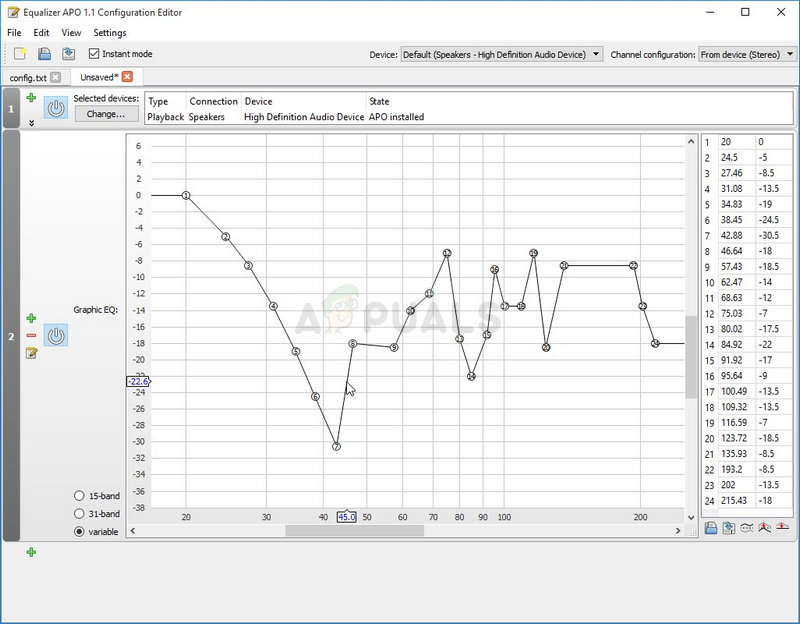
Equalizer APO Not Working on Windows 10
The most common reason is that Equalizer APO was installed without sufficient permissions, particularly when administrative rights weren’t given. Other issues like antivirus blocking, incorrect audio driver settings, or conflicts with Bluetooth or USB devices can also stop it from working.
In this article, we will discuss different ways to solve this error.
1. Install as SFX/EFX
Switching to “Install as SFX/EFX” helps Equalizer APO work with devices by directly managing audio streams and bypassing conflicts, especially with older drivers or certain USB and Bluetooth devices.
- Open Configurator for Equalizer APO by searching for it in the Start menu and selecting the first result.
- In the Playback devices tab, check the boxes next to all devices you want to use with the equalizer.
- Make sure the “Use Original APO” boxes are unchecked.
- Check Troubleshooting options (only use in case of problems) , click the arrow, and select Install as SFX/EFX (experimental) from the dropdown menu.
- Apply changes, close the Configurator, and reopen Equalizer APO to see if it works now.
2. Make Sure Enhancements are Enabled
To address issues with Equalizer APO, check if audio enhancements are turned on. These settings enable the software to change the sound. If they’re off, Equalizer APO can’t function, so turning them on restores its operation.
- Right-click the Volume icon in the bottom right of your screen and select Sounds . Alternatively, open Control Panel, set View by to Large icons , and click Sounds .
- Go to the Playback tab in the Sounds window. Playback devices
- Select your device, click Properties , then go to the Enhancements tab. Uncheck Disable all enhancements and click OK. Check if Equalizer APO works now.
3: Disable Hardware Acceleration of Audio
Turning off hardware acceleration can fix Equalizer APO issues by making Windows process audio without advanced sound card features, avoiding compatibility problems. This ensures stable software-based audio processing, allowing Equalizer APO to work properly.
- Right-click the Volume icon in the bottom right of your screen and select Sounds . Alternatively, open Control Panel, set View by to Large icons , and click Sounds .
- Go to the Playback tab in the Sounds window. Playback devices
- Select your headset, click Properties , and go to the Advanced tab. Look for the Hardware acceleration section. Disabling audio hardware acceleration
- Uncheck Allow hardware acceleration of audio with this device . Check if Equalizer APO now works properly.
4: Make an Exception for it in Your Antivirus
Antivirus software might wrongly see Equalizer APO as a threat and block it. Adding an exception for Equalizer APO in your antivirus settings lets the software run without issues. This step stops the antivirus from blocking important tasks, like changing audio settings, and allows Equalizer APO to work well with your system’s security.
However, ensure you add the Equalizer APO executable in the box that appears, prompting you to navigate to the installation folder. It should be in the same folder where you decided to install Equalizer APO. By default, it’s:
C:\Program Files (x86)\Equalizer APO
Check to see if you can now use Equalizer APO properly. If it still doesn’t work, try restarting your computer and try again. The last step would be to uninstall the antivirus and try a different one if the same issue persists.
5: Delete a Registry Key
Deleting a specific registry key might help Equalizer APO by removing data that could block the software. This data might have been incorrectly set up during installation or updates, preventing it from connecting with audio devices. Removing the key allows Equalizer APO to create a new entry, which could improve its connection to the audio system.
Please back up your registry keys before proceeding with this method using these ( steps ).
- Open Configurator from the Start menu and go to the Playback devices tab. Select the device and click Copy Device command to clipboard to copy the device’s info.
- Paste the command in a text editor. Note the bolded part of the command: Device: High Definition Audio Device Headphones {64e620cf-acc0-4d70-ac8f-c569b893ff4d}
- Back up your registry with this guide .
- Press Windows Key + R , type “regedit”, and open the Registry Editor . Navigate to: HKEY_LOCAL_MACHINE\SOFTWARE\Microsoft\Windows\CurrentVersion\MMDevices\Audio\Render
- Find the key matching the bolded part, right-click it, and select Permissions .
- Click Advanced , then Change next to “Owner” to open the Select User or Group window.
- Select your user account via Advanced or type it in the ‘Enter the object name to select’ field and click OK. Add Everyone .
- (Optional) Select “Replace owner on subcontainers and objects” to change ownership for all subfolders and files.
- Click Add , then click Select a principal, and choose your user account again. Add Everyone .
- Under Basic permissions , select Full control , and apply changes.
- Right-click the key again and choose Delete. Restart your computer and reinstall Equalizer APO using the Configurator. Check if Equalizer APO works properly.
6: Perform a Clean Install
If other solutions don’t work, doing a clean install might help. This step removes all parts of Equalizer APO, including bad settings or broken files causing problems. Starting fresh ensures everything is set up right and previous issues are gone.
- Open the Settings app from the Start menu or use the search bar to find Control Panel . Opening Settings from the Start menu
- In Settings , go to Apps to see a list of all installed programs. In Control Panel , select Uninstall a Program under Programs . Uninstall a program in Control Panel
- Find Equalizer APO and click Uninstall . Follow the prompts to completely remove it.
- Before editing the registry, consider backing it up using this guide .
- Press Windows Key + R , type “regedit”, and press Enter to open Registry Editor . In the menu, click Edit and then Find . Finding all Equalizer APO related entries in the registry
- Type Equalizer APO in the search box and click Find Next . Right-click any result, select Delete . Repeat using the F3 key to ensure all entries are removed. Consider using CCleaner for automated cleanup. Find Next in the registry
- Visit this link to download the latest Equalizer APO version. Install it following the on-screen instructions, and check if the issue persists.
How to Fix “Printer is in an error state” Issue?
The error “ WinRAR Error: Next Volume Is Required ” usually appears when you’re extracting a multi-part RAR archive and WinRAR can’t find (or can’t correctly identify) the next file in the sequence . This often happens when a volume is missing , stored in a different folder , or renamed in a way that breaks the archive’s expected order .

In this guide, we’ll go over the most reliable fixes confirmed by affected users, along with what each method is doing behind the scenes so you can choose the right one for your situation.
Important: To extract multi-volume archives, you should always start extraction from the first file in the set. This is usually file.part1.rar , or (in older sets) the main .rar file that comes before .r01 , .r02 , and so on.
1. Download and Place the Missing RAR File
WinRAR needs all parts of a multi-volume archive to complete extraction. This error usually appears when one of the volumes in a set like .part2.rar , .r01 , .r02 , .001 , and similar naming formats is missing . Downloading the missing volume and placing it in the same folder as the other parts allows WinRAR to continue extracting normally .
- Look at the error message or review the list of archive parts in the folder.
- Identify which volume is missing (for example, part2.rar , .r02 , .001 , etc.).
- Go back to the website or source where you downloaded the archive.
- Locate and download the exact missing file using the same naming format as the others.
- Make sure the new file name matches the pattern of the rest. Example: If you have file.part1.rar and file.part3.rar , the missing one must be file.part2.rar .
- Move the downloaded missing volume into the same folder as the other archive parts.
- Confirm that all parts are in a single folder before extracting.
- Right-click the first file in the series (usually part1 or the main .rar file) and select Extract Here or Extract to Folder .
- WinRAR should now detect all volumes and continue extraction normally .
2. Manually Browse & Select the Next Volume
Use this method only if the next volume already exists , but WinRAR is failing to detect it automatically. This can happen due to incorrect naming , the file being in a different location , or a temporary file access issue. Manually browsing helps WinRAR locate the correct volume and resume extraction without interruption .
- Right-click the first file in the series (usually .rar or part1.rar ) and select Extract Here or Extract to Folder .
- When WinRAR cannot find the next volume, it will show the “ Next Volume Is Required ” message.
- A small window will appear, allowing you to manually select the next volume .
- Use the file explorer window to locate the folder where the other archive parts are saved.
- Select the next part based on the naming order (example: select file.part2.rar after file.part1.rar ).
- Make sure the selected file matches the naming format of the archive (no extra characters like (1) and no mismatched numbering).
- WinRAR will resume extraction using the selected volume .
- If additional volumes are missing or stored separately, WinRAR may prompt you again. Repeat the same process until extraction completes.
3. Rename the RAR files in Order
WinRAR relies on a proper naming sequence (such as file.part1.rar , file.part2.rar , file.part3.rar ) to extract multi-volume archives. If a file is named incorrectly, contains extra characters, or is out of order, WinRAR may fail to locate the next volume and show this error. Renaming the files correctly helps WinRAR follow the sequence and extract the archive without interruptions .
Note: Renaming only changes the file name , not the file contents. The goal is to restore the correct sequence so WinRAR can detect the next volume.
- Go to the folder where all the RAR files are saved.
- Make sure all parts of the archive are present and stored in the same folder .
- Check how the parts are currently named . Common patterns include:
file.part1.rar, file.part2.rar, file.part3.rar
file.rar, file.r01, file.r02, file.r03
- Look for files that don’t match the expected numbering pattern (for example, file.part01.rar , file.part1(1).rar , or unrelated names).
- Rename each file so it follows the same order without extra characters or mismatched numbering. Example:
Incorrect: file.part1.rar, file.part3.rar, file.part2(1).rar
Correct: file.part1.rar, file.part2.rar, file.part3.rar
- Make sure the text before the number is exactly the same for all files.
- Only the last part number should change.
- Right-click the first file in the series (usually part1.rar or the main .rar file) and select Extract Here .
- WinRAR should now recognize the sequence and continue extraction normally .
If you still get the same prompt: the archive set is likely incomplete (a part was never downloaded or was removed), or one of the volumes is corrupt and must be re-downloaded from the original source.
