When DS4Windows fails to detect a controller, it usually means that the software isnt recognizing the connected device, even though it might be visible in Windows. This error generally occurs due to outdated or conflicting drivers, such as the ViGEmBus driver required by DS4Windows, or issues with Bluetooth connectivity.
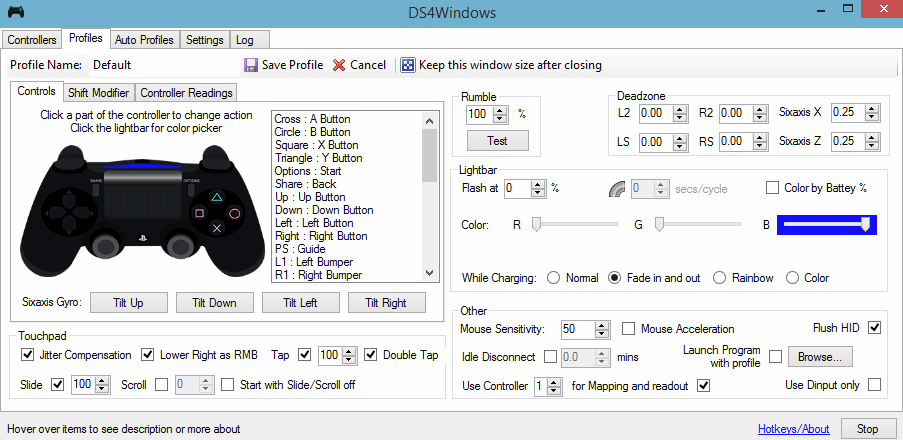
DS4Windows interface
Why Wont DS4Windows Detect the Controller in Windows 10?
There could be several reasons for this problem, which include:
- Windows 10 Update: The latest update of Windows 10 could restrict the use of DS4 Controllers.
- Malfunctioning Device Drivers: DS4 controller device drivers might be malfunctioning, which can be resolved by reinstalling the drivers.
- Controller Disabled by DS4Windows: DS4Windows could accidentally disable the controller from being used in Windows 10.
1. Uninstall and Reconnect DS4 Controller Device
By uninstalling the driver, you remove any potentially corrupt or conflicting settings that might be causing the issue. When you reconnect the DS4 controller after this reset, Windows will attempt to reinstall the drivers as if the device is being connected for the first time.
This can often clear up any problems associated with the controllers inability to connect, essentially allowing for a fresh start in terms of device recognition and functioning.
- Close DS4Windows and disconnect your DS4 controller, if not already done.
- Press Win + R keys to open the Run dialogue box, type in control panel , and press Enter . Accessing the Control Panel using the Run dialogue box
- In the Control Panel, click on Hardware and Sound . Now, click on Devices and Printers to view all devices connected to your PC. Devices and Printers connected to PC
- Reconnect your DS4 controller to your PC. An icon of a game controller will appear as shown in the image below. Right-click on the icon and select Properties. DS4 Controller Properties
- Go to the Hardware tab within your DS4 controller properties and double-click HID-compliant game controller to view its properties. HID-compliant game controller properties
- In the Driver tab, click Uninstall Device to uninstall the game controller. Disconnect it from your PC once completed. Uninstalling the DS4 HID-compliant game controller
- Re-open DS4Windows on your PC and reconnect your DS4 controller. It should now appear within the Controllers section.
2. Re-enable DS4 Controller
Some users have experienced this issue during gameplay, i.e., the DS4 controller stops working and becomes disabled automatically. By going into the Device Manager and re-enabling the DS4 controller, you are basically making the device visible and active again, allowing DS4Windows to recognize the controller and re-establish the necessary communication for gameplay.
- Press Win + R to open the Run dialogue box, type devmgmt.msc , and press Enter. Opening Device Manager
- Expand the Human Interface Devices category and double-click on HID-compliant game controller .
- Enable the controller to have it detected by DS4Windows.
3. Uninstall Windows Update
When you uninstall a recent Windows update , you are basically reverting your computer’s operating system to an earlier state. This may remove any new changes that could be conflicting with DS4Windows and its ability to detect your controller. By rolling back these updates, you’re eliminating any new variables that might be causing the connectivity troubles, potentially restoring your setup to its previously functional configuration.
- Press Windows + I to open Settings .
- In Settings, click on Update & Security .
- From the left pane, select Windows Update and click on View installed update history . Installed update history in Windows 10 Settings
- Next, click on Uninstall updates . Wait for the installed updates list to populate.
- Organize the list to show the most recent updates first. Select the problematic update, click Uninstall , and follow the uninstallation wizard. Restart your computer afterward.
4. Uninstall Driver and Set DS4Windows Up
By removing the existing driver, you allow Windows to reinstall a fresh driver upon reconnection. This renewal can often clear any configuration issues or corrupt files that were causing the device to malfunction. After the fresh installation of drivers, setting up DS4Windows makes sure that the controller is configured correctly and recognized properly by your system for optimal performance.
- Navigate to this link and download the Remote Play App for your PC.
- If the controller still doesn’t work, press Windows + R , type devmgmt.msc , and press Enter. Opening Device Manager
- Look for a Lib32 Wireless Driver in Device Manager.
- Right-click on it and select Uninstall Device . Uninstalling the device
- Reconnect the controller to the PC using a USB cable and allow Windows to install the drivers.
- Test if the Remote Play App works now. Its functionality could be limited.
- Disconnect your controller and download DS4Windows . Downloading DS4Windows
- Set up DS4Windows using the provided instructions.
- Reconnect the controller and verify if it is recognized.
- Select the Hide DS4 option. Note : Uncheck the Swipe touchpad to change profile option and check if the issue persists.
5. Scan for Hardware Changes
Scan for hardware changes prompts Windows to re-evaluate all connected hardware devices. This re-evaluation forces the operating system to detect any previously unrecognized connected hardware, such as your DS4 controller, potentially resolving any connection issues that came from drivers that were not properly recognized or installed during initial connection.
- Press Windows + R keys to open the Run prompt.
- Type in devmgmt.msc and press Enter. Launching Device Manager
- Click the Scan for hardware changes button. Initiating a scan for hardware changes
- Check to see if the issue has been resolved.
How to Fix “Printer is in an error state” Issue?
The error “ WinRAR Error: Next Volume Is Required ” usually appears when you’re extracting a multi-part RAR archive and WinRAR can’t find (or can’t correctly identify) the next file in the sequence . This often happens when a volume is missing , stored in a different folder , or renamed in a way that breaks the archive’s expected order .

In this guide, we’ll go over the most reliable fixes confirmed by affected users, along with what each method is doing behind the scenes so you can choose the right one for your situation.
Important: To extract multi-volume archives, you should always start extraction from the first file in the set. This is usually file.part1.rar , or (in older sets) the main .rar file that comes before .r01 , .r02 , and so on.
1. Download and Place the Missing RAR File
WinRAR needs all parts of a multi-volume archive to complete extraction. This error usually appears when one of the volumes in a set like .part2.rar , .r01 , .r02 , .001 , and similar naming formats is missing . Downloading the missing volume and placing it in the same folder as the other parts allows WinRAR to continue extracting normally .
- Look at the error message or review the list of archive parts in the folder.
- Identify which volume is missing (for example, part2.rar , .r02 , .001 , etc.).
- Go back to the website or source where you downloaded the archive.
- Locate and download the exact missing file using the same naming format as the others.
- Make sure the new file name matches the pattern of the rest. Example: If you have file.part1.rar and file.part3.rar , the missing one must be file.part2.rar .
- Move the downloaded missing volume into the same folder as the other archive parts.
- Confirm that all parts are in a single folder before extracting.
- Right-click the first file in the series (usually part1 or the main .rar file) and select Extract Here or Extract to Folder .
- WinRAR should now detect all volumes and continue extraction normally .
2. Manually Browse & Select the Next Volume
Use this method only if the next volume already exists , but WinRAR is failing to detect it automatically. This can happen due to incorrect naming , the file being in a different location , or a temporary file access issue. Manually browsing helps WinRAR locate the correct volume and resume extraction without interruption .
- Right-click the first file in the series (usually .rar or part1.rar ) and select Extract Here or Extract to Folder .
- When WinRAR cannot find the next volume, it will show the “ Next Volume Is Required ” message.
- A small window will appear, allowing you to manually select the next volume .
- Use the file explorer window to locate the folder where the other archive parts are saved.
- Select the next part based on the naming order (example: select file.part2.rar after file.part1.rar ).
- Make sure the selected file matches the naming format of the archive (no extra characters like (1) and no mismatched numbering).
- WinRAR will resume extraction using the selected volume .
- If additional volumes are missing or stored separately, WinRAR may prompt you again. Repeat the same process until extraction completes.
3. Rename the RAR files in Order
WinRAR relies on a proper naming sequence (such as file.part1.rar , file.part2.rar , file.part3.rar ) to extract multi-volume archives. If a file is named incorrectly, contains extra characters, or is out of order, WinRAR may fail to locate the next volume and show this error. Renaming the files correctly helps WinRAR follow the sequence and extract the archive without interruptions .
Note: Renaming only changes the file name , not the file contents. The goal is to restore the correct sequence so WinRAR can detect the next volume.
- Go to the folder where all the RAR files are saved.
- Make sure all parts of the archive are present and stored in the same folder .
- Check how the parts are currently named . Common patterns include:
file.part1.rar, file.part2.rar, file.part3.rar
file.rar, file.r01, file.r02, file.r03
- Look for files that don’t match the expected numbering pattern (for example, file.part01.rar , file.part1(1).rar , or unrelated names).
- Rename each file so it follows the same order without extra characters or mismatched numbering. Example:
Incorrect: file.part1.rar, file.part3.rar, file.part2(1).rar
Correct: file.part1.rar, file.part2.rar, file.part3.rar
- Make sure the text before the number is exactly the same for all files.
- Only the last part number should change.
- Right-click the first file in the series (usually part1.rar or the main .rar file) and select Extract Here .
- WinRAR should now recognize the sequence and continue extraction normally .
If you still get the same prompt: the archive set is likely incomplete (a part was never downloaded or was removed), or one of the volumes is corrupt and must be re-downloaded from the original source.
