When trying to sign into Microsoft 365 applications, users often encounter the error “We couldn’t sign you in. If this error continues, please contact your system administrator and provide the error code CAA20003 .” This error code points to signing-in issues with Microsoft apps, preventing you from accessing them and delay your work. This error commonly happens when there are connection problems with Azure AD.
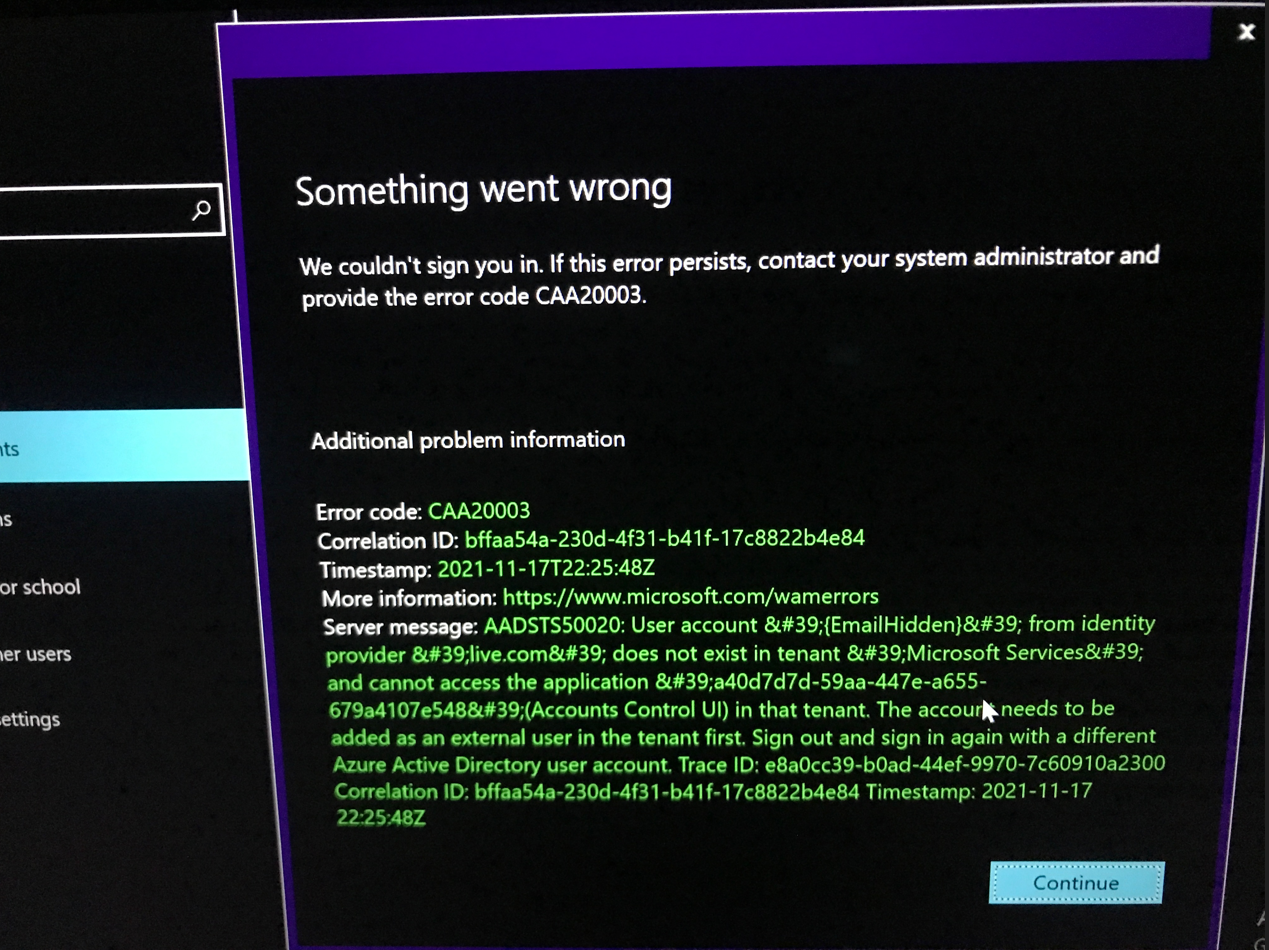
The problem can often be traced back to background VPN activity, incorrect system date and time settings, or issues with the account settings.
In this article, we will discuss methods to resolve this problem.
1. Check for Server Maintenance
Firstly, you should check if there is ongoing server maintenance. If server maintenance is happening, it could prevent you from accessing any Microsoft 365 application. You can check for maintenance on Microsoft’s official site .
2. Disable VPN
If you have a VPN running, you should consider disabling it. VPNs can sometimes cause connection problems while logging into Microsoft Apps due to changes in location and IP.
- Press the Windows + I keys to open Settings .
- Navigate to Network & Internet > VPN .
- Disconnect any ongoing VPN connections.
3. Correct Date and Time
When your device’s settings are out of sync with real-world time, it can prevent you from logging in. By ensuring your device is set to the correct date and time or allowing it to self-adjust to the appropriate settings automatically, you can often resolve login issues with Microsoft 365 applications.
This is particularly relevant for MS Teams, a real-time application that relies heavily on accurate time and date settings.
- Press Windows + I to open Settings .
- Click on Time & Language > Date & Time.
- Enable ‘ Set time automatically ‘ and ‘ Set time zone automatically ‘.
- Now, double-check if the error still exists.
4. Update Microsoft 365 Applications
An outdated version of an application may lack necessary updates, bug fixes or improved features that are present in the latest version. Plus, updates often include patches for security vulnerabilities, improving the security of your software.
Therefore, if you’re encountering the CAA20003 error, updating your Microsoft 365 applications can potentially solve the problem.
- Type ‘ Store ‘ in the Search box and open it.
- Click on the Library icon at the bottom left.
- Click on ‘ Get Updates ‘ then ‘ Update all ‘..
- This will automatically update and install the most recent version available.
5. Re-link Your Device With Azure AD
If your device isn’t properly connected with Azure AD, it can cause authentification problems. Therefore, ensure your device is correctly connected. You can also try re-linking your device to see if it resolves the issue.
- Press Windows + I to open Settings .
- Go to Accounts > Access Work or School .
- Click the Disconnect button to disconnect your account then hit Connect to reconnect.
6. Clear Microsoft Teams Cache
When you use Teams, it stores temporary “memory” or cache data to improve performance and speed. Over time, this cache can become outdated or corrupt, causing unexpected behaviors like sign-in errors. Clearing it out means Teams has to rebuild fresh cache, potentially resolving any problems the old cache was causing.
- Press Windows + R , type ‘%AppData%\Microsoft\teams\cache ‘ and press Enter .
- Select all contents in the folder and press ‘ SHIFT + DEL ‘ key to permanently remove files.
- Click on the confirmation button Yes .
7. Use Incognito Mode to Sign In
Using Incognito Mode ensures that no cookies, cached data, or browser extensions interfere with your login process. These files could contain old data or errors. By trying to sign in without loading these files, you may bypass any issues they might be causing, potentially resolving your problem.
To open an incognito mode window in your browser, press ‘ CTRL + SHIFT + N ‘ and begin using Teams there.
8. Reset Internet Explorer Settings
Resetting Internet Explorer settings can resolve the problem because it returns the settings back to their default state. This can be particularly helpful if non-standard settings, unknowingly made or changed, are causing problems with signing into Microsoft apps.
By resetting, you are essentially removing these potentially problematic configurations and replacing them with the originally designed ones, which can eliminate any related issues.
- Press Windows + R , type “ inetcpl.cpl ” and hit Enter .
- Go to the Advanced tab. Click “ Restore Advanced settings ” located near the bottom of the screen.
- Click Apply > OK .
9. Contact Your Admin
If none of the above solutions work, you should reach out to your administrators and request them to re-register your device using the Azure AD Administrator account.
System administrators have extensive technical knowledge and elevated rights to configure and manage Azure Active Directory (AD). Therefore, by re-registering your device using the Azure AD Administrator account, they could potentially resolve the sign-in error.
How to Fix “Printer is in an error state” Issue?
The error “ WinRAR Error: Next Volume Is Required ” usually appears when you’re extracting a multi-part RAR archive and WinRAR can’t find (or can’t correctly identify) the next file in the sequence . This often happens when a volume is missing , stored in a different folder , or renamed in a way that breaks the archive’s expected order .

In this guide, we’ll go over the most reliable fixes confirmed by affected users, along with what each method is doing behind the scenes so you can choose the right one for your situation.
Important: To extract multi-volume archives, you should always start extraction from the first file in the set. This is usually file.part1.rar , or (in older sets) the main .rar file that comes before .r01 , .r02 , and so on.
1. Download and Place the Missing RAR File
WinRAR needs all parts of a multi-volume archive to complete extraction. This error usually appears when one of the volumes in a set like .part2.rar , .r01 , .r02 , .001 , and similar naming formats is missing . Downloading the missing volume and placing it in the same folder as the other parts allows WinRAR to continue extracting normally .
- Look at the error message or review the list of archive parts in the folder.
- Identify which volume is missing (for example, part2.rar , .r02 , .001 , etc.).
- Go back to the website or source where you downloaded the archive.
- Locate and download the exact missing file using the same naming format as the others.
- Make sure the new file name matches the pattern of the rest. Example: If you have file.part1.rar and file.part3.rar , the missing one must be file.part2.rar .
- Move the downloaded missing volume into the same folder as the other archive parts.
- Confirm that all parts are in a single folder before extracting.
- Right-click the first file in the series (usually part1 or the main .rar file) and select Extract Here or Extract to Folder .
- WinRAR should now detect all volumes and continue extraction normally .
2. Manually Browse & Select the Next Volume
Use this method only if the next volume already exists , but WinRAR is failing to detect it automatically. This can happen due to incorrect naming , the file being in a different location , or a temporary file access issue. Manually browsing helps WinRAR locate the correct volume and resume extraction without interruption .
- Right-click the first file in the series (usually .rar or part1.rar ) and select Extract Here or Extract to Folder .
- When WinRAR cannot find the next volume, it will show the “ Next Volume Is Required ” message.
- A small window will appear, allowing you to manually select the next volume .
- Use the file explorer window to locate the folder where the other archive parts are saved.
- Select the next part based on the naming order (example: select file.part2.rar after file.part1.rar ).
- Make sure the selected file matches the naming format of the archive (no extra characters like (1) and no mismatched numbering).
- WinRAR will resume extraction using the selected volume .
- If additional volumes are missing or stored separately, WinRAR may prompt you again. Repeat the same process until extraction completes.
3. Rename the RAR files in Order
WinRAR relies on a proper naming sequence (such as file.part1.rar , file.part2.rar , file.part3.rar ) to extract multi-volume archives. If a file is named incorrectly, contains extra characters, or is out of order, WinRAR may fail to locate the next volume and show this error. Renaming the files correctly helps WinRAR follow the sequence and extract the archive without interruptions .
Note: Renaming only changes the file name , not the file contents. The goal is to restore the correct sequence so WinRAR can detect the next volume.
- Go to the folder where all the RAR files are saved.
- Make sure all parts of the archive are present and stored in the same folder .
- Check how the parts are currently named . Common patterns include:
file.part1.rar, file.part2.rar, file.part3.rar
file.rar, file.r01, file.r02, file.r03
- Look for files that don’t match the expected numbering pattern (for example, file.part01.rar , file.part1(1).rar , or unrelated names).
- Rename each file so it follows the same order without extra characters or mismatched numbering. Example:
Incorrect: file.part1.rar, file.part3.rar, file.part2(1).rar
Correct: file.part1.rar, file.part2.rar, file.part3.rar
- Make sure the text before the number is exactly the same for all files.
- Only the last part number should change.
- Right-click the first file in the series (usually part1.rar or the main .rar file) and select Extract Here .
- WinRAR should now recognize the sequence and continue extraction normally .
If you still get the same prompt: the archive set is likely incomplete (a part was never downloaded or was removed), or one of the volumes is corrupt and must be re-downloaded from the original source.
