Amazon Error Code 9074
In this article, we will go through as to why this error message occurs and what you can do to fix it.
After receiving reports from multiple users and conducting our own investigation, we came to the conclusion that this error message occurs due to a number of different reasons. Some of them are listed below (all of them might not be applicable to you).
- Technical difficulties: This applies to the majority of the cases where Amazon Prime Video is facing issues at the backend server. If there are issues at the backend, there is nothing you can do except wait the issue out.
- Service Outage: Amazon undergoes frequent several outages (like Netflix, Facebook, etc.) where all of its services are not usable either in a specific geographic area or all around the world. This is a very common scenario and like the previous case, there is nothing you can do except waiting.
- Channel issues: If you are using Roku to stream Amazon Prime and are using a channel, there might be instances where there is an issue with the configuration of the channel. Simply, resetting the channel fixes the issue here.
- Roku in Error state: If you use Roku to stream Amazon Prime Videos, it will most probably be added to your Amazon Account Management. This is a known issue and several people devised a workaround where you unregister the Roku device and then access Amazon Prime Video.
- Device in error state: Another common issue why users experience the error code 9074 is if any of the devices (including Roku, internet router, TV, etc.) are in an error state. Power cycling them refreshes all the temporary configurations and fixes the issue.
- Internet sharing: Even though internet shouldn’t be a problem if you have enough bandwidth, many users discovered that if they were sharing their internet with other devices, the error message 9074 appeared again and again. Connecting the streaming device solely to the internet usually fixes the problem.
- VPN and proxies: Several users might use VPNs in order to access channels and shows which are not available in their current location. These VPNs might give you access to your favorite shows but they also might cause several issues including the one under discussion.
Before you start with the solutions, make sure that you have saved all your work. Also, all your configurations will be removed so make sure that you also have all your credentials at hand.
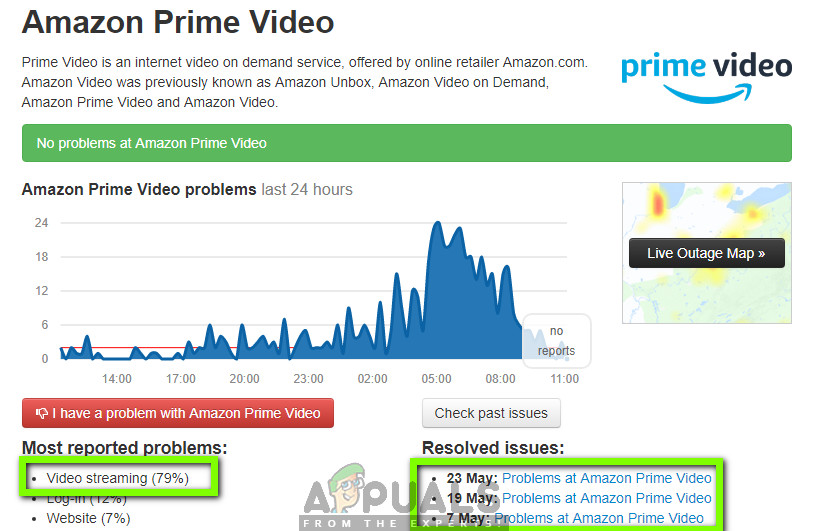
Checking Amazon Prime Video Status
Solution 2: Power cycling your Setup
Note: Perform this solution for all the devices including Router, TV, Roku device, etc.
- Turn off every device properly. Do this for all the devices as explained above. Turning off all devices
- Now, take out the power outlet of each device and press and hold the power button for at least 10-15 seconds.
- Release the power button after the prescribed time and let the devices be for around 10 minutes.
- Now plug everything back in and start your device. Navigate to Prime Video and check if error 9074 has been solved.
Solution 3: Disabling VPN/Proxy Services
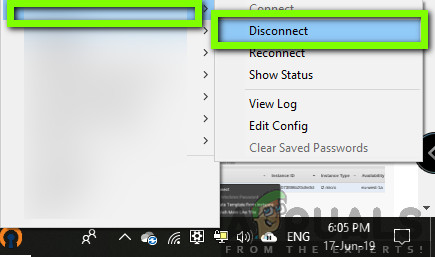
Disconnecting Open VPN
Hence if you are using any type of VPN or tunneling, make sure that you remove it and then try connecting to Prime Video without enabling anything. Furthermore, if you are using an internet connection of organizations or public places, make sure that you switch to a private internet and check if the issue persists there.
Note: Another thing to try is disconnecting all other devices which are currently connected to the network connection which is also being used by your Roku device. We came across this issue and determined that there were several cases where if a private connection was used solely with Roku, the issue went away.
Solution 4: Resetting Channel in Roku
- Navigate to your Roku Channel Menu and navigate to Prime Video ’s channel.
- Click on Channel options (or you can use the remote shortcut) and then click on Remove .
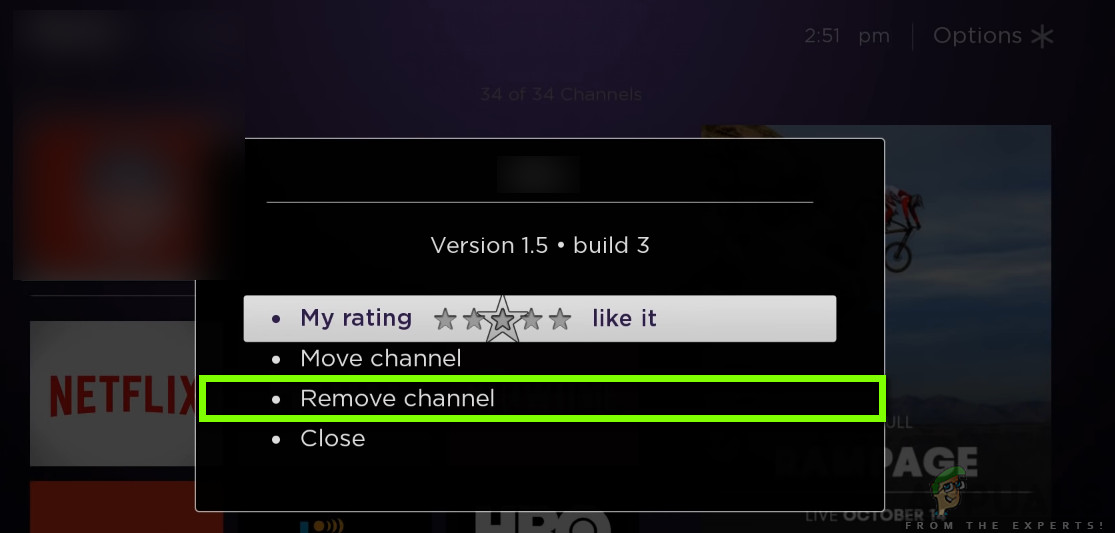
Removing Prime Video Channel – Roku
- After removing the channel, restart your computer properly. After restarting, navigate to the Channel Store and search for Prime Video
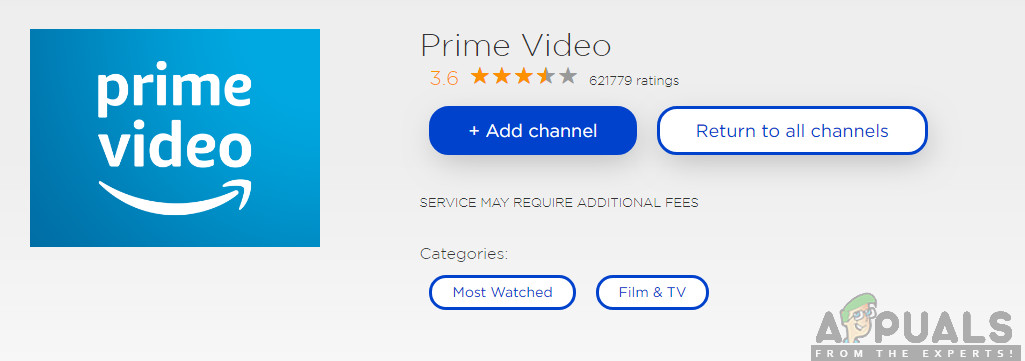
Installing Prime Video Channel
- Click on the button of Add Channel and after the channel is added, launch Prime Video.
Note: You might be required to enter your credentials again as you have added the channel as a fresh copy.
- Check if the issue is resolved.
If the above method didn’t work for you and you are still receiving problems, navigate to the next solution.
- Navigate to Amazon’s official Account website and open your Settings .
- After navigating to Settings, navigate to Digital Content . Here under the tab of Digital Management , you will see a button of Manage your Content and Devices . Click it once.
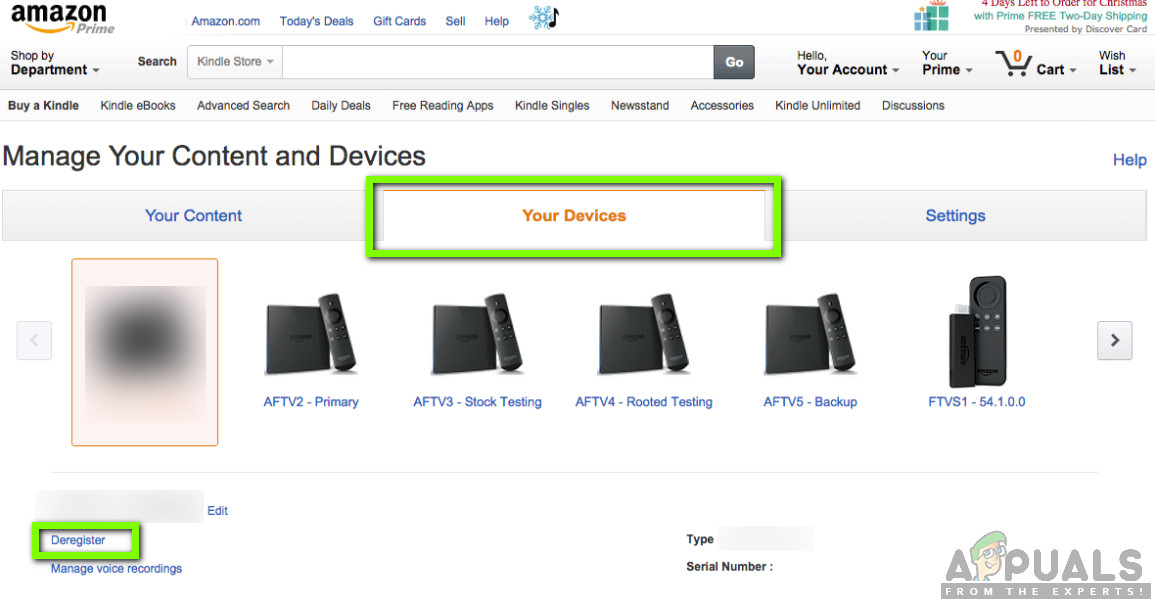
Your Devices in Manage your Content and Devices – Amazon Website
- Now, once the new window opens, click on Your Devices . Here all the devices connected to your account will be listed. Locate the Roku device and click on the button of Deregister .
- Now restart your Roku device and navigate to Prime Video . Once the channel/application is loaded, click on Settings/Menu (you can also make use of the shortcut from your remote).
- After, select the menu of Help and Settings .
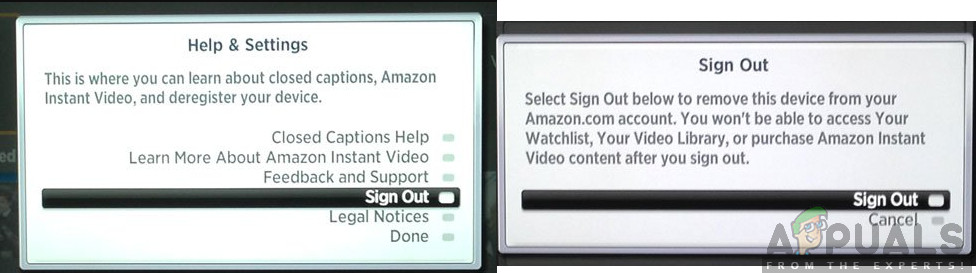
Signing out Prime Video from Roku
- Now click on Sign out . Now you will be asked again to sign out of Amazon account as well. Click on Sign out .
- Restart your Roku device again. Now try adding your Amazon account again and then add the Amazon channel. Now check if Amazon Video is working as expected and the error 9074 has been eradicated.
