
Alexa app stuck on setup
What causes the Alexa app Stuck on Setup problem?
After receiving numerous reports from multiple users, we decided to investigate the issue and came up with a set of solutions which solved the problem for most of our users. Also, we looked into the reasons due to which Alexa app gets stuck on setup and listed them below.
- Compatibility issue: This issue arises when your phone is not compatible with the Amazon Alexa app. Hence, the app may get stuck during the setup and fail to work because of the incompatibility. You have to check the standard requirements for Alexa app before proceeding to set up.
- Incorrect date and time: Your Alexa app might have issues during the setup process due to incorrect date and time on your phone. Be sure to set the correct date and time to avoid the problem.
- Smart network switch: When the Smart Network Swatch is on in your phone, chances are that the Alexa app may have problems while setting it up. Therefore, you should consider turning this feature off.
- VPNs and AD guards: If you find out that your Alexa-enabled device has installed AD guards or VPN, you should consider disabling them. This is because they interfere with the set-up process, thus, creating the Alexa app stuck problem.
- Outdated Android system: Alexa app may get stuck during the set-up process due to the use of outdated apps. You should, therefore, consider updating the Android system web view from the Google Play Store to get rid of the problem.
Now that you have a basic understanding of the nature of the issue we will move on towards the solutions. Make sure to implement these in the specific order in which they are listed to prevent any conflicts.
Solution 1: Check device compatibility with Alexa app
If your phone does not meet this requirement then that could be the issue why Alexa app gets stuck on setup. However, if it does meet the requirements but still have the stuck problem, proceed to the next solution below. To check the iOS version of your phone, you need to follow the steps below:
- Go to the Settings app on your iPhone.
- Select General.
- Click on About.
- On the About screen, check the Version of your iPhone.
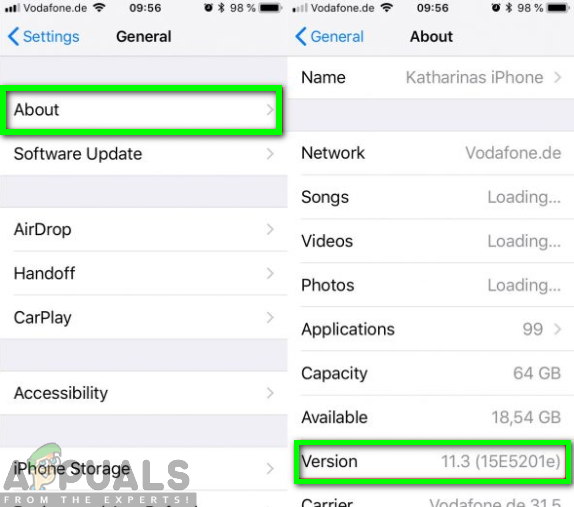
Checking the iOS Version of your iPhone
Solution 2: Reboot your Phone
You may also need to restart your phone as the stuck problem could be caused by a minor issue. Rebooting will help you get rid of the random temporary configurations that prevent your phone from performing tasks effectively. It will also help improve the performance of the phone and allow apps to run more smoothly.

Rebooting your phone
Therefore, before going any further into the solutions, you should consider restarting your phone with the aim of solving the Alexa app stuck problem. Try setting up the Alexa app again and if the problem persists, move to the next solution below.
Solution 3: Change the date and time
Alexa app gets stuck during the setup process due to the conflict in date and time on your phone. If the date and time are not correct, you are likely to have troubles during your setup procedure. Hence, you should set your date and time to automatic in order to avoid the conflict.
Turning on the automatic date and time to achieve this, you need to follow the following steps:
- Navigate through the Settings app on your phone and click on it.
- Next, scroll down and select Date and Time
- Then toggle the switch next to Automatic Date and Time to turn it on.
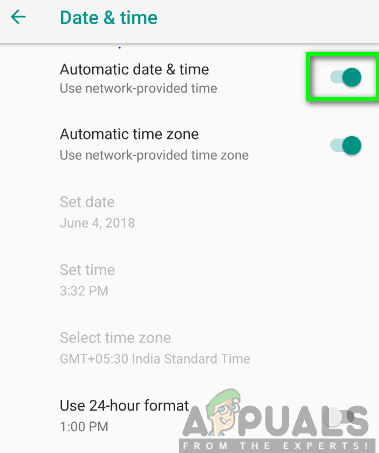
Switching the Automatic Date and Time on
Solution 4: Disable Smart Network switch
When the Smart Network Switch is on, the Alexa app might experience a stuck problem during the set-up. So, disabling this feature can help solve the problem. This feature is available on some brands of devices like Samsung.
You need to leave the app and follow the steps outlined below:
- Go to phone settings and click on Wi-Fi.
- Under it, you will be able to see the Smart network switch . Uncheck the box to turn it off.
- You may now go back to the Alexa app and retry to see whether the problem has been solved.
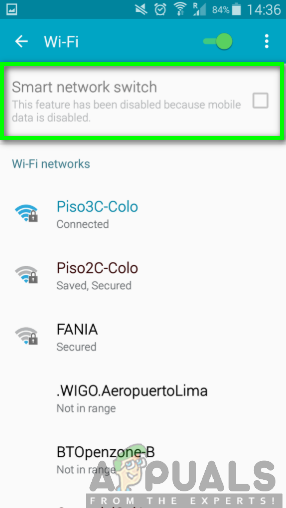
Turning the Smart network switch off
Solution 5: Disable AD guards and VPNs
Solution 6: Update Android system
It is evident that updating of apps and system is likely to solve many major software issues in any device. The same applies when facing problems like Alexa app stuck on the setup process. You will need to ensure that you are running on an updated system and all the apps are up to date
Therefore, to achieve this you will have to update the Android system web view by following the steps below:
- Go to the Google Play Store on your phone.
- Search for Android System WebView. Updating the Android System WebView
- Click on update if it is available.
- After updating the system, you can try to set up the Alexa app once again.
Solution 7: Uninstall Alexa app from your phone
- Go to the Google Play Store on your Phone.
- Select the installed apps section.
- Click on Amazon Alexa and then tap on Uninstall.

Uninstalling Amazon Alexa app
Solution 8: Set up Alexa from the website

Setting up Alexa from the website
