Every computer has a certain lifespan, and as your computer ages, it will inevitably begin to exhibit symptoms of wear and tear. It makes sense to evaluate how old your computer is in order to determine whether an update or new computer is necessary.
In other cases, some people would simply be interested in knowing how old their computer is, especially when purchasing a pre-used system.
The following guide covers different methods of finding out how old is your computer, be it a Mac , a Windows office machine, or a custom-built PC.
- How Old is Your Computer? Check the Backside of your System Use About Menu in Windows Through BIOS Version CPU’s Release Date Using PC’s Device Management App
- How Old is Your Custom-built PC?
- How Old is Your Mac?
- Conclusion
How Old is Your Computer?
There are different ways to determine how old your computer is, and we will start with the easiest one!
Check the Backside of your System
Turn your laptop upside down in a closed form. You will see different types of stickers on the back, and one of them will contain Serial Number as well as MFG Date of the laptop. In certain laptops, this could be printed instead of a sticker format. The MFG Date is indeed the manufacturing date of your system, and this is the most accurate way to determine how old your system is.

Backside of a Laptop Showing SIN, SNID, and MFG Date |Acer
If the date sticker is missing or illegible, you can find the serial number and enter it on the manufacturer’s website for support. This will help you determine how old the system is. Occasionally, this data will be encoded in a QR code (which, when scanned, will simply direct the user to an online help page).
Computer manufacturers like HP , Dell , and Acer offer this support but it is worth noting that not all manufacturers offer this.
However, in case the laptop is old, or pre-used, the sticker might have worn off or the print might have faded away too. In such cases, you have to use other techniques which include determining the date from the internal specifications.
If you have one of those old tower computers, it will have the same stickers or prints from the manufacturer on the front.
Use About Menu in Windows
In the case of Windows systems, including Windows 10 and 11, you can simply type About Your PC on the search bar and access it from the top of the list.

About Your PC
Here, you will find Device Specifications and Windows Specifications .
Under Windows Specifications , you will find the Installed-On section. This will tell you when the operating system was installed on your PC. Ideally, this is quite close to the date on which your system was manufactured or first used.

Windows Specifications
Be mindful of the fact that some people may have a different operating system installed later on. This would modify the actual date of installation and may represent an inaccurate date. Nonetheless, there are still many other methods to determine how old your system is.
Through BIOS Version
The systeminfo.exe command-line utility provides a comprehensive overview of your BIOS settings. This can tell you how old your computer is based on the BIOS version it uses, which is an accurate reflection of its age in certain cases.
To access the Command Prompt , type cmd in the search bar and hit enter.
Type systeminfo as the command here and hit enter. System information, such as processor specifications, windows specifications, BIOS information and other data will be displayed to you.
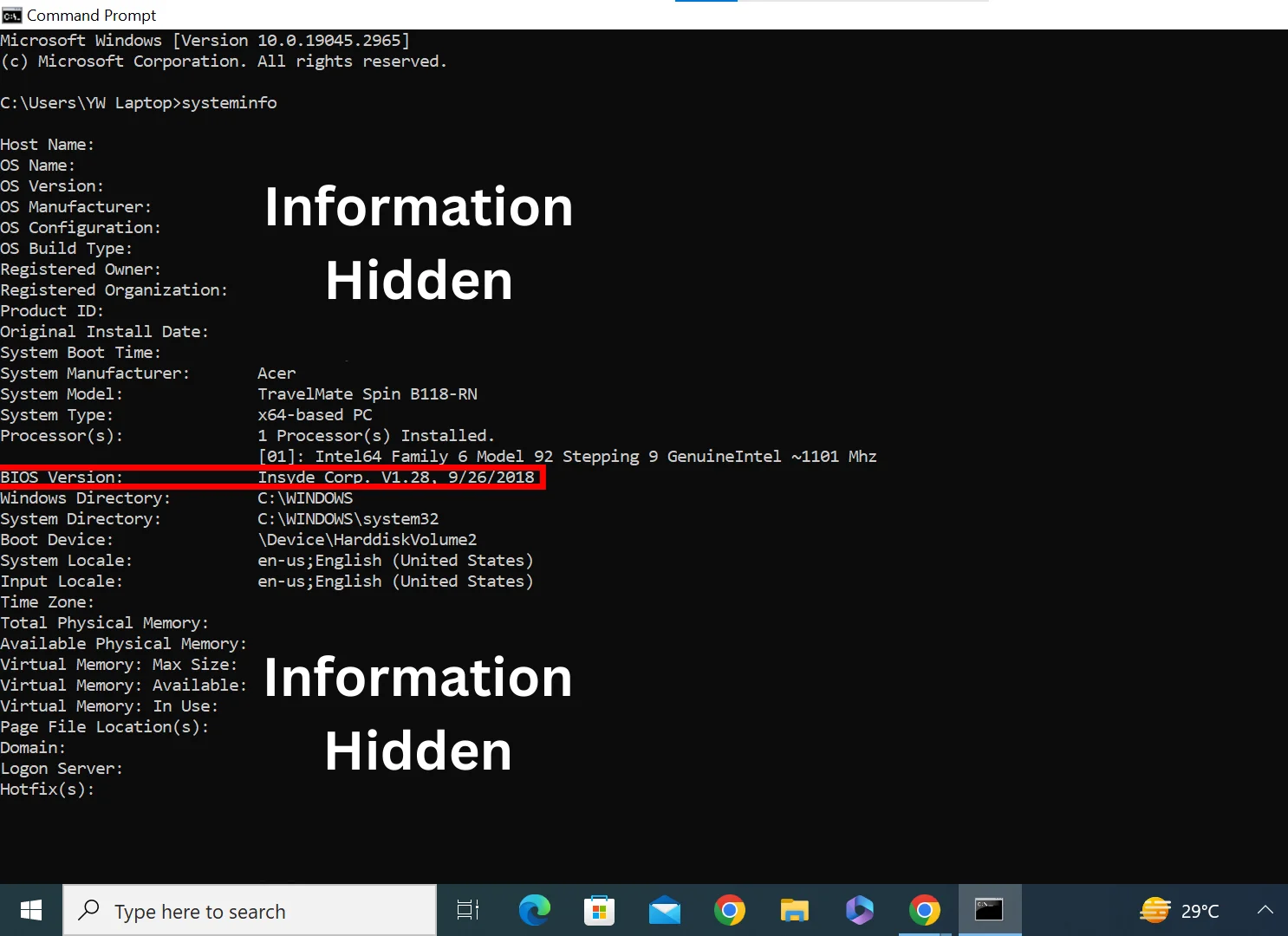
BIOS Version via Command Prompt/Systeminfo
The date that appears next to the BIOS Version provides a ballpark idea of when your motherboard was produced. When you look at the BIOS Version, all it does is tell you when the BIOS Firmware was last built.
The System Information utility is another method for determining the current BIOS version.
Simply type msinfo32.exe in the search bar and hit Enter. The System Information application will open. BIOS Version/Date is found in the System Summary section which is quite close to the actual date the system was produced.

System Information
CPU’s Release Date
Every year or so, a new generation of CPUs is released. However, some computer makers employ older generation processors in their budget-oriented systems, and your system may have been on a shelf for a while before you purchased it. A computer’s age is roughly estimated by looking at when its central processing unit was first released.
- Type sysinfo or msinfo32.exe into the Windows search box on the taskbar, and then click Run as Administrator Accessing System Information Directly
- The Central Processing Unit is shown under the Processor heading. Accessing Processor Information from System Information
- Simply type the name of your CPU followed by the phrase release date on Google and see what comes up.
- Follow the link to Intel or AMD’s website.
- You should be able to find your processor’s original release date on that page.
Using PC’s Device Management App
Desktop and laptop PCs come with device management software pre-installed from companies like Lenovo and Dell. You can use these programs to control your device’s settings, optimize its performance, address driver updates, and much more. In addition, they detail every aspect of your machine.
The three major computer brands all have their own device management software: Lenovo has Lenovo Vantage , Dell has SupportAssist , and HP has HP Support Assistant . On the home screen of these programs, you can see what kind of computer you have. This information is again sufficient for a Google Search and can help you determine the age of your system.

HP Support Assistant |My Computer Pro
How Old is Your Custom-built PC?
For a custom-built PC, it is difficult to determine how old it is. After all, some parts are far more recent. Companies like Dell offer reconditioned laptops made entirely of parts that failed the strict quality assurance process. Therefore, both new and old items are possible.
Because of the nature of its moving parts, components like power supplies and mechanical hard drives have a far higher failure rate as they age. Here, you need to check the manufacturing date and serial number on each and every part of the PC for an exact idea.
However, for a rough estimate, you can determine when the core components of your system were installed.
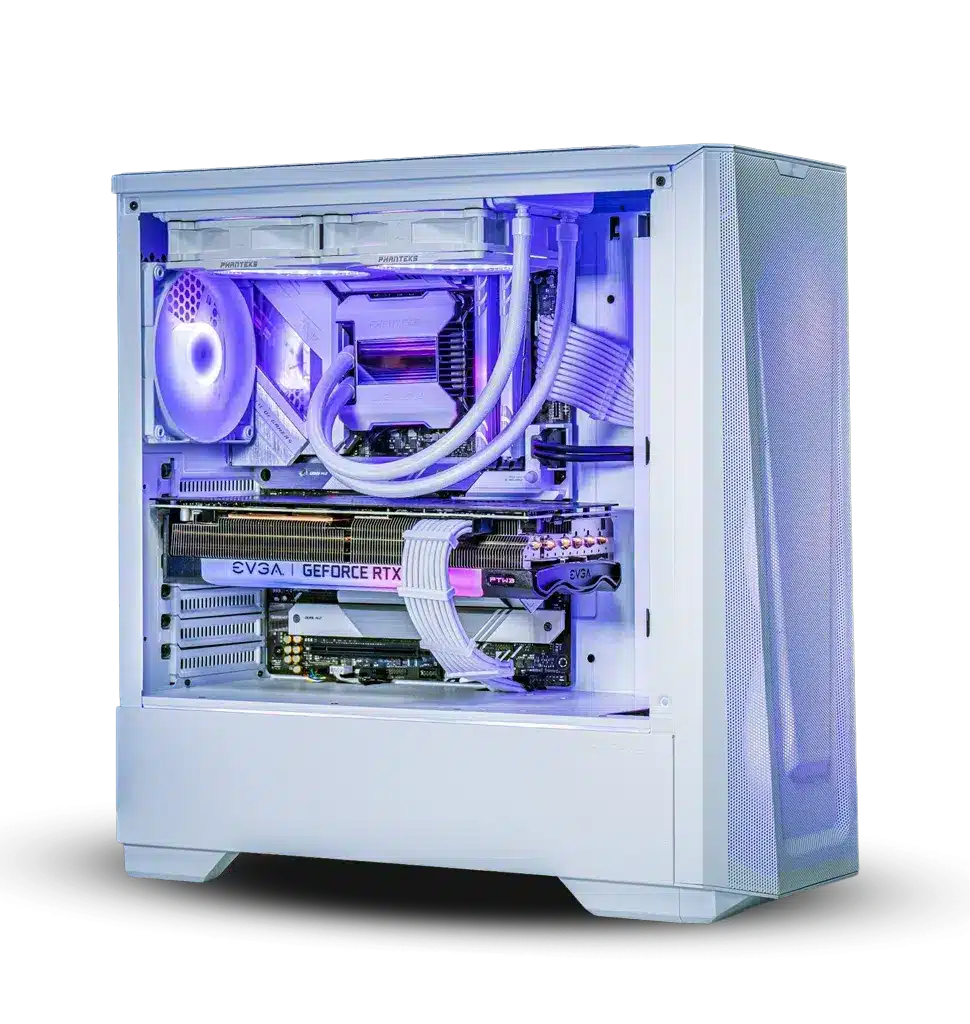
Custom Built PC |PowerGPU
For example, an old custom-built PC may have NVIDIA GeForce GTX 980 Ti graphics card. Now, since you don’t exactly know how old the PC is, you can simply use the graphics card name to determine how old is it. Simply perform a Google search and find out when was this graphics card introduced.
You’ll figure out that it was launched in 2015, and that may have been the time when the owner installed it into his system as well.
On the other hand, someone else might have NVIDIA GeForce RTX 3080 graphics card which is one of the recent ones. This again highlights that the system is not older than 2-3 years, at max!

Using Google to Find Manufacture Dates of Components of a Custom-Built PC
Similar searches can be performed on other components as well, such as motherboard, RAM, and hard disk. In most cases, the “MFG” date is going to be imprinted on the component you are looking for but even if it isn’t, Google can help you find out the exact date easily just by the model’s name.
How Old is Your Mac?
If you have an Apple computer, you can easily determine how old it is. The hardware components of any Windows-based system come from a wide range of manufacturers. However, Apple has much more control over the components used in its machines. Follow these steps to determine the age of your Mac:
- On the desktop, click the Apple logo in the top-left corner and select “ About This Mac .” Selecting About This Mac
- Here, you will find the date/year in which your Mac was manufactured. You can go a step further by clicking on “ More Info… ” to know extra details about your device. Your Mac’s release year
- On this page you’ll be able to check some more tidbits about your device, such as the screen resolution and storage size. About section in your Mac’s Settings
Alternatively, you can enter your serial number from this page on Apple’s Check Coverage webpage. You will find the coverage date of your system, and when was it manufactured.
Conclusion
Finding how old your computer is may seem like a hectic task but with the simple steps we mentioned above, you can easily do so in less than 5 minutes. Keep in mind that with more modifications, and after-market changes, the date of manufacture is going to be less accurate. It is important to keep everything in your system in its original form in order to find out the exact date, easily.
You can typically find the manufacturing date of your computer by checking for stickers or prints on the back of the device or its components, such as the CPU or motherboard. These stickers or prints often include manufacturing information, including the date of manufacture.
Yes, you can contact the manufacturer’s customer support on their website and provide them with the computer’s serial number. They can often provide information about the manufacturing or shipping date based on the serial number.
Some operating systems, such as Windows, provide system information that may include the BIOS or UEFI version and date. You can access this information through the system settings or by using commands in the command prompt or terminal.
How to Fix “Printer is in an error state” Issue?
- Recognizing the importance of a printer’s duty cycle is crucial for choosing a device that matches your print volume needs. Staying within this limit ensures the printer operates efficiently and prolongs its lifespan, minimizing the risk of maintenance issues.
- Proper humidity, temperature, and cleanliness management can significantly enhance printer performance and maintain its duty cycle, preventing unnecessary wear.
- Enhancing a printer with upgrades like additional memory or better mechanical parts can improve its workload handling and extend its practical duty cycle, boosting overall durability and efficiency.
When choosing a new printer, you might come across the term “ duty cycle ” in the specifications. This guide will explain what a duty cycle is, why it matters, and how it can help you choose the right printer. We’ll keep things simple so you can easily understand how to use this information when shopping for a printer.
- Printer Duty Cycle: What It Means and Why It Matters?
- Why the Duty Cycle Is Key to Choosing the Right Printer?
- Duty Cycle vs. Recommended Monthly Print Volume: What’s the Difference?
- What Happens If You Ignore Printer Duty Cycle Recommendations? ↪ Real-World Scenarios: Why Exceeding the Duty Cycle Can Cost You
Printer Duty Cycle: What It Means and Why It Matters?

What is the meaning of Printer Duty Cycle?
The printer duty cycle represents the upper limit of a printer’s capacity—how many pages it can reliably process in a month before the risk of wear or malfunction increases. This figure is crucial for understanding printer performance limits and ensuring that your chosen printer can handle the expected work volume.
Manufacturers determine a printer’s duty cycle through stress testing, where the printer is pushed to its limit to identify how many pages it can produce each month before malfunctioning. These tests help set a reliable performance gateway for users.
A printer’s duty cycle is like a car’s speedometer—you wouldn’t drive a car at top speed all the time, and you shouldn’t push a printer to its maximum duty cycle. Doing so can lead to quicker wear and tear, more frequent maintenance, and a shorter lifespan.
If you’re unsure whether to choose an inkjet or laser printer, this detailed guide compares both options to help you make an informed decision.
Why the Duty Cycle Is Key to Choosing the Right Printer?

The Importance of Duty Cycle in printer selection
Knowing the duty cycle is essential when choosing a printer, as it determines how well the device can handle your monthly print volume without excessive wear or maintenance.
Here is why the duty cycle matters in printer selection:
- Fit for purpose: Selecting a printer with a suitable duty cycle ensures it can handle your monthly printing volume efficiently, reducing stress on its components.
- Longer lifespan and better performance: Staying within the duty cycle ensures optimal print quality and speed while prolonging the printer’s life, avoiding frequent breakdowns.
- Cost efficiency and reduced downtime: Operating within the duty cycle minimizes the need for repairs and reduces operational disruptions, managing long-term costs.
Duty Cycle vs. Recommended Monthly Print Volume: What’s the Difference?

Duty Cycle vs. recommended monthly print volume
The recommended monthly print volume is the optimal number of pages a printer should handle each month for the best performance and longevity. Unlike the maximum capacity indicated by the duty cycle, this number guides regular usage, ensuring the printer operates efficiently without excessive wear.
If your print volume regularly exceeds the recommended amount but stays within the duty cycle, the printer may operate safely in the short term, but it could still experience accelerated wear and reduced lifespan over time.
In such cases, consider upgrading to a higher-capacity printer or spreading print jobs across multiple devices to ensure long-term performance.
Here are the differences between the duty cycle and recommended monthly print volume:
- Duty cycle: Represents the maximum number of pages a printer can handle in a month without breaking down. It assesses the printer’s upper limit.
- Recommended monthly print volume: Suggests a practical, workable number of pages to print each month to keep the printer in good condition over its lifespan.
What Happens If You Ignore Printer Duty Cycle Recommendations?

Consequences of ignoring Duty Cycle recommendations |AndranikHakobyan via Canva
Ignoring the duty cycle limits poses more severe risks than exceeding the recommended monthly print volume, leading to serious long-term consequences.
While exceeding the recommended volume occasionally may result in additional wear and tear, consistently exceeding the duty cycle can lead to frequent breakdowns, reduced performance, and a shortened lifespan.
Ignoring duty cycle limits leads to frequent breakdowns, reduced performance, and increased maintenance, ultimately shortening the printer’s lifespan and causing more frequent operational downtime and higher repair costs. Long-term, pushing a printer beyond its limits leads to greater financial burdens due to premature replacements and inefficiencies.
↪ Real-World Scenarios: Why Exceeding the Duty Cycle Can Cost You
For example, in a busy law firm, overlooking duty cycle limits during a high-stakes period could cause a printer breakdown just before a critical deadline, delaying crucial legal filings and ultimately compromising client service.
For small businesses, consistently exceeding a printer’s duty cycle can lead to costly emergency repairs or premature equipment replacements, straining financial resources.
