Google Maps has simplified the way of finding directions to a place. It has become an essential tool whenever someone needs to find something on the map. Almost any address can be found by typing it into the search bar, but exceptions exist.

Dropping a pin on Google Maps
That’s where Google Maps ‘ amazing feature of dropping a pin to your desired location to get directions comes in play. A pin on a map can be useful if the location you’re seeking does not have an address or if the given address is incorrect. Similarly, it can be enough to simply place a pin in the broad area if you don’t have the precise address .
Dropping a pin in Google Maps on mobile
The latest version of Google Maps makes it much simpler to drop a pin from the search box, and it does so automatically, regardless of your preferences. It implies that a pin should be placed at the desired location if you are looking for a specific address.
A pin will be dropped immediately if you enter a location in the search bar . You’ll still need to manually look around in the map if you’re trying to find somewhere using the map interface rather than the search box.
- The first step is to open the Google Maps app on your smartphone, whether iPhone or Android .
- Enter the address in the search bar at the top of the page or scroll to the area where you wish to place a pin. Tapping on that location will place a red-colored pin .
- You can then tap the pin to view instructions for the place. Here you’ll find options like getting directions for the pinned location or sharing it.
- The pin can be taken out by tapping the X .
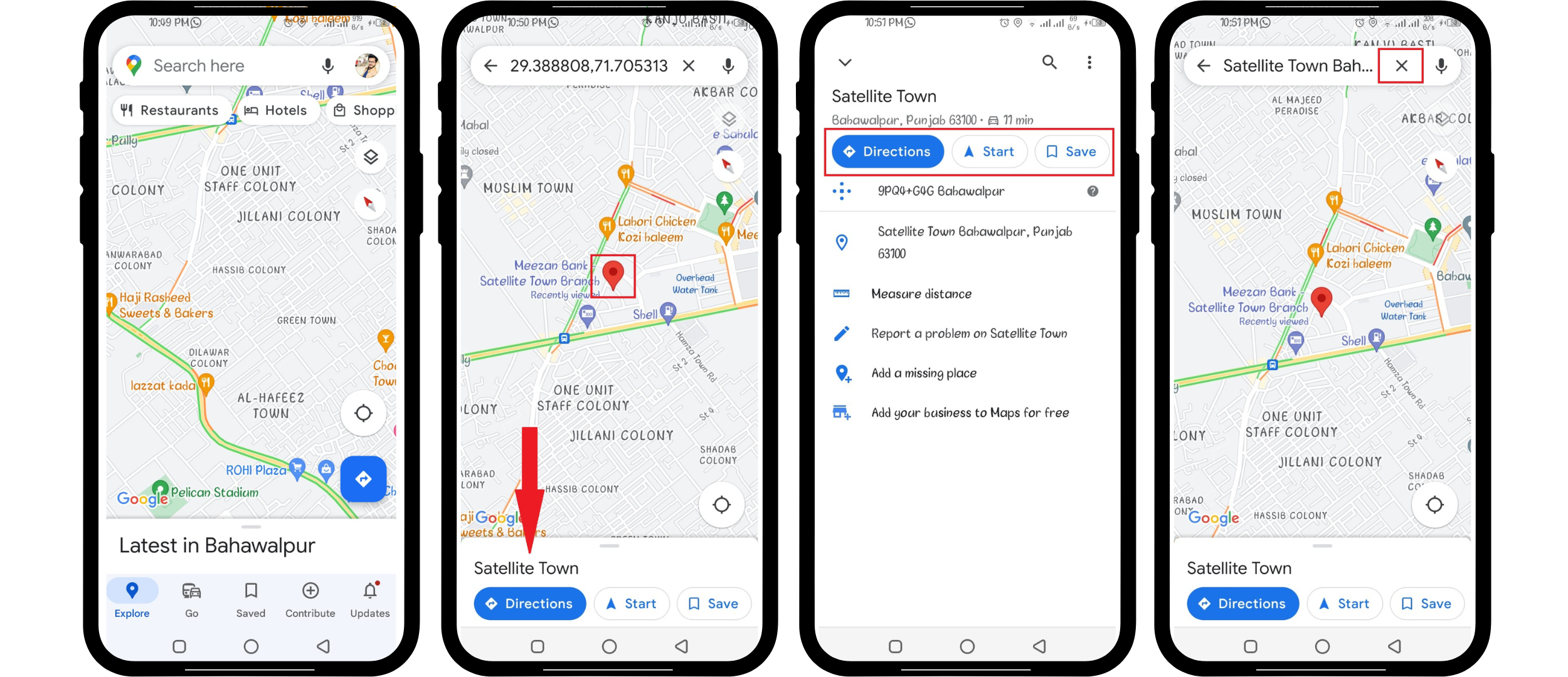
Dropping a pin in Google Maps on mobile
Dropping a pin in Google Maps on desktop/laptop
The desktop and mobile versions of the Google Maps homepage work similarly. You can find everything from grocery stores, restaurants, and hospitals in a few simple clicks. To drop a pin on Google Maps from any computer, whether it be Mac or Windows, you can:
- Go to maps.google.com in your browser of choice, make sure your GPS and location access are turned on.
- Zoom in close to the map till you can see the specific spot. You can use the plus and minus signs to zoom in and out of the map. Zoom in and find the desired location
- After you’ve zoomed in and discovered the precise spot, you can drop a pin by clicking. Then a box appears at the page’s footer. You can get the location details by clicking on that box. Drop a pin on the desired location
- On the page’s left, you’ll see a list of choices. Details will open in a menu on left side
- The details of where you just dropped the pin will appear here. This fallen pin can be used in a variety of ways mentioned below.
Use a dropped pin for directions
- Google Maps’ ability to provide directions is likely its most valuable function. Your dropped pin might serve as either a starting or finishing point.
- Instead, you’ll need to drop the pin at your final destination and select the starting point as your current location.
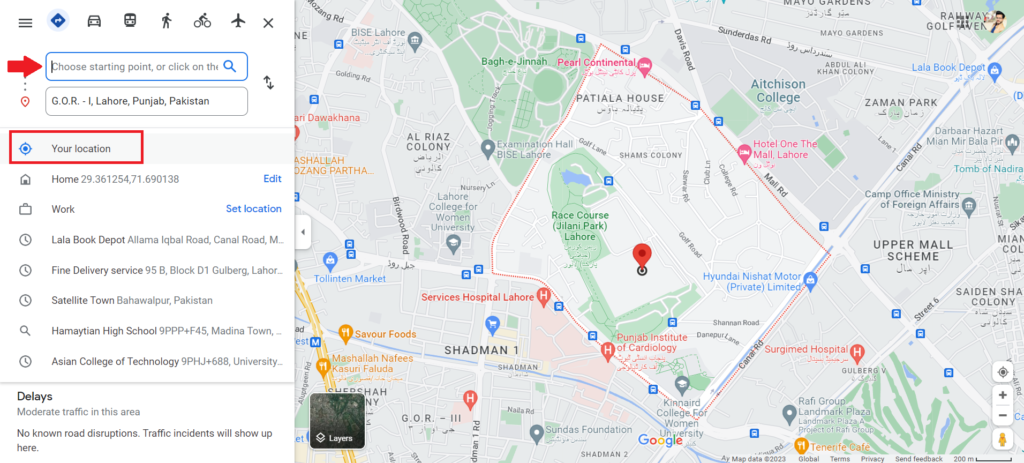
Select your current location as a starting point
All possible modes of transportation, from flying to walking to riding a bike, will be displayed on the map (along with their respective travel time).
Drop a permanent Google Maps pin (save it)
The temporary pin will disappear if you click or tap anywhere else on the map. If you need something more permanent, like a pin that’s always visible on Google Maps for an address you’ll frequently be visiting in the future, you have a few options.
- After you’ve dropped a pin and opened its data card, you can add it to a list by clicking or tapping the “ Save ” button. Click on “Save” button
- You can use Google Maps’ pre-made lists (such as “ Favorites ” and “ Want to go “), or you can make your own, perhaps based on a trip you’re on or a walk you’re planning.

Save the pinned location for future use
Sharing your pinned location
- Using Google Maps, you can easily send your current location to a friend or social media using the ‘ Share ‘ button. Click on “Share” button
- You can also send the location to your own mobile phone by choosing the “ Send to phone” option .” You’ll get options to share the location on the attached phone, your email or phone number. Click on “Send to phone” Final Verdict Google Maps allows you to drop a pin on your desired location. You can drop a pin on the desired location with a single tap. You can find directions for that location, save it for future use or share it with someone. On the other hand, included some recommendations in this post in the hopes that they will help you unlock a new way to use Google Maps, which will, in turn, make it easier for you to navigate. Tags Google Maps By Kamil Anwar Updated on April 5, 2024 Kamil is a certified Systems Analyst Reviewed by Huzaifa Haroon Facebook Twitter LinkedIn Reddit Share via Email Print ABOUT THE AUTHOR Kamil Anwar System Analyst | Microsoft Certified Professional | Email Facebook Twitter LinkedIn Kamil is a certified MCITP, CCNA (W), CCNA (S) and a former British Computer Society Member with over 9 years of experience Configuring, Deploying and Managing Switches, Firewalls and Domain Controllers also an old-school still active on FreeNode. Related Articles Top 5 Free Prayer Apps Every Christian Should Install Published on August 30, 2024 The 5 Best Free Digital Planner Apps for ADHD Published on August 29, 2024 How to Set up Recurring Payments On Zelle in 6 Easy Steps Published on August 29, 2024 What is Printer Cycle Duty & Why is it Important? Published on August 29, 2024 The 9 Best Alternatives to Doublelist You Need to Try Published on August 21, 2024 How to Factory Reset Beats Solo3 & Solo4 Headphones? Published on August 19, 2024
How to Fix “Printer is in an error state” Issue?
- Recognizing the importance of a printer’s duty cycle is crucial for choosing a device that matches your print volume needs. Staying within this limit ensures the printer operates efficiently and prolongs its lifespan, minimizing the risk of maintenance issues.
- Proper humidity, temperature, and cleanliness management can significantly enhance printer performance and maintain its duty cycle, preventing unnecessary wear.
- Enhancing a printer with upgrades like additional memory or better mechanical parts can improve its workload handling and extend its practical duty cycle, boosting overall durability and efficiency.
When choosing a new printer, you might come across the term “ duty cycle ” in the specifications. This guide will explain what a duty cycle is, why it matters, and how it can help you choose the right printer. We’ll keep things simple so you can easily understand how to use this information when shopping for a printer.
- Printer Duty Cycle: What It Means and Why It Matters?
- Why the Duty Cycle Is Key to Choosing the Right Printer?
- Duty Cycle vs. Recommended Monthly Print Volume: What’s the Difference?
- What Happens If You Ignore Printer Duty Cycle Recommendations? ↪ Real-World Scenarios: Why Exceeding the Duty Cycle Can Cost You
Printer Duty Cycle: What It Means and Why It Matters?

What is the meaning of Printer Duty Cycle?
The printer duty cycle represents the upper limit of a printer’s capacity—how many pages it can reliably process in a month before the risk of wear or malfunction increases. This figure is crucial for understanding printer performance limits and ensuring that your chosen printer can handle the expected work volume.
Manufacturers determine a printer’s duty cycle through stress testing, where the printer is pushed to its limit to identify how many pages it can produce each month before malfunctioning. These tests help set a reliable performance gateway for users.
A printer’s duty cycle is like a car’s speedometer—you wouldn’t drive a car at top speed all the time, and you shouldn’t push a printer to its maximum duty cycle. Doing so can lead to quicker wear and tear, more frequent maintenance, and a shorter lifespan.
If you’re unsure whether to choose an inkjet or laser printer, this detailed guide compares both options to help you make an informed decision.
Why the Duty Cycle Is Key to Choosing the Right Printer?

The Importance of Duty Cycle in printer selection
Knowing the duty cycle is essential when choosing a printer, as it determines how well the device can handle your monthly print volume without excessive wear or maintenance.
Here is why the duty cycle matters in printer selection:
- Fit for purpose: Selecting a printer with a suitable duty cycle ensures it can handle your monthly printing volume efficiently, reducing stress on its components.
- Longer lifespan and better performance: Staying within the duty cycle ensures optimal print quality and speed while prolonging the printer’s life, avoiding frequent breakdowns.
- Cost efficiency and reduced downtime: Operating within the duty cycle minimizes the need for repairs and reduces operational disruptions, managing long-term costs.
Duty Cycle vs. Recommended Monthly Print Volume: What’s the Difference?

Duty Cycle vs. recommended monthly print volume
The recommended monthly print volume is the optimal number of pages a printer should handle each month for the best performance and longevity. Unlike the maximum capacity indicated by the duty cycle, this number guides regular usage, ensuring the printer operates efficiently without excessive wear.
If your print volume regularly exceeds the recommended amount but stays within the duty cycle, the printer may operate safely in the short term, but it could still experience accelerated wear and reduced lifespan over time.
In such cases, consider upgrading to a higher-capacity printer or spreading print jobs across multiple devices to ensure long-term performance.
Here are the differences between the duty cycle and recommended monthly print volume:
- Duty cycle: Represents the maximum number of pages a printer can handle in a month without breaking down. It assesses the printer’s upper limit.
- Recommended monthly print volume: Suggests a practical, workable number of pages to print each month to keep the printer in good condition over its lifespan.
What Happens If You Ignore Printer Duty Cycle Recommendations?

Consequences of ignoring Duty Cycle recommendations |AndranikHakobyan via Canva
Ignoring the duty cycle limits poses more severe risks than exceeding the recommended monthly print volume, leading to serious long-term consequences.
While exceeding the recommended volume occasionally may result in additional wear and tear, consistently exceeding the duty cycle can lead to frequent breakdowns, reduced performance, and a shortened lifespan.
Ignoring duty cycle limits leads to frequent breakdowns, reduced performance, and increased maintenance, ultimately shortening the printer’s lifespan and causing more frequent operational downtime and higher repair costs. Long-term, pushing a printer beyond its limits leads to greater financial burdens due to premature replacements and inefficiencies.
↪ Real-World Scenarios: Why Exceeding the Duty Cycle Can Cost You
For example, in a busy law firm, overlooking duty cycle limits during a high-stakes period could cause a printer breakdown just before a critical deadline, delaying crucial legal filings and ultimately compromising client service.
For small businesses, consistently exceeding a printer’s duty cycle can lead to costly emergency repairs or premature equipment replacements, straining financial resources.
