Many issues related to Outlook can be resolved effortlessly by starting anew with a fresh profile. Outlook operates through profiles, which encompass all your information, such as your emails and other existing data.
There are several reasons you might need to create a new profile. A common reason is the desire to segregate personal from work emails. Furthermore, if you’re experiencing functionality problems with Outlook, establishing a new profile often rectifies the issue.
Note: The steps provided may differ slightly depending on the version of Outlook you are using (e.g., Outlook 2010, 2013, 2016, 2019, Office 365/Outlook for Microsoft 365).
- Launch Outlook and click on File .
- Choose Account Settings > Manage Profiles .
- Select Show Profiles .
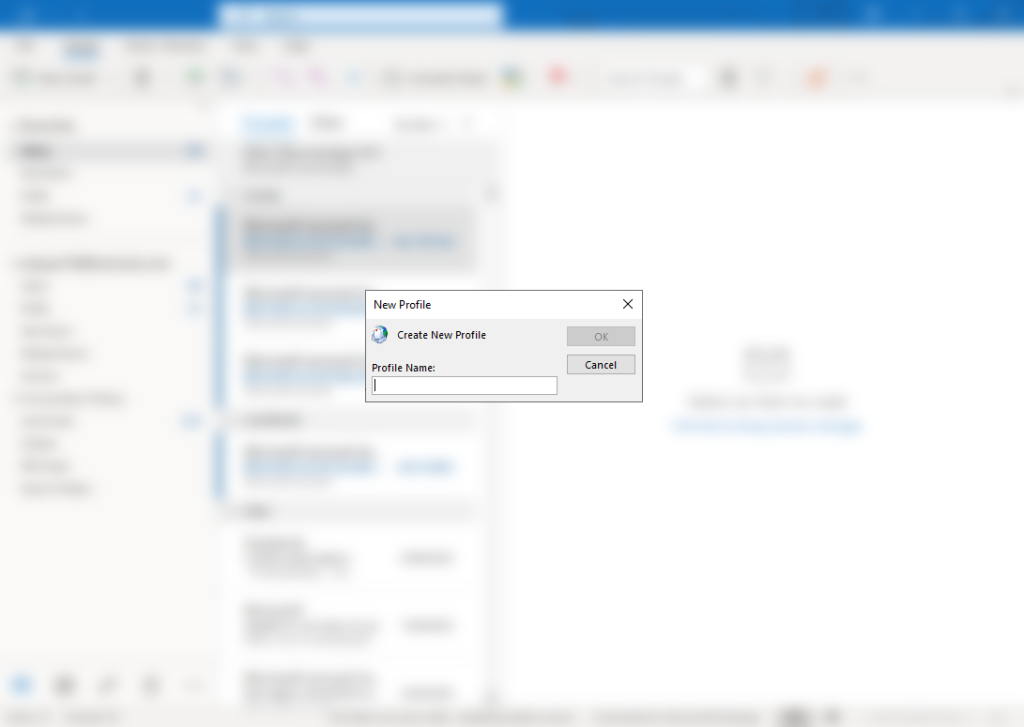
- Click Add , then name the new profile .
- Enter the desired name for your profile.
- Opt for automatic profile creation by selecting the Email Account option, or choose Manual Setup to create IMAP or POP profiles with additional settings manually.
- Provide your name, email address, and password , then click Next .
- After profile creation, click Finish .
- Now, select the “Always use this profile” option to designate a default profile for Outlook to open every time. Alternatively, choose the “Prompt for a profile to be used” option if you prefer Outlook to ask which profile to use each time it opens.
