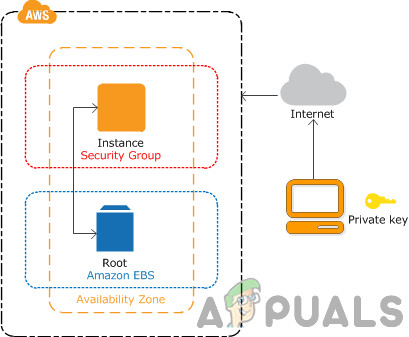
Amazon EC2 instance
- Login into AWS Management Console . Click on Services and then click on EC2
- Click on Running instances and then Right-click on Amazon EC2 instance and then click Image > Create image
- Define the image name and image description and then click on Create Image to generate the AMI. Additional you can select No reboot . When enabled, Amazon EC2 does not shut down the instance before creating the image. When this option is used, file system integrity on the created image cannot be guaranteed.
- Create an Image request received. It will take a few minutes until it is created and available. Click on View pending image ami-xxxxxxxxx .
You can access an AMI also by clicking on Images > AMIs on the left side of the window.
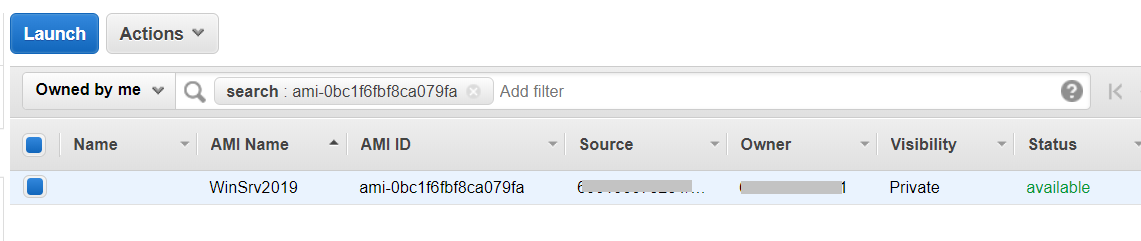
- Once it is available, right-click on the AMI image and then click Modify Image Permissions.
- Under Modify Image Permissions choose he image type ( public or private ), type the AWS Account Number, and then select Add “create volume” permissions to the following associated snapshots when creating permissions. In our case, we will choose a private image.
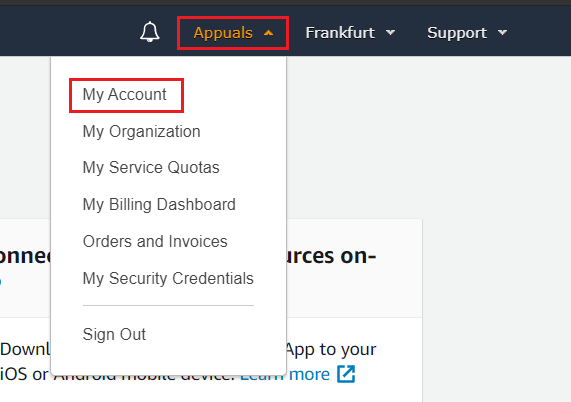
The AWS Account Number (known as Account ID) can be found if you click on your profile at the top right side and then click on My Account .
- Click on Add Permission and then click on Save . Your AMI image is successfully shared with another AWS account.
You will get an email with confirmation from AWS that your validation was successful.
Export Public Key from Existing Key Pair
Open an Internet browser and download PUTTY from this link .
Click on Start and search for PuTTYGen and run it.
Click on Load . Add your private key pair (*.pem). As you can see, the key is successfully imported. Please click on OK and copy the key from the field Public key for pasting into OpenSSH authorized_keys file . We will need this key in step 2.
Login into AWS Management Console
Click on Services and then open EC2 . Then click on Key pairs
Click on Actions and then Import key pair
Enter the key pair name and add the public key you copied in the previous step.
Click on Import key pair and then click on IMAGES > AMI on the left side of the window
Choose the Private images to access the shared AMI image
Right-click on the AMI Image and click on Launch
Choose an Instance Type and click Next: Configure Instance Details . We should choose the same instance type as in the source AWS account. In our case, we will choose t2.micro (Variable ECUs, 1 vCPUs, 2.5 GHz, Intel Xeon Family, 1 GiB memory, EBS only)
Configure Instance Details to suit your requirements and then click Review and Launch . We do recommend enabling termination protection. You can protect instances from being accidentally terminated. Once enabled, you won’t be able to terminate this instance via the API or the AWS Management Console until termination protection has been disabled.
Please review your instance launch details and click Launch . You can go back to edit changes for each section.
Select the imported key pair by clicking on Choose an existing key pair and selecting the key pair.
Select I acknowledge that I have access to the selected private key file (KeyPair.pem) and that without this file, I won’t be able to log into my instance and click Launch Instances .
Your instances are now launching. Click on View launches .
Please wait a few minutes until your instance is successfully initialized.
Right-click on the image and then choose Connect
