In the digital era where videos have become the norm for communication, understanding video codecs like H.264 , also known as AVC (Advanced Video Coding), is crucial. This widely used codec, renowned for its block-oriented, motion-compensated coding, plays a pivotal role in capturing, compressing, and disseminating video material.
Its great compatibility and extension of support for up to 8K UHD videos contribute to its over 91% market share.
HEVC (High Efficiency Video Codec), often known as H.265 , is the successor to the AVC video compression standard. Unlike H.264 , however, which is supported by a wide variety of devices and systems, the H.265 codec is not universally compatible. The only way to address this is to convert from H.265 to H.264 .
Let’s see how to convert H.265 to H.264 without compromising on quality!
- Use a Third-Party Converter Option 1: Using an Offline Converter Application H.265 to H.264 With VideoProc Converter: Alternative Applications to Convert H.265 to H.264 Option 2: Using an Online Converter Application H.265 to H.264 Using AnyConv:
- Benefits of Converting from H.265 to H.264
- Conclusion
Use a Third-Party Converter
The simplest and easiest way to convert H.265 to H.264 is by using a third-party converter application. You can download a converter application for once, and use it for all videos available on your storage locally. Alternatively, you can use an online converter as well.
Option 1: Using an Offline Converter Application

VideoProc Converter: A useful video processing software |VideoProc Converter
While there are many applications available, one of the most convenient ones is VideoProc Converter . The software features the Max-quality Engine, a unique technology that prioritises maintaining the highest possible quality during the conversion process.
With this engine, you can convert your H.265 videos to H.264 format without sacrificing the visual and audio quality , ensuring that the converted files retain the original aspects.
Besides, It comes with presets specifically tailored for various purposes, such as social media sharing, compatibility with older devices, and compatibility with different media players. By utilising these presets, you can ensure that your H.265 videos are easily accessible and viewable across different platforms and devices.
Another great thing about this software is verified GPU acceleration for batch encoding of both HEVC (H.265) and H.264 videos which allows for faster conversion times and improved efficiency as well.
H.265 to H.264 With VideoProc Converter:
Step 1 : Download the program from the official website . Open the setup file once the download is completed, and simply press “Install”. The program will download in a few minutes.
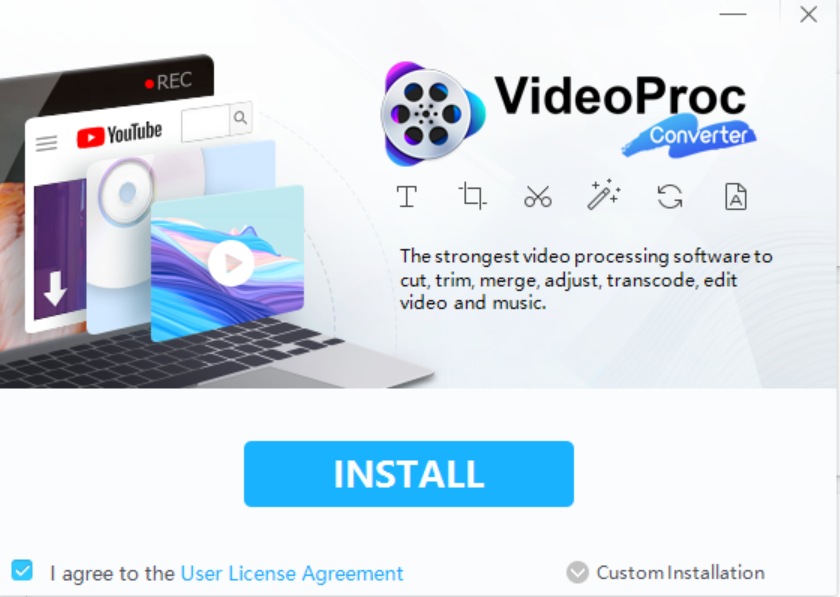
Installing VideoProc Converter
Step 2 : Once you’ve installed VideoProc Converter, launch the program. For first-time users, the program will automatically scan your system to evaluate its video compression and codec capabilities. After this brief analysis, select the option labeled “ Process video with hardware acceleration .”
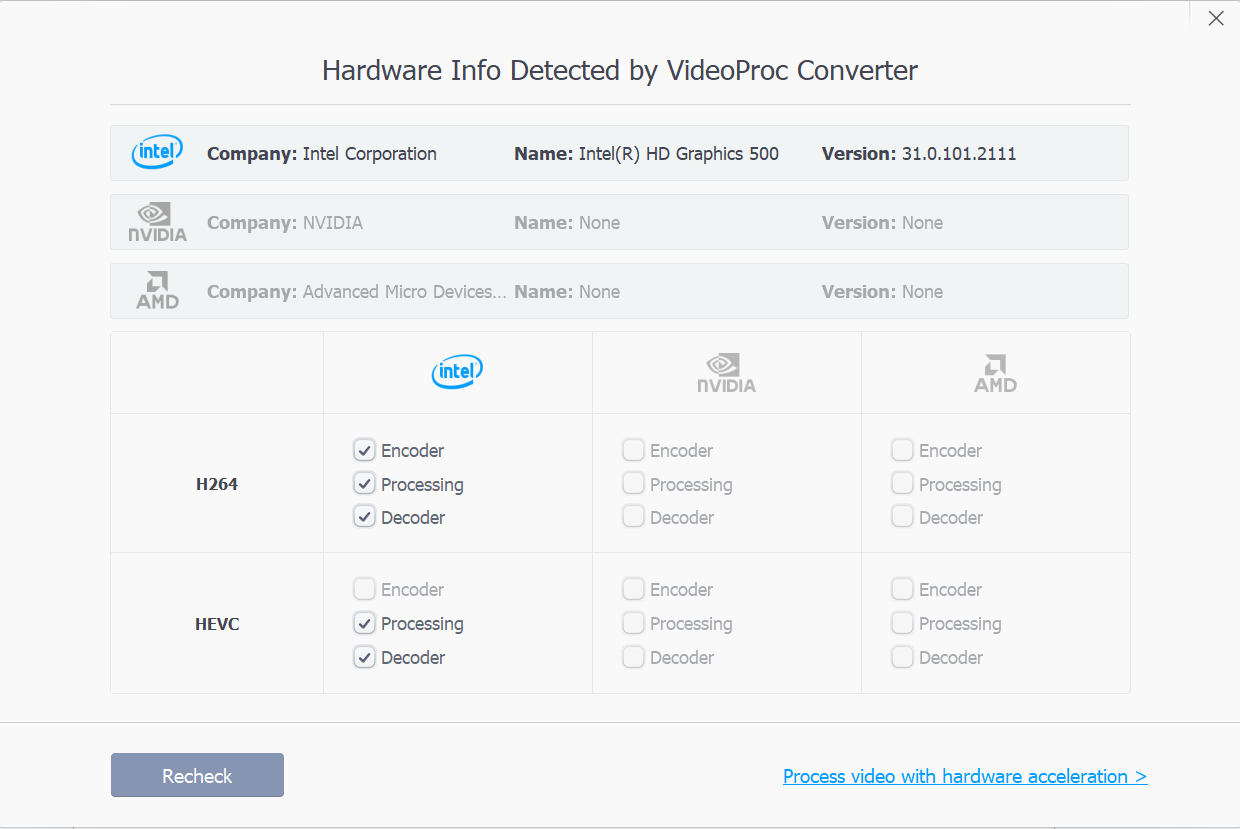
Hardware Capabilities Detected by VideoProc Converter
Step 3 : You will see now yourself on the home screen of the application. Next, you need to import your video on the program. On the top left side, you will see the button “ Video ” with a “ + ” sign. Click it and select the H.265 video you want to convert to H.264.
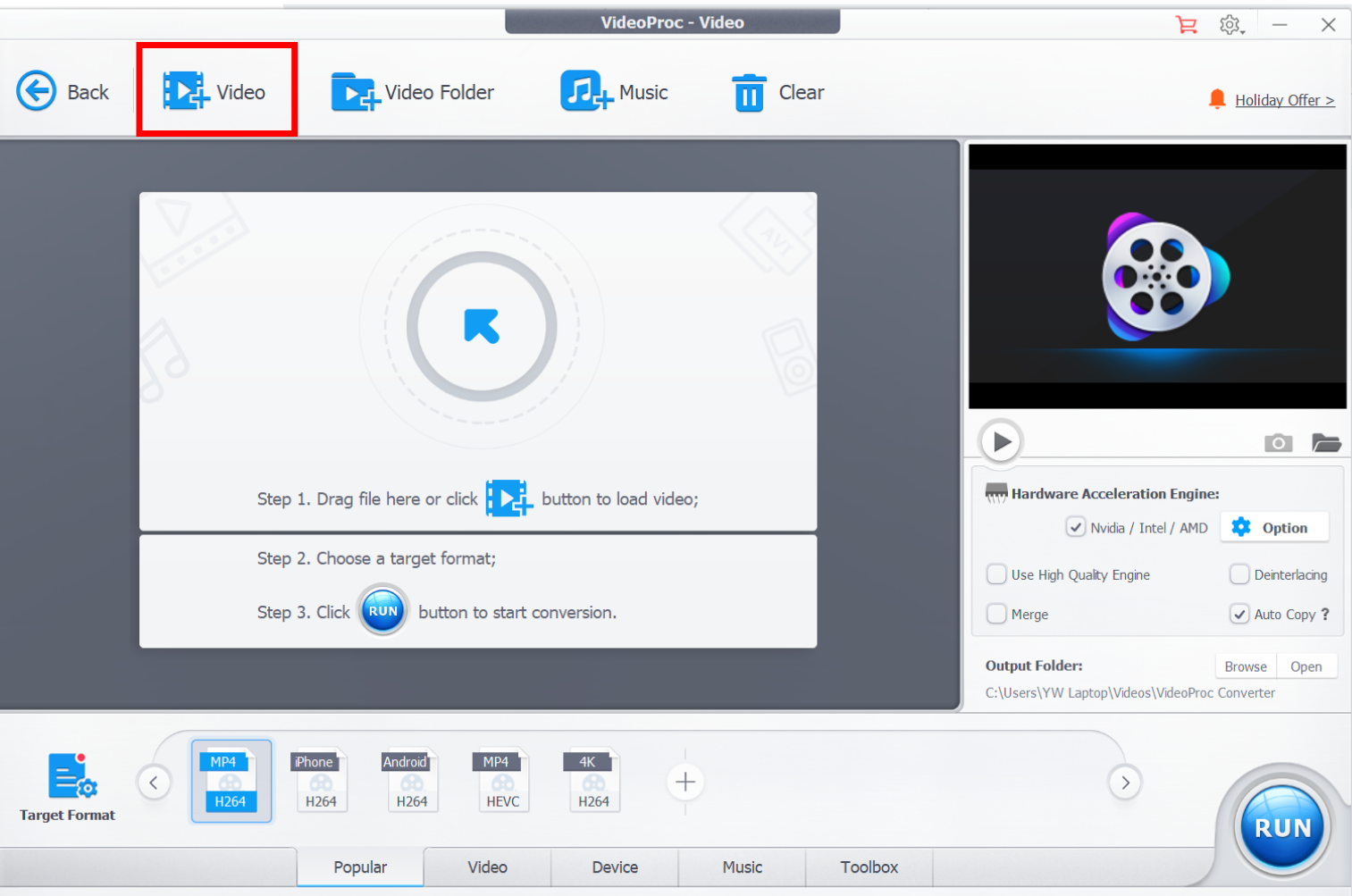
Importing video to VideoProc Converter
Step 4 : Once your video is imported, hover to the bottom section of the window. You will see different options for conversion. For example, converting to MP4 HEVC, H.264 for Android, H.264 for iPhone, 4K H264, and MP4 HEVC. Select the one you require.
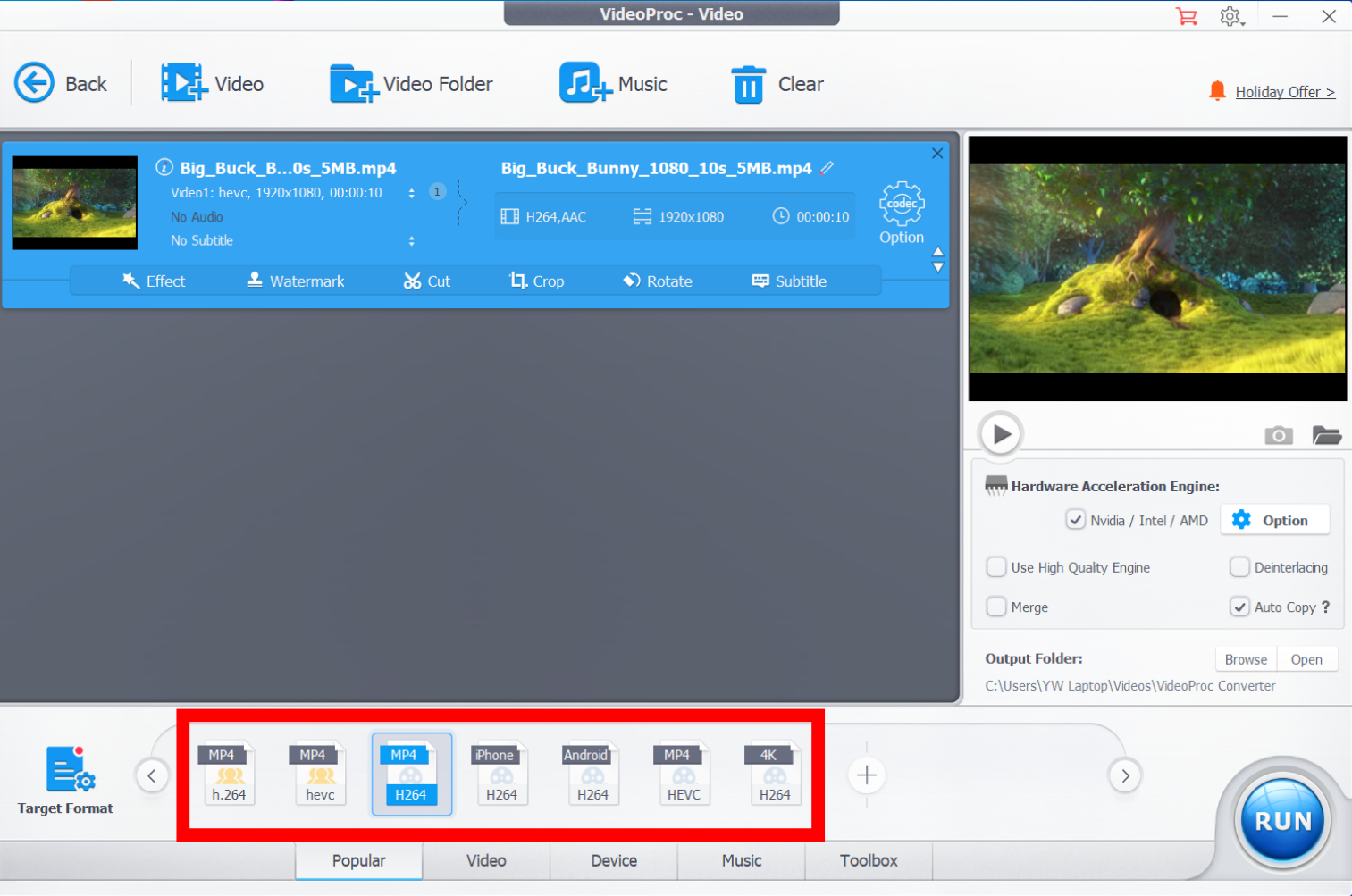
Choosing video codec: VideoProc Converter
Step 5 : Click “Run” and your video will be converted. Keep in mind that if you have a trial version, you will see a different window, and you need to press “ Continue ” at the bottom again. The program will convert the video from H.265 to H.264 and even show you the converted file.
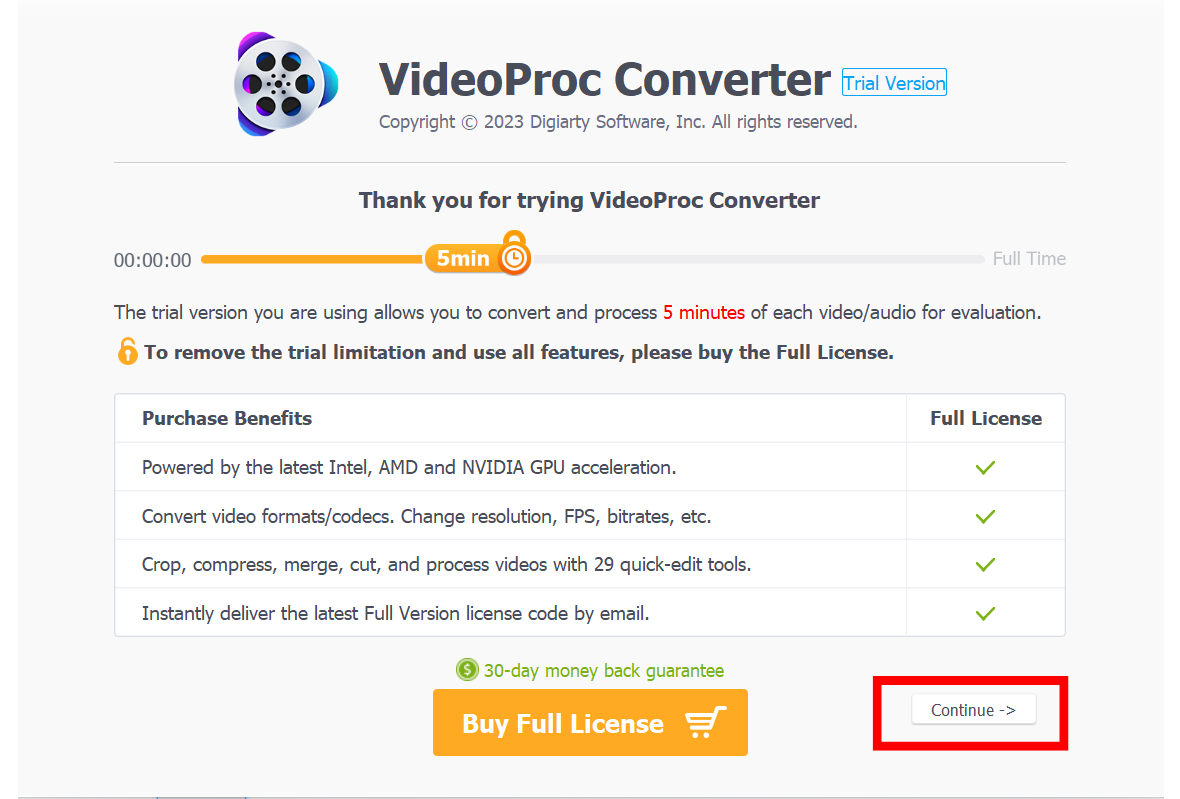
Continue towards converting the video: VideoProc Converter
That’s it! It is that simple and easy to convert any H.265 video to H.264.
Alternative Applications to Convert H.265 to H.264
HandBrake is another useful alternative. As an open-source and cross-platform software, it’s ideal for those who value transparency and want to use the same tool across multiple operating systems. The amount of customizable settings for the H.265-to-H.264 conversion are minimized thanks to the well-designed conversion presets.
For the old school, VLC Media Player is also a convenient solution to go for.

FFmpeg: A known tool for video conversion and compression
In case you are a pro, you might want to have some control over the element of customization. Such users can go for FFmpeg which relies on command-line input and allows you to modify the clip’s bandwidth, bitrate, compression ratio, scale, and edits before you save it in the H264 format.
Users can also specify specific encoding settings, apply filters and effects, adjust resolution and aspect ratio, and perform other operations to achieve the desired output
Option 2: Using an Online Converter Application
Many people don’t like the hassle of downloading an entire program to their system. Instead, they are cool with just a one-time solution to their conversion requirements. Such users can go for numerous online converters.
AnyConv is among the finest options recommended for beginners. The entire conversion process takes place online, making it convenient and accessible.

AnyConv: An online tool for compressing and converting videos |AnyConv
The program maintains a maximum input file size limit of 100 MB, ensuring that even moderately larger files can be processed. Additionally, AnyConv takes the privacy of your files seriously. In terms of privacy, AnyConv ensures that your files are deleted one hour after conversion, minimizing the risk of unwanted access.
In addition, as batch processing is supported, you can enjoy high efficiency even while converting large amounts of HEVC to AVC.
H.265 to H.264 Using AnyConv:
Step 1 : To begin using AnyConv, open your web browser and head over to anyconv.com/video-converter .

AnyConv Homepage
Step 2 : Click “ CHOOSE FILE ” to upload the H.265 video you want to convert.
Step 3 : To complete the transformation from H265 to H264, select H.264 as the target format and hit the “CONVERT” button.

Opt for H.264 in the right drop-down menu
Step 4 : As soon as your file is downloaded, you will be shown a button to download it. Click “Download H.264” to download your file!

Download the converted video
Benefits of Converting from H.265 to H.264
While it’s clear that both H.265 and H.264 have their own strengths and weaknesses, understanding the benefits of converting from the H.265 codec to H.264 can help you make more informed decisions when managing your video files:
Compatibility : H.265 is a relatively newer and much sophisticated technology. Still, many people tend to revert back to H.264 mainly because a certain software is not compatible enough. H.264 is a widely supported video codec across various devices, platforms, and media players as opposed to H.265.
For instance, several editing programs cannot handle GoPro 4K H.265 videos. By converting from HEVC to H.264, one ensures that their video files can be played on a broader range of devices without compatibility issues.
Reduced Processing Power: H.264 requires significantly less computational power for decoding compared to HEVC (H.265). This makes it a more accessible codec for users with less powerful hardware or slower internet connections, as the files are easier to process and stream.
H.264 offers reduced file size | Pixabay
Wider Applications: H.264 is a widely-used and versatile video codec that’s compatible with a vast range of devices and applications, including megapixel cameras. Its lower computational power requirements for encoding and decoding compared to H.265 (HEVC) means it’s more accessible, especially for older devices or systems with limited processing power.
Mature and Reliable : H.264 has been around for longer and is a mature, thoroughly tested, and reliable technology. This can make it a safer choice in scenarios where stability and predictability are important.
Better for Live Streaming : Given its lower computational demands, H.264 is often the preferred choice for live streaming, especially when it’s critical to minimize buffering or when internet connections are less reliable.
This can result in higher processing requirements and potentially limit its use on devices with limited processing power, older hardware, or software without hardware acceleration support.
Drawbacks of Converting from H.265 to H.264
While converting H.265 videos to H.264 has its advantages, there are several factors you should consider before doing so.
Loss of Quality : H.264 is an older codec and is generally considered less efficient than H.265 in terms of video compression. H.265, also known as HEVC, is known for its ability to maintain high-quality video at lower bitrates compared to H.264. Therefore, when you convert videos from HEVC to H.264, there may be a loss of quality due to the differences in compression algorithms.
The extent of this quality loss can depend on the specific conversion settings you use and the complexity of the original video. Keep in mind that in most cases, the quality isn’t significantly compromised when converting H.265 files to H.264, but it’s still possible, especially with 4K videos.

Converting from H.265 to H.264 can lead to a drop in quality |Reddit
High Processing Power Required : Converting H.265 to H.264 might require high processing power in some cases. This is especially true if you manually adjust the settings to maintain video quality. This manual adjustment requires more computational power to meet the demands without negatively impacting the quality.
H.264 May Soon Be Outdated : While this may not seem like an immediate drawback, it’s an important factor to consider. Detailed analysis suggests that H.265 is likely to become the future of video compression, even though support for playback and global demand are still evolving.
By using hardware that supports H.265, your encoding productions could be safeguarded against compatibility issues with future consumer content devices, such as televisions, laptops, and over-the-top (OTT) devices.

Conclusion
In conclusion, mastering the conversion from H.265 to H.264 is essential in today’s digital world. As we’ve seen, while H.265 offers some advantages, the universal compatibility and reduced processing demands of H.264 make it a crucial skill for anyone handling video content. Armed with the knowledge from this guide, you’re now ready to ensure your videos are accessible and high-quality, regardless of the device or platform they’ll be viewed on.
How to Fix “Printer is in an error state” Issue?
- Recognizing the importance of a printer’s duty cycle is crucial for choosing a device that matches your print volume needs. Staying within this limit ensures the printer operates efficiently and prolongs its lifespan, minimizing the risk of maintenance issues.
- Proper humidity, temperature, and cleanliness management can significantly enhance printer performance and maintain its duty cycle, preventing unnecessary wear.
- Enhancing a printer with upgrades like additional memory or better mechanical parts can improve its workload handling and extend its practical duty cycle, boosting overall durability and efficiency.
When choosing a new printer, you might come across the term “ duty cycle ” in the specifications. This guide will explain what a duty cycle is, why it matters, and how it can help you choose the right printer. We’ll keep things simple so you can easily understand how to use this information when shopping for a printer.
- Printer Duty Cycle: What It Means and Why It Matters?
- Why the Duty Cycle Is Key to Choosing the Right Printer?
- Duty Cycle vs. Recommended Monthly Print Volume: What’s the Difference?
- What Happens If You Ignore Printer Duty Cycle Recommendations? ↪ Real-World Scenarios: Why Exceeding the Duty Cycle Can Cost You
Printer Duty Cycle: What It Means and Why It Matters?

What is the meaning of Printer Duty Cycle?
The printer duty cycle represents the upper limit of a printer’s capacity—how many pages it can reliably process in a month before the risk of wear or malfunction increases. This figure is crucial for understanding printer performance limits and ensuring that your chosen printer can handle the expected work volume.
Manufacturers determine a printer’s duty cycle through stress testing, where the printer is pushed to its limit to identify how many pages it can produce each month before malfunctioning. These tests help set a reliable performance gateway for users.
A printer’s duty cycle is like a car’s speedometer—you wouldn’t drive a car at top speed all the time, and you shouldn’t push a printer to its maximum duty cycle. Doing so can lead to quicker wear and tear, more frequent maintenance, and a shorter lifespan.
If you’re unsure whether to choose an inkjet or laser printer, this detailed guide compares both options to help you make an informed decision.
Why the Duty Cycle Is Key to Choosing the Right Printer?

The Importance of Duty Cycle in printer selection
Knowing the duty cycle is essential when choosing a printer, as it determines how well the device can handle your monthly print volume without excessive wear or maintenance.
Here is why the duty cycle matters in printer selection:
- Fit for purpose: Selecting a printer with a suitable duty cycle ensures it can handle your monthly printing volume efficiently, reducing stress on its components.
- Longer lifespan and better performance: Staying within the duty cycle ensures optimal print quality and speed while prolonging the printer’s life, avoiding frequent breakdowns.
- Cost efficiency and reduced downtime: Operating within the duty cycle minimizes the need for repairs and reduces operational disruptions, managing long-term costs.
Duty Cycle vs. Recommended Monthly Print Volume: What’s the Difference?

Duty Cycle vs. recommended monthly print volume
The recommended monthly print volume is the optimal number of pages a printer should handle each month for the best performance and longevity. Unlike the maximum capacity indicated by the duty cycle, this number guides regular usage, ensuring the printer operates efficiently without excessive wear.
If your print volume regularly exceeds the recommended amount but stays within the duty cycle, the printer may operate safely in the short term, but it could still experience accelerated wear and reduced lifespan over time.
In such cases, consider upgrading to a higher-capacity printer or spreading print jobs across multiple devices to ensure long-term performance.
Here are the differences between the duty cycle and recommended monthly print volume:
- Duty cycle: Represents the maximum number of pages a printer can handle in a month without breaking down. It assesses the printer’s upper limit.
- Recommended monthly print volume: Suggests a practical, workable number of pages to print each month to keep the printer in good condition over its lifespan.
What Happens If You Ignore Printer Duty Cycle Recommendations?

Consequences of ignoring Duty Cycle recommendations |AndranikHakobyan via Canva
Ignoring the duty cycle limits poses more severe risks than exceeding the recommended monthly print volume, leading to serious long-term consequences.
While exceeding the recommended volume occasionally may result in additional wear and tear, consistently exceeding the duty cycle can lead to frequent breakdowns, reduced performance, and a shortened lifespan.
Ignoring duty cycle limits leads to frequent breakdowns, reduced performance, and increased maintenance, ultimately shortening the printer’s lifespan and causing more frequent operational downtime and higher repair costs. Long-term, pushing a printer beyond its limits leads to greater financial burdens due to premature replacements and inefficiencies.
↪ Real-World Scenarios: Why Exceeding the Duty Cycle Can Cost You
For example, in a busy law firm, overlooking duty cycle limits during a high-stakes period could cause a printer breakdown just before a critical deadline, delaying crucial legal filings and ultimately compromising client service.
For small businesses, consistently exceeding a printer’s duty cycle can lead to costly emergency repairs or premature equipment replacements, straining financial resources.
