The Kindle reader allows you to read books on the device itself, but you can also get its mobile and PC applications which also allow reading and downloading books.
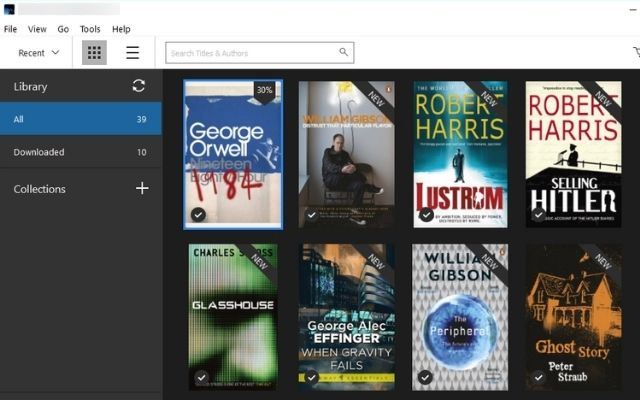
However, the download format is .awz, .awz3, or .mobi which can’t run directly on a smartphone or computer. So, in order to read a Kindle book on these platforms, you need to download it in PDF form.
Now, Kindle doesn’t allow you to download any book directly as a PDF. Rather, you’ll first have to download it with a .azw or .mobi extension and then convert it into PDF using an online tool.
So, first, I’ll go through the two methods to download the book, and then we’ll see 3 free tools to convert it into PDF.
Before we move on, remember to not share these PDFs with others as it is not legal to do so.
How to Download a Book from Kindle
Using the Kindle App
- Open the Kindle app on your PC or mobile device.
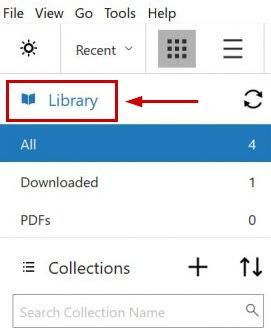
- Tap or click on Library .
- On mobile, tap on the book cover that you want to download.
- On the desktop, double-click on the book cover that you want to download.
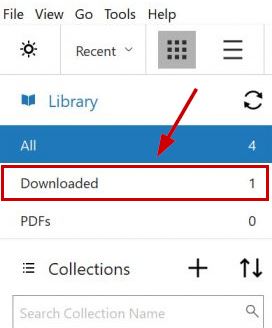
- Once the download finishes, the books will appear in the Downloads section of your library.
- Visit the Amazon website .
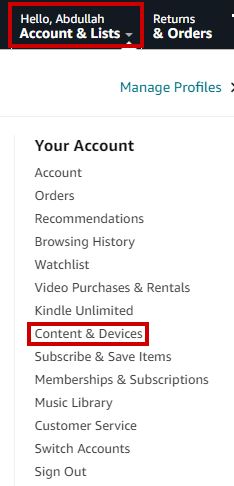
- Click on Accounts & List and select Content and Devices from the drop-down menu.
- Click on the three-horizontal-dotted menu beside the book or click on More Actions .

- Click on Download & Transfer via USB .
- Select your Kindle device in the next window.
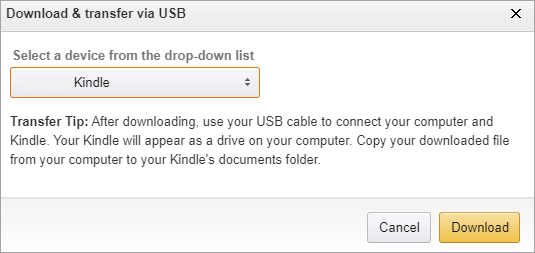
Note: If you don’t have a Kindle device, then this window shows up.
- Click on Download.
How to Convert Kindle Books to PDF Using Free Tools
Once you have downloaded the Kindle book, it’s time to convert it and download it as a PDF .
There are multiple online websites that will make your job easier. Here, I will give a short overview of the best ones.
1. Using Zamzar
Zamzar can convert multiple documents, e-books, images, videos, and sounds at once. Moreover, it supports more than 1100 formats. So, converting from .azw or .mobi to pdf won’t be an issue.
- Go to Zamzar.com .
- Click on Choose Files and select the book that you want to convert.
- Click on Convert To and select PDF under document formats.
- Click on Convert Now .
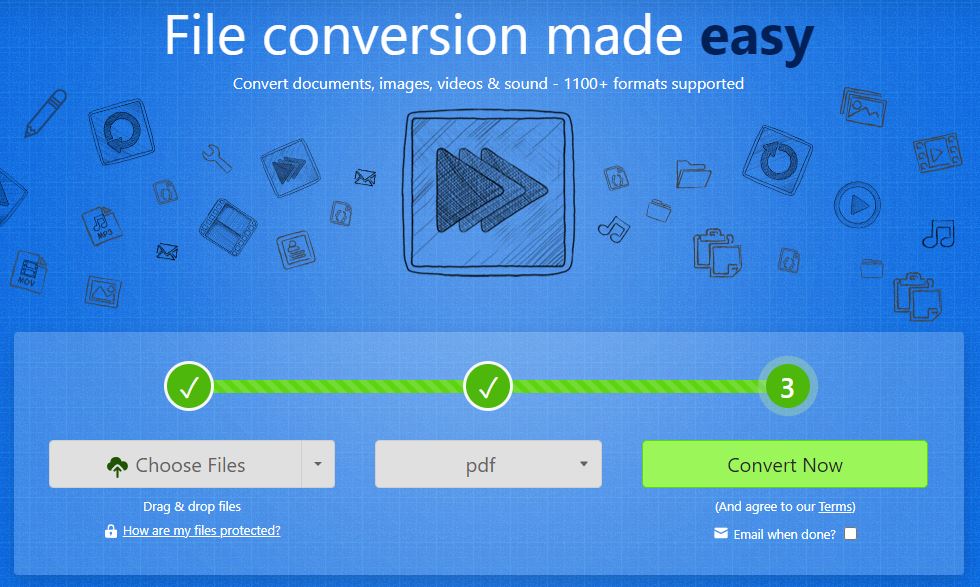
- Once done, click on Download , and the PDF will download in a matter of seconds.
2. Using Calibre
Calibre doesn’t only help you convert the e-book to PDF; it also helps with backing up and sharing your library. It is a dedicated ebook downloader and a comprehensive e-book viewer.
Having said that, it is not an online tool, so you’ll have to download it to your system.
- Go to the Calibre website and click on Download Calibre .
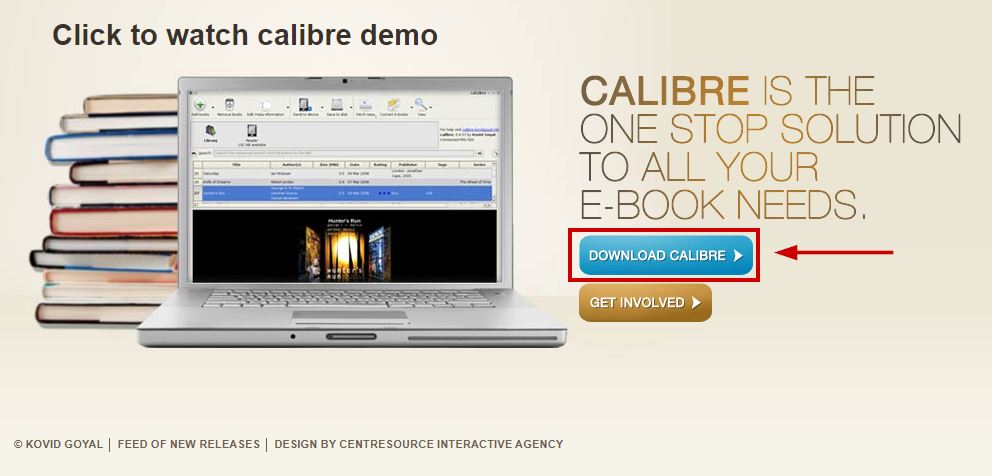
- Select your system and start the download.
- Now install the software on your computer or mobile device.
- Once done, open Calibre and select the Add books option.
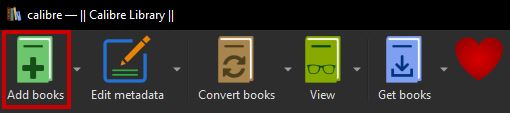
- Select the book that you want to add.
- Once added, click on the book .
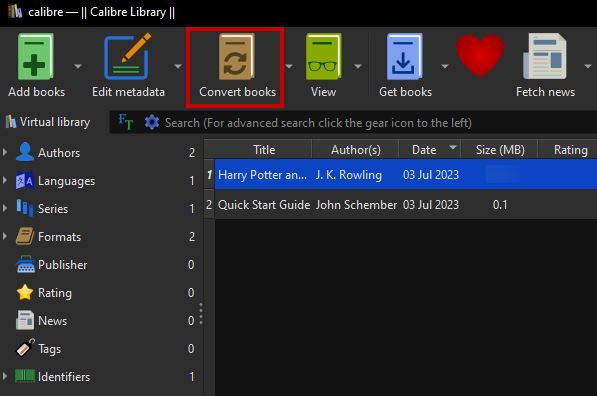
- Now select the Convert books option.
- Select PDF as the output format on the left-side menu.
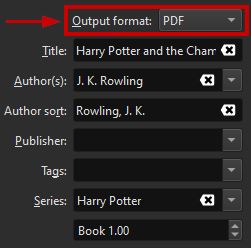
- Click OK to begin the conversion.
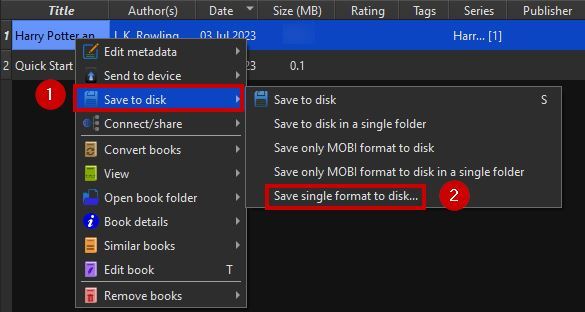
- After it completes, right-click on the book and click on Save to disk > Save single format to disk .
- Select PDF as the format.
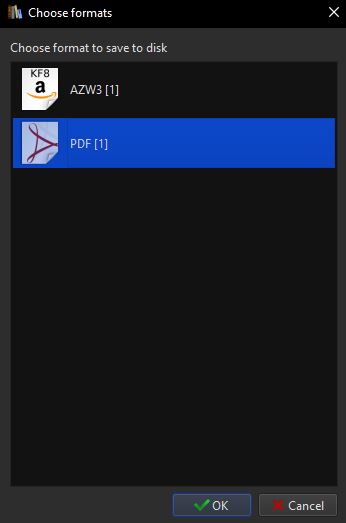
- Lastly, select the location to save the file and click OK.
3. Using CloudConvert
CloudConvert supports the conversion of e-books, images, videos, presentations, spreadsheets, and more across 200+ formats. You can easily download a Kindle book in PDF form here.
- Go to CloudConvert .
- Click on Select File and choose the e-book.
- Now select PDF after clicking on the drop-down arrow beside “to” .
- Once done, click on Convert .
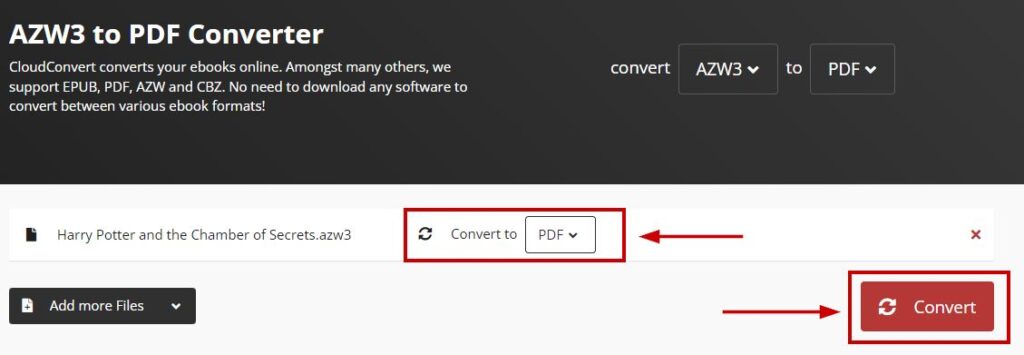
- Finally, click on Download after the conversion completes.
