Amazon recently updated their Alexa and Echo systems to only be able to connect to Wi-Fi with the app. Some users might still be able to use the old method but for most, an app is now seemingly necessary.
Why Does Alexa Need Wi-Fi?
Connecting Alexa to Wi-Fi How to Connect Alexa to Wi-Fi Without Using the App How to Connect Alexa to Wi-Fi with the App
Conclusion
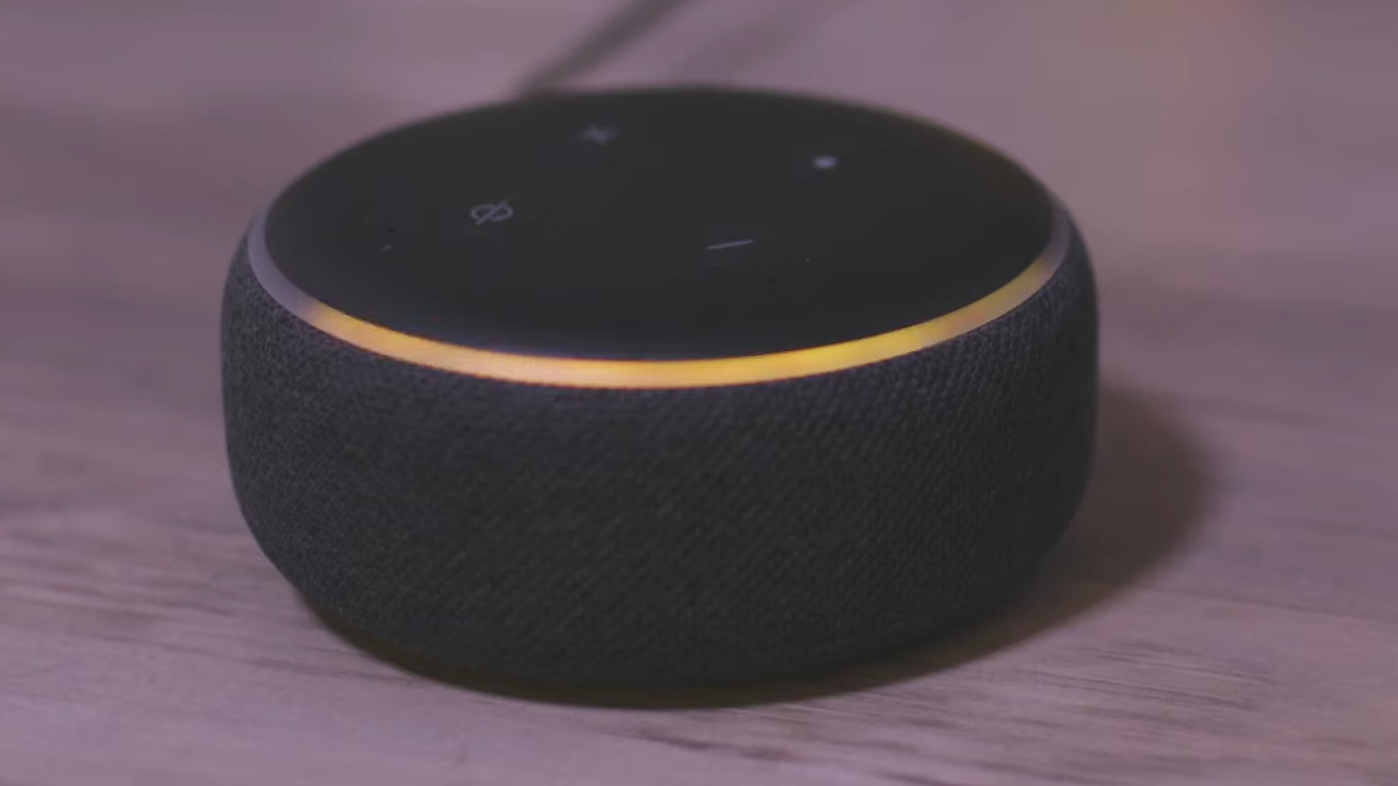
Alexa Orange Ring Light
Why Does Alexa Need Wi-Fi?
Connecting Alexa to Wi-Fi
How to Connect Alexa to Wi-Fi Without Using the App
There are various reasons for wanting to set up Alexa without the app. Perhaps you don’t have access to a smartphone, or maybe you prefer using a computer. Regardless, here are the steps for connecting Alexa to Wi-Fi without using the app.
Be wary that this method is outdated and might not work correctly, if not entirely. If that is the case, then move on to our section explaining how to connect Alexa to Wi-Fi with the app.
- Open a browser on your device and head over to Alexa.Amazon.com . Amazon Alexa Login Page
- Log in using your Amazon account credentials. If you do not have an Amazon account, you can easily create one at the bottom of the page.
- After logging in, click on “ Settings “. This option will be available in the left-hand sidebar.
- Click on “ Set up a new device .” Alexa Setup A New Device
- Here, you can select the Alexa device you want to set up on your Wi-Fi network.
- Choose the device you own and press on “ Continue .” Setup Alexa Device
- Now, you must plug your Alexa device into a power source to turn it on.
- After turning it on, please wait for the right light to turn orange . The orange light means it is ready to connect to the internet. Alexa Orange Ring Light
- Now, you must connect your system to the Wi-Fi with the SSID being Amazon-XXX without closing your browser. When connecting to the “Amazon-XXX” Wi-Fi, it’s the setup mode for Alexa devices. It acts as a bridge between the device and your browser or app, allowing you to provide your actual Wi-Fi credentials for Alexa to use.
- After connecting to Amazon Wi-Fi, open your browser again and click on “ Continue .” Now, you will be able to see “ Your computer is connected ” to your Alexa device.
- Now, select the Wi-Fi network you want your Alexa to be connected to.
- Enter your Wi-Fi password so that Alexa can connect to it and click “ Connect .”
- Finally, your Alexa will soon be connected to the Wi-Fi network. Wait for a few minutes, and then test the connection by asking Alexa a question.
After these steps, your Alexa device will have internet access and be able to solve all of your queries.
How to Connect Alexa to Wi-Fi with the App
- Download and install the Amazon Alexa app on your smartphone. Play Store App Store .
- Open the Amazon Alexa app and tap on “ Devices ,” you will see this option in the bottom-right corner of your screen.
- Now, tap on the + in the top-right corner and select “ Add Device .” Add a device
- Select “ Amazon Echo ” from the list that pops up, then select your specific Echo device from the next list. Select Amazon Echo Select your Echo device You might be asked for location and Bluetooth permissions, so allow those.
- Next, it will show you a screen asking if your Echo device is turned on and in pairing mode—pulsing with an orange light . After you’ve turned it on, select Yes if it’s showing the orange light or No if it’s not. If you select No, it will show you on-screen instructions to pair it, otherwise it will start searching for Echo devices nearby if you select Yes.
- After the searching is complete, select your Echo device from the list.
- Next, choose your Wi-Fi network from the list of available networks, enter the Wi-Fi details and wait for it to connect .
- Congratulations! Your Amazon Echo device is now connected to Wi-Fi. Continue with the on-screen instructions and start using Alexa when setup is finished.
If you’re having issues connecting your Alexa to Wi-Fi because the light isn’t turning orange, check out our detailed guide on how to troubleshoot Alexa flashing yellow and green .
Conclusion
Connecting Alexa to Wi-Fi is no biggie. You can accomplish this with or without the app, ensuring your Alexa device is ready to respond to your commands, play music, provide weather updates, and more without needing a mobile application.
Yes, each Alexa device needs to be set up individually to ensure it connects to your Wi-Fi network and operates correctly.
Yes, you can use a mobile hotspot to set up Alexa. Ensure your hotspot has a stable internet connection and follow the same steps for connecting to a WiFi network.
