- There is iCloud for iOS and direct connections for Android to transfer selected apps, contacts, and files to a new phone.
- Consider safer options like “Copy My Data” or manufacturer-specific apps such as Samsung’s Smart Switch for comprehensive data transfers, although cloning carries security risks.
- Use “Move to iOS” for transferring data from Android to iOS securely; transferring from iOS to Android involves specific cables and more complex steps.
If you’re switching to a new device, you’ll likely need to transfer important apps and data from your old phone. This process can sometimes be challenging and so, this guide will go in detail to highlight a few native and third-party apps to clone your phone , both for Android and iOS devices.
- How Does Your Phone’s Storage Work?
- What is Phone Cloning?
- Migrating Apps, Contacts and Files to a New Device (Android & iOS) ↪ On Android ↪ On iOS (iPhone / iPad) ↪ The Issue with Native Methodology
- How to Clone a Phone? Step 1: Take a Backup of All Important Files Step 2: Set-up “Copy My Data” on Both Phones Step 3: Allow Permissions for Accessing On-Device Data Step 4: Choose a Convenient Transfer Method Step 5: Search for Nearby Devices and Start Transferring
- Other Methods to Clone a Phone 1. OEM Cloning Apps 2. Move to iOS (Android to iOS) Bonus: Switch from an iPhone to Android
- Conclusion
How Does Your Phone’s Storage Work?
All phones come with some sort of internal storage , typically flash memory like eMMC or UFS , usually set by the manufacturer. For modern-day smartphones, this storage ranges anywhere from 64GB to 1TB . In most smartphones, this internal storage is almost as much as you might get in terms of physical, non-expandable memory.
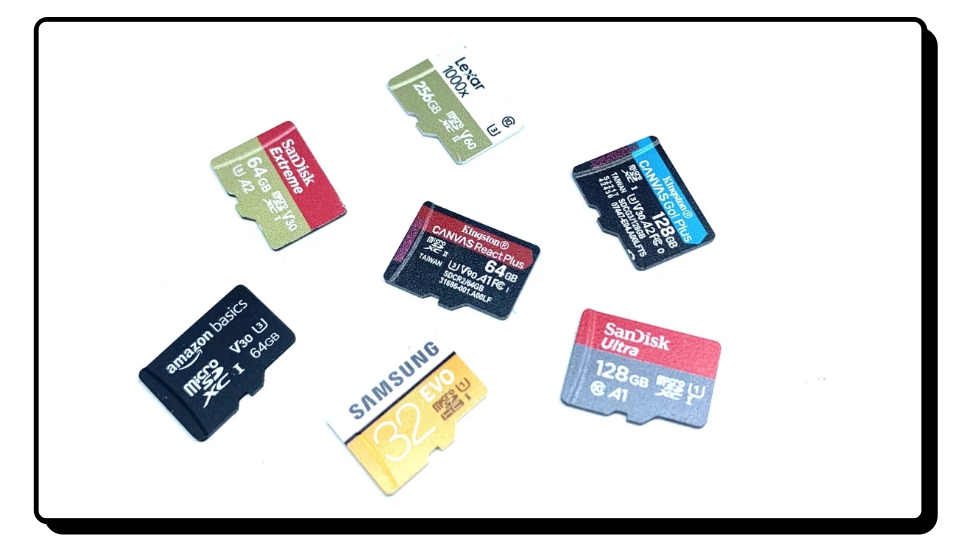
microSD card slots are becoming a thing of the past in smartphones
Not too long ago, microSD cards were used as a means of expandable storage in most smartphones. However, modern devices have started phasing them out, offering no physical alternative for expansion. Manufacturers are instead pushing for cloud solutions , which often comes with limitations and essentially forces the buyer to switch to a subscription-based plan to “buy out” cloud storage.
What is Phone Cloning?
On a basic level, phone cloning refers to copying not only a phone’s data, but also its unique identifiers (e.g. ESM, MEID), to another device. While some apps claim to achieve this complete cloning, it’s often not possible due to legal restrictions . These apps can be a serious security threat to your data, so it’s best to avoid them.
It’s important to distinguish this from simply copying apps or preferences to a new device, which is a native function supported by both major mobile operating systems ( Android & iOS ).
Migrating Apps, Contacts and Files to a New Device (Android & iOS)
For anyone looking to move to a new phone, transferring data is an important step, but the procedure for doing so may vary across devices and operating systems .
↪ On Android
For Android phones , you have the option to connect your old device to the new one during the initial setup, either wirelessly or wired, and select important data to transfer to your new device. You can do so by:
- Turn on your new phone.
- During the initial set-up, follow the on-screen instructions and connect your old phone to the new one .
- Select the apps and data to copy.
- The data will be transferred over to the new device.

Restoring Apps & Data on a new Android device
↪ On iOS (iPhone / iPad)
On iOS , the same procedure can be repeated via iCloud . However, for both of these platforms, users do have the option to store their data online via cloud storage .
- Turn on your new iPhone / iPad .
- Follow the on-screen instructions and connect to a Wi-Fi network .
- Add your existing Apple ID .
- Tap “ Restore from iCloud Backup. “

Restoring Apps & Data on a new iOS device
↪ The Issue with Native Methodology
The general pattern on each of these platforms (as seen above) is that they transfer selective data only, which may not be ideal for someone who doesn’t want to put in a lot of thought into selecting data to transfer.
In such cases, it is recommended to clone your phone to carry over all of your data to your new device, without having to think about what files to keep and what to let go of. While this procedure itself has a lot of caveats, it can give the user a lot of control and peace of mind.
How to Clone a Phone?
In this guide, we will be looking at a few third-party services that relatively lie in the safe zone of cloning a device legally, and have generally positive reviews (at the time of this writing). Since there is no native method for doing so, these apps will make do, somewhat.

Step 1: Take a Backup of All Important Files
Before cloning your phone, the most important step is to back up your data. Ideally, you should move all sensitive and important information off your phone and onto a more secure location, such as an external SSD or cloud storage . Many storage services, like Google Drive and OneDrive offer ample free space for storing important data.
For the backup, try to connect your phone to your PC and copy all files there so that if something goes wrong, you won’t have to worry about losing your data. We also have a detailed guide on different ways of taking backups, if you want to check that out.
Step 2: Set-up “Copy My Data” on Both Phones
To use the app, you’ll need to set up your new device first. Then, install the Copy My Data app on it. The good news is that the app works on both Android and iOS , so you can transfer your data between different operating systems too.
On your old device, download and set up the same Copy My Data app. This allows the app to identify a nearby device waiting to receive your data .
- Download and install “ Copy My Data ” on both devices.
- Open the app on your older device and select “ Transfer Now .
Step 3: Allow Permissions for Accessing On-Device Data
The next step is to allow permissions for all the different sorts of data present on your device. This includes your contacts, files, images, and calendar events . Keep in mind that allowing permissions to these areas of your phone can be incredibly sensitive and dangerous.
The app does have a decent reputation among users, but there is little to no transparency on whether or not your data is being logged at the backend.

Allowing Permission to Transfer Data
Step 4: Choose a Convenient Transfer Method
The app allows you to either transfer data over the same Wi-Fi network or restore a backup made on Google Drive . In this case, you may choose Wi-Fi so that both devices can pair with one another and share data over the same network.
- Connect both phones to the same Wi-Fi network .
- If either one of the devices is one a different network or is connected to Mobile data, the app wouldn’t be able to find and establish a connection with the other device. Even if you have multiple different devices on the same network, the Copy My Data app needs to be open on both devices .

Choosing a Transfer Method
Step 5: Search for Nearby Devices and Start Transferring
Once a connection is established, the app will search for nearby devices and then prompt you to start the transfer. The whole process might take anywhere from a few minutes to hours, depending on the size of your data and the speed of your Wi-Fi connection .
During the process, it is generally advisable to keep the app open on both phones and check on them from time to time since a poor connection, or even the app going into a passive sleep state, can sometimes halt the transfer process.

Searching Nearby Device to Transfer Data
Other Methods to Clone a Phone
While this app is simply one way to clone your phone, there are many others, which may even suit you better depending on the combination of devices you have to accept or transfer data to.
1. OEM Cloning Apps
Some manufacturers have dedicated phone cloning apps, such as Huawei’s Device Clone , ASUS, OPPO and OnePlus’ Phone Clone , and Samsung’s Smart Switch . In most cases, these apps are not only more convenient but also more popular among users who typically upgrade to a device from the same manufacturer.

Samsung’s Smart Switch (Left) & OnePlus’ Clone Phone (Right)
On the flip side, this is also what makes these apps not suitable for everyone. Apart from being tailored to specific manufacturers, there is no way for users of different devices to use these apps, and their lack of interoperability is sometimes what can make switching to a new device even harder.
2. Move to iOS (Android to iOS)
If you wish to switch to an iOS device from an Android , it can be challenging to do so due to limited data transfer options available. Some data, such as your call logs, messages and WhatsApp content might not be cloned and so there aren’t a lot of ways to do so moving to a different operating system. Thankfully, Apple has this app called “ Move to iOS ” on the Play Store.

Move to iOS
This app lets you securely transfer most of your important data from Android to iOS over a Wi-Fi network. This includes all of your mail accounts , messages history , Camera’s photos and videos , contacts , calendars , messages and even all of your WhatsApp content .
Since Move to iOS is developed by Apple itself, there are almost no “background shady” activities that might be of concern to an average user.
Bonus: Switch from an iPhone to Android
While Apple has its own app available on the Play Store for easy transfers from Android to iPhone, moving out of that ecosystem is a it more tedious. Android does have a solution, but it can be a bit more challenging.

Switching from iOS to Android
- Factory reset your Android phone (Make sure to keep a backup of all you data beforehand).
- Reboot your Android device .
- On the set-up screen, follow the instructions to when it prompts you to connect your phone to an existing device.
- Use a Lightning to Type-C (iPhone 14 series and older) or a Type-C to Type-C (iPhone 15 and newer) to connect both devices.
- Select the data you want to transfer and tap “ Transfer .”
- Selected apps and data will automatically be copied over to your iPhone.
Conclusion
While there are apps that claim to clone your phone’s data, the whole procedure is generally not recommended purely because it carries a lot of risk for something that is easily achievable if you’re willing to give a bit more time to organising and selecting files that are important.
Phone cloning as a tool can easily be used to manipulate or steal important info since the apps that do so have full control over all of your data on your phone.
Although there haven’t been any reported privacy breaches for the apps mentioned below, it’s always advisable to exercise caution. Only transfer data that isn’t highly sensitive. For more important information, it’s best to use more reliable solutions like cloud storage or OEM cloning apps.
While cloning can directly transfer over all your data, it has a number of drawbacks too, in that it can sometimes run into compatibility or stability issues on the new phones, at times even corrupting your data.
Switching from Android to iOS is convenient because you have a dedicated app, “Move to iOS.” Switching from iOS to Android is a bit more tedious, but both procedures are secure and reliable.
How to Fix “Printer is in an error state” Issue?
- Recognizing the importance of a printer’s duty cycle is crucial for choosing a device that matches your print volume needs. Staying within this limit ensures the printer operates efficiently and prolongs its lifespan, minimizing the risk of maintenance issues.
- Proper humidity, temperature, and cleanliness management can significantly enhance printer performance and maintain its duty cycle, preventing unnecessary wear.
- Enhancing a printer with upgrades like additional memory or better mechanical parts can improve its workload handling and extend its practical duty cycle, boosting overall durability and efficiency.
When choosing a new printer, you might come across the term “ duty cycle ” in the specifications. This guide will explain what a duty cycle is, why it matters, and how it can help you choose the right printer. We’ll keep things simple so you can easily understand how to use this information when shopping for a printer.
- Printer Duty Cycle: What It Means and Why It Matters?
- Why the Duty Cycle Is Key to Choosing the Right Printer?
- Duty Cycle vs. Recommended Monthly Print Volume: What’s the Difference?
- What Happens If You Ignore Printer Duty Cycle Recommendations? ↪ Real-World Scenarios: Why Exceeding the Duty Cycle Can Cost You
Printer Duty Cycle: What It Means and Why It Matters?

What is the meaning of Printer Duty Cycle?
The printer duty cycle represents the upper limit of a printer’s capacity—how many pages it can reliably process in a month before the risk of wear or malfunction increases. This figure is crucial for understanding printer performance limits and ensuring that your chosen printer can handle the expected work volume.
Manufacturers determine a printer’s duty cycle through stress testing, where the printer is pushed to its limit to identify how many pages it can produce each month before malfunctioning. These tests help set a reliable performance gateway for users.
A printer’s duty cycle is like a car’s speedometer—you wouldn’t drive a car at top speed all the time, and you shouldn’t push a printer to its maximum duty cycle. Doing so can lead to quicker wear and tear, more frequent maintenance, and a shorter lifespan.
If you’re unsure whether to choose an inkjet or laser printer, this detailed guide compares both options to help you make an informed decision.
Why the Duty Cycle Is Key to Choosing the Right Printer?

The Importance of Duty Cycle in printer selection
Knowing the duty cycle is essential when choosing a printer, as it determines how well the device can handle your monthly print volume without excessive wear or maintenance.
Here is why the duty cycle matters in printer selection:
- Fit for purpose: Selecting a printer with a suitable duty cycle ensures it can handle your monthly printing volume efficiently, reducing stress on its components.
- Longer lifespan and better performance: Staying within the duty cycle ensures optimal print quality and speed while prolonging the printer’s life, avoiding frequent breakdowns.
- Cost efficiency and reduced downtime: Operating within the duty cycle minimizes the need for repairs and reduces operational disruptions, managing long-term costs.
Duty Cycle vs. Recommended Monthly Print Volume: What’s the Difference?

Duty Cycle vs. recommended monthly print volume
The recommended monthly print volume is the optimal number of pages a printer should handle each month for the best performance and longevity. Unlike the maximum capacity indicated by the duty cycle, this number guides regular usage, ensuring the printer operates efficiently without excessive wear.
If your print volume regularly exceeds the recommended amount but stays within the duty cycle, the printer may operate safely in the short term, but it could still experience accelerated wear and reduced lifespan over time.
In such cases, consider upgrading to a higher-capacity printer or spreading print jobs across multiple devices to ensure long-term performance.
Here are the differences between the duty cycle and recommended monthly print volume:
- Duty cycle: Represents the maximum number of pages a printer can handle in a month without breaking down. It assesses the printer’s upper limit.
- Recommended monthly print volume: Suggests a practical, workable number of pages to print each month to keep the printer in good condition over its lifespan.
What Happens If You Ignore Printer Duty Cycle Recommendations?

Consequences of ignoring Duty Cycle recommendations |AndranikHakobyan via Canva
Ignoring the duty cycle limits poses more severe risks than exceeding the recommended monthly print volume, leading to serious long-term consequences.
While exceeding the recommended volume occasionally may result in additional wear and tear, consistently exceeding the duty cycle can lead to frequent breakdowns, reduced performance, and a shortened lifespan.
Ignoring duty cycle limits leads to frequent breakdowns, reduced performance, and increased maintenance, ultimately shortening the printer’s lifespan and causing more frequent operational downtime and higher repair costs. Long-term, pushing a printer beyond its limits leads to greater financial burdens due to premature replacements and inefficiencies.
↪ Real-World Scenarios: Why Exceeding the Duty Cycle Can Cost You
For example, in a busy law firm, overlooking duty cycle limits during a high-stakes period could cause a printer breakdown just before a critical deadline, delaying crucial legal filings and ultimately compromising client service.
For small businesses, consistently exceeding a printer’s duty cycle can lead to costly emergency repairs or premature equipment replacements, straining financial resources.
