The error “Windows cannot locate a suitable print driver” is usually encountered when users try to install a wireless/wired printer for the first time or they are trying to share it over a local network. As it turns out, this particular issue is quite common when trying to share a printer between two or more computers that have different Windows bit versions (x86 vs x64 or vice versa).

Note: This error can be accompanied by a lot of different error codes.
If you’re currently struggling with this issue, we have a few potential fixes that might just solve the problem. Below you have a collection of steps that have successfully helped some users to resolve the issue. We are going to start by making sure you’re using the correct printer driver, then change the share permissions of the guest PCs (if necessary). At last, we’re going to share the printer over a local network – this last step has a difference in procedure, depending on the Windows architecture version of the host. Please follow each step in order for the best results.
Note: This article is tailored towards helping those looking to share a printer from a host computer to other computers connected to the same local network. If you are recieving this error when installing your printer for the first time on one computer, following Step 3 will not resolve your issue. If the first two methods aren’t helpful, continue troubleshooting with the other in-depth articles about printer installation ( 0x00000057 , 0x000003eb and printer driver package cannot be installed ).
Step 1: Installing the latest printer driver
Windows Update (WU) is not that efficient when it has to download the latest driver version available. The error “Windows cannot locate a suitable print driver” can sometimes be displayed because the printer driver that is currently installed is not compatible with your Windows version or it’s simply outdated. This creates compatibility problems down the line if you ever try to share the printer over a network.
Follow the steps down below to uninstall your current printer (if you have one) driver from Device and Printers and download the latest version from the manufacturer’s website:
Note: The vast majority of printers will not show up in Device Manager , so don’t try to uninstall the driver from there. If you didn’t install a driver for your printer, skip the uninstallation part and start this method straight with step 3.
- Press Windows key + R to open a Run window. Type “ control /name Microsoft.DevicesAndPrinters ” and hit Enter to open Device and Printers.
- Once there, simply right-click your driver and choose Remove device (under Printers ) . Only when the driver is uninstalled, move to the step below.
- Navigate to your manufacturer’s website and download the latest driver version related to your Windows version. Note: Do not worry too much if you don’t manage to find a driver version tailored for your Windows version. Simply download the most recent version and refer to the next Note paragraph for instructions.
- Install the driver from the installation package you’ve just downloaded and reboot your PC. Note: If your printer is quite old, chances are you’ll receive the “ Driver is not compatible with your Windows version ” or something similar when trying to open the installation packages. If this happens, right-click the executable, go to Compatibility , check the box next to Run this program in compatibility mode and select an older Windows version (preferably a compatible version mentioned in the driver’s description). Keep in mind that this is not guaranteed to work with all printers.
Once you’re certain you have the latest printer version, move to Step 2.
Step 2: Making the necessary share permissions changes
Now that we’ve eliminated the possibility of a faulty driver, let’s see if you have the necessary share permissions. One of the most common culprits that will trigger the “Windows cannot locate a suitable print driver” error is when your printer is not shared correctly on the local area network. If you get the error message while configuring your printer to be shared in your local network connection, the steps below will help.
To make sure the error is not happening because of a technicality, we’ll need to make some mandatory share permissions changes on the computer that is hosting the printer. Once we got that going, we’ll need to enable network discovery and turn on file and printer sharing . Here’s a quick guide through the whole thing:
- Press Windows key + R to open a Run window. Type “ control /name Microsoft.DevicesAndPrinters ” and hit Enter to open Device and Printers.
- Right-click on your printer and choose Properties (Printer Properties) .
- In Printers Properties , navigate to the Sharing tab and click on Change Sharing Options . Then check the box next to Share this printer and give it a suggestive name (preferably short). Hit Apply to confirm the changes and close the printer’s Properties window.
- Press Windows key + R again to open another Run window. Type or paste “ control /name Microsoft.NetworkAndSharingCenter ” in the Run box and hit Enter to open Network and Sharing Center.
- In the Network and Sharing Center , click on Change advanced sharing settings .
- In Advanced sharing settings, enable Turn on network discovery and make sure the box next to Turn on automatic setup of network connected devices is checked. Then, scroll down to File and printer sharing and enable Turn on file and printer sharing. Finally, make sure you save the changes by clicking the Save changes button.
Note: If you’re trying to share the printer on a local network, you’ll need to repeat this step on every computer that is supposed to access the printer.
Now that you have correctly configured the share permissions, check to see if the issue has been resolved. If you’re still prevented to install it by the same ” “Windows cannot locate a suitable print driver” error, move down to Step 3.
Step 3: Sharing the printer over a local network
Once you’ve successfully followed the first two steps, reboot your computer, unplug your printer and see whether you’re still greeted by the “Windows cannot locate a suitable print driver” error when trying to share a printer. If it still appears, continue with the instructions below.
Sharing a network printer that is being hosted by a 32-bit computer with other 32-bit computers is fairly easy. The same goes for two or more 64-bit computers. To do this, recreate the following procedure on the computers that benefit from the shared printer – Open a Run command ( Windows key + R ), type “ control /name Microsoft.DevicesAndPrinters” and hit Enter to open Devices and Printers .

Once there, simply click on Add a printer > Add a network printer and follow the on-screen prompts to make the printer available on the guest computer/s. Once the installation is complete, the printer should become available for the guest PC.

But despite this apparent simplicity, sharing a printer hosted by a 32-bit PC with another or more 64-bit PC is counter-intuitive. The same goes for 64-bit host shared with 32-bit PC/s. As you can imagine, using the method above will not work. If you are in a situation like this, follow the steps below to retrieve and use the name of your host computer and the name of your printer:
Note: The first 5 steps of this method are performed on the computer that is acting as the printer’s host.
- Press Windows key + R to open a Run window. Type “ sysdm.cpl ” and hit Enter to open System Properties.
- In System Properties , go to the Computer Name tab and click the Change (Change name) button. Now write down or copy your Computer Name and close the System Properties window.
- Press Windows key + R to open a Run window. Then, type “ control /name Microsoft.DevicesAndPrinters ” and hit Enter to open Device and Printers.
- In the Devices and Printers window, right-click on your printer and choose Properties. Then, navigate to the Sharing tab and write down or copy your printer’s name next to Share name. Note: Once you retrieved both the PC and the printer’s name, move to the computer that is on the receiving end.
- Press Windows key + R to open a Run window. Type “ control /name Microsoft.DevicesAndPrinters ” and hit Enter to open Device and Printers.
- In Devices and Printers, click on Add a Printer , then click on Add a local printer .
- When prompted to choose a printer port, click on Create a new port and select Local Port as Type of port. Then, hit Next to advance.
- When prompted to find a printer by name or TCP/IP address, choose to Select a shared printer by name . Then, enter the correct names in the box below – the syntax should look like this: \Computer name\printer name. Use the names that we previously retrieved while paying attention to use the correct format and hit Ok.
- After a few brief moments, you will be presented with a new Add New hardware process. Follow the next on-screen prompts to complete your printer installation on the second computer. Note: If you have multiple computers that will use the printer, repeat steps 5 to 9 on each of them.
How to Fix “Printer is in an error state” Issue?
Error 0x00000057 is a printer-related error on Windows that prevents the user from adding the printer. This error is usually caused by corrupted drivers previously installed and permission issues. Therefore, when you attempt to add the printer, it installs but does not add the printer due to the corrupted files in the DriverStore.
I have listed two methods in this guide that have worked for me in the past. The 1st method involves deleting the driver, while the second method requires copying the driver from a working computer. If Method 1 works for you, then you do not need to proceed with Method 2.
Method 1: Printing Server Properties.
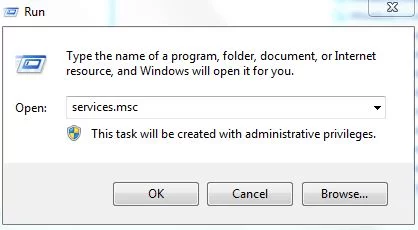
Hold the Windows key and press ‘R’.
In the Run dialog, type “services.msc” and click “OK .
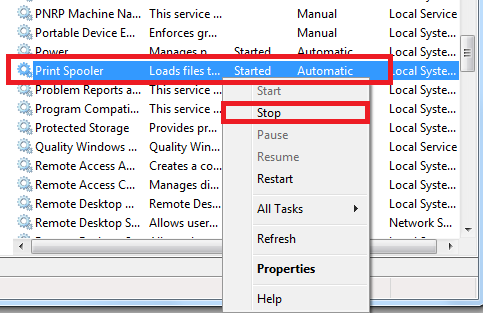
- Locate the “Print Spooler” service, right-click on it, and select “Stop.
- Once it has stopped, hold the Windows key and press R again. In the Run dialog, type:”.
printui.exe /s /t2
Click OK.
Look under the ‘Name’ field here for your printer that is causing issues, click on it and select ‘Remove.’ When asked if you want to delete the driver, choose the appropriate prompts to confirm deletion.
- After this has been removed, go back to the Services Console, right-click the Print Spooler service, and select ‘Start’.
Now, try to re-add or reinstall the printer. If it still doesn’t work, then proceed to Method 2.
Method 2 can be viewed here: Error 0x00005b3 – Although the error number is different, the procedure works for this error as well.
Method 3: Copy the driver directory files from a working machine.
For users attempting to install these drivers on multiple machines, in cases where some installations fail and others succeed, try copying the files from the driver directory of a working machine to one that has failed.
- Go to a machine with an installed and properly working driver. Press the Windows and R keys on your keyboard simultaneously to open the Run .
- Type in “ regedit ,” and either press Enter or click OK to open the Registry Editor .
- Using the Registry Editor, browse to the following location:
HKEY_LOCAL_MACHINE\System\CurrentControlSet\Control\Print\Environments\Windows NT x86\Drivers\Version-3
- In this folder, find the subkey of the printer driver with which you are having issues. Click it and look for the InfPath in the right pane. Note the path .
- Open My Computer/This PC , navigate to %systemroot%\System32\DriverStore\FileRepository, and find the folder indicated in the InfPath .
- Move over to the computer where you are having problems installing the driver , and go to the aforementioned FileRepository folder to see if the folder is there. If the folder is there but empty, it means that the previous installation failed.
- If this is the case, you will need to take ownership of the folder and grant yourself full control .
- Right-click the folder, choose Properties , and then navigate to the Security .
- Click “Advanced ,” and change the owner at the top. Click “ OK ” to return to the properties .
- Click “Edit ,” and from the “ Group or User Names ,” find your user and check the “ Allow Full Contro l” box in the “ Permissions for Authenticated Users .” Click “ OK .” Close the “ Properties ” window by pressing “ OK
- Once you have ensured the security of the folder, copy its contents from the working machine to the machine displaying the 0x00000057 error.
- You can now try to install the driver again; it should work and not give you any headaches.
There are many instances where you are unable to install the correct driver for your printer into your computer. This error message pops up when Windows is unsuccessful in installing the required printer drivers. There can be many reasons for this issue which we have covered in the article below.
First of all, we would like to cover on how you can add a printer to your computer. Press Windows + S to launch the search bar and type “ Printer ” in the search bar.

Once you have opened the Printer settings, click on “ Add a printer or scanner ”. Now windows will automatically start searching for connected printers either through a cable or in the network. Make sure that your printer is connected properly before going through the detection.

Solution 1: Running the Printer Troubleshooter
Windows has an inbuilt collection of troubleshooters meant to troubleshoot problems in various categories. We can run the printer troubleshooter and check if it detects any problems and fixes them.
- Press Windows + R , type “ control panel ” in the dialogue box and press Enter.
- Type “ troubleshoot ” in the search bar of the control panel at the top right side of the window.

- Select “ Troubleshooting ” heading off the list of results returned.

- Once in the troubleshooting menu, click “ View all ” present on the navigation pane at the left side of the window. Now Windows will populate all the troubleshooters available on your computer.

- Navigate through the options until you find “ Printer ”. Click it.

- Check both the options “ Run as administrator ” and “ Apply repairs automatically ”. These options will ensure that you find maximum problems and the repairs are applied fast as well.

- Follow the on-screen instructions and wait for the troubleshooting to complete.
Solution 2: Stopping the Spooler Service, Deleting Printer Files, and Restarting Service
We can try stopping the Spooler Service from the services window, deleting temporary internet files and restarting the service. It is possible that the drivers couldn’t function properly due to any discrepancy, and restarting the service might fix it.
- Press Windows + R to launch the Run application. Type “ services. msc ” in the dialogue box and press Enter.
- Locate the service “ Print Spooler ” present in the list of services. Double-click it to open its properties. Click the “ Stop ” button present underneath system status and press “ Ok ” to save changes.

- Since we have disabled the service, we can now focus on deleting printer files. Press Windows + E to launch the quick access and click on “ This PC ” present in the left navigation pane.
- Navigate to the following path:
C:\Windows\System32\spool\PRINTERS

Permission might be needed to access the following folder. If prompted, press Continue.
- Once in the folder, delete all the files in the PRINTERS folder and close the window.
- Now navigate back to the Services tab and Start the “ Printer Spooler ” service. Also, remember to keep the startup type as “ Automatic ”.
- Now try installing the drivers for your printer again.
Solution 3: Updating your Printer Drivers Manually and Automatically
We can try updating the Printer driver manually and check if this solves the problem. In order to update it manually, you need to have the driver from the manufacturer’s website. Since there are hundreds of printers out there, it is not feasible for us to list each one of them.
- Press Windows + R to launch the Run Type “ devmgmt.msc ” in the dialogue box and hit Enter. This will launch your computer’s device manager.
- Navigate to all the hardware and right click on your printer hardware and select “ Update driver ”.

- Now Windows will pop a dialogue box asking you which way do you want to update your driver. Select the second option ( Browse my computer for driver software ) and proceed. If you are unable to manually update the drivers, you can also give automatic updating a shot.
Select the driver file you downloaded using the browse button when it appears and update it accordingly.

- Restart your computer and check if the problem gets resolved.
We can also try using Windows Update for it to automatically search for different drivers available online and update it automatically. Windows roll out important updates targeting the bug fixes in the operating system. If you are holding back and not installing the Windows update, we strongly recommend that you do. There are a lot of issues still pending with the OS and Microsoft rolls out frequent updates to target these issues.
- Press Windows + S button to launch your start menu’s search bar. In the dialogue box type “ Windows update ”. Click the first search result which comes forward.

- Once in the update settings, click on the button which says “ Check for updates ”. Now Windows will automatically check for updates available and install them. It may even prompt you for a restart.

- After updating, check if your issue got fixed.
Solution 4: Uninstalling the Printer
If the above methods don’t work, we can try uninstalling the printer and then update it accordingly. Uninstalling the printer removes all data related to the printer from your computer so you can install it from scratch.
- Press Windows + R to launch the Run Type “ devmgmt.msc ” in the dialogue box and hit Enter. This will launch your computer’s device manager.
- Navigate to all the hardware and right click on your printer hardware and select “ Uninstall Device ”.

- After the device has been uninstalled, try following the driver update steps present in solution 3 and add your printer using the method listed at the top of the article.
Note: If your computer doesn’t detect the printer on your network, try resetting your router and reconnecting both, your computer and your printer. You should always as a precaution, restart your router every once in a while to avoid problems like these.
Solution 5: Changing Printer Connection Port
You should try changing the printer’s port from LPT1 to USB001. Although this is an insignificant change, sometimes it does the trick. Also if you are trying to access and install the printer using a network, you should connect it manually to your computer and then try installing using the steps mentioned. For first-timers, it is often necessary that the printer gets a wired connection to your computer in order to configure the settings. Once the printer has been detected and installed successfully, head over to your devices, right-click on the printer and mark it as default.
